 Teacher's Community
  Support


Classroom Display Setup: A Complete Guide for IT Admins
- Oct 8, 2026
Classroom Display Setup: A Complete Guide for IT Admins


Creating an effective classroom setup involves more than just mounting an interactive display.
Pairing the display with the right accessories and tools helps ensure that students, teachers and IT admins can all get the most out of these solutions.
This guide walks through what a complete classroom setup looks like, when to upgrade versus replace existing hardware and how ViewSonic® ViewBoard® interactive displays and accessories work together to keep lessons moving.
What a Complete Classroom Display Setup Includes
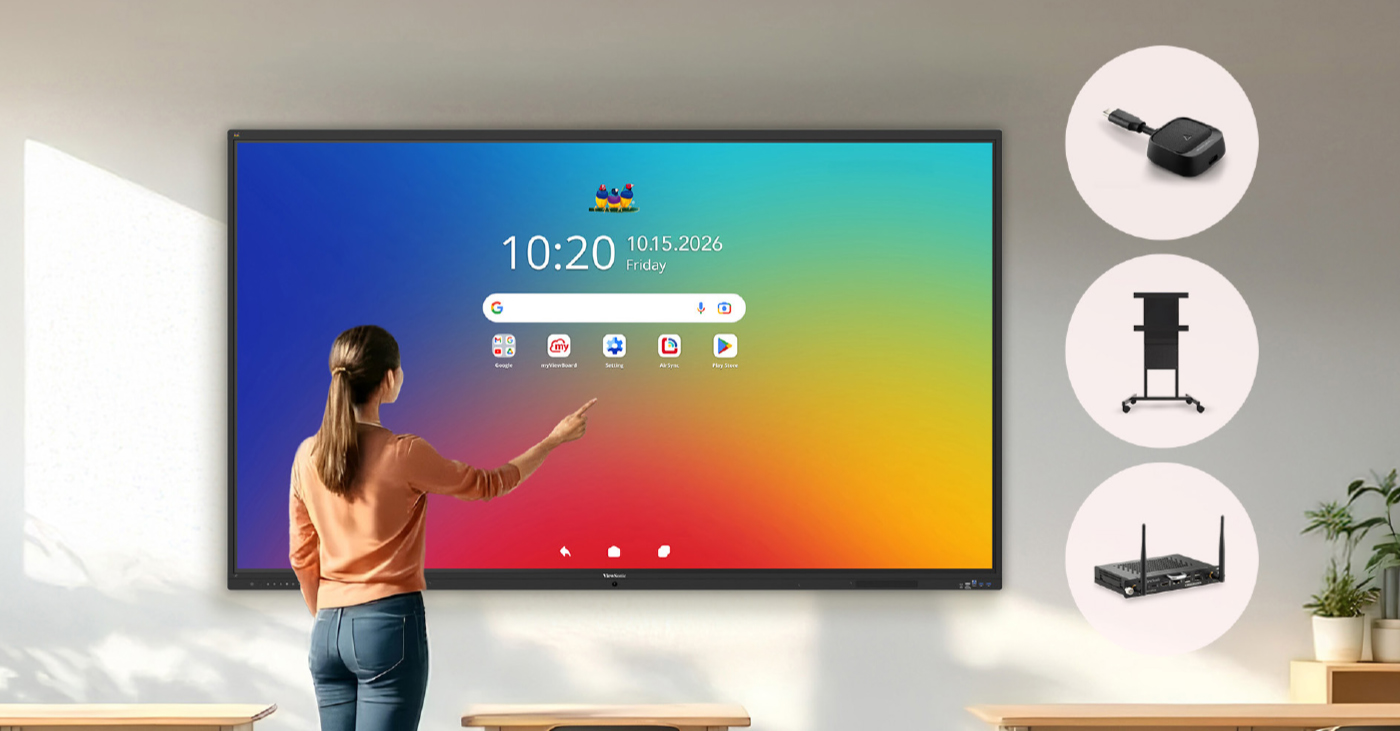
A standalone display is just one piece of the puzzle. A fully functional classroom setup relies on three key components:
- Mounting Solutions: Fixed wall mounts keep displays in place, while mobile carts let one unit move between rooms for greater flexibility.
- Slot-In PCs: Compact computer modules can help upgrade processing power or add a secondary operating system without replacing the display.
- Wireless Casting: Solutions like the ViewShare™ WPD-900 and WPD-900E wireless presentation systems enable plug-and-play screen sharing with no apps or network credentials needed.
When to Replace vs. Upgrade
Deciding whether to replace or upgrade your tech starts with assessing your existing hardware.
Replacing involves swapping out old equipment for a brand-new display. Upgrading lets you add targeted accessories, like a slot-in PC, to give an active display extra computing power without doing a full replacement.
The right choice for your classrooms depends on the state of your current gear:
- Interactive Displays: Not every classroom needs a new panel every year. Apply the five-year rule: start planning a refresh at year five before issues can start to pop up. ViewSonic ViewBoard® interactive displays include a three-year standard warranty with options for up to seven years of coverage.
- Legacy Projectors: Once a projector reaches a decade of service, switching to an interactive display often becomes the more economical choice, with less upkeep required.
The IFP41 Series of ViewBoard Interactive Displays
Featuring Android 16 EDLA certification, the IFP41 series of interactive displays comes with the Google Play Store, Google Play Services and Google Play Protect built in.
IT teams can deploy approved apps from the Google Play Store and enforce app security policies through Google Play Protect, while teachers enjoy seamless single sign-on for Google Workspace and Microsoft 365.
Mounts and Carts
Choosing between a wall mount and a mobile cart comes down to room layout and budget flexibility.
Fixed wall mounts are best for permanent classroom installations because they help save floor space. Mobile carts allow a single display to roll between classrooms, libraries or gyms, providing greater flexibility and maximizing hardware usage across a school.
ViewSonic mounts and carts feature smooth height adjustment designed to make displays more accessible, so they can be reached by users whether they’re standing or seated.
The e-Box® motorized mount, developed with partner BalanceBox, includes built-in anti-collision technology that automatically stops and reverses movement if it senses an obstacle during adjustment.
Slot-In PCs: Extend Hardware Lifespan for Less
Slot-in PCs offer a cost-effective alternative to replacing hardware. Instead of budgeting for a complete replacement, IT teams can simply swap in a new unit to make an older display faster and more responsive.
For newer installations, these add-ons bring operational versatility. If a school requires Windows or ChromeOS alongside native Android, a slot-in PC creates a dual-OS environment that lets teachers easily switch between different operating systems.
Cable-Free Casting with ViewSonic’s Wireless Presentation Systems
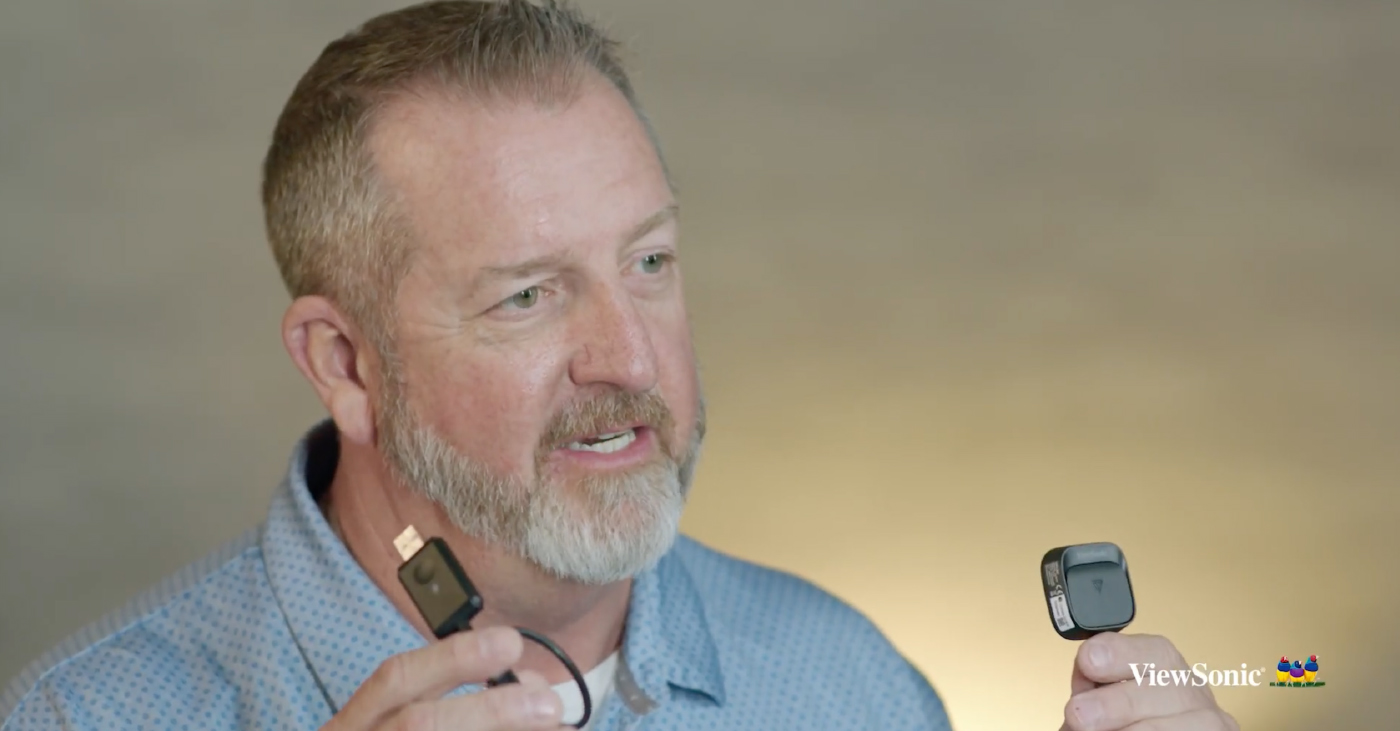
The ViewShare WPD-900 wireless presentation system provides a seamless casting experience for laptops, tablets or smartphones. Users can plug in the transmitter for plug-and-play screen sharing without needing to download apps or ask for the Wi-Fi password.
For classrooms requiring strict access control, the WPD-900E disables AirPlay and Miracast by default, keeping casting restricted to the physical transmitter dongle unless IT re-enables them. This gives instructors complete control of what shows up on screen and prevents unauthorized takeovers.
Streamline Your Classroom Technology
Getting a classroom display setup right the first time can help save time, money and IT resources. Whether your team is planning a full replacement or adding accessories to extend current deployment lifespans, ViewSonic can help design the complete, unified setup your classrooms need.
Contact ViewSonic sales today to find the complete classroom setup for your district.
Contact Us
Watch the full session: Interactive Displays in Action: The Complete Classroom Setup with Accessories.
Frequently Asked Questions
What is a classroom display setup? A classroom display setup is the complete hardware setup required to run an interactive display. This includes the panel, mounting hardware and optional accessories like slot-in PCs or wireless casting devices.
How do I know when to replace an interactive display? Follow the five-year rule. Start planning a hardware refresh around the five-year mark to ensure enough budget is allocated before any issues arise. ViewSonic ViewBoard displays carry a three-year standard warranty, with up to seven years of optional coverage available.
What is a slot-in PC and do I need one? A slot-in PC is a compact computer module that plugs directly into a ViewSonic display, adding dedicated computing power. It’s recommended for schools that need to run a second operating system, such as Windows or ChromeOS alongside native Android, or if an IT team wants to boost display performance without replacing the entire display.
Can IT admins manage ViewSonic displays through Google Admin Console? Yes, for app and user policy management. The IFP41 series of ViewBoard interactive displays features Android EDLA certification, so IT staff can use Google Admin Console to deploy Play Store apps, enforce security rules and manage single sign-on credentials. For tasks like remote firmware updates and display settings, IT admins can use device management tools like ViewSonic Manager or Manager Advanced.
What is the difference between the WPD-900 and WPD-900E wireless presentation systems? Both enable instant plug-and-play screen sharing via a compact USB dongle. The WPD-900 also supports native AirPlay and Miracast protocols for flexible device casting. The WPD-900E disables AirPlay and Miracast by default, restricting screen sharing to the physical dongle to prevent unauthorized casting in strict classroom environments.


Login and Registration Form