Education
Business
Consumer

Monitors

ViewSonic Modernizes the Technology Infrastructure of One of Mexico’s Leading Pharmacy Chains

SOLUTION BRIEF

ViewSonic Modernizes the Technology Infrastructure of One of Mexico’s Leading Pharmacy Chains

CHALLENGE

One of Mexico’s leading pharmacy chains was undergoing an expansion and modernization of its technology infrastructure, with the need to standardize equipment across both corporate offices and branch locations to improve operations, customer service, and the experience at points of sale.

SOLUTION

The deployment used three ViewSonic monitor lines, each matched to the work happening in that part of the business.

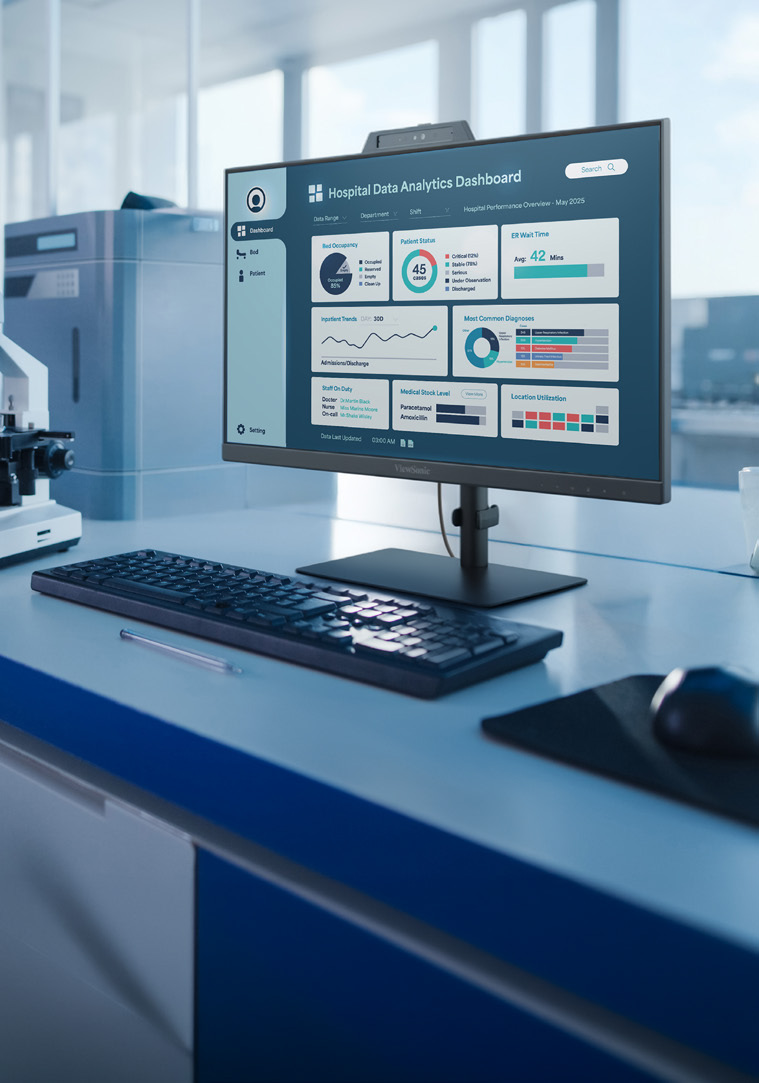
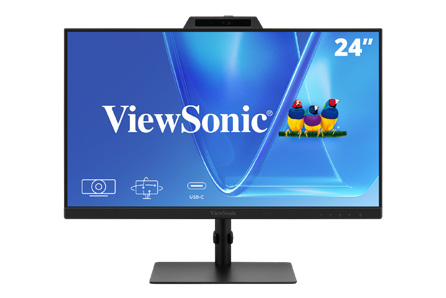
VG2441V monitors equip workstations in the corporate offices. The VG2441V is built for people at a desk all day, with a fully adjustable ergonomic stand and a built-in camera for video calls.

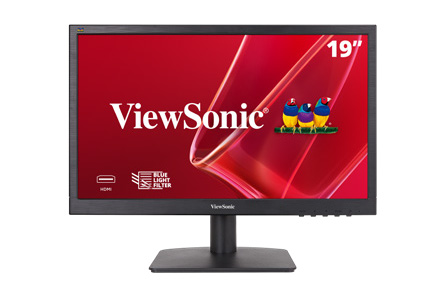
VA1903H monitors run the price lookup and verification stations inside the pharmacies. The VA1903H delivers dependable everyday performance at a price that holds up when you are equipping hundreds of locations.

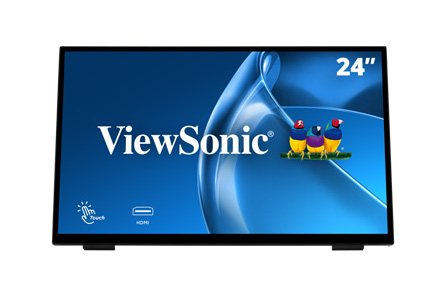
TD2465 touch monitors run the points of sale at branch locations. The TD2465 is a durable multi-touch display made for continuous use by staff and customers through a full trading day.

The TD2465 deployment marks the second consecutive year this model has been selected for the nationwide rollout, cementing it as the standard platform for the organization’s sales terminals thanks to its reliability and performance in continuous-operation environments.


“The reliability and performance of the TD2465 in continuous-operation environments made it the standard platform for our sales terminals.”


RESULTS

The investment enabled a comprehensive modernization of the chain’s technology, from the corporate level down to every branch, with standardized equipment that streamlines daily operations. In the offices, the VG2441V unified workstations; on the sales floor, the VA1903H facilitates price inquiry and verification; and the TD2465 continues to solidify its position — for the second consecutive year — as the standard point-of-sale platform, thanks to its reliability and performance in continuous-operation environments.

The result is a faster, more consistent shopping experience nationwide, and a technology infrastructure ready to support the chain’s next phase of expansion.

Frequently Asked Questions

What Made the Old Projector Setup a Problem for Hybrid Instruction?

Two ceiling-mounted projectors cast onto dual wall screens, which created three issues at once. Projector light shone into the instructor’s eyes at the front of the room, image brightness and consistency varied with ambient lighting, and the setup was never designed to serve remote students alongside the in-person class.

Why Choose dvLED Instead of Replacing the Projectors?

Direct View LED holds brightness and consistency in a fully lit room, which matters when the same content has to read clearly for students in the room and on a recording. It also removes the consumables and alignment work a projector requires. For a room that runs most of the day and is monitored in real time by IT, that changes the maintenance profile as much as the image quality.

What Does Glue-on-Board Construction Change for Facilities Teams?

Glue-on-Board encapsulates the LEDs and electronics in a thin resin layer, so the display surface tolerates contact rather than losing pixels to it. In a classroom where students walk past the wall every day, that is the difference between a durable install and a recurring repair line. Tiles are also individually replaceable, so a damaged section is a panel swap rather than a full-unit service call.

How Do Confidence Monitors Help an Instructor Teaching to Two Audiences?

An instructor facing the class cannot see the front-of-room displays. Rear-wall confidence monitors let them verify that content is displaying correctly without turning around, and a second monitor keeps remote participants visible. That is what makes it possible to teach to both audiences without treating one as an afterthought.

Can ViewSonic Displays Integrate With an Existing Crestron System?

Yes. In this installation the integrator brought the ViewSonic displays into the classroom’s existing Crestron matrix switcher, so control stayed on the system the campus already runs. ViewSonic also offers integration with Q-SYS, Extron and AMX platforms.

Is This Configuration Repeatable for Other Classrooms?

That was one of the stated goals. The university treats this room as a model for future refreshes, and the configuration scales down for smaller rooms by reducing the number of front-of-room displays while keeping the same podium and confidence monitor pattern.

Ready to Modernize Your Hybrid Classrooms?

Talk to a ViewSonic representative or an authorized partner about a hybrid classroom configuration for your campus, including dvLED sizing, confidence monitor placement and control system integration.

*Actual performance, compatibility, and user experience may vary depending on system configuration, network conditions, usage environment, and other factors. ViewSonic products are not considered medical devices and are not intended for use in the diagnosis of disease or other conditions, or in the cure, mitigation, treatment, or prevention of disease. Programs, pricing, specifications, and availability are subject to change without notice. © ViewSonic Corporation 2026. All rights reserved.

Higher Education Hybrid Classroom Gets Transformative Upgrade with ViewSonic dvLED Displays and More

SOLUTION BRIEF

Higher Education Hybrid Classroom Gets Transformative Upgrade with ViewSonic dvLED Displays and More

CHALLENGE

A recognized leader in STEM higher education, this large state university is likewise dedicated to being at the forefront of classroom technology. To make efficient use of technology resources, the university offers instructors a variety of classroom configurations to meet their edtech needs. At the top of these options are classrooms equipped to deliver instruction simultaneously to in-person and remote students. Live-monitored by university IT staff to prevent tech-related disruption, these rooms play an important role in extending the reach of instruction.

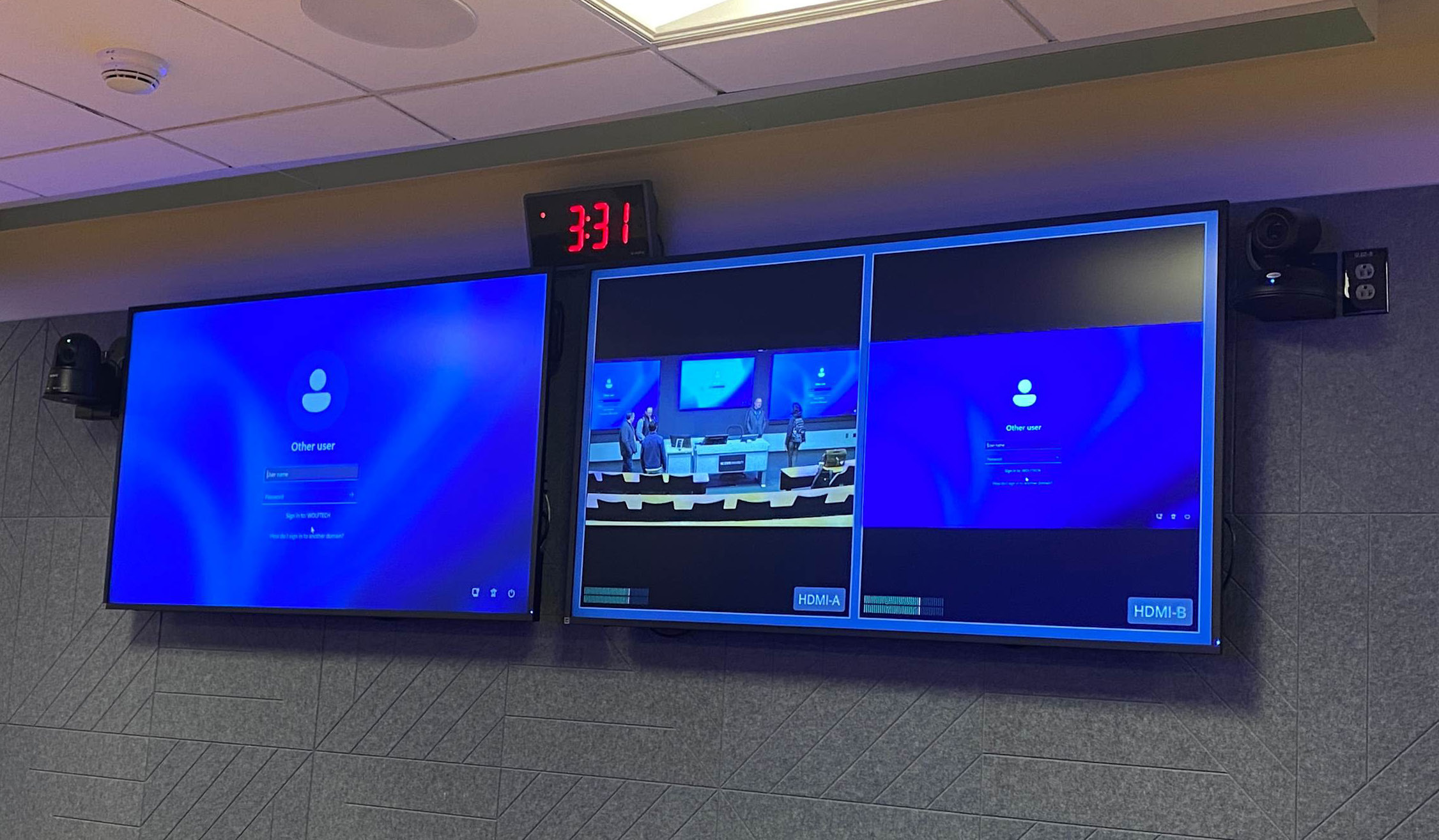
One such classroom was due for a major technology update. The existing setup relied on two ceiling-mounted projectors casting content onto dual wall screens. It was time to upgrade to technology that would support the range of modern learning options and instructional modalities: a video wall that would deliver bright, consistently sharp visuals for every student.

The solution also needed to deliver content to in-person and distance learners at the same time, while creating an environment that connected those audiences and gave the instructor intuitive control.

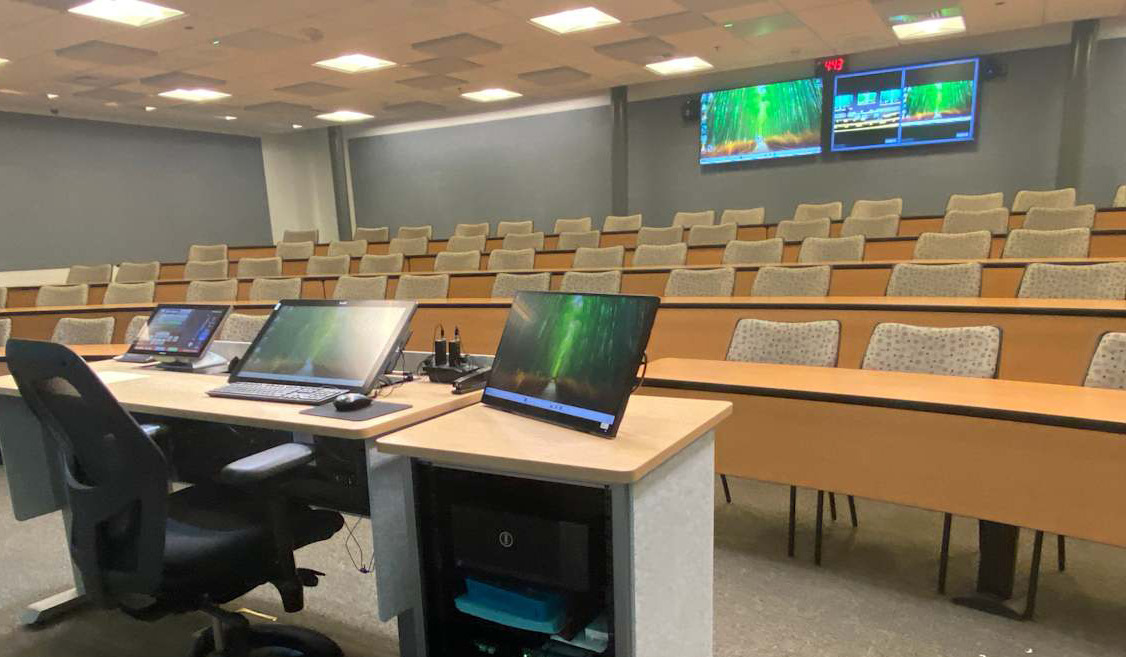
Several types of displays would be needed to support these goals: large, vibrant front-of-room displays for on-site learners, displays to bring Zoom participants into the room, confidence displays for the instructor at the back of the room and a touch display at the instructor podium. All of it maintained and monitored in real time by university IT staff.


The brightness and consistency of the ViewSonic dvLED displays give classroom and remote students a clearer view of content in all lighting conditions, and deliver strong recorded images, a critical component of serving asynchronous distance learners.


SOLUTION

The IT group worked with longtime reseller partner ClarkPowell, which recommended ViewSonic for the display component of the installation. The IT team reviewed the recommendation and agreed it was the right fit, commenting in particular on the durability of ViewSonic dvLED with Glue-on-Board (GOB) construction and the ability to replace individual panels, which would streamline maintenance.

The final front-of-room solution included two 136-inch ViewSonic All-in-One Direct View LED Video Walls (Model LDM136-151) to present class content. These were mounted on either side of a ViewSonic 98-inch Commercial Grade 4K Display (Model CDE9830) to integrate Zoom participants. Two ViewSonic 65-inch Commercial Displays (Model CDE6530) were mounted to the back wall for instructor visibility, one mirroring the instructional content and one showing Zoom participants.

The instructor podium was equipped with a ViewSonic 24-inch Touch Display (Model ID2456), which lets faculty deliver content and connect with students through integrated ViewSonic software.

To ensure seamless operation, the ClarkPowell team integrated the ViewSonic displays into the classroom’s existing Crestron matrix switcher.

RESULTS

The upgraded classroom is now a modern digital learning environment and a model for future classroom refreshes. The integrated technology blends in-person and remote experiences, delivering benefits to faculty, students and the IT team.

Instructors appreciate no longer having to contend with projector lights shining in their eyes, and being able to keep their focus on students while marking up content at the podium. The confidence monitors at the back of the room let presenters confirm that their content looks right on the front screens, while also giving them an interface with students joining on Zoom.

The brightness and consistency of the ViewSonic dvLED displays give classroom and remote students a clearer view of content in all lighting conditions, and deliver strong recorded images, a critical component of serving asynchronous distance learners. The IT team benefits from lower and easier maintenance. Together that means more streamlined instruction with greater efficiency and reduced cost.

Along with the internal response, the IT team has hosted colleagues from other universities interested in the ViewSonic solution, who commented on how good the new displays look. A visiting IT specialist also mentioned that a classroom at their own university had a dvLED wall without a Glue-on-Board surface treatment, which led to damage and repair costs when students bumped into it.

The university’s stated objective for its top-tier technology classrooms is to empower faculty to deliver modern, high-impact instruction to a range of students without the burden of technical barriers. In these spaces, the technology lets faculty focus on teaching rather than troubleshooting. This upgrade achieved that, with durable ViewSonic dvLED walls, commercial displays and a podium touch display as the foundational visual technology.


Frequently Asked Questions

What Made the Old Projector Setup a Problem for Hybrid Instruction?

Two ceiling-mounted projectors cast onto dual wall screens, which created three issues at once. Projector light shone into the instructor’s eyes at the front of the room, image brightness and consistency varied with ambient lighting, and the setup was never designed to serve remote students alongside the in-person class.

Why Choose dvLED Instead of Replacing the Projectors?

Direct View LED holds brightness and consistency in a fully lit room, which matters when the same content has to read clearly for students in the room and on a recording. It also removes the consumables and alignment work a projector requires. For a room that runs most of the day and is monitored in real time by IT, that changes the maintenance profile as much as the image quality.

What Does Glue-on-Board Construction Change for Facilities Teams?

Glue-on-Board encapsulates the LEDs and electronics in a thin resin layer, so the display surface tolerates contact rather than losing pixels to it. In a classroom where students walk past the wall every day, that is the difference between a durable install and a recurring repair line. Tiles are also individually replaceable, so a damaged section is a panel swap rather than a full-unit service call.

How Do Confidence Monitors Help an Instructor Teaching to Two Audiences?

An instructor facing the class cannot see the front-of-room displays. Rear-wall confidence monitors let them verify that content is displaying correctly without turning around, and a second monitor keeps remote participants visible. That is what makes it possible to teach to both audiences without treating one as an afterthought.

Can ViewSonic Displays Integrate With an Existing Crestron System?

Yes. In this installation the integrator brought the ViewSonic displays into the classroom’s existing Crestron matrix switcher, so control stayed on the system the campus already runs. ViewSonic also offers integration with Q-SYS, Extron and AMX platforms.

Is This Configuration Repeatable for Other Classrooms?

That was one of the stated goals. The university treats this room as a model for future refreshes, and the configuration scales down for smaller rooms by reducing the number of front-of-room displays while keeping the same podium and confidence monitor pattern.

Ready to Modernize Your Hybrid Classrooms?

Talk to a ViewSonic representative or an authorized partner about a hybrid classroom configuration for your campus, including dvLED sizing, confidence monitor placement and control system integration.

*Performance, security, compliance, and sustainability outcomes may vary depending on system configuration, usage environment, and agency requirements.

ViewSonic Launches Two New 27-Inch VP ColorPro Monitors Designed for Video Editing, Graphic Design, and Other Creative Works

The VP2766‑2K and VP2766‑4K are Pantone‑Validated Displays that Feature 120Hz Refresh Rate, QHD and UHD Resolutions, and USB‑C Connectivity for Streamlined Cable Management

Brea, CA (Sept. 30, 2026) – ViewSonic Corp., a leading global provider of visual and edtech solutions, announces the launch of the VP2766-2K and VP2766-4K, the company’s latest 27-inch ColorPro® monitors. Both monitors bring precision and stunning color performance for graphic design, animations, video editing, and other creative endeavors. For more accurate and consistent color performance, the VP2766-2K and VP2766-4K are Pantone® validated with factory hardware calibration, which fine-tunes color settings within the monitor itself, without relying solely on computer-side software adjustments. With 100 percent sRGB coverage, the two monitors deliver true-to-life color reproductions, so the content looks exactly as intended.

The ViewSonic® VP2766-2K features a native 2K QHD (2560x1440) resolution and the VP2766-4K comes a native 4K UHD (3840x2160) panel. Both monitors come with a 120Hz refresh rate for smooth visual motion and playback. The USB-C connection makes cable management easy, as the single USB-C cable handles video, data and up to 90W of power delivery while an HDMI port adds greater flexibility. A USB hub with three USB-C ports and one USB-A port provides ample options for connecting a keyboard and mouse or charging other devices such as a phone or tablet. The VP2766-2K and VP2766-4K both have a sleek ergonomic stand that can easily adjust the tilt, swivel, pivot, and height. Built-in flicker-free technology and a low blue light solution can help reduce eye fatigue.

“To offer more options for the creative community, we’ve added the VP2766-2K and VP2766-4K monitors to the ColorPro line-up,” said Jenny Lopez, Sr. Product Manager of Monitors at ViewSonic. “Creative work requires precision and accuracy, whether it’s with color or motion, and both these monitors offer that at great price points. We also made sure that the monitors can be used easily with Macs. With ColorPro® Display Manager, brightness and volume are easily adjusted using Mac function keys. The on-screen menu allows users to personalize settings like ViewMode™ and customize other display options to match.”

VP2766-2K ColorPro Monitor

  • 27-inch monitor with native 2K QHD (2560 x 1440) resolution
  • 120Hz refresh rate with 5ms response time
  • Connectivity options include USB-C, USB-A, HDMI 2.1, and Audio-Out
  • Available: Now for an estimated street price of $239.99 [USD]

VP2766-4K ColorPro Monitor

  • 27-inch monitor with native 4K UHD (3840 x 2160) resolution
  • 120Hz refresh rate with 5ms response time
  • Connectivity options include USB-C, USB-A, HDMI 2.1, and Audio-Out
  • Available: Now for an estimated street price of $339.99 [USD]

To find out more about ViewSonic, visit ViewSonic.com and follow on Facebook, YouTube, X and Instagram.

About ViewSonic

Founded in 1987 and headquartered in Brea, California, ViewSonic is a leading global provider of visual solutions for the education, business, and consumer markets, with a presence in over 100 countries. Driven by the mission to transform education, workplaces, and lives, the company delivers a unified ecosystem of innovative hardware, software, and services that integrates seamlessly with the platforms, tools, and partners customers trust. Its product portfolio includes monitors, projectors, interactive displays, LED displays, commercial displays, video conferencing systems, and industrial solutions. Complementing its hardware is a robust suite of software offerings—including myViewBoard, ClassSwift, TeamOne, Manager, and AirSync—featuring AI-powered tools for collaboration, device optimization, and management. By empowering creativity, collaboration, and lifelong learning, ViewSonic supports customers at every stage in achieving their business and sustainability goals, creating a lasting impact and helping people everywhere connect with purpose—and See the Difference. Learn more at www.viewsonic.com.

# # #

* Actual performance, compatibility, and user experience may vary depending on system configuration, network conditions, usage environment, and other factors. Eye care and ergonomic features are designed to help reduce potential discomfort during extended viewing, but individual experiences may vary. Programs, pricing, specifications and availability are subject to change without notice. This news release contains forward-looking statements that reflect the Company’s expectations with regard to future events; actual events could differ significantly from those anticipated in this document. Corporate names and trademarks stated herein are the property of their respective companies. © 2026 ViewSonic Corporation. All rights reserved.
Media Contacts:

Joey Lee
JSL Marketing for ViewSonic [U.S.]
E: joey@jslcomm.com

Miranda Bravo
ViewSonic [U.S. / Canada]
E: miranda.bravo@viewsonic.com

Nury Lavandier
ViewSonic [Latin America]
E: Nury.Lavandier@viewsonic.com

How a Leading Canadian Law Firm Simplified IT Procurement with ViewSonic Docking Monitors

SOLUTION BRIEF

How a Leading Canadian Law Firm Simplified IT Procurement with ViewSonic Docking Monitors

What Challenge Was the Firm Trying To Solve?

A prominent Canadian business law firm was running into administrative and practical issues with its dual-monitor setups. Lawyers and staff worked across separate monitors, docking stations, external power bricks and cable adapters, with each desk collecting its own tangle of hardware. The firm wanted to move to a cleaner setup built on the latest docking technology. From a support standpoint, managing separate line items for monitors, docks and connection cables added unnecessary work for IT. The firm set out to consolidate its hardware into a single docking monitor SKU that could support a standardized two-screen layout, supply 100W power over USB-C and connect seamlessly to its corporate laptop fleet.

What ViewSonic Solution Did the Firm Deploy?

The firm standardized on 700 ViewSonic® 27” VG2758-2K QHD docking monitors, building out 350 dual-display workstations across both offices.

With a built-in docking station featuring 100W USB-C power delivery, an RJ45 Ethernet port and a five-port USB hub, each 27” monitor acts as a complete desktop hub.

Employees can connect their laptop to both screens, the wired network and desk peripherals using a single USB-C cable. Thanks to USB-C daisy-chaining, the two monitors link directly to each other, so only one cable is needed to connect to the laptop.

Beyond simplifying connections, the deployment improved daily physical comfort and long-term hardware management. Fully adjustable ergonomic stands let staff tailor screen height, tilt, swivel and pivot to fit their posture without requiring custom mounting arms.

On the operational side, EPEAT and Energy Star certifications support corporate energy targets, while a three-year limited warranty gives IT predictable long-term hardware reliability. 

Spec LDS138-151
Screen size / resolution 138", Full HD 1920x1080
Mobility Foldable design on a motorized, height-adjustable stand with 360-degree wheels; packed in a custom flight case
Setup time Minutes, no system integration required
Durability GOB (Glue-on-Board) protection, IP54 and IK06 rated, built for high-traffic public spaces
Serviceability Hot-swappable front LED modules for minimal downtime
Casting/Connectivity AirSync wireless screen casting (AirPlay, Google Cast); Q-SYS, Crestron, Extron and AMX compatible
Warranty 3-year limited warranty on parts and labor, with on-site service
Recognition Best New Mobile dvLED Product, rAVe Publications' Best of InfoComm, June 2025

What Results Has the Firm Seen?

  • Consolidated IT procurement into a single monitor SKU across both offices.
  • Cleared desk clutter by eliminating standalone docks, external power bricks and redundant cables.
  • Enabled single-cable docking for power, dual QHD displays, network and USB peripherals. 

By deploying the VG2758-2K, the firm replaced a cluttered multi-vendor setup with a streamlined workstation standard. IT teams now order, deploy and manage one part number instead of tracking three separate hardware components.

For attorneys and staff, starting the workday takes a single connection. Plugging in one USB-C cable charges the laptop, connects to the wired network and extends the workspace across two QHD screens. The lack of cable clutter keeps private offices looking sharp for client meetings. 

Frequently Asked Questions

What Is a Docking Monitor and How Does It Replace a Separate Dock?

A docking monitor combines a high-performance display with an integrated dock, Ethernet port and USB hub. The ViewSonic VG2758-2K monitor supplies 100W of power over USB-C while routing network traffic and peripheral connections straight through the display, eliminating the need for a separate hardware dock, power brick or cable bundle.

Can a Laptop Drive Two Monitors Over a Single Cable?

Yes. The VG2758-2K supports USB-C daisy-chaining, which lets one monitor pass the video signal directly to the second display. The user plugs a single USB-C cable into their laptop to drive both monitors, access the network and charge their battery.

How Does a Docking Monitor Lower IT Overhead?

Combining the dock and display into a single SKU simplifies sourcing, inventory management and lifecycle support. IT teams can track one part number rather than managing separate monitors, standalone docks, dongles and power cables.

Does the VG2758-2K Support Laptops Without USB-C?

Yes. Alongside USB-C, the VG2758-2K includes native HDMI and DisplayPort inputs. This allows legacy laptops to connect easily while giving the firm a clear path to universal single-cable USB-C docking as devices are refreshed.

Ready to Simplify Your Workstations?

Connect with a ViewSonic representative or authorized partner to explore how the VG series of docking monitors can streamline IT procurement and elevate your workspace design.

Related Links

Comparative claims are based on specific features and publicly available manufacturer specifications as of the date of publication, and are not intended to represent a comprehensive evaluation of all product attributes. Actual performance, compatibility, delivery schedules, network performance, training outcomes, and user results may vary depending on system configuration, network conditions, usage settings, individual needs, district or agency requirements, implementation conditions, environmental conditions, and other factors. Any references to third-party products, competitors, software platforms, hardware architectures, certification seals, control systems, or corporate trademarks are for identification, compatibility, and comparative reference purposes only and do not imply endorsement, affiliation, or sponsorship by their respective owners. Environmental protection ratings (including GOB, IP54, and IK06 ratings) are based on standard operating conditions; proper wall mounting, structural reinforcement, mobile assembly, freight handling, and professional installation are the sole responsibility of the customer or installer. ViewSonic assumes no liability for property damage or personal injury resulting from improper installation. Programs, pricing, specifications, and availability are subject to change or cancellation without notice. Corporate names and trademarks stated herein are the property of their respective companies. © 2026, ViewSonic Corporation. All rights reserved. [26ALL-MLT1533d]

ViewSonic Standardizes the Patient Experience Across a Leading Clinical Laboratory Network in Mexico

SOLUTION BRIEF

ViewSonic Standardizes the Patient Experience Across a Leading Clinical Laboratory Network in Mexico

CHALLENGE

One of the country’s leading clinical laboratory and diagnostics networks, with a presence in more than 240 clinics across Mexico, needed to standardize the equipment in its patient-care areas and specialized consulting rooms to deliver a more efficient and uniform work experience.

SOLUTION 

An initial 120 ViewSonic VX2476-SMHD monitors were deployed for lab result-delivery stations and consulting rooms where studies such as electrocardiograms are performed. The model was chosen for its ultra-thin design, which optimizes workspace, and its DisplayPort connectivity, which simplifies integration with existing equipment. This project is part of an ongoing technology refresh plan that continues with monthly deliveries to gradually equip the organization’s infrastructure.

RESULT

Standardizing equipment at result-delivery stations and specialized consulting rooms is helping this laboratory network deliver a more consistent experience to patients and medical staff across its more than 240 clinics. The VX2476-SMHD’s ultra-thin design optimizes space in consulting rooms where every inch counts, while its DisplayPort connectivity simplifies integration with already-installed diagnostic equipment. With 30 to 40 additional units shipping every month, the organization is steadily scaling toward a uniform technology infrastructure across all of its locations nationwide.


“The ultra-thin design and DisplayPort connectivity of the VX2476-SMHD let us integrate the solution without disrupting our clinics’ daily operations.” 


Related Items

Actual performance and user experience may vary depending on system configuration, usage environment, and other conditions. ViewSonic products are not considered medical devices and are not intended for use in the diagnosis of disease or other conditions, or in the cure, mitigation, treatment, or prevention of disease. This document contains forward-looking statements that reflect the company’s expectations regarding upcoming events and product offers. Actual events and product offers may differ significantly from those referred to herein. Specifications and availability are subject to change without notice. Corporate names and trademarks stated herein are the property of their respective companies. Copyright © 2026, ViewSonic Corporation. All rights reserved. 8/26 [26MON-LAT1552]

ViewSonic ColorPro Standardizes Design Color Across Offices and Stores

SOLUTION BRIEF

ViewSonic ColorPro Standardizes Design Color Across Offices and Stores

CHALLENGE

A global retail brand runs an annual technology refresh across its corporate offices and physical stores. For this cycle the priority was visualization: giving design and product teams a display they could trust when they judge colors and materials.

Small differences in how a screen renders a color can change a decision. When teams at different sites worked on different displays, a material approved at one location did not always look the same at another. The brand needed one color reference everywhere, so a sign-off in one office holds up in the next.

SOLUTION

The brand deployed hundreds of ViewSonic® ColorPro® VP2756-4K monitors across its corporate offices and stores.

The ViewSonic monitors sit where color decisions get made. Design and product teams use them to review designs, colors and materials before approval, and cross-functional groups use them when everyone needs to agree on what they are looking at.

That type of work requires more from a display than a standard office monitor can deliver. Office monitors are not calibrated for color accuracy, so a design approved on one screen can look different on the next.

The VP2756-4K is built for the job. Every unit is individually factory calibrated and Pantone Validated, covers 100% of sRGB and Rec. 709, and holds Delta E value under 2. At 4K resolution on a 27-inch IPS panel, reviewers also see detail that earlier displays flattened.


“The color accuracy and level of detail offered by the VP2756-4K allow us to work with greater confidence when reviewing designs and materials, facilitating decision-making and collaboration across our teams.”


RESULTS

Design and product review teams now work from one shared color reference across every site in the project. Working from the same reference removed a recurring source of friction, where two reviewers looking at the same file described two different colors, and product approval cycles move faster because nobody is relitigating what the screen is showing.

The deployment did more than replace hardware. A color-critical display is now part of how design and product decisions get made. The result is more consistency, better accuracy and faster turnaround.

Related Products

Eye care and ergonomic features are designed to help reduce potential discomfort during extended viewing, but individual experiences may vary. Performance, color accuracy, and user experience may vary depending on system configuration, network conditions, signal source, color calibration, usage environment, and other factors. Any references to third-party software, color standards, certifications, or trademarks are for identification and compatibility purposes only and do not imply endorsement, affiliation, or sponsorship by their respective owners.

Complete Guide to Dual-Screen Portable Monitors | ViewSonic

Complete Guide to Dual-Screen Portable Monitors

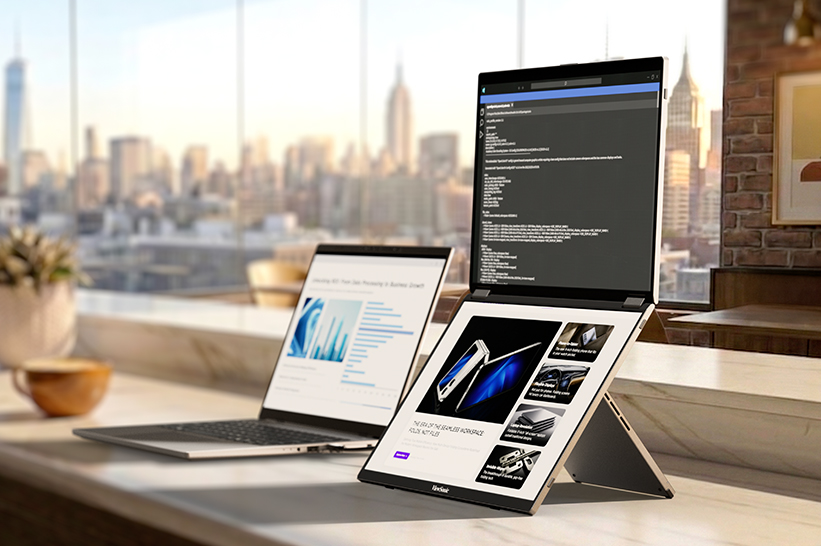
A dual-screen portable monitor is a foldable external display with two built-in screens that expands a laptop into a multi-monitor setup.

This solution is useful for business travel, remote work, coding, presentations, financial workflows, content review or any task that would benefit from keeping multiple windows visible at once. The best models are easy to carry, connect through USB-C, support multiple viewing modes and clearly explain device compatibility.

In this guide, we’ll break down how dual-screen displays boost productivity, key features to look for, real-world setups for mobile work and more.

We’ll also explain why the ViewSonic® VG1457 is one of our top picks for a dual-screen portable monitor.

What Is a Dual-Screen Portable Monitor?

A dual-screen portable monitor is a single unit that folds open to reveal two separate screens, usually connected by a center hinge. That sets it apart from two other common setups people often mix up:

A single portable monitor adds one extra screen to a laptop. It’s a lighter, simpler setup than a dual-screen unit, and a solid fit for anyone who just needs one extra screen rather than a full three-screen workspace.

A laptop screen extender (the kind that clips onto the back of a laptop lid) adds a second screen physically connected to the laptop.

Because it’s tied to the laptop’s exact screen size, it can’t fold flat for travel the way a standalone dual-screen unit does. Most extenders rely on adhesive mounts, which make them a semi-permanent fit for one laptop rather than something you move easily between devices.

They also add weight directly onto the laptop and often need multiple cables depending on the laptop’s connectivity.
Dual-Screen Portable Monitor Use Cases

Business Travelers

Business travelers want an easy way to boost productivity no matter where work takes them. But when you’re constantly on the go, every extra charger becomes one more thing you have to carry around.

The ViewSonic VG1457 portable monitor solves this with an ultra-lightweight design with 65W two-way USB-C Power Delivery. Its dual 14-inch WUXGA screens give you an expanded workspace that requires just a single power source.

Hybrid and Remote Workers

Hybrid and remote workers frequently move between home, office desks and temporary workspaces, meaning they don’t always have an ideal setup. A dual-screen portable monitor gives them an instant multi-screen layout for emails, documents and spreadsheets, then folds flat to travel with them when work is over.

Sales, Customer Success and Field Teams

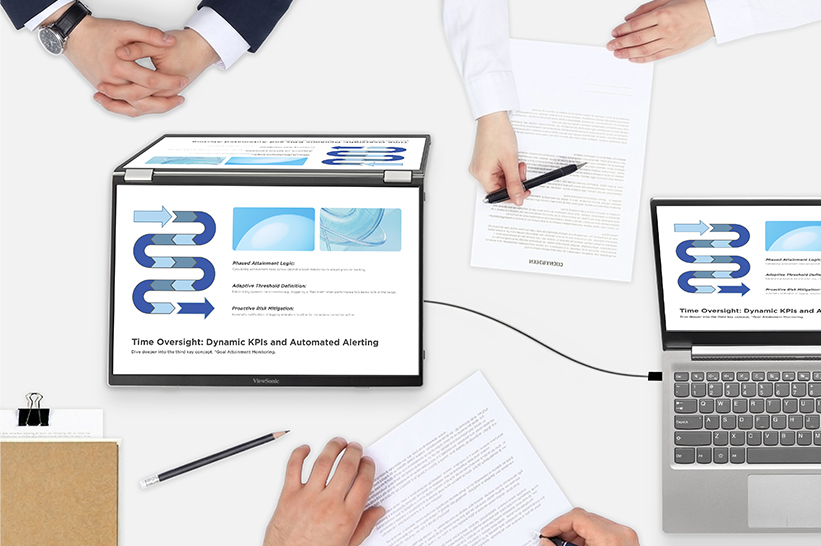
For sales, customer success and field teams, a dual-screen portable monitor simplifies client interactions and call management. Reps can compare quotes and specs side by side, or keep CRM notes visible on a second screen during a presentation. On the VG1457, Share mode turns the screens outward so two people sitting across a table can view the same content simultaneously.

Developers, Analysts and Finance Professionals

Financial analysts and developers rely heavily on multi-monitor setups, but lose that efficiency when working away from their main setup. A dual-screen portable display restores that multi-window workspace for professionals on the go.

Instead of constantly cycling through overlapping windows, they can keep key tools visible side by side, running code next to a live preview, keeping spreadsheets alongside dashboards or referencing documentation next to a terminal.

Creators and Review Workflows

For creators in the field, a dual-screen portable monitor works well as a secondary workspace for reviewing footage, referencing notes and scripts or keeping tool panels open next to a timeline.

If color grading, high brightness or OLED-level color performance is the priority, ViewSonic’s single-screen portable OLED monitors (like the VP16-OLED and VX1655-4K-OLED) are worth looking into.

Why Choose a Dual-Screen Portable Monitor?

A dual-screen portable monitor solves a simple problem: one laptop screen isn’t enough for serious multitasking. Here’s what two screens make possible.

    Desktop-level productivity anywhere: Bring a true multi-monitor workflow on the go instead of downsizing to a single extra display.

    An expanded canvas: Combine two panels into one larger workspace for deep-focus tasks.

    Face-to-face sharing: Present across a table in Share mode without crowding around a single screen.

    Two inputs, one unit: Run two separate devices side by side at the same time.
Features of a Dual-Screen Portable Monitor

A few setup details determine whether a dual-screen portable monitor will work with a given laptop or phone.

USB-C DisplayPort Alt Mode: This lets a single USB-C port carry a video signal, not just data and charging. It’s what most USB-C monitors, portable or otherwise, rely on to receive a picture from a laptop. Your laptop or phone needs a USB-C port that specifically supports DisplayPort Alt Mode for this to work, since not every USB-C port does.

USB-C Power Delivery: Power flows through that same cable, in either direction. That two-way flow means the cable can pull power from a laptop or power bank to run the monitor, or pass power the other way to charge the laptop when the monitor is plugged into an outlet. On the VG1457, dual USB-C inputs support 65W two-way Power Delivery.

HDMI vs. USB-C: HDMI carries video only, so a monitor that relies on HDMI alone needs a separate power cable. Some portable monitors offer HDMI as a fallback for laptops that don’t support DisplayPort Alt Mode over USB-C.

Drivers vs. Plug-and-Play: A plug-and-play monitor works the moment it’s connected. Others need drivers installed first, which adds setup time and depends on OS compatibility.

MST Limitations: MST (Multi-Stream Transport) is the technology that lets a single video output drive more than one display. This feature is unavailable on macOS and mobile devices due to MST limitations over USB-C. Only the lower display activates when extending on these devices.

Power Source: Options include a connected laptop, a wall adapter or a power bank with enough wattage to run the unit.
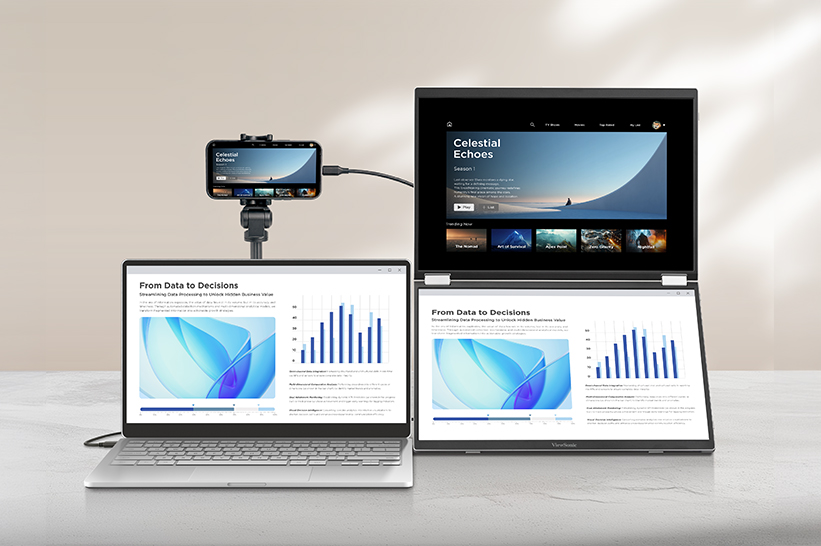
Display Modes Explained

Different portable monitors can offer different display modes. Here are some of the most popular ones explained.

Mirror Mode

Mirror mode shows the same content on the laptop and the monitor. It’s the simplest mode to set up and works well for demos, training sessions or presentations where separate windows on each screen aren’t necessary.

Extend Mode

Extend mode treats the monitor’s screen space as additional desktop rather than a duplicate of the laptop screen. On a dual-screen unit like the VG1457, that means the two panels function as extended workspace alongside the laptop, which is the mode most people reach for when multitasking is the goal.

Not every device can extend content across both screens of a dual-screen monitor because of MST limitations.

Dual-screen Extend mode isn’t available on macOS or mobile devices for the VG1457, since macOS doesn’t support MST via USB-C. Only the lower display activates when extending on those devices. Windows laptops generally handle it without issue, though MST support can still vary by specific hardware.

Full-Screen Mode

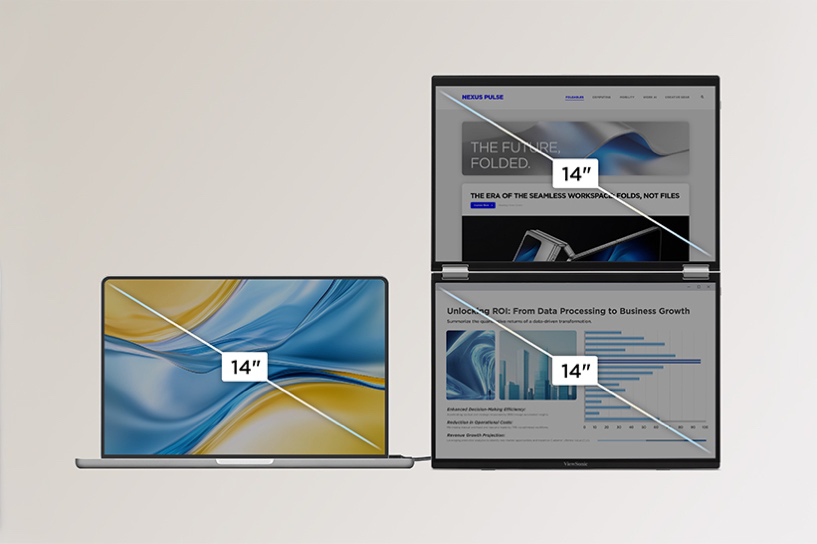
Full-Screen mode is different from Extend mode in one important way. Instead of treating the two panels as separate extended space, it merges them into a single continuous area. On the VG1457, that means both 14-inch panels combine into one 19-inch workspace, which works well for work that benefits from one larger screen rather than two adjacent windows.

Share Mode

Share mode turns the screens outward so two people can view them from opposite sides at once. It’s built for client meetings, interviews and small-group reviews, where someone needs to show something to a person across a table rather than share their own screen. In Share mode, the VG1457 uses a built-in G-sensor to auto-rotate the upper display, so its orientation adjusts automatically for the person on that side.

Dual Source Mode

Dual Source mode uses two independent USB-C ports to run two separate devices on screen at the same time. Whether that’s pairing a laptop with a smartphone or managing two laptops on one desk, it provides users with a live side-by-side view without juggling cables or input toggles.

Dual-Screen Portable Monitor vs. Single Portable Monitor

Feature Single Portable Monitor Dual-Screen Portable Monitor
Best For Streamlined single-screen focus Multi-window power workflows
Portability Lightweight, single monitor Two panels in one slim, foldable unit
Presentation Use Good for solo demos, one screen to share Better for two-person viewing via Share mode
Workflow Fit Great for quick tasks and multitasking Best for deep multitasking and side-by-side work
Ideal Users Anyone who just needs one extra screen Business travelers, remote workers, analysts, coders, creators

Not sure which fits your workflow? Browse the full lineup of ViewSonic portable monitors, including single-screen options, to compare.

What to Look For in a Dual-Screen Portable Monitor

Screen Size and Resolution

Screen sizes on dual-screen units are typically dual 14-inch panels, like the VG1457’s dual 14-inch WUXGA displays, though single 14-inch and 15.6-inch models are common in the single-screen category.

Aspect ratio is almost as important as screen size. A 16:10 panel gives more vertical space than a standard 16:9 panel, which matters for reading documents, scrolling spreadsheets or following code top to bottom. WUXGA resolution (1920 x 1200) is the 16:10 counterpart to Full HD, with extra vertical pixels that come from the taller aspect ratio rather than a wider one.

The VG1457's 16:10 panels also pair cleanly with newer 16:10 laptops for a matching aspect ratio.

Weight and Thickness

Dual-screen monitors naturally add size, making total weight and thickness key considerations before buying. A practical setup needs to stay thin enough to slide into a bag alongside your laptop without taking over the whole compartment.

USB-C Power Delivery

Power Delivery over USB-C cuts down on cable clutter and eliminates the need to pack extra wall chargers. The most versatile monitors feature two-way power, meaning you can charge your laptop through the display when plugged into an outlet, or run the screens off your laptop battery when working away from a plug.

Compatibility

Before buying, check compatibility across Windows, macOS and mobile devices, along with USB-C Alt Mode support, MST limitations, HDMI fallback options and whether drivers or software are required. This is one of the most common sources of buyer frustration with portable monitors, since a unit that works perfectly on one laptop can behave differently on another.

Display Modes

Confirm the monitor actually supports the modes you need: Mirror, Extend, Full-Screen, Share and Dual Source. Not every portable monitor offers all five, and naming can vary by brand, so check the specs of the model you’re considering. The VG1457 does offer all five modes.

Ergonomics and Orientation

Hinge range, tilt, orientation and auto-pivot support can all affect how comfortable the monitor is to use day to day.

The VG1457 lists specific swivel, pivot and tilt ranges, including a 340-degree hinge for Share mode, and supports ViewSonic Display Portal and vDisplay Manager software for auto-pivot control, which automatically switches the display into portrait orientation when needed.

When a Dual-Screen Portable Monitor May Not Be the Right Choice

A dual-screen portable monitor is built for expansive productivity. It may not be the right fit if:

  • You only need one extra display, not two.
  • You do color-critical creative work that needs OLED or higher brightness than most dual-screen portable panels offer.
  • You want to play games and require a higher refresh rate.
  • Your device doesn’t support the USB-C display output the monitor requires.
  • You’re on a Mac or mobile device and expect full dual-screen Extend mode, which runs into MST limitations on those platforms.
  • You want one seamless larger screen instead of two hinged panels.
  • You want a wireless connection instead of a wired USB-C setup.

ViewSonic’s portable OLED monitors are designed for exceptional color accuracy. ViewSonic’s portable gaming monitors, like the 144Hz VX1754, can help players work hard and play harder on the go.

Want one continuous screen instead of two hinged panels? That same 17-inch VX1754 delivers a single larger display in a similarly portable design.

And for a cable-free setup, the VG1656N pairs a 16-inch display with built-in wireless casting, so you can skip the USB-C connection altogether.

How to Set Up a Dual-Screen Portable Monitor

Portable monitor setup varies between devices, but the sequence is largely the same across brands.

Step 1: Check your laptop ports. Confirm your laptop’s USB-C port supports DisplayPort Alt Mode, not just charging and data. This is the single most common reason why a portable monitor won’t display a picture.

Step 2: Connect power. Depending on the monitor, you can run it from the laptop itself, a wall adapter or a power bank rated for enough wattage.

Step 3: Choose your display mode. Pick Mirror, Extend, Full-Screen or Dual Source in the on-screen display (OSD) menu.

Step 4: Adjust orientation. Select landscape or portrait manually or enable auto-pivot using vDisplay Manager (downloadable from the ViewSonic Display Portal). Auto-pivot automatically rotates your display based on screen content and physical monitor position.

Step 5: Arrange displays in your OS. On Windows, use Display Settings to arrange screen order and orientation. On macOS, check for the Extend mode limitations covered above before assuming both screens will behave like an extended desktop. On mobile, confirm the device supports external display output at all before connecting.

Troubleshooting: Why Is My Portable Monitor Not Detected?

If a USB-C portable monitor isn’t detected, work through these steps in order:

  1. Confirm the USB-C cable supports video, not just charging or data. Not every USB-C cable does.
  2. Confirm the laptop’s USB-C port supports DisplayPort Alt Mode.
  3. Connect external power if the monitor needs it to turn on.
  4. Check for MST limitations if you’re trying to extend across two screens rather than mirror.
  5. Select the correct input on the monitor if it has more than one.
  6. Check your operating system’s display settings to confirm the second screen is recognized.
  7. Update firmware or software tools if the manufacturer provides them.
  8. Confirm a power bank is rated to deliver enough wattage if that’s your power source.

Why the ViewSonic VG1457 Is Built for Mobile Productivity

The VG1457 is ViewSonic’s first portable dual-screen monitor, built around the idea that a single laptop screen shouldn’t be the ceiling for productivity.

Two 14-inch WUXGA displays fold into a 2.6-lb setup that fits in a laptop bag, and open into 19 inches of combined viewing space in Full-Screen mode.

Five viewing modes cover everything from solo focused work to a face-to-face client presentation: Mirror, Extend, Full-Screen, Share and Dual Source. Two independent USB-C inputs mean separate devices can each run on their own screen at the same time.

A single USB-C cable handles the rest of the setup. 65W two-way Power Delivery keeps a connected laptop charged while both screens run, or lets the laptop power the monitor directly when there’s no outlet nearby. Connect over USB-C and both screens come on in seconds, with no drivers or software installation required.

The VG1457 ships with a protective sleeve case, includes dual built-in speakers and is backed by an industry-leading three-year limited warranty.

Frequently Asked Questions

What is a dual-screen portable monitor? A dual-screen portable monitor is a foldable external display with two built-in screens that connects to a laptop, usually over USB-C, to add a multi-window workspace without a full desktop setup.

Are dual-screen portable monitors worth it? For anyone accustomed to a dual-display setup, yes. Coders, analysts, field teams and hybrid workers can see an immediate benefit simply by keeping critical reference documents, spreadsheets and emails open side by side.

Can a dual-screen portable monitor replace a desktop setup? For daily work, hot-desking and remote setups, yes. It gives you the full workspace of a dual-monitor desk setup wherever you choose to work, making it easy to handle spreadsheets, coding, video calls and heavy multitasking without feeling cramped.

Do dual-screen portable monitors work with MacBooks? Yes, but Extend mode across both screens is limited on macOS due to MST limitations. Mirror mode and single-screen usage typically work without issue.

Why does dual-screen Extend mode not always work on macOS? Extending a single video signal across two separate screens depends on MST (Multi-Stream Transport) support, which macOS handles differently than Windows. On monitors like the VG1457, only the lower display activates when extending on macOS or mobile devices.

Can I use a dual-screen portable monitor with two devices? Yes, monitors that support Dual Source mode let two separate devices each run on their own screen at the same time, which is useful for comparing systems or working from two laptops.

Do I need drivers for a dual-screen portable monitor? Not for a plug-and-play model. The ViewSonic VG1457, for example, connects over USB-C with no drivers or software installation required.

What is the best dual-screen portable monitor for business travel? Look for an ultralight device, a protective case, USB-C Power Delivery and a single-cable setup. The ViewSonic VG1457 weighs 2.6 lbs, ships with a protective sleeve case and runs on 65W two-way USB-C Power Delivery.

What is the difference between Mirror, Extend, Share, Full-Screen and Dual Source modes? Mirror duplicates the laptop screen. Extend adds workspace across both panels where supported. Full-Screen merges both panels into one larger screen instead of two separate windows. Share turns the screens outward for two-person viewing. Dual Source connects two separate devices at once, one per screen.

Why is my USB-C portable monitor not detected? The most common causes are a USB-C cable that doesn’t support video, a laptop port that doesn’t support DisplayPort Alt Mode or a monitor that needs external power to turn on. Working through each of these usually resolves it.

Is OLED better than IPS for portable monitors? It depends on the job. OLED panels, such as ViewSonic’s OLED portable monitors, generally offer deeper black levels and wider color coverage, which matters for color-critical creative work. IPS panels are typically lighter, less expensive and well suited to general productivity.

What cable do I need for a dual-screen portable monitor? You’ll need a full-featured USB-C cable that supports video output (DisplayPort Alt Mode), not just standard charging. If you plan to pass power through the monitor to charge your laptop, check the cable’s wattage rating too. USB-C cables are rated in fixed tiers, typically 60W or 100W, so a monitor drawing up to 65W (like the VG1457) needs a cable rated for at least 100W to deliver its full Power Delivery.

Eye care and ergonomic features are designed to help reduce potential discomfort during extended viewing, but individual experiences may vary. Any references to third-party hardware, operating systems, software platforms, or corporate trademarks are for identification and compatibility purposes only and do not imply endorsement, affiliation, or sponsorship by their respective owners.

How Kentucky’s Largest College System Modernized Learning Spaces with ViewSonic

SOLUTION BRIEF

How a Pennsylvania School District Streamlined Campus Communications with ViewSonic

line drawing of a circular mazeline drawing of a circular maze
  • A 16-campus system needed a scalable display solution to replace decade-old classroom technology.


“By matching display technology to what each room actually needed, the integration partner and ViewSonic helped the school modernize its learning environments with a consistent, future-ready tech setup that balances performance, usability and overall value.”


CHALLENGE

Edtech funding is getting tighter, so higher education institutions have to carefully evaluate which solutions deliver the best value.

Across this 16-campus system serving 70,000+ students, many classrooms relied on technology that was over a decade old. Modernizing these spaces wasn’t optional if the institution wanted to support student recruitment, retention and engagement in a competitive landscape.

The institution needed a partner with a broad portfolio spanning interactive touch displays, commercial displays, Direct View LED video walls, monitors and projectors.

That way, it could match the right technology to each environment rather than force one solution everywhere.

As the system renovated and expanded its classrooms and event spaces, ViewSonic became a preferred partner for its reliable hardware and collaboration tools.

What ViewSonic Solution Did the Institution Deploy?

The institution’s integration partner worked with ViewSonic to build a standardized, scalable display strategy matched to each learning environment

  • 169 ViewBoard® interactive displays went into traditional instructional classrooms, giving faculty an intuitive platform for annotation, wireless content sharing and interactive lessons.
  • 6 ViewSonic® commercial displays were installed in lecture halls, auditoriums and assembly spaces to provide commercial-grade performance, integrate with third-party AV control platforms and run reliably in high-use environments.
  • 2 ViewSonic Direct View LED (dvLED) video walls were placed in spaces for maximum visual impact, delivering seamless, high-brightness images for large audiences.
  • 100 ViewSonic LCD monitors, 18 projectors and 5 ePoster displays were placed in across offices, labs, podiums and campus common spaces.
  • ViewSonic Manager Advanced software provided centralized, multi-campus device management.

By matching display technology to what each room actually needed, the integration partner and ViewSonic helped the school modernize its learning environments with a consistent, future-ready tech setup that balances performance, usability and overall value.

How Does the Institution Manage Displays Across 16 Campuses?

To get the most out of its investment, the institution uses ViewSonic Manager Advanced software to monitor and manage compatible devices across all campuses from one central dashboard. IT admins don’t have to travel to individual classrooms to deploy firmware updates, configure device settings, troubleshoot issues or schedule power on and off times.

Centralized management cuts operational costs, reduces classroom downtime and can extend device lifespan through proactive maintenance. This type of device management can also improve energy efficiency by making sure displays aren’t running when they’re not needed.

What Results Has the Institution Seen?

  • The institution replaced decade-old classroom tech with a standardized visual platform of 370 ViewSonic devices across 16 campuses, including 169 interactive displays, 76 commercial displays, 100 monitors, 18 projectors, 5 ePosters and 2 Direct View LED displays.
  • It lowered its total cost of ownership through centralized management, proactive maintenance and scheduled power controls.
  • IT staff can now support more classrooms across multiple campuses with fewer on-site resources.

SOLUTION

ViewSonic ViewBoard interactive displays

ViewSonic commercial displays

ViewSonic Direct View LED (dvLED) displays

ViewSonic LCD monitors

ViewSonic ePoster displays

ViewSonic Manager Advanced software

Frequently Asked Questions


How Should a University Match Display Types to Different Learning Spaces?

A proven approach uses interactive displays in instructional classrooms where faculty annotate and share content on the fly, commercial displays in lecture halls and auditoriums that need AV control integration, and Direct View LED video walls in large gathering spaces where brightness and scale matter most.

Kentucky’s largest public higher education system standardized on this strategy across 16 campuses with 370 devices, including 169 interactive displays, 76 commercial displays and 100 monitors.


How Do IT Teams Manage Displays Across a Multi-Campus Institution?

ViewSonic Manager Advanced lets IT admins remotely deploy firmware updates, configure settings, troubleshoot issues and schedule power on and off times from one console. That means fewer campus visits, less classroom downtime and displays that aren’t powered when they aren’t being used.


Do Interactive Displays Work for Career and Technical Programs, Not Just Lecture Classrooms?

Yes. This institution’s deployment spans nursing simulation labs, welding programs and traditional classrooms. Matching display types to each space’s function, rather than forcing a one-size-fits-all model, is what makes a multi-campus standard work.


How Do Display Choices Affect Total Cost of Ownership in Higher Education?

Total cost goes beyond the upfront price tag. Centralized management reduces on-site support trips, proactive maintenance extends device lifespan and scheduled power controls cut energy use.

This system paired standardized ViewSonic displays with Manager Advanced software to lower its total cost of ownership while supporting more classrooms with fewer resources.


Ready to Build a Campus-Wide Display Strategy?

Talk to a ViewSonic representative or an authorized partner about matching display technology to every learning space on your campus.


Drywall alone is not a structural mounting surface and must never be used as the sole means of support. Proper wall suitability, reinforcement, and the use of appropriate commercial-grade mounting hardware are the sole responsibility of the customer, installer, or system integrator. ViewSonic shall not be liable for any equipment damage, property damage, or personal injury, including death, caused as a result of incorrect installation, operation, human factors, or failure to comply with local codes. Training outcomes and participant experiences may vary depending on individual needs, district requirements, and implementation.

How to Choose Gaming Monitors for Schools

How to Choose
Gaming Monitors for Schools

Esports has become a real asset in K-12 and higher ed, helping students build college and career readiness, and the right monitor is where it all comes together. But the right gaming monitor for a middle school club looks a lot different from the one a college esports team needs. The good news is there’s a ViewSonic option for nearly every space, budget, and skill level.

This guide breaks down how to choose gaming monitors for schools based on the one thing that matters most: your scenario.

The short version: If you don’t have dedicated space, go portable. If you have a lab, choose by budget and competitive level. Entry-level competitive play starts at 180Hz, while dedicated esports programs benefit from 25-inch displays that reach 280Hz. Larger 27-inch screen sizes are great for more immersive gaming.

Start With Your Space, Not the Spec Sheet

It’s tempting to lead with refresh rates and screen sizes. But the smarter first question is simpler: where will these monitors live?

A program without a dedicated room has very different needs than one with a built-out lab. Once you know your space, the rest of the decision gets much easier. So let’s start there.

No Dedicated Space? You Have Options

Not every school has a room to spare for esports. The good news is you don’t need one to get started. There are two proven ways to build a program in shared or borrowed space.

Option 1: Go portable with a monitor cart.

The VX1654 (15.6 inches) and VX1754 (17.3 inches) are built to move. Both are Full HD IPS displays with a 144Hz refresh rate and AMD FreeSync, and both connect over a single USB-C cable that carries video, audio, and 60W of two-way power. At just 1.5 to 2 pounds and about as thin as a deck of cards, they slip right into a backpack or onto a cart. Pair a few with Nintendo Switch consoles and you’ve got a portable esports lab that rolls from room to room.

Portables are an underrated option in education. Many schools don’t think of them for gaming at all. But for programs without dedicated space, or with tight budgets, a portable setup is a creative and cost-effective way to launch esports without renovating a single room.

Option 2: Put the displays you already own to work.

If your classrooms have interactive flat panels, you may already have everything you need. That’s exactly how Fayette County Public Schools in Kentucky built the state’s first elementary esports program. Rather than buy new equipment, they leveraged their existing 75-inch ViewSonic ViewBoard displays, rolling cart-mounted panels into libraries and media centers to create pop-up esports lounges after school. Staff even packed “gamer backpacks” with everything students needed to connect, so a single plug turned any room into a ready-to-compete arena. The approach worked: the program grew from one pilot school to 41 schools in just two years, at no cost to participants.

The takeaway is simple. A big, vivid ViewBoard makes gameplay feel exciting on a screen the whole club can gather around, and it does double duty as an instruction tool by day and an esports arena after the bell.

Have a Dedicated Lab? Choose by Need

If you do have a dedicated space, the decision comes down to three things: your budget, the competitive level you’re aiming for, and how the lab will actually be used. Here are three tiers to consider.

Entry-Level Competitive: VX2418C and VX2428A

  • Refresh rate: 180Hz
  • Best for: schools that want solid gaming specs at a lower cost

Both 24-inch monitors hit a fast 180Hz refresh rate at a budget-friendly price. The VX2418C is a 1500R curved panel with a 1ms response time for an immersive feel, while the VX2428A uses a fast IPS panel with a 0.5ms response time and HDR10 support. Either one is a practical choice for labs that serve a wide range of students, from casual players to your competitive club.

Versatile Multi-Purpose: VX2730D-4K

  • Refresh rate: switchable between 144Hz at 4K and 288Hz at Full HD
  • Best for: labs that balance free play, classwork, video content, and competitive gaming

The VX2730D-4K is the chameleon of the lineup. Run it at 4K and 144Hz for immersive casual gaming, video, or general coursework. Then switch to Full HD at a blazing 288Hz when competitive play takes priority. It also has a 24.5-inch esports mode that shrinks the viewable area to the ideal competitive size, keeping the action in the player’s peripheral vision and reducing head movement. With AMD FreeSync Premium and NVIDIA G-Sync compatibility, it’s a true multi-purpose display that adapts to whatever the lab needs on any given day.

Ultra-Competitive: XG2536

  • Screen size: 25-inch display (24.5-inch viewable)
  • Refresh rate: 280Hz (overclocked)
  • Best for: dedicated esports programs focused on competitive play

When the goal is serious competition, the XG253 6 is built for it. The 24.5-inch viewable area sits at the ideal esports size, and the overclockable 280Hz refresh rate with a 0.5ms response time keeps fast action razor-smooth. It adds FreeSync Premium, G-Sync compatibility, RGB lighting, a narrow-footprint stand, and 65W USB-C charging, plus it connects to PCs and consoles alike, from PlayStation and Xbox to the Switch and Steam Deck.

From Amateur to Pro at a Glance

Not sure where to land? This simple framework is an easy starting point.

TIER

MODEL

WHAT YOU GET

BEST FOR

AMATEUR

VX2418C

24-inch, 1080p, 180Hz curved display at the best value

New clubs and casual play on a per-seat budget

COMPETITIVE

VX2728J-2K

27-inch, 1440p, 180Hz with advanced ergonomics

Growing programs that want sharper visuals and all-day comfort

PRO

XG2736-2K

27-inch, 1440p, 240Hz with USB-C and RGB

Established teams chasing every competitive edge


Each step up adds resolution, screen space, or speed, so match the tier to how seriously your program plays.

Compare ViewSonic Gaming Monitors for Education

Here’s the full lineup side by side.

MODEL

SIZE

WHAT YOU GET

MAX REFRESH RATE

BEST FOR

VX1654

15.6"

1080p

144Hz

Portable carts, no dedicated space

VX1754

17.3"

1080p

144Hz

A bigger screen for portable carts

VX2418C

24"

1080p (curved)

180Hz

Budget entry-level competitive

VX2428A

24"

 1080p

 180Hz

Budget entry-level competitive 

VX2728J-2K

27"

1440p 

 180Hz

Step-up sharpness and screen space

VX2730D-4K

27"

4K or 1080p 

 288Hz (at 1080p)

Multi-purpose: free play and competitive 

XG2536

25"

1080p 

 280Hz (OC)

Dedicated esports and pure speed

XG2736-2K

27"

 1440p

240Hz 

Top all-rounder: speed plus resolution

VX3218-PC-MHD

32"

 1080p

 180Hz

Large, immersive curved screen


How to Choose the Right Monitor Size

Screen size shapes the experience as much as refresh rate does. Here’s a quick guide to what works best where.

SIZE

BEST FOR

24 INCHES

The budget pick. Not perfect for any one thing, but a solid, affordable choice that still handles competitive play

25 INCHES

The competitive edge. The ideal esports size that keeps content in peripheral vision and minimizes head movement

27 INCHES

The versatile sweet spot. Not ideal for fast competitive genres like FPS and MOBA, but big enough for immersive RPGs and racing games

32 INCHES AND ABOVE

Built for immersion, plus fighting games where a bigger screen lets players gather around and play together


The VX2730D-4K deserves a special mention here. As a 27-inch monitor with a 24.5-inch esports mode, it bridges the gap between versatile sizing and competitive performance, which makes it a strong multi-purpose pick for labs that wear a lot of hats.

Common Questions About Gaming Monitors for Schools

What gaming monitor is best for a school with no dedicated space?

A portable monitor like the VX1654 or VX1754. Paired with a cart and consoles like the Nintendo Switch, it creates a mobile esports lab you can move between rooms.

What refresh rate do school esports programs need?

Entry-level competitive play works well at 180Hz. Dedicated esports teams benefit from higher rates, up to 280Hz on the XG2536, for the smoothest fast-paced gameplay.

What size monitor is best for esports?

About 25 inches is the sweet spot for competitive play. It keeps the action in the player’s peripheral vision and reduces head movement, which can make a real difference in fast games. We also offer a 27-inch model that features a 24.5-inch esports mode. This is a great dual-purpose option for computer labs.

Gaming Monitors Built With Education in Mind

ViewSonic designs gaming monitors with education in mind, balancing competitive performance, classroom versatility, and budget-conscious features across every product tier. Whether you’re rolling out a portable cart for a brand-new club or building a full esports arena, there’s a fit for your program.

Talk to a ViewSonic rep to find the right gaming monitors for your school.

Government Agency Speeds Field Office Setup With ViewSonic Portable Monitors

SOLUTION BRIEF

Government Agency Speeds Field Office Setup With ViewSonic Portable Monitors

Challenge

Employees at this government agency are regularly sent to sites of natural disasters to provide aid and support to affected victims. Setting up traditional field offices used to require trailers, office furniture, desktop computers, bulky monitors and standalone power generators.

These setups were expensive to transport, slow to assemble and tough to adjust when conditions changed quickly. The agency needed a lightweight, secure system that teams could set up in minutes without depending on heavy equipment or massive infrastructure. They needed enough screen space to handle communications, logistics, case management and planning without being weighed down.

Why Did This Agency Choose ViewSonic Portable Monitors?

The agency chose ViewSonic® portable monitors to help power its mobile office strategy. Instead of lugging around full desktop workstations, field personnel can travel light with laptop setups paired with portable monitors.

By trading trailers, generators and desktop workstations for ViewSonic portable monitors, this government agency can now deploy secure, fully functional field offices in minutes instead of hours, freeing personnel to focus on the mission instead of the setup.

What ViewSonic Solutions Did This Agency Deploy?

The agency deployed two ViewSonic portable monitor models across its field teams:

  • ViewSonic 14” VG1457 Dual-Screen Portable Monitor with 65W USB-C Power Delivery and Protective Case
  • ViewSonic 15.6” TD1655 Portable Touch Monitor with 60W USB-C Pass-Through Charging and Protective Cover

The VG1457’s dual 14” screens fold into a 2.6-lb setup that triples the amount of available screen space. Paired with a laptop’s own screen, the two folding panels bring the total workspace to three screens instead of one.

This means that field personnel get enough room to run maps, case files and communications side by side instead of toggling between windows on one screen.

Five display modes, including Extend, Share, Mirror, Full-Screen and Dual Source Mode, let a team member adjust the setup for solo case work, side-by-side briefings or other tasks in the field.

Two-way 65W USB-C power delivery lets the monitor draw power from a connected laptop or charge that laptop when an outlet is available. That flexibility can be helpful at disaster sites, where reliable power infrastructure is not always available.

For workstations that need more hands-on control, the agency deployed the TD1655 touchscreen monitor. Its touch capability lets staff interact directly with maps and software. It also offers 60W USB-C pass-through charging, which powers connected devices through one clean cable setup.

The compact design reduces overall equipment weight and speeds up setup during emergency response missions.

Results

  • Reduced dependence on heavy trailers, office furniture and bulky field equipment
  • Accelerated setup times for temporary field offices in disaster zones
  • Created a more flexible and mobile workforce during emergency operations
  • Simplified workstation setups through USB-C cables and built-in power delivery
  • Boosted user productivity using dual-screen and touchscreen setups
  • Cut transportation and logistical requirements for field operations

Switching to portable monitors changed how the agency sets up shop in emergency situations.

Teams now pack far less gear while keeping the full productivity of a multi-monitor office, letting them focus on relief efforts instead of building out workspace infrastructure.

*Performance, security, compliance, and sustainability outcomes may vary depending on system configuration, usage environment, and agency requirements.

Why Thunderbolt Monitors Future-Proof Your School

Why Thunderbolt Monitors
Future-Proof Your School

Every student and teacher on your campus has a device. But here’s the thing: those devices don’t all age at the same speed. Laptops take a beating and get replaced frequently. The monitor on the desk? It can easily outlast two or three rounds of laptops.

That gap is exactly why the display you buy today matters. A Thunderbolt monitor for schools is built to work with the laptops you have now and the ones you’ll buy later. Here’s why buying one now saves you money down the road.

The short version: Thunderbolt monitors are backward compatible with older Thunderbolt and USB-C devices and ready for new standards like USB4. So when you refresh your laptops, your monitors keep working. One display covers Mac labs, computer labs, and faculty desks alike.

Your Laptops and Monitors Don’t Age at the Same Rate

Most schools refresh student and teacher laptops frequently. There’s a good reason for that. Students aren’t gentle with their gear. Laptops get stuffed into backpacks, dropped in lockers, and opened and closed thousands of times. Hinges loosen, ports wear out, and screens crack.

It’s not just wear and tear, either. Plenty of students bring their own laptops, and no two are quite the same. You’ve got a wide range of brands, ages, and preferences plugging in across campus, so the monitors on your desks have to work with all of them, not just the machines you bought.

Monitors live an easier life. They sit on a desk. They don’t have hinges to break or get tossed around campus, so a quality monitor can keep going for years longer than the laptop in front of it.

That means it is a smart move to invest in a Thunderbolt monitor that can easily outlast the lifecycle of regular laptops or MacBooks. The smart move is to buy a monitor that won’t care which laptop you plug into it, this year or a few years from now.

What Makes a Thunderbolt Monitor Future-Proof?

A future-proof display has to do one job really well: connect to whatever device comes next. ViewSonic® Thunderbolt monitors are designed for exactly that.

Here’s what keeps them ready for the long haul:

  • Backward compatible. They work with Thunderbolt 3 and Thunderbolt 2 devices, so older MacBooks or laptops in your fleet aren’t left behind.
  • Universal connection. Any laptop with a video-capable Thunderbolt or USB-C port connects and works, Mac or Windows.
  • USB4 ready. They support USB4 protocols, so you’re prepared for the next wave of laptops and tablets.

Thunderbolt is an Intel-developed standard, which is part of why it plays so well across brands and generations. Whether your next purchase is a MacBook, a Windows laptop, or something that hasn’t launched yet, the monitor on the desk stays useful.

Better Specs That Keep Up with Demanding Work

Future-proofing isn’t only about ports. It’s also about performance that won’t feel dated in a year.

ViewSonic Thunderbolt monitors deliver higher specs and better resolution, with crisp 4K and 5K options for design, photo, and video work. They also support daisy chaining, so you can run dual 4K or 5K displays from a single connection. That’s a clean, cable-light setup for labs and studios, and it scales as your program grows.

One Monitor for Mac Labs and Computer Labs

A lot of campuses run mixed environments. The design department is on Macs. The library and general labs are on Windows. Buying different monitors for each is a headache and a budget drain.

Thunderbolt monitors work great in a Mac lab or a regular computer lab. The same display can sit in a creative arts studio and a general-purpose lab. That’s one product line, one thing to standardize on.

Meet the ViewSonic Thunderbolt Monitor Lineup

Four models in the ViewSonic ColorPro® VP series check every box for a future-proof campus. All of them connect to Mac and Windows devices over Thunderbolt and USB-C, and they share the same baseline features:

  • Thunderbolt 4 with 100W charging
  • Tested EDID for reliable plug-and-play recognition
  • Full DDC/CI support for ColorPro Display Manager
  • Pantone Validated color accuracy
  • 98% to 99% DCI-P3 coverage
  • Full ergonomic adjustments: height, tilt, swivel, and pivot
  • Built-in USB hub
  • Three-year limited warranty

The difference comes down to size, resolution, and docking features. Here’s how to pick the right one.

VP2788-5K: 27” 5K ColorPro Monitor

The VP2788-5K is the lineup’s sharpest display. At 218 PPI, its 5K panel matches the quality of a MacBook Pro screen, so everything stays consistent when students and faculty look between the two. It’s a natural fit for design and media labs, and dual 5K daisy chaining lets you run two of them from a single Thunderbolt cable.

  • Panel: 27-inch IPS, 5K (5120×2880), 218 PPI, 60Hz, and HDR400
  • Color: 99% DCI-P3, 100% sRGB, and Pantone Validated
  • Connectivity: Thunderbolt 4 with 100W power delivery, dual 5K daisy chain, HDMI, DisplayPort, and a USB hub

See the VP2788-5K


VP2488-4K: 24” 4K ColorPro Monitor

The VP2488-4K delivers strong pixel density without taking over the desk. At 24 inches and 184 PPI, it gives you sharp text and clean HiDPI scaling in a compact footprint. That makes it a great choice for libraries, shared workstations, and faculty offices. It supports dual 4K daisy chaining too, so you can wire two together from a single port.

  • Panel: 24-inch IPS, 4K (3840×2160), 184 PPI, and 60Hz
  • Color: 98% DCI-P3, 100% sRGB, and Pantone Validated
  • Connectivity: Thunderbolt 4 with 100W power delivery, dual 4K daisy chain, HDMI, DisplayPort, and a USB hub

See the VP2488-4K


VP2776T-4K: 27” 4K ColorPro Docking Monitor

The VP2776T-4K turns the monitor into a full single-cable docking station. Its built-in RJ45 Ethernet port routes a wired network connection straight through the Thunderbolt cable to the laptop, Mac or Windows. That means fewer adapters at every desk and no spotty Wi-Fi during video calls or large file uploads, which is ideal for busy labs and front-desk workstations.

  • Panel: 27-inch IPS, 4K (3840×2160), 60Hz, and HDR400
  • Color: 98% DCI-P3, 100% sRGB, and Pantone Validated
  • Connectivity: Thunderbolt 4 with 100W power delivery, RJ45 Ethernet, dual 4K daisy chain, HDMI 2.1, DisplayPort, USB hub, and dual speakers

See the VP2776T-4K


VP3276T-4K: 32” 4K ColorPro Docking Monitor

The VP3276T-4K gives editors, engineers, and designers serious screen real estate without adding to the cable clutter. The 32-inch 4K screen leaves plenty of room for long video timelines, layer panels, and side-by-side apps. Like the 27-inch docking model, it features RJ45 Ethernet and a full USB hub, so the whole desk connects through one cable.

  • Panel: 32-inch IPS, 4K (3840×2160), 60Hz, and HDR400
  • Color: 98% DCI-P3 and Pantone Validated
  • Connectivity: Thunderbolt 4 with 100W power delivery, RJ45 Ethernet, dual 4K daisy chain, HDMI, DisplayPort, USB hub, and VESA mounting See the VP3276T-4K

See the VP3276T-4K

Common Questions About Thunderbolt Monitors for Schools

Are Thunderbolt monitors backward compatible?

Yes. ViewSonic Thunderbolt monitors work with Thunderbolt 3 and Thunderbolt 2 devices, plus standard USB-C laptops. Older devices in your fleet will still connect.

Will a Thunderbolt monitor work with future laptops?

It should. These monitors support USB4 protocols, the foundation for upcoming Thunderbolt and USB-C devices, so they’re built to keep pace with new hardware.

Do they work with both Mac and Windows?

Yes. Thunderbolt is cross-platform, so one monitor serves Mac labs, Windows labs, and faculty offices equally well.

Future-Proof Your School With ViewSonic

Buying a Thunderbolt monitor now lets you spend once and stay ready for device refreshes. You get a display that works with today’s laptops, tomorrow’s laptops, and both Mac and Windows along the way.

Working with a tighter budget? We have other great monitors that can fit your needs too.

Talk to a ViewSonic rep to find the right displays for your campus.

Stop Tab-Switching: How Daisy Chaining Monitors Boosts School Productivity

BUYER'S GUIDE

Stop Tab-Switching:
How Daisy Chaining Monitors Boosts School Productivity

You know the feeling. You’re working on something important and you’ve got five tabs open, two windows overlapping and a document buried somewhere underneath it all. Every time you switch between them you lose your place, your focus and a little bit of your patience.

For teachers, staff and students, that’s not just an annoyance. It’s a productivity killer. And there’s a simple fix.

What Is Daisy Chaining?

Daisy chaining is a way of connecting multiple monitors in a sequence, where each display links to the next rather than running separate cables back to your laptop or docking station. Think of it like holiday lights. You plug the first strand into the wall, then connect each additional strand to the one before it. One source. Multiple displays. Clean and simple.

In a school setting, daisy chaining means you can set up a dual-monitor workstation with fewer cables, less clutter and a much cleaner desk.

Who Benefits from Daisy Chaining in Schools?

Across a school or university campus, daisy chaining multi-screen setup adds real value for just about everyone.

Students in Computer Labs

Students writing papers or working on research projects often need to reference multiple sources at once. Articles, PDFs, datasets and their own document all need to be visible at the same time. A dual-monitor setup lets them keep everything in view instead of constantly switching windows. That’s especially valuable during high-stakes work like dissertations or thesis projects. 

Faculty

Instructors work across a lot of tools simultaneously. LMS platforms, lecture slides, grading systems and student submissions all need attention at once. With two screens, a faculty member can build a lesson on one display while referencing content on the other, or review student work while entering grades in real time. No more toggling. No more losing your place.

Administrative Staff

Admin teams juggle calendars, spreadsheets, budgets and communications all day long. A multi-display setup lets them see a full week’s schedule on one screen and a budget spreadsheet on the other. It’s a simple change that improves accuracy and cuts down on the back-and-forth that slows planning down.

IT Teams

IT departments need visibility across multiple systems at once. Device dashboards, remote desktops, network tools and support tickets all compete for screen space. Daisy chaining supports a control room-style setup where system health, alerts and active sessions are all visible simultaneously. Less toggling means faster troubleshooting and fewer things slipping through the cracks.

Good, Better, Best: ViewSonic Daisy Chain Options

Not all daisy chain setups work the same way. ViewSonic offers options at every budget and performance level so schools can find the right fit.

Good: DisplayPort Daisy Chaining

For schools looking to maximize value, select ViewSonic monitors support daisy chaining via DisplayPort. Connect your laptop to the first monitor via USB-C and link the second monitor with a DisplayPort cable. It’s a cost-effective way to get a dual-screen setup without a major hardware investment. Keep in mind that USB ports on the second monitor won’t be active in this configuration unless you also utilize a USB A/B cable between the two monitors.

Better: USB-C Daisy Chaining

Our USB-C docking monitors take it a step further. Using USB-C port, you can connect your laptop with a single USB-C cable and daisy chain a second monitor also through a USB-C cable. No additional cable is needed to connect the USB ports on the second monitor. USB-C daisy chains also support up to 100W power delivery, so your laptop or student chromebooks charge at the same time.

Best: Thunderbolt Daisy Chaining

For schools running Macs or laptops with USB-C or Thunderbolt connectors, ViewSonic Thunderbolt monitors offer the highest level of performance and compatibility. Thunderbolt supports USB-C protocols, so they work with a wide range of Thunderbolt or USB-C devices. They deliver blazing-fast data transfer and powerful charging, and they’re built to stay relevant no matter what devices your school purchases down the road. They can also save your school money compared to premium alternatives like the Mac Studio setup.

More Visibility. Less Friction. Better Results.

The core value of a multi-display setup is simple. When users can see more at once, they switch less, focus more and get more done. Whether it’s a student finishing a thesis, a teacher building a lesson plan or an IT admin monitoring a network, two screens make the work easier.

ViewSonic makes it simple to get there, with flexible daisy chain options at every budget, clean single-cable setups and a full lineup of education monitors built for school environments.

Ready to find the right setup for your school?
Explore ViewSonic Education Monitors 

Sustainable Monitor Packaging: The Eco-Friendly Choice for Schools

BUYER'S GUIDE

Sustainable Monitor Packaging:
The Eco-Friendly Choice for Schools

Schools are under pressure to do more with less. Budgets are tight. Sustainability goals are inspiring. ViewSonic offers budget-friendly and eco-friendly solutions through the packaging materials we use for our business monitors.

Why Eco-Friendly Packaging Matters for Schools

Whether your district is working toward a green school certification, and/or reducing waste in your facilities, sustainable packaging is a meaningful place to start. It’s not just about the environment. Eco-friendly packaging means less material to dispose of, less strain on your custodial staff and fewer costs associated with waste removal. It’s a small change that adds up fast across a large deployment.

What ViewSonic Is Doing Differently

We’ve made a series of concrete changes to how we package our monitors. ViewSonic business monitor packaging is designed to reduce waste without compromising protection.

No More Styrofoam

We’ve eliminated styrofoam from our business monitor packaging entirely. In its place, we use paper pulp inserts that hold monitors securely and break down far more responsibly after disposal.

Plastic-Free Cable Packaging

Plastic cable bags are gone too. Select models now have cables that come packaged directly in the box without the extra plastic wrapping. Less waste per order, every time.

FSC-Certified Materials

Select ViewSonic monitors carry FSC certification, which means the materials used in our packaging come from responsibly managed forests. It’s a standard your school can be proud of when reporting on sustainability initiatives.

Water-Based Ink Printing

With the FSC certification, the printing on select packaging uses water-based inks. This is an eco-conscious choice that reduces environmental impact without sacrificing durability or design quality.

Dual-Head Packs

For select monitors, ViewSonic offers dual-head packs that remove the stand from the packaging entirely. Shipping two monitor heads in one box also means fewer cartons to recycle. All dual-head packs ship in eco-friendly packaging, so schools can cut waste without cutting corners.

Energy Efficiency That Goes Beyond the Box

Sustainable packaging is just one part of the picture. ViewSonic monitors are also designed to reduce energy consumption over their lifetime.

Several monitors carry EPEAT certifications at the Bronze, Silver or Gold level, along with ENERGY STAR® certification. EPEAT recognizes products that meet strict environmental performance standards across their full lifecycle, from materials to end-of-life disposal, with Gold representing the highest tier. ENERGY STAR certification means the monitor meets EPA guidelines for energy efficiency, helping schools reduce electricity costs and lower greenhouse gas emissions over time.

Together, these certifications make ViewSonic monitors a strong choice for schools pursuing green purchasing programs or working toward sustainability benchmarks set by their district or state. 

The Bottom Line for Schools

Sustainable purchasing doesn’t have to mean spending more. ViewSonic’s eco-friendly packaging choices are built into our standard products, not sold as a premium add-on. When you order ViewSonic monitors for your school, you’re getting displays designed with the environment in mind from the box they come in to the energy they consume every day.

Less waste. Lower costs. A better investment for your school and the planet.

Ready to explore ViewSonic’s full lineup of education monitors?

Explore ViewSonic Education Monitors 

16:10 Portable Monitors for Business

16:10 Portable Monitors for Business

Discover why 16:10 is the new enterprise portable monitor standard. ViewSonic’s portable 16:10 monitors deliver sharper resolution and USB-C connectivity for modern business teams.

Best 16:10 Portable Monitors for Business Laptops and Hybrid Work

If you’ve upgraded your work laptop recently, you’ve probably noticed that the screens are suddenly getting taller.

Behind this shift is one of the biggest trends right now in enterprise hardware: modern business laptops abandoning the widescreen format in favor of 16:10 displays to give users more room to work.

But if your portable monitor doesn’t match, dragging windows between screens can break your layout. You’ll end up wasting time resizing windows and reformatting documents instead of getting things done.

A matching 16:10 portable monitor fixes this headache. It gives you that same extra vertical space for spreadsheets, documents, code, dashboards and presentations so everything flows together.

The ViewSonic® VG1656-2K, TD1656-2K, VG1656N, VP1656 and VG1457 are built specifically to complement this new generation of 16:10 business hardware. They turn your laptop into a cohesive multi-screen workstation anywhere work happens.

Why the Shift?

Widescreen 16:9 displays were originally built for video, not productivity.

The business world simply inherited the format because it was the default layout for consumer TVs and monitors at the time.

However, using a video layout for data and text can create constant friction. The lack of vertical space forces you to scroll endlessly through files and data sheets, while mismatched screen shapes disrupt your focus every time you move a window.

As laptops move to 16:10 displays for more screen real estate, ViewSonic now offers portable monitors to pair with them for a seamless multi-screen setup.

What Are The Benefits Of A 16:10 Portable Monitor For Business?

Switching to a 16:10 portable display provides some distinct advantages:

  • Extra Vertical Workspace: A 16:10 monitor delivers significantly more vertical area than a standard widescreen. That means more lines of text, more rows of data and more project details are visible at once.
  • Visual Continuity: When your portable screen matches your laptop’s aspect ratio, moving windows between displays is completely fluid. You won’t have to deal with stretched windows, weird scaling issues or broken layouts.
  • Matches Modern Resolution Standards: Running at WQXGA (2560 x 1600) or WUXGA (1920 x 1200) resolution, these monitors render text, data and design assets with razor-sharp clarity.

ViewSonic 16:10 Portable Monitor Portfolio

Feature Matrix

Model Screen Size Resolution Connectivity and Power Standout Features Best For
VG1656-2K 16" WQXGA
2560 x 1600
Dual USB-C with
65W Pass-through
Charging
Lightweight layout
with G-sensor
and auto-rotation
Financial modeling,
coding and data
analysis
TD1656-2K 16" WQXGA
2560 x 1600
Dual USB-C with
65W Pass-through
Charging
10-point capacitive
touchscreen
Touch annotation,
digital signatures
and presentations
VG1656N 16" WUXGA
1920 x 1200
Dual USB-C with
60W Pass-through
Charging
Built-in battery
(~3 hrs) and
wireless casting
Wireless and
battery-powered
mobile workflows
VP1656 16" WUXGA
1920 x 1200
Dual USB-C with
40W Pass-through
Charging
Pantone Validated,
Delta E <2 color
accuracy
Color-critical
work and creative
fieldwork
VG1457 Dual
14"
WUXGA
1920 x 1200
per screen
Dual USB-C with
65W External Pass-
through
Foldable dual-
screen with 340°
Share mode and
Dual Source mode
Triple-screen
mobile setup and
client collaboration

Which 16:10 Portable Monitor Is Right for Your Workflow?

VG1656-2K: Best Overall for Business Productivity

The VG1656-2K serves as an excellent everyday workhorse for data analysts, developers, consultants and general business users looking for a high-performing second screen. It’s a reliable choice for hybrid workers who want to maximize their desktop space without dragging around heavy equipment.

  • Stunning Visuals: Over four million pixels across the 16-inch WQXGA IPS panel keep text, spreadsheet cells and complex code looking incredibly sharp.
  • USB-C Connectivity: Dual bidirectional USB-C ports let you handle video, data and up to 65W of pass-through charging, all over a single connection.
  • Auto-Rotation: An internal G-sensor tracks the screen’s physical orientation and rotates your view automatically when you flip between wide sheets and long document columns.*
  • Built for Travel: The entire display weighs under 2 lbs. and measures less than half an inch thick, featuring a protective smart cover that folds right into an adjustable desk stand without needing extra accessories.
Shop the VG1656-2K Portable Monitor

TD1656-2K: Best for Touch and Annotation

If your daily workflow relies on direct hands-on interaction, the TD1656-2K adds touch to the same premium 16:10 display. It’s built specifically for users who need a more interactive approach to digital documentation and live presentations.

  • Intuitive Screen Control: A 10-point capacitive touchscreen lets you naturally annotate documents, swipe through dashboards and navigate files with the speed and directness of a tablet.
  • Fluid Gestures: Everyday actions like pinching, swiping and marking up files work in a way no mouse can replicate.
  • Cross-Platform Capabilities: Mac users get full interactive touch feedback by using ViewSonic vTouch software, while Windows users get native plug-and-play support right out of the box.
  • Highly Portable Design: The device retains the same lightweight, sub-2 lb. framework as the VG1656-2K, delivering full WQXGA 2K clarity, dual 65W USB-C connectivity and G-sensor auto-rotation.*
Shop the TD1656-2K Portable Monitor

VG1656N: Best for Wireless Presentations and Travel

Professionals who constantly present on the move without guaranteed access to power outlets or video cables will find freedom in the battery-powered VG1656N. It’s optimized for client locations, shared workspaces and on-the-road travel.

  • Cable-Free Casting: An included USB-C wireless dongle allows you to cast your laptop screen from up to 50 feet away with zero physical cords.
  • Reliable Standalone Power: The internal 4,000mAh battery provides up to three hours of standalone operation, so you can step into a meeting without scouting the room for an outlet first.
  • Versatile Mobile Layouts: Its 1920 x 1200 WUXGA resolution displays razor-sharp text for spreadsheets, documents and dashboards while traveling comfortably at around 3 lbs.
  • Flexible Charging: When you prefer a wired setup, the dual USB-C ports handle 60W of bidirectional power.
Shop the VG1656N Portable Monitor

VP1656: Best for Creative Review

When precise color replication is critical for on-location reviews and visual mockups, the ColorPro® VP1656 provides a specialized studio experience anywhere in the field. It brings factory-calibrated accuracy to designers, photographers and content creators.

  • Color You Can Trust: The display comes Pantone® Validated and factory hardware calibrated to a Delta E <2 with 100% sRGB coverage to guarantee what you see matches your final export.
  • Flexible Height Adjustments: A dedicated height-adjustable stand replaces typical fixed-angle covers, letting you position the screen before folding completely flat for your travel bag.
  • Production-Ready Framing: An integrated tripod mount lets you mount the monitor directly onto a camera rig to turn it into a tethered preview screen on any active shoot.
  • Expanded Field Connectivity: Dual 40W USB-C ports handle your video and charging needs simultaneously, while a micro-HDMI port provides direct camera connectivity.
Shop the VP1656 Portable Monitor

VG1457: Best for Triple-Screen Productivity

Power users who require the expansive screen real estate of a multi-display setup can deploy the VG1457 to instantly turn any notebook into a mobile powerhouse. It provides a complete triple-screen workstation within a single travel-ready device.

  • Double the Workspace: The unit opens like a book to reveal two independent 14-inch WUXGA IPS screens (equivalent to one 19-inch screen) that use a productivity-boosting 16:10 aspect ratio.
  • Versatile Display Modes: Five distinct viewing modes let you match your layout to the task by choosing Mirror, Extend, Full Screen, Dual Source or Share options in a foldable, travel-ready design.
  • Effortless Face-to-Face Collaboration: Share mode swivels the screens back up to 340 degrees so two people sitting face-to-face can view their own display simultaneously while a G-sensor rotates the layout automatically.
  • Efficient Passthrough Charging: Dual USB-C inputs connect to your laptop with a single cable and support up to 65W of passthrough charging when plugged into an external power source.
Shop the VG1457 Portable Monitor

Quick Recommendation Guide

If your primary need is: Your best match is:
Best all-around business portable monitor VG1656-2K
Best for spreadsheets, dashboards and coding VG1656-2K
Best for touch, annotation and signatures TD1656-2K
Best for wireless presentations VG1656N
Best for business travel without reliable power access VG1656N
Best for color-critical creative work VP1656
Best for a portable triple-screen setup VG1457

Why IT Teams Should Consider 16:10 Portable Monitors

For employees, an external screen is a daily productivity tool, but for IT leaders and procurement managers, this lineup offers systemic advantages that compound across an entire organization:

  • Fleet Simplicity: Standardizing on a single portable monitor SKU that connects universally with any USB-C or Thunderbolt-equipped laptop reduces deployment confusion and cuts down technical support overhead.
  • Visual Cohesion: Deploying secondary displays that align with the modern 16:10 native aspect ratio creates a unified visual environment across a hybrid workforce.
  • Longevity of Investment: Because 16:10 is the reigning design standard for premium enterprise laptops, investing in matching portable displays ensures your mobile hardware fleet stays completely compatible with future computer refreshes.
  • For most corporate teams, the VG1656-2K serves as an excellent company-wide standard. Specialized departments can then add the TD1656-2K for touch workflows, the VG1656N for untethered sales teams, the VP1656 for creative marketing units or the VG1457 for power-user analysts.

Frequently Asked Questions

Will a 16:10 portable monitor work with a traditional 16:9 laptop?

Yes. All five models connect with any USB-C or Thunderbolt-equipped laptop, regardless of its native screen shape. While the visual alignment benefit is strongest when paired with a modern 16:10 notebook, these displays function beautifully as high-performing secondary screens for legacy 16:9 machines.


What is the difference between WQXGA and WUXGA resolution?

WQXGA stands for Wide Quad Extended Graphics Array, representing a high-density resolution of 2560 x 1600 pixels. It packs over four million pixels onscreen for crisp text. WUXGA resolution runs at 1920 x 1200 pixels, which also preserves the taller 16:10 aspect ratio and stays visibly crisper than a baseline 1080p display. Both formats are optimized for detailed data work, long-form reading and high-fidelity project reviews.


Does the automatic rotation feature require extra software?

To enable auto pivot, you’ll need to download the free vDisplayManager app. It’s required to switch between Mirror, Extend and Full-Screen mode.

On the VG1457, the app also lets you switch between portrait and landscape modes.


Does the TD1656-2K work with stylus or pen input?

The TD1656-2K works with both finger touch and stylus input. It uses a 10-point capacitive touchscreen that supports finger interactions like tapping, pinching and swiping. An included stylus adds pen input for note-taking and sketching. Mac users can enable touch by installing ViewSonic vTouch software.


Can these monitors be standardized across a large enterprise fleet?

Yes, this is one of the strongest arguments for corporate deployment. Universal USB-C and Thunderbolt compatibility combined with an easy single-cable installation ensures deployment is simple. Plus, clean, matching specifications across the lineup make these portable displays easy to distribute, manage and support at scale.

Build a Better Mobile Workstation

A laptop gives you the freedom to work from anywhere, but a matching 16:10 portable monitor gives you the space to do it efficiently. Aligning your mobile hardware with a taller aspect ratio lets you work faster, scroll less and build a complete dual-screen workstation wherever your business takes you.

Ready to Close the Gap Between Your Laptop and Your Workflow?

Ready to see the difference a taller screen makes? Align your mobile setup with the future of business monitors.

Explore ViewSonic’s full lineup of 16:10 portable monitors at viewsonic.com.


*vDisplayManager app required through Display Portal.
Programs, pricing, specifications and availability are subject to change or cancellation without notice. Actual performance, compatibility and user experience may vary depending on system configuration, network conditions, usage environment and other factors. Selections, offers and programs may vary by country. Corporate names and trademarks stated herein are the property of their respective companies. Copyright © 2026, ViewSonic Corporation. All rights reserved. 7/26 [26DIG-ENT1275a]

ViewSonic IFP41 Series Wins Future’s Best of Show Award for 2026, Presented by Tech & Learning

The IFP41 Series of Interactive Displays Recognized for its Education-Friendly Features


ORLANDO (July 6, 2026) – ViewSonic Corp., a leading global provider of visual and edtech solutions, announced that the company’s ViewBoard® IFP41 Series of interactive displays has been selected as a winner of Future’s Best of Show Award, presented at ISTELive 2026 by Tech & Learning in the Secondary Education category.


Tech & Learning’s Best of Show Awards are evaluated by a panel of industry experts and editors, based on a range of criteria, including innovation, feature set, reliability, and performance. Winners were revealed at ISTELive and announced on techlearning.com.


The IFP41 Series is available in sizes ranging from 55- to 98-inches and are designed to drive collaboration in modern classrooms. With Android 16 EDLA certification, the series provides secure, built-in access to Google Workspace, Microsoft 365, and other applications. The display features a 64-point multi-touch display with advanced palm rejection that allows multiple users to write or draw simultaneously. It also includes a 55W front-facing multimedia soundbar and an eight-microphone beam-forming array that captures voices up to 25 feet away.


“The products nominated for the Best of Show program, provide an outstanding overview of new technology on the show floor and shine a spotlight on the products, and businesses behind them, who are transforming education in schools around the world,” said the awards editorial team.


“We’re proud to have the IFP41 Series recognized as a Best of Show Award winner at ISTE 2026,” said Jeff Muto, Business Line Director at ViewSonic. “This series was designed to make collaboration easier for educators with minimal set-up. By including Android 16 EDLA certification and access to popular apps like Google Workspace, classrooms can run more efficiently.”


To find out more about ViewSonic, visit ViewSonic.com and follow on Facebook, YouTube, X and Instagram.


About ViewSonic

Founded in 1987 and headquartered in Brea, California, ViewSonic is a leading global provider of visual solutions for the education, business, and consumer markets, with a presence in over 100 countries. Driven by the mission to transform education, workplaces, and lives, the company delivers a unified ecosystem of innovative hardware, software, and services that integrates seamlessly with the platforms, tools, and partners customers trust. Its product portfolio includes monitors, projectors, interactive displays, LED displays, commercial displays, video conferencing systems, and industrial solutions. Complementing its hardware is a robust suite of software offerings—including myViewBoard®, ClassSwift®, TeamOne®, ViewSonic Manager™, and AirSync™—featuring AI-powered tools for collaboration, device optimization, and management. By empowering creativity, collaboration, and lifelong learning, ViewSonic supports customers at every stage in achieving their business and sustainability goals, creating a lasting impact and helping people everywhere connect with purpose—and See the Difference®. Learn more at www.viewsonic.com.


*Actual performance, compatibility, and user experience may vary depending on system configuration, network conditions, usage environment, and other factors. Programs, pricing, specifications, and availability are subject to change without notice. This news release contains forward-looking statements that reflect the Company’s expectations with regard to future events. Actual events could differ significantly from those anticipated in this document. Trademark footnote: ViewSonic and the ViewSonic trademarks are trademarks or registered trademarks of ViewSonic Corporation in the United States and/or other countries. All other corporate names and trademarks stated herein are the property of their respective companies.


Media Contacts:

Joey Lee
JSL Marketing for ViewSonic [U.S.]
E: joey@jslcomm.com

Miranda Bravo
ViewSonic [U.S. & CA]
E: miranda.bravo@viewsonic.com

Nury Lavandier
ViewSonic [Latin America]
E: nury.lavandier@viewsonic.com

ViewSonic Showcases Next-Generation EdTech Solutions for Connected Campuses and Classrooms at ISTE LIVE 2026

The Company’s Hardware and Software Tools are Ready to Enhance Educators’ Teaching Methods and Encourage Student Learning and Collaboration

ORLANDO (June 29, 2026) ISTE 2026 – Booth 1928 – ViewSonic Corp., a leading global provider of visual and edtech solutions, highlights its line-up of hardware and software solutions to ISTE LIVE, June 29–July 1, 2026. From the latest interactive flat panel and Direct View LED displays to commercial and desktop displays, along with the ISTE Seal designated myViewBoard® 3.0 (now integrated with ClassSwift® education software), ViewSonic brings its wide range of solutions for collaboration, sharing, and communications in schools and classrooms.


ViewSonic continues to deliver solutions that help reconfigure classrooms and learning spaces into next-generation environments that are more immersive, interactive, and collaboration-ready. These technologies and displays integrate hardware and software options to ensure educators and teachers can optimize experiences and lessons.


“ViewSonic is focused on how to simplify solutions for use in classrooms, around campus, and other learning spaces to boost creativity, collaboration, and communication,” said Jeff Muto, Business Line Director at ViewSonic. “We understand how needs constantly evolve in the education market because we work with educators to gather feedback. That’s how ViewSonic can offer comprehensive tools that students, teachers, and IT teams can utilize easily.”


ISTE PRODUCT HIGHLIGHTS:


DIRECT VIEW LED SOLUTIONS

LDS136-152 All-in-One Direct View mobile LED Display

  • 136-inch foldable screen pre-assembled in a protective flight case
  • New commercial grade built-in motorized stand provides an industry-leading extra 3.7 feet of vertical adjustment
  • Integrated stand and display remote control allow management of both screen settings and motorized lift
  • I/O ports are more accessible and provide direct connectivity without opening panels or exposing internal boards
  • Glue-on-Board (GOB) Technology is designed to provide additional resistance to impact, dust, and moisture for an IP54 rating; IK06 rating for impact protection in heavy-use environments
  • Versatile connectivity includes HDMI (x4), HDMI output (x1), SPDIF and 3.5mm Audio Out, USB connectivity, WiFi Bluetooth, Ethernet, RS-232, and an OPS slot
  • Native 1080p (1920x1080) Full HD resolution, 600-nit brightness, 6,500:1 contrast ratio, and dual 30W speakers


LDE 108-123 Direct View LED Display

  • A 108-inch pre-configured All-in-One solution with native 1080p resolution and a simplified OS designed to streamline setup and operation
  • Combines the display, power, control, and image stitching into a single, cohesive system that is integrated into the cabinets
  • With no external control box, it achieves a lightweight design with a 99 percent screen-to-body ratio and maintains an ADA-compliant 2.05-inch depth profile when installed with the included mounts
  • Glue-on-Board (GOB) Technology is designed to provide additional resistance to impact, dust, and moisture for an IP54 rating; IK06 rating for impact protection in heavy-use environments
  • Compatibility with leading AV control systems for simplified control and monitoring, including Q-SYS library verified status and compatibility with Crestron, Extron, and AMX


INTERACTIVE FLAT PANEL SOLUTIONS

ViewSonic ViewBoard IFP51 Series Interactive Touch Display

  • Available in sizes from 55- to 98-inches; interactive display with native 4K Ultra HD resolution
  • 50-point multi-touch display supports simultaneous writing or drawing with styluses or fingers, with palm rejection technology
  • Security with Android™ 16 EDLA which provides automatic Google updates, Google Play Protect, data encryption, and two-way authentication, designed to help protect school networks and user data
  • Google Workspace™ Enterprise Management provides IT administrators with tools for policy enforcement, app management, network configuration, and remote security control /li>
  • Seamless integration with Google Education Ecosystem
  • Engaging lessons with built-in ViewSonic® Education Software including myViewBoard, AirSync™, and Manager™, among others
  • Features a front-facing 80W (max) multimedia sound bar with an integrated subwoofer; Built-in 8-microphone beam-forming array to capture voices from up to 25 feet away
  • Instant Sign-In for one-step sign-in via QR code, NFC, or Single Sign-On (SSO) simplifies device management and improves efficiency
  • Connectivity options include HDMI 2.1, VGA, DisplayPort, SPDIF, USB Type A/B, RS232, RJ45, Intel OPS Slot-In (80 pin), Line-In, and Mic-In


ViewSonic ViewBoard IFP41 Series Interactive Touch Display

  • Available in sizes from 55- to 98-inches; interactive display with native 4K Ultra HD resolution
  • 64-point multi-touch display supports simultaneous writing or drawing with styluses or fingers, with palm rejection technology
  • Security with Android 16 EDLA along with secure, built-in access to Google Workspace, Microsoft 365, and other applications; Seamless integration with Google Education Ecosystem
  • Deployment is streamlined, and IT teams can easily manage and offer support through ViewSonic Manager, Google Workspace Enterprise Management, and Microsoft Intune
  • An upgraded octa-core CPU paired with high-bandwidth DDR5 memory delivers faster load times and stable performance
  • Engaging lessons with built-in ViewSonic Education Software including myViewBoard, AirSync, Manager, and other ViewSonic education tools
  • Features a front-facing 70W (max) multimedia sound bar with an integrated subwoofer; Built-in 8-microphone beam-forming array to capture voices from up to 25 feet away
  • Integrated ambient light and Passive Infrared (PIR) motion sensors automatically optimize power by waking the display upon approach and entering power-saving mode when idle, significantly reducing energy use and operating costs


ViewSonic ID2456-4K Podium Touch Display

  • Multifunctional 24-inch touch display with native 4K Ultra HD resolution
  • 10-point Projected Capacitive (PCAP) touch technology supports simultaneous writing or drawing with styluses or fingers, with palm rejection technology
  • Supports 100% sRGB color for accurate color representation
  • Works with Microsoft Pen Protocol [MPP2.0] active pens to deliver precision and accuracy
  • The USB-C connectivity offers single-cable video, audio, and power, along with HDMI v2.0, and DisplayPort for screen mirroring or desktop extension, supporting seamless integration
  • Compatible with Windows, Android, Chrome, and macOS (via vTouch™ software), the display supports a wide range of devices and platforms
  • The sleek, bezel-less design allows it to easily become an extension for podiums without taking up extra room
  • Built-in kickstand adjusts from 15- to 70-degrees tilt for a comfortable viewing angle whether seated or standing; can also be mounted, offering flexibility for different room layouts


COMMERCIAL AND DESKTOP DISPLAYS

CDE31 Series Commercial Displays

  • Native 4K UHD resolution for detailed graphics, crisp text, and lifelike video in landscape or portrait orientation; 500nits of brightness and 24/7 reliability
  • Offers landscape or portrait mode flexibility
  • Instant-On Warm Boot (<10 seconds) so presentations and signage can start up immediately
  • Powerful secured embedded platform; Android AOSP with the newest security patches, app compatibility, and open platform for custom integration
  • One cable USB-C convenience with 65W USB-C delivers video, data, and power
  • Picture-in-Picture (PIP) and Picture-by-Picture (PBP) options allow up to two independent sources to run at the same time
  • Certified with AppSpace, Navori, and other CMS software so external media players are not needed
  • Universal BYOD compatibility to connect with any laptop, mini-PC, media player, or OPS module (65-inch and larger only) without ecosystem lock-in
  • All-in-one connectivity & management with ViewSonic Manager, AirSync wireless casting, USB media playback, and 3.5mm audio I/O
  • Comes in sizes from 43- to 98-inches


ColorPro® VP2788-5K Thunderbolt 4 Docking Monitor

  • 27-inch monitor with native 5K (5120x2880) resolution for Mac and PC ecosystems
  • 99% DCI-P3 color gamut providing a vibrant and powerful complement to Apple’s scaling functionality for sharp details and Retina-like clarity
  • Supports multi-display set-up with daisy-chaining up to two 5K monitors
  • Thunderbolt 4 docking station with 100W power delivery and other connectivity options
  • 60Hz refresh rate and data transfer speeds up to 40Gbps
  • Connectivity options include Thunderbolt 4, HDMI 2.1, DisplayPort, USB-A, and USB-C


SOFTWARE SOLUTIONS

ViewSonic myViewBoard 3.0 Whiteboarding Software with Quiz Tools

  • Interactive learning solution designed to simplify and enable ideas, and foster creativity with embedded EdTech software to create dynamic, real-time lessons, gain insights, enhance student engagement, and maximize learning
  • Software allows lesson planning, classroom engagement, real-time wireless collaboration, screen mirroring/sharing, and digital whiteboarding
  • Works with Windows-, Android-, and cloud-based environments and can work with existing technology for seamless integration
  • Multi-format file sharing now allows teachers to add tabs to open multiple files and import existing materials from a variety of file formats through cloud storage
  • Teachers can utilize existing materials for more efficient teaching, create interactive, push-and-response content, and integrate into lessons
  • Includes one of the most extensive varieties of background styles to accommodate different teaching scenarios and students with diverse learning needs
  • Includes support for text-to-speech (TTS), immersive reading, and multilingual tools to enhance interactive learning
  • Features real-time student performance insights, so teachers can modify lessons and adapt new tactics based on student preferences


To find out more about ViewSonic, visit ViewSonic.com and follow on Facebook, YouTube, X and Instagram.


About ViewSonic

Founded in 1987 and headquartered in Brea, California, ViewSonic is a leading global provider of visual solutions for the education, business, and consumer markets, with a presence in over 100 countries. Driven by the mission to transform education, workplaces, and lives, the company delivers a unified ecosystem of innovative hardware, software, and services that integrates seamlessly with the platforms, tools, and partners customers trust. Its product portfolio includes monitors, projectors, interactive displays, LED displays, commercial displays, video conferencing systems, and industrial solutions. Complementing its hardware is a robust suite of software offerings—including myViewBoard®, ClassSwift®, TeamOne®, ViewSonic Manager™, and AirSync™—featuring AI-powered tools for collaboration, device optimization, and management. By empowering creativity, collaboration, and lifelong learning, ViewSonic supports customers at every stage in achieving their business and sustainability goals, creating a lasting impact and helping people everywhere connect with purpose—and See the Difference®. Learn more at www.viewsonic.com.


*Actual performance, compatibility, and user experience may vary depending on system configuration, network conditions, usage environment, and other factors. Programs, pricing, specifications and availability are subject to change without notice. This news release contains forward-looking statements that reflect the Company’s expectations with regard to future events. Actual events could differ significantly from those anticipated in this document. Trademark footnote: ViewSonic and the ViewSonic trademarks are trademarks or registered trademarks of ViewSonic Corporation in the United States and/or other countries. All other corporate names and trademarks stated herein are the property of their respective companies.


Media Contacts:

Joey Lee
JSL Marketing for ViewSonic [U.S.]
E: joey@jslcomm.com

Miranda Bravo
ViewSonic [U.S. & CA]
E: miranda.bravo@viewsonic.com

Nury Lavandier
ViewSonic [Latin America]
E: nury.lavandier@viewsonic.com

The ViewSonic VG1457 Dual-Screen Portable Monitor Now Shipping

The VG1457 Features Two 14-Inch WUXGA Displays for Portable Productivity

Brea, CA (June 9, 2026) – ViewSonic Corp., a leading global provider of visual and edtech solutions, announces that its new dual 14-inch display portable monitor is now shipping. The VG1457 features a sleek, compact design with WUXGA (1920x1200) resolution and five adaptable viewing modes. This new addition to the company’s award-winning portable monitor line delivers advanced functionality for those on the go


The VG1457 redefines portable efficiency with a foldable, compact design weighing under three pounds. With five versatile viewing modes (Share, Dual-Source, Full-Screen, Mirror, and Extend) multitasking and collaboration are enhanced, while WUXGA (1920x1200) resolution delivers extra vertical space. A built-in G-sensor automatically rotates content while in Share mode, allowing screen alignment without manual adjustments. Plug-and-play functionality eliminates complicated setup, and 65W power delivery keeps laptops charged during use when connected to an external power source, or a laptop can pass through power to the portable monitor, reducing cable clutter and maintaining uninterrupted workflow


“ViewSonic is excited to offer the VG1457 for users who are looking to enhance their productivity while on the go,” said Jenny Lopez, Sr. Product Manager of Monitors at ViewSonic. “This dual-screen portable monitor delivers extra screen space in a compact design, while including versatile viewing modes. Whether you’re a remote professional, a student, or simply looking to maximize your efficiency, this new dual portable monitor is built to elevate your workflow.”


VG1457 Dual 14-Inch Portable Monitor

  • Dual 14-inch portable monitor with WUXGA (1920x1200) resolution and a 60 Hz refresh rate
  • Weighs under three pounds
  • Dual source connectivity with USB-C
  • Five versatile viewing modes: Share, Dual-Source, Full-Screen, Mirror, and Extend
  • Available: Now for an estimated street price of $349.99 [USD]


To find out more about ViewSonic, visit ViewSonic.com and follow on Facebook, YouTube, X and Instagram.


About ViewSonic

Founded in 1987 and headquartered in Brea, California, ViewSonic is a leading global provider of visual solutions for the education, business, and consumer markets, with a presence in over 100 countries. Driven by the mission to transform education, workplaces, and lives, the company delivers a unified ecosystem of innovative hardware, software, and services that integrates seamlessly with the platforms, tools, and partners customers trust. Its product portfolio includes monitors, projectors, interactive displays, LED displays, commercial displays, video conferencing systems, and industrial solutions. Complementing its hardware is a robust suite of software offerings—including myViewBoard®, ClassSwift®, TeamOne®, ViewSonic Manager™, and AirSync™—featuring AI-powered tools for collaboration, device optimization, and management. By empowering creativity, collaboration, and lifelong learning, ViewSonic supports customers at every stage in achieving their business and sustainability goals, creating a lasting impact and helping people everywhere connect with purpose—and See the Difference®. Learn more at www.viewsonic.com.


* Actual performance, compatibility, and user experience may vary depending on system configuration, network conditions, usage environment, and other factors. Features and specifications are subject to change without notice. This news release contains forward-looking statements that reflect the Company’s expectations with regard to future events. Actual events could differ significantly from those anticipated in this document. Trademark footnote: ViewSonic and the ViewSonic trademarks are trademarks or registered trademarks of ViewSonic Corporation in the United States and/or other countries. All other corporate names and trademarks stated herein are the property of their respective companies


Media Contacts:

Joey Lee
JSL Marketing for ViewSonic [U.S.]
E: joey@jslcomm.com

Miranda Bravo
ViewSonic [U.S.]
E: miranda.bravo@viewsonic.com

Nury Lavandier
ViewSonic [Latin America]
E: nury.lavandier@viewsonic.com

Level Up Learning: How Esports Contributes to College and Career Readiness

Buyer's Guide

Level Up Learning: How Esports Contributes to College and Career Readiness

For a long time, people thought video games were just a distraction. We've spent decades working side by side with educators and IT directors. We know firsthand that the old misconception of esports being simply a frivolous distraction from academics is fading fast, replaced by a more data-driven understanding. Organized and competitive gaming is a powerful engine for driving real educational value and cultivating indispensable career skills.

When schools build competitive gaming programs, they see a massive boost in student engagement. Kids who never joined traditional sports or clubs are suddenly excited to participate in school activities. Scholastic esports refers to organized video gaming competitions within an educational setting. It's a powerful educational tool that builds 21st-century skills and prepares students for high-paying careers.

Let's dive into exactly how competitive gaming sets students up for lifelong success.

Why Should Schools Embrace Esports?

Is esports really good for students? Yes! While students engage with esports because it is something they are passionately excited about, educators see another layer of value with the organic development of critical soft skills. Competitive gaming teaches students how to work together under intense pressure. It goes far beyond simply playing games and actively builds a massive range of technical and leadership skills.

Leadership Skills

Can video games help students build college and career skills? Yes, they absolutely can. In fact, the World Economic Forum's The Future of Jobs Report 2025 identifies analytical thinking, creative thinking, leadership and social influence as some of the top core skills that will only increase in importance. Fast-paced competitive gaming requires incredibly clear, concise and effective communication. Students must learn how to cooperate seamlessly and develop shared strategies in a high-stakes environment. Players are constantly forced to analyze complex challenges. When a match changes from second to second they learn how to adapt their strategies on the fly, think critically about cause and effect and make quick decisions under extreme pressure.

Beyond the screen, the esports ecosystem offers a wide range of roles where students can exercise leadership and social influence. They can easily step up to take on roles as team captains or peer coaches. This hands-on experience teaches them how to handle adversity, recover from significant setbacks and maintain a positive focus under intense pressure. It's real-time problem-solving at its most engaging.

Good Digital Citizenship

Can gaming teach good citizenship? Yes. A structured school program creates a safe environment for students to play and learn. Left on their own online, students might run into or participate in toxic behavior. But school coaches teach them how to interact respectfully and handle wins and losses with grace. They develop crucial digital literacy by learning how to be responsible digital citizens and practice healthy online behaviors.

Academic Achievement and Attendance

Can esports improve grades? Yes, they can. When schools build an esports team, they give unengaged students a reason to show up. By setting a minimum GPA requirement to participate, schools give students a massive motivation to try harder in their academics. It provides a crucial new avenue for school engagement and dramatically improves attendance and a sense of belonging. The chance to compete motivates students to pay attention in class, finish their homework and show up to school every single day.

Exploring Esports Career Pathways

Can you get a job in esports? Absolutely. The skills gained in esports don't just stay in the classroom, lab or arena. They are highly transferable and open doors to incredible future opportunities in fields like IT, marketing, graphic design and event organization.

College Scholarships and Academic Programs

Can you get a scholarship for playing video games? Yes, you absolutely can. One of the most rapidly growing facets of higher education is the expansion of esports scholarships and varsity teams. Thousands of colleges now offer substantial financial aid to talented gamers. You can even explore directories of college esports programs to see exactly which schools are actively recruiting players. Beyond the playing field, universities are creating dedicated degree and certificate programs in related fields. Students can now major in game design, media production, esports management and marketing to turn their passion into a legitimized academic path.

Broadcasting and Shoutcasting

What’s a shoutcaster? A shoutcaster is like a sports announcer for video games. Students interested in media can manage the entire backend of an event by handling AV work or coordinating live streams as shoutcasters. This is fantastic practice for a future career in event production and broadcasting.

Video Editing

Can making gaming videos lead to a job? Yes. Many professional editors for major esports teams, popular influencers and top tech companies actually got their start right in this space. They began by making fan edits of pro gameplay or cutting together highlight reels of their own matches. When students create this kind of engaging content, they naturally learn the ropes of media production. This hands-on experience lets them build an impressive portfolio of work before they even graduate.

Game Design and Development

How do students make games? Playing games naturally sparks an interest in how they're built from the ground up. If a student has a passion for the art of gaming, they might be inspired to learn coding and software development to create their own games. They can also learn storytelling, storyboarding and animation, and audio production to build compelling characters and worlds.

Event Management and Marketing

Who runs the program and the tournaments? Schools often partner with official providers like NASEF to host competitive tournaments. But an esports event takes a huge amount of work to pull off successfully and so does running the actual team. Getting students actively involved in day-to-day program management is hugely beneficial alongside live event production. Students can easily take charge of scheduling, marketing, content creation and project management. These hands-on experiences are invaluable for future roles in business operations, marketing and community management.

IT Support and Network Engineering
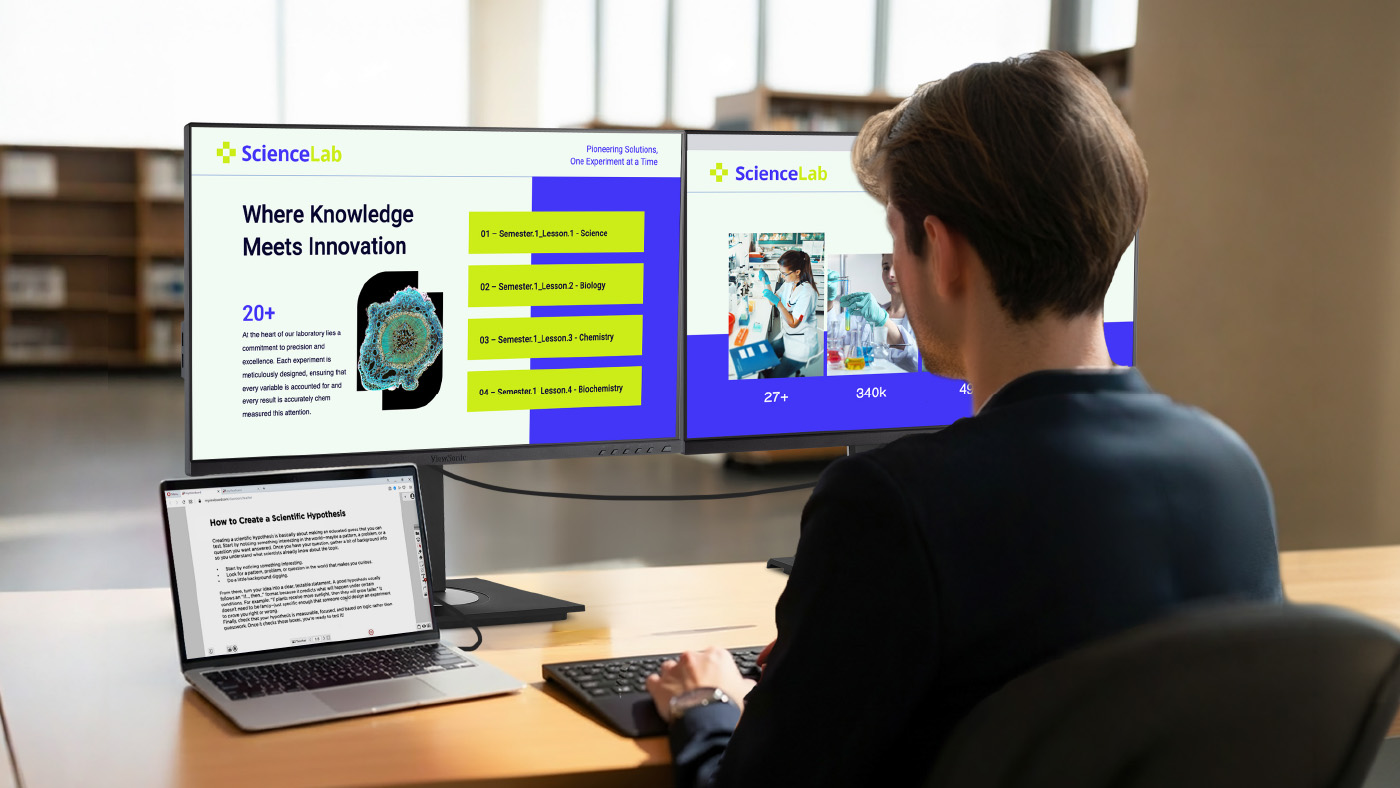
How does esports teach IT skills? Someone has to keep the computers running and the internet connection stable. Students interested in technology can help set up the gaming lab. This gives them practical experience for future careers in IT and network management.

Best Practices for Implementing Esports Programs

How do you start a successful scholastic esports team? Implementing a successful program requires careful planning and a commitment to positive student outcomes. Here are a few key best practices to guide you:

  • Build an inclusive culture: Prioritize diversity and sportsmanship from day one to ensure a safe and welcoming environment for everyone.
  • Ensure academic balance: Create clear eligibility guidelines and promote a healthy balance between screen time, studies and other activities.
  • Provide quality equipment: Equitable access is key. Secure reliable hardware to level the playing field for all students.
  • Train coaches and mentors: Invest in the development of staff who can serve as effective role models and guides.
  • Partner with the community: Connect with local esports organizations and industry partners to create new learning opportunities and pathways.

Equipping Your Campus for Success

What equipment do you need for a school esports program? You do not have to build a massive arena on day one. Building a new setup from scratch can feel overwhelming but schools can easily take a tiered approach based on their budget and space to get students playing right away.


  • The Economical Approach: Start small with portable monitors paired with a Nintendo Switch. The library media teacher can easily manage these compact displays and allow kids to check them out for flexible play anywhere on campus.
  • The Mid-Level Approach: Use products your school already has. You can easily connect a console to an Interactive Flat Panel (IFP) for instant team gaming in any classroom. Check out our video on an easy way to get started in esports to see why starting simple with games like Mario Kart on the Nintendo Switch is affordable, easy to learn and incredibly fun. You can also explore real-world school examples in our gaming setup video. It shows how educators use IFPs and "gamer backpacks" to create flexible gaming spaces while teaching students responsibility for their setup.
  • The High-End Approach: Build a dedicated lab. This means outfitting a room with a whole fleet of high-performance gaming monitors for a true varsity experience or designing a dedicated esports lounge when your funding allows. You can explore our esports solutions for schools to find the perfect equipment for your new arena.


ViewSonic has extensive experience helping schools build out their esports programs to meet these exact needs. You can see how transformative this technology is by reading how one school district offers esports to all ages by leveraging ViewSonic display infrastructure.

Why the Right Hardware Matters

Do monitors impact gaming performance? They make a massive difference. Standard office monitors usually refresh graphics 60 times a second. That's too slow for competitive gaming and causes motion blur. ViewSonic offers a range of high-performance esports displays that deliver the crucial features that competitive players need.

We recently introduced a gaming monitor with switchable refresh rates that's absolutely perfect for school labs. It lets students swap between a stunning 4K resolution for creative design work during the school day and an ultra-fast 288Hz refresh rate for competitive gaming after the bell rings.

**Actual refresh rates may vary depending on system configuration, cable quality, and connected devices.

Build Your Esports Program Today

Every student deserves a place to belong and a clear path to success. By bringing competitive gaming to your school you provide a highly engaging way for students to learn crucial life skills. You aren't just building a place to play games. You're building a modern classroom that prepares them for college and their future careers.

IT Support and Network Engineering
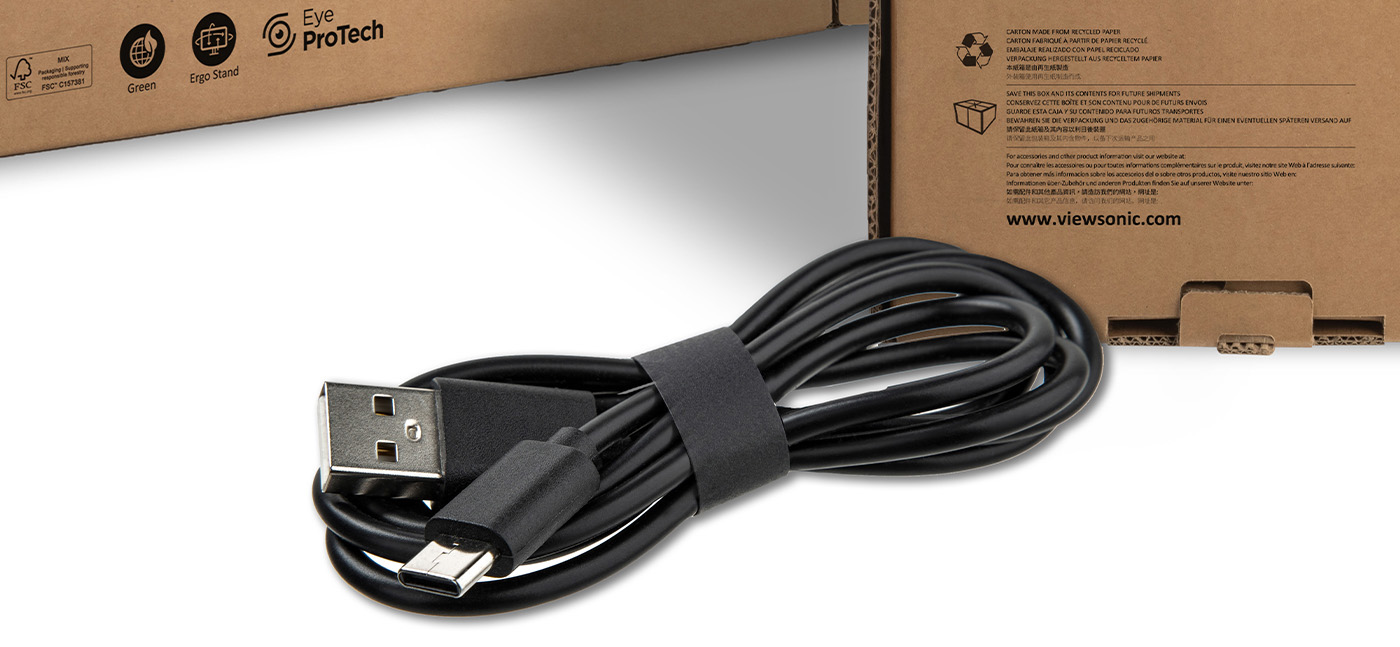
Ready to build your campus arena and inspire your students? Browse our full lineup of ViewSonic gaming monitors and grab the perfect equipment for your school today.