Education
Business
Consumer

Education

ViewSonic is the Leading Interactive Display Brand in the Americas for Q1 2026

Brea, CA (May 20, 2026)ViewSonic Corp., a leading global provider of visual and edtech solutions, announces that it is the leading interactive display brand in the Americas in Q1 2026. According to the latest report from FutureSource Consulting, ViewSonic holds the top market share position in the Americas*. This leading position has been fueled by the adoption of the company's ViewBoard® interactive displays across the education sector.


Demand for large-format interactive displays continues to grow as schools expand digital learning models and technology-enabled classrooms. Larger screens improve visibility across flexible classroom layouts. The ViewSonic® ViewBoard® product line supports collaborative content sharing and better accommodates hybrid learning environments. This makes ViewBoard a leading solution for daily instruction and engagement.


“Interactive displays have become essential for driving collaboration in modern classrooms, and schools are looking for reliable solutions that deliver consistent performance,” said Sean Liu, Senior Business Line Manager at ViewSonic. “Our continued leadership in the market showcases the commitment ViewSonic has in the education space. We are dedicated to providing classrooms with seamless, durable hardware that will support teachers and students year after year.”


To ensure that modern classroom requirements are met, ViewSonic has introduced Android™ 16 on select ViewBoard models*, making it the first brand in the interactive display industry to adopt the new operating system. Android 16 is optimized for large-format displays, offering responsive touch interaction, adaptable layouts, smoother system navigation, and efficient multitasking. These enhancements help create a more seamless and intuitive experience in any teaching environment.


Along with ViewBoard interactive displays, ViewSonic continues to expand its education ecosystem by integrating interactive displays with myViewBoard®, Manager™, AirSync™, and other ViewSonic education software. These products continue to enhance classroom collaboration, device management, and teacher-student engagement.


The ViewSonic ecosystem includes myViewBoard, the company’s digital whiteboarding platform. The 2026 version of the platform offers a new and improved interface, real-time collaboration, and Participate Mode for student interaction. Its high degree of built-in accessibility allows flexible lesson creation and seamless content use across devices. AirSync provides wireless casting while Manager offers centralized IT control of ViewSonic displays. Utilized together, these solutions simplify classroom deployment, streamline teaching workflows, and efficiently manage campus devices.


For more information on ViewSonic interactive displays, visit the official website: https://www.viewsonic.com/edu/education/viewboard.


To find out more about ViewSonic, visit ViewSonic.com and follow on Facebook, YouTube, X and Instagram.


About ViewSonic

Founded in 1987 and headquartered in Brea, California, ViewSonic is a leading global provider of visual solutions for the education, business, and consumer markets, with a presence in over 100 countries. Driven by the mission to transform education, workplaces, and lives, the company delivers a unified ecosystem of innovative hardware, software, and services that integrates seamlessly with the platforms, tools, and partners customers trust. Its product portfolio includes monitors, projectors, interactive displays, LED displays, commercial displays, video conferencing systems, and industrial solutions. Complementing its hardware is a robust suite of software offerings—including myViewBoard®, ClassSwift®, TeamOne®, ViewSonic Manager™, and AirSync™—featuring AI-powered tools for collaboration, device optimization, and management. By empowering creativity, collaboration, and lifelong learning, ViewSonic supports customers at every stage in achieving their business and sustainability goals, creating a lasting impact and helping people everywhere connect with purpose—and See the Difference®. Learn more at www.viewsonic.com.


* According to the Q1 2026 report from Futuresource Consulting, ViewSonic holds the top market share position for interactive displays in the Americas. Actual performance, compatibility, and user experience may vary depending on system configuration, network conditions, usage environment, and other factors. Specifications and availability are subject to change without notice. This news release contains forward-looking statements that reflect the Company’s expectations with regard to future events. Actual events could differ significantly from those anticipated in this document. Trademark footnote: ViewSonic and the ViewSonic trademarks are trademarks or registered trademarks of ViewSonic Corporation in the United States and/or other countries. All other corporate names and trademarks stated herein are the property of their respective companies.

*ViewBoard availability may vary by region. Customers are encouraged to consult their regional partner for availability.


Media Contacts:

Joey Lee
JSL Marketing for ViewSonic [U.S.]
E: joey@jslcomm.com

Miranda Bravo
ViewSonic [U.S.]
E: miranda.bravo@viewsonic.com

Nury Lavandier
ViewSonic [Latin America]
E: nury.lavandier@viewsonic.com
The Easy Button Universities Want: Improving Higher Ed AV Adoption

The Easy Button Universities Want: Improving Higher Ed AV Adoption

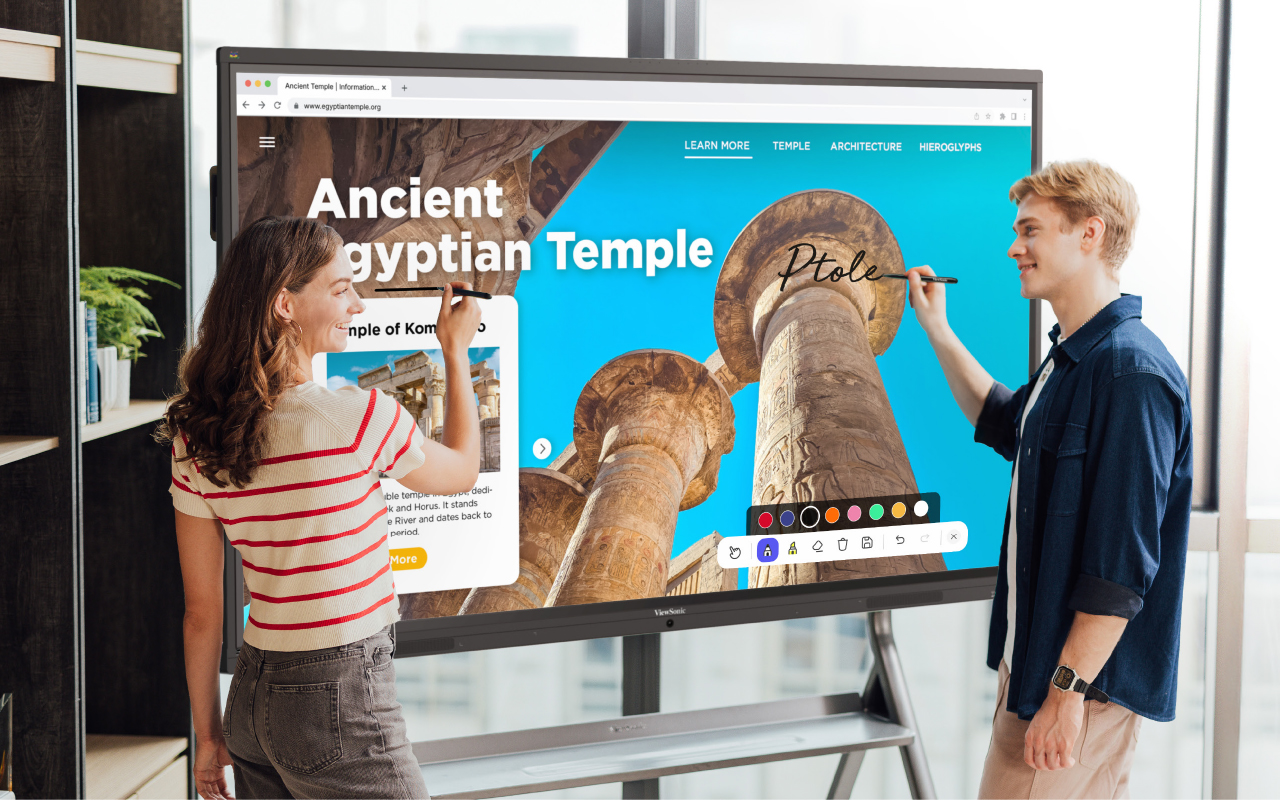
Professors want to walk into a room and have the tech be completely ready. According to the 2026 EDUCAUSE Students and Technology Report, students want their instructors to use technology efficiently and creatively. They actually feel a negative impact on their learning when they experience tech failures like broken projectors or watch instructors struggle to navigate systems. It is imperative that university technology is straightforward, easy to use and highly reliable from the very start.

Seamless Tech Integration

How do these displays connect to the campus? We designed our displays to work flawlessly with the control systems you already use. Because our products connect with RS-232, we easily integrate with industry leaders. ViewSonic® displays integrate into the Q-SYS Ecosystem via a Q-SYS library verified plugin. They are also fully compatible with Crestron, Extron and AMX.

This broad compatibility lets your IT team manage key functions like power, volume and inputs from one central spot. You get a simple setup that makes it easy to expand your system whenever you are ready.

The Power of Launch Commands

Can I launch software with a single button? Yes! Control system launch commands turn complex systems into simple one-touch experiences. A single button on the lectern removes hesitation and reduces support calls.

Even our software like myViewBoard® and AirSync™ can be launched using discrete commands on those command centers. This is a meaningful differentiator versus competitors that require manual navigation. It keeps the focus exactly where it belongs.

Benefits for the Entire Campus

How does this improve the classroom experience? The benefit of our products that work with control system launch commands is huge for your entire ecosystem.

  • IT teams do not need new systems or proprietary software from other companies.
  • They can use the exact control systems they are used to and have already implemented.
  • Instructors are actually going to use the tech and teaching becomes much more efficient.
  • Professors can focus entirely on the content instead of fumbling with the tech.
  • Classes move forward without annoying tech issues and students are far more satisfied with their learning.

Compatible Display Solutions

What products work with my control system? We offer a wide variety of products that cater to every instructor’s needs. All of these solutions work perfectly with major control systems like Q-SYS, AMX, Crestron and Extron.

Additional Tools for Instruction

How else can we improve the teaching experience? Beyond large room displays, we offer incredible solutions that help professors stay engaged with their students without worrying about the tech.

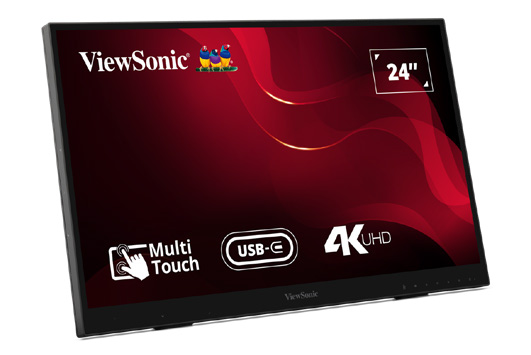
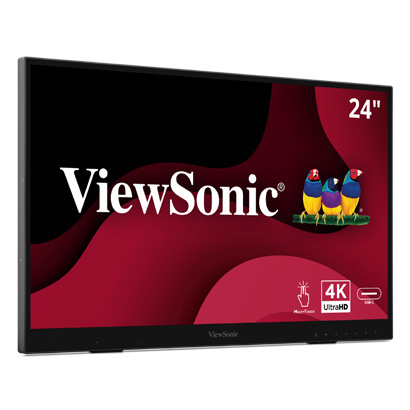
  • Podiums: The ID2456-4K touch display ensures instructors don’t turn their backs on students when they present.
  • Software: Tools like myViewBoard software for lectures or AirSync for wireless screencasting make digital sharing a breeze.

Simplify Your Campus AV Setup

Are you ready to upgrade your university displays? Upgrading your campus hardware shouldn’t mean rewriting your entire IT playbook. By choosing displays that respect your existing control systems, you create a stress-free environment for everyone.

Contact our team today to request a demo and explore our complete lineup of higher education display solutions!

ViewSonic Introduces the CDE14 Series of 4K Commercial Displays that Deliver Stunning Images and Ensure High Impact Messaging

The Value Driven Series Comes in Six Display Sizes, and Offers Remote Management and Centralized Device Control Options


Brea, CA (May 19, 2026)ViewSonic Corp., a leading global provider of visual and edtech solutions, introduces the CDE14 series of native 4K Commercial Displays for the North American market. The CDE14 series comes in six sizes, including 43-, 50-, 55-, 65-, 75-, and 86-inch screen sizes, and delivers exceptional functionality and performance at a value price point. The CDE14 line of displays features 16/7 operation, 350 nits of brightness, and native Ultra HD 4K resolution, making these displays an ideal choice for everything from corporate huddle rooms to retail storefronts, among others.


The ViewSonic® CDE14 series is a line of high-performance commercial displays that have been designed with a 25 percent high-haze, anti-glare coating, and 350 nits of brightness, to have clear and reflection-free viewing under bright ambient lighting, no matter the space or environment. The warm boot-up ensures rapid wake/start, so meetings can start quickly; while the two built-in 10W speakers with external audio support ensure clear, room-filling sound.


Setup is simple, right out of the box, with USB-C connectivity that handles video, audio, and data, and up to 15W power delivery. The secure Android™ platform and AirSync™ wireless casting means users don’t need proprietary hardware or licenses. The CDE14 line integrates seamlessly and is compatible with certified ProAV systems including Crestron, Extron, AMX, and the Q-SYS Ecosystem via the Q-SYS Library verified plugin. The displays also come with ViewSonic Manager™ software for centralized device control. 


ViewSonic CDE14 Commercial Display Series 

  • Available in six sizes: 43-, 50-, 55-, 65-, 75-, and 86-inch screen sizes 
  • Native 4K Ultra HD (3840 x 2160) resolution and a 60Hz refresh rate
  • Run on the Android 14 platform; with 4GB DDR4 memory with 32GB internal storage, and Android AOSP
  • Includes AirSync™ and Manager™ and is compatible with Crestron, Extron, AMX, and Q-SYS
  • Connectivity options include 3x HDMI (HDCP 1.4/2.2, CEC; ARC on HDMI 3), USB C (DP 1.2 + USB 2.0 + 15W power), 2x USB A (USB 2.0), RS 232, RJ 45, audio out, SPDIF
  • Wi Fi/Bluetooth via optional VB WIFI 005 module
  • Available: Now shipping [all SKUs in North America]
  • Pricing (estimated street prices)
    • CDE4314: $599.00 [USD]
    • CDE5014: $699.00 [USD]
    • CDE5514: $799.00 [USD]
    • CDE6514: $1,099.00 [USD]
    • CDE7514: $1,399.00 [USD]
    • CDE8614: $1,999.00 [USD]


To find out more about ViewSonic, visit ViewSonic.com and follow on Facebook, YouTube,  X and Instagram.


About ViewSonic

Founded in 1987 and headquartered in Brea, California, ViewSonic is a leading global provider of visual solutions for the education, business, and consumer markets, with a presence in over 100 countries. Driven by the mission to transform education, workplaces, and lives, the company delivers a unified ecosystem of innovative hardware, software, and services that integrates seamlessly with the platforms, tools, and partners customers trust. Its product portfolio includes monitors, projectors, interactive displays, LED displays, commercial displays, video conferencing systems, and industrial solutions. Complementing its hardware is a robust suite of software offerings—including myViewBoard®, ClassSwift®, TeamOne®, ViewSonic Manager™, and AirSync™—featuring AI-powered tools for collaboration, device optimization, and management. By empowering creativity, collaboration, and lifelong learning, ViewSonic supports customers at every stage in achieving their business and sustainability goals, creating a lasting impact and helping people everywhere connect with purpose—and See the Difference®. Learn more at www.viewsonic.com.

#  #  #


* Actual performance, compatibility, and user experience may vary depending on system configuration, network conditions, usage environment, and other factors.  Features and specifications are subject to change without notice. This news release contains forward-looking statements that reflect the Company’s expectations with regard to future events. Actual events could differ significantly from those anticipated in this document. Trademark footnote: ViewSonic and the ViewSonic trademarks are trademarks or registered trademarks of ViewSonic Corporation in the United States and/or other countries. All other corporate names and trademarks stated herein are the property of their respective companies.


Media Contacts:

Joey Lee
JSL Marketing for ViewSonic [U.S.]
E: joey@jslcomm.com

Nury Lavandier
ViewSonic [Latin America]
E: Nury.Lavandier@viewsonic.com
Miranda Bravo
ViewSonic [U.S.]
E: miranda.bravo@viewsonic.com

ViewSonic Launches New ViewBoard IFP35 Interactive Display Series with Android EDLA Certification in Canada

Designed to make classroom collaboration simple, secure, and affordable, the IFP35 series integrates the Google Education ecosystem with powerful performance to transform the learning experience

TORONTO, ON (May 18, 2026)ViewSonic Corp., a leading global provider of visual solutions, announces the launch of the ViewBoard® IFP35 interactive display series. Available in 65-, 75-, and 86-inch models, these touchscreens are designed to deliver a premium, easy-to-use experience for teachers and students without stretching school budgets.

The IFP35 series is powered by Android 16 and features Android™ EDLA (Enterprise Devices Licensing Agreement) certification, providing native and secure access to the Google Education ecosystem. Educators can enhance lesson plans with direct access to hundreds of educational apps from the Google Play Store and collaborate using Google Drive, Google Docs, Google Sheets, and Google Slides.

“The ViewSonic IFP35 is a versatile, easy-to-use display designed for everyday use,” said Sean Liu Sr. Business Line Manager at ViewSonic. “We remain committed to delivering future-ready technology to Canadian schools and helping educators bring lessons to life while keeping their students connected and engaged.”

Equipped with an upgraded octa-core CPU and high-bandwidth DDR5 memory, the IFP35 series ensures faster load times and stable performance for multimedia-heavy lessons. The 64-point multi-touch display allows multiple students to write or draw at the same time using styluses, fingers, or both. Built-in palm rejection ignores accidental touches, delivering smooth, accurate writing that feels natural and distraction-free. A one-cable USB-C connection keeps classroom setups clean and makes it easy to connect and present from a single device.

For school IT administrators, the IFP35 series offers centralized management and robust security features like automatic Google updates, Google Play Protect, and data encryption. Devices can be managed effortlessly through ViewSonic Manager™, Google Workspace Enterprise Management, and Microsoft Intune, allowing for remote configuration and real-time monitoring from a single dashboard.

To support school sustainability goals, the displays include smart ambient light and motion sensors that automatically adjust brightness and power states. The series features ENERGY STAR 8.0 certification and Silver EPEAT certification, helping to lower operating costs with no extra effort.

IFP35 Series Key Features:

  • 65-, 75-, and 86-Inch 4K UHD Display: Delivers sharp Ultra HD visuals with wide viewing angles for immersive classroom learning.
  • Native Google Access: Direct access to Google Workspace and the Google Play Store for seamless classroom collaboration.
  • Responsive Writing Experience: 64-point multi-touch technology with palm rejection for natural, lag-free writing.
  • Powerful Hardware: Upgraded octa-core CPU and DDR5 memory for smooth multitasking and stable performance.
  • Integrated Audio: Soundbar design with 40W (20W x 2) speakers for clear classroom audio.
  • Eco-Friendly Design: Smart sensors for energy efficiency and EPEAT/ENERGY STAR 8.0 certifications.
  • Included Education Software: Features myViewBoard®, AirSync™, and Manager™ at no extra cost to support real-time quizzes and annotation.
  • Versatile Connectivity: Supports HDMI 2.1, VGA, and USB-C (up to 65W Power Delivery) for flexible device connection.

To find out more about ViewSonic, visit ViewSonic.com and follow on Facebook, YouTube, X and Instagram.

About ViewSonic

Founded in 1987 and headquartered in Brea, California, ViewSonic is a leading global provider of visual solutions for the education, business, and consumer markets, with a presence in over 100 countries. Driven by the mission to transform education, workplaces, and lives, the company delivers a unified ecosystem of innovative hardware, software, and services that integrates seamlessly with the platforms, tools, and partners customers trust. Its product portfolio includes monitors, projectors, interactive displays, LED displays, commercial displays, video conferencing systems, and industrial solutions. Complementing its hardware is a robust suite of software offerings—including myViewBoard®, ClassSwift®, TeamOne™, Manager™, and AirSync™—featuring AI-powered tools for collaboration, device optimization, and management. By empowering creativity, collaboration, and lifelong learning, ViewSonic supports customers at every stage in achieving their business and sustainability goals, creating a lasting impact and helping people everywhere connect with purpose—and See the Difference®. Learn more at www.viewsonic.com.


This news release contains forward-looking statements that reflect the Company’s expectations with regard to future events. Actual performance may vary depending on system configuration, usage environment, and other conditions. Actual events could differ significantly from those anticipated in this document. Trademark footnote: ViewSonic and the ViewSonic trademarks are trademarks or registered trademarks of ViewSonic Corporation in the United States and/or other countries. All other corporate names and trademarks stated herein are the property of their respective companies.


Media Contacts:

Miranda Bravo
ViewSonic [U.S.]
E: miranda.bravo@viewsonic.com

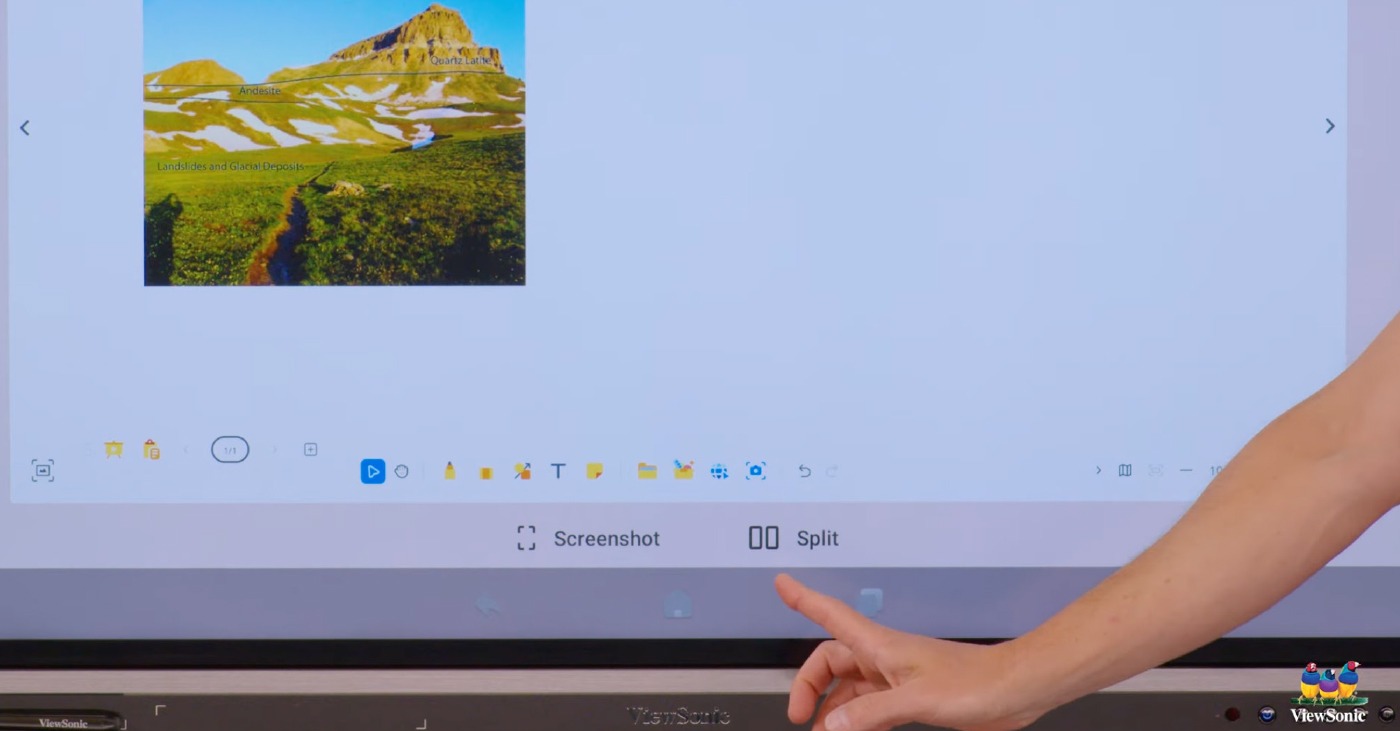
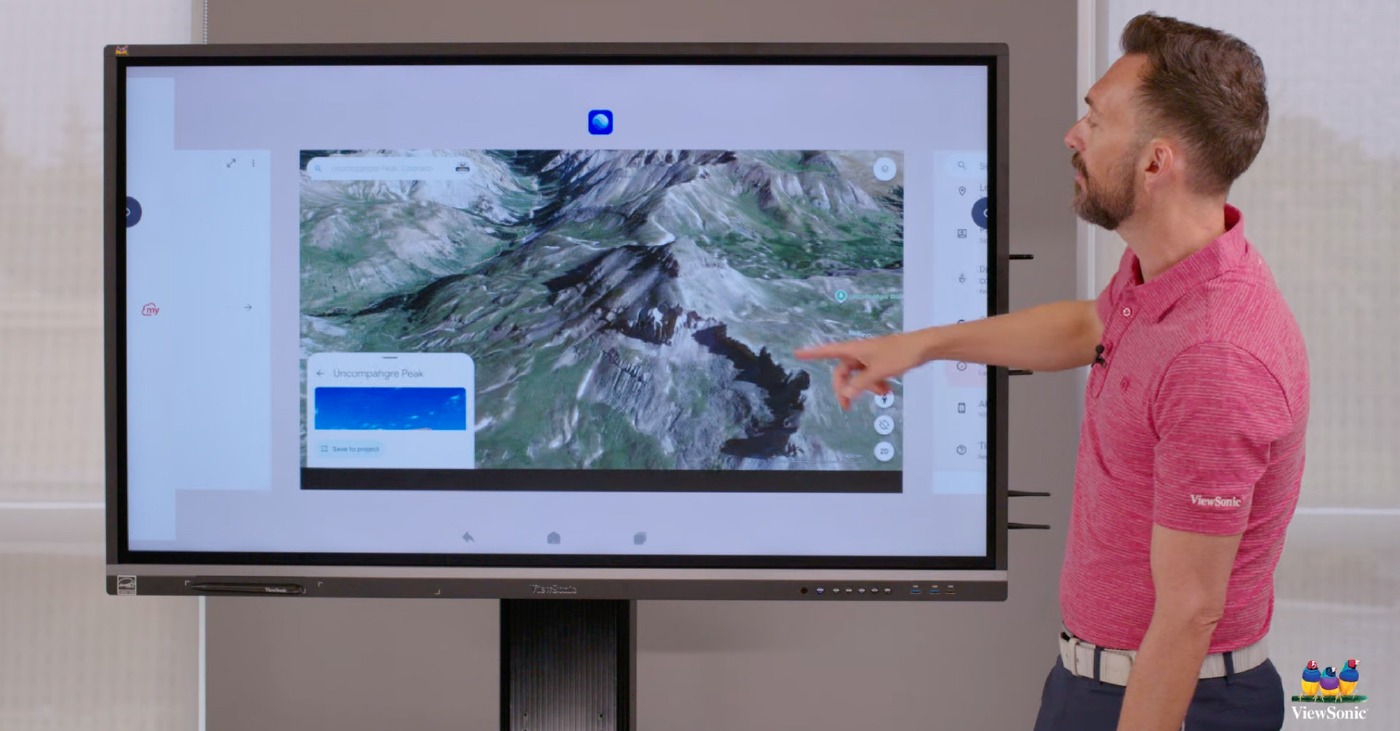
Why Teachers Love Split Screen on ViewBoard® Interactive Displays

Why Teachers Love Split Screen on ViewBoard® Interactive Displays

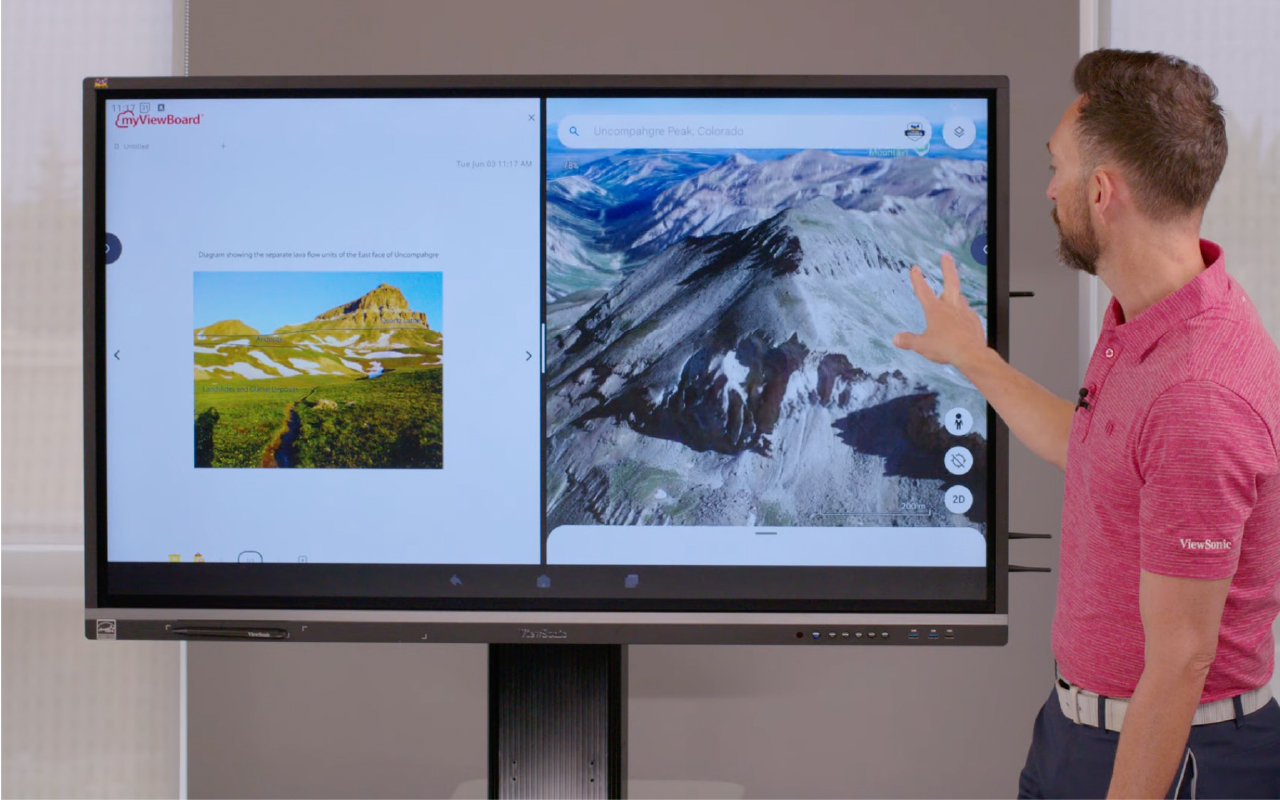
Planning a district refresh? The ViewBoard® IFP41 series of interactive displays offers a Split Screen function that educators can’t get enough of. With Split Screen, teachers can show two sources at once. That means less time navigating between tabs and more time actually teaching.

Teaching requires juggling a dozen tasks at once while trying to keep 30 kids focused. This tool makes the ViewBoard a great SMART Board or Promethean alternative. It works the exact way a teacher thinks.

What Makes Split Screen a Game Changer?

With EDLA-certification, the ViewBoard IFP41 series of interactive displays seamlessly integrates with Google Apps to make multitasking easy. You can finally run two powerful applications side by side to keep your lessons flowing perfectly. It’s exactly what you want out of a classroom interactive display.

Brilliant Ways to Use Split Screen in Your Classroom

How are educators using this feature? Here are a few amazing ways this feature is being used in the classroom right now.

Content and Annotation

Can I write on my slides during a lesson? Yes! You can easily split your screen to show your Google Slides on one side with myViewBoard® software open on the other. This is the best interactive display for teachers who want to annotate and mark up their lessons in real time.

Real-Time Translation

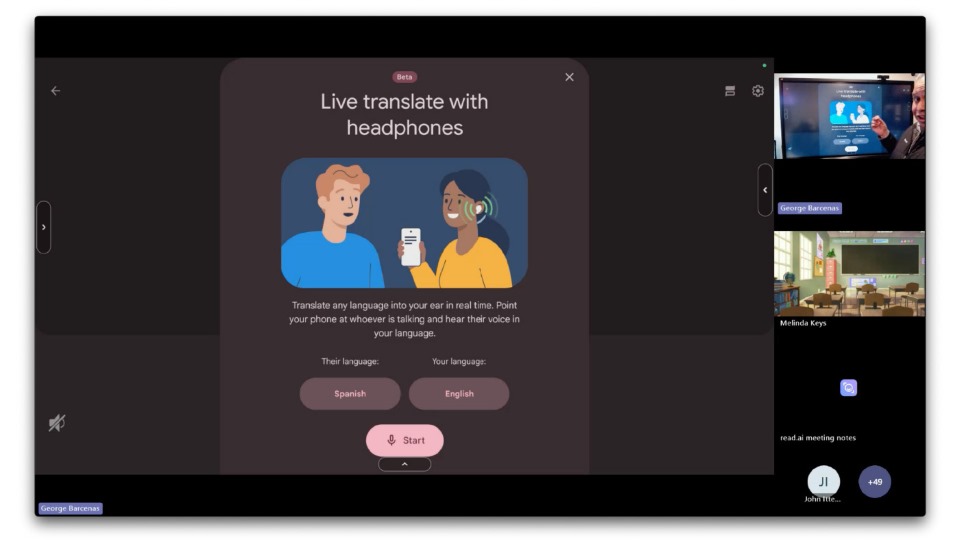
How does split screen help English Language Learners? Using a ViewBoard IFP41 display with a built-in microphone, you can put your presentation slides side by side with Google Translate. This setup lets you translate your teaching into different languages in real time. That’s a massive help for English Language Learners.

Modeling and Research

Can I show my students how to take proper notes? The split screen setup is great for modeling how to read text and take notes. You can actively research a topic on one side and pull key ideas onto the digital whiteboard on the other. For example, nearly every teacher does some variation of opening Google Earth. If you live on a peninsula, you can pull up the map on the left side. Then you can use “peninsula” and “bay” as vocabulary words that you write on myViewBoard next to the image.

Visualizers and Wireless Tech

Does this work with document cameras and screen casting? Absolutely. You can use your visualizer on one side and have your slides or a web page open on the other. This is perfect for teachers who still rely on doc cams. You also have the amazing ability to cast screens with AirSync on one side while keeping your document or web page open on the other.

Preschool Engagement

Is this good for younger students? This tool works brilliantly for our youngest learners too. You can use a PDF with colorful shapes on one side and have the kids create those exact shapes on the other. It’s a really fun and interactive way of modeling for them.

Ready to Transform Your Classroom?

Are you looking for the perfect district refresh? The split screen feature eliminates technical confusion so you can focus on what you do best. It bridges the gap between complicated hardware and actual teaching needs.

Check out this video to see the Split Screen feature in action.

ViewSonic Launches Two New Laser-Based Installation Projectors

The LSD500HD and LSD600W Offer 3rd Generation Laser Technology, High Brightness, and Installation-Friendly Features for Commercial, Business, and Educational Environments


Brea, CA (May 13, 2026)ViewSonic Corp., a leading global provider of visual and edtech solutions, launches two new laser-based installation projectors for commercial, enterprise, and education spaces. The LSD500HD and LSD600W projectors include third-generation laser phosphor technology, high brightness levels, and installation-friendly features, such as 360-degree rotation, for unique applications and settings.


The LSD500HD is a native 1080p, Full HD, 5,500 ANSI lumen projector that can run up to 30,000 hours (depending on usage) with its laser-based technology. It comes with a dedicated Golf Mode function that fine-tunes the color output to boost blues and greens on a screen. The LSD500HD features HDMI 2.0 with HDR10 and HLG support, so it can accept Ultra HD 4K content at 60Hz with no signal compromise. It is certified for Crestron and Q-SYS, and compatible with AMX, PJ Link, and Extron ecosystems, allowing AV teams to manage and monitor multiple projectors from a single location.  With its 360-degree projection rotation, 1.3x optical zoom, and horizontal/vertical keystone correction, the LSD500HD can fit practically any space and installation without compromising image quality. 


The ViewSonic® LSD600W is a laser projector with native WXGA resolution and 6,000 ANSI lumens of brightness. The third-generation laser technology ensures that it can last up to 30,000 hours (depending on usage). It is installation friendly with 360-degree projection rotation, 1.3x optical zoom, and horizontal/vertical keystone correction. A dedicated Golf Mode function fine-tunes color output to boost blues and greens on a screen. An advanced cooling system and sealed engine supports the LSD600W to run 24/7 in demanding environments. 


“With these new LSD laser projectors, ViewSonic can offer more lamp-free options to our customers, and the market, offering more value-based solutions to fulfill big display needs,” said Jeff Muto, Business Line Director at ViewSonic. “The LSD500HD and LSD600W were developed to power on to full brightness with no warm-up period, which is important in commercial environments. The installation friendly features also allow integrators to utilize these projectors mounted to ceilings, portrait modes, or any other type of unconventional space without losing image quality.”


ViewSonic LSD500HD

  • Native 1080p Full HD (1920 x 1080) resolution, and 5,500 ANSI lumens of brightness 
  • Third-generation laser phosphor technology
  • Dedicated Golf Mode function for fine-tuning of color output, boosting blues and greens
  • Installation-friendly with 360-degree projection rotation, 1.3x optical zoom, and horizontal/vertical keystone correction 
  • Certified for Crestron and Q-SYS, and compatible with AMX, PJ Link, and Extron ecosystems
  • Connectivity options include HDMI 2.0 (HDMI/HDCP 2.2), USB 2.0 (Type A), RJ45, RS232, and Audio-Out
  • Availability: May 2026 for an estimated street price of $1,049.99 [USD]


ViewSonic LSD600W

  • Native WXGA (1280x800) resolution, 16:10 aspect ratio, and 6,000 ANSI lumens of brightness 
  • Third-generation laser phosphor technology
  • Installation-friendly with 360-degree projection rotation, 1.3x optical zoom, and horizontal/vertical keystone correction 
  • Dedicated Golf Mode function for fine-tuning of color output, boosting blues and greens
  • Connectivity options include HDMI 1.4, HDMI/HDCP 1.4, USB 2.0 (Type A), RS232, and Audio-Out
  • Availability: May 2026 for an estimated street price of $999.99 [USD]


To find out more about ViewSonic, visit ViewSonic.com and follow on Facebook, YouTube,  X and Instagram.


About ViewSonic
Founded in 1987 and headquartered in Brea, California, ViewSonic is a leading global provider of visual solutions for the education, business, and consumer markets, with a presence in over 100 countries. Driven by the mission to transform education, workplaces, and lives, the company delivers a unified ecosystem of innovative hardware, software, and services that integrates seamlessly with the platforms, tools, and partners customers trust. Its product portfolio includes monitors, projectors, interactive displays, LED displays, commercial displays, video conferencing systems, and industrial solutions. Complementing its hardware is a robust suite of software offerings—including myViewBoard®, ClassSwift®, TeamOne®, ViewSonic Manager™, and AirSync™—featuring AI-powered tools for collaboration, device optimization, and management. By empowering creativity, collaboration, and lifelong learning, ViewSonic supports customers at every stage in achieving their business and sustainability goals, creating a lasting impact and helping people everywhere connect with purpose—and See the Difference®. Learn more at www.viewsonic.com.

#  #  #


* Actual performance, compatibility, and user experience may vary depending on system configuration, network conditions, usage environment, and other factors. Features and specifications are subject to change without notice. This news release contains forward-looking statements that reflect the Company’s expectations with regard to future events. Actual events could differ significantly from those anticipated in this document. Trademark footnote: ViewSonic and the ViewSonic trademarks are trademarks or registered trademarks of ViewSonic Corporation in the United States and/or other countries. All other corporate names and trademarks stated herein are the property of their respective companies.


Media Contacts:

Joey Lee
JSL Marketing for ViewSonic [U.S.]
E: joey@jslcomm.com

Nury Lavandier
ViewSonic [Latin America]
E: Nury.Lavandier@viewsonic.com
Miranda Bravo
ViewSonic [U.S.]
E: miranda.bravo@viewsonic.com

Level Up Learning: How Esports Contributes to College and Career Readiness

Buyer's Guide

Level Up Learning: How Esports Contributes to College and Career Readiness

For a long time, people thought video games were just a distraction. We've spent decades working side by side with educators and IT directors. We know firsthand that the old misconception of esports being simply a frivolous distraction from academics is fading fast, replaced by a more data-driven understanding. Organized and competitive gaming is a powerful engine for driving real educational value and cultivating indispensable career skills.

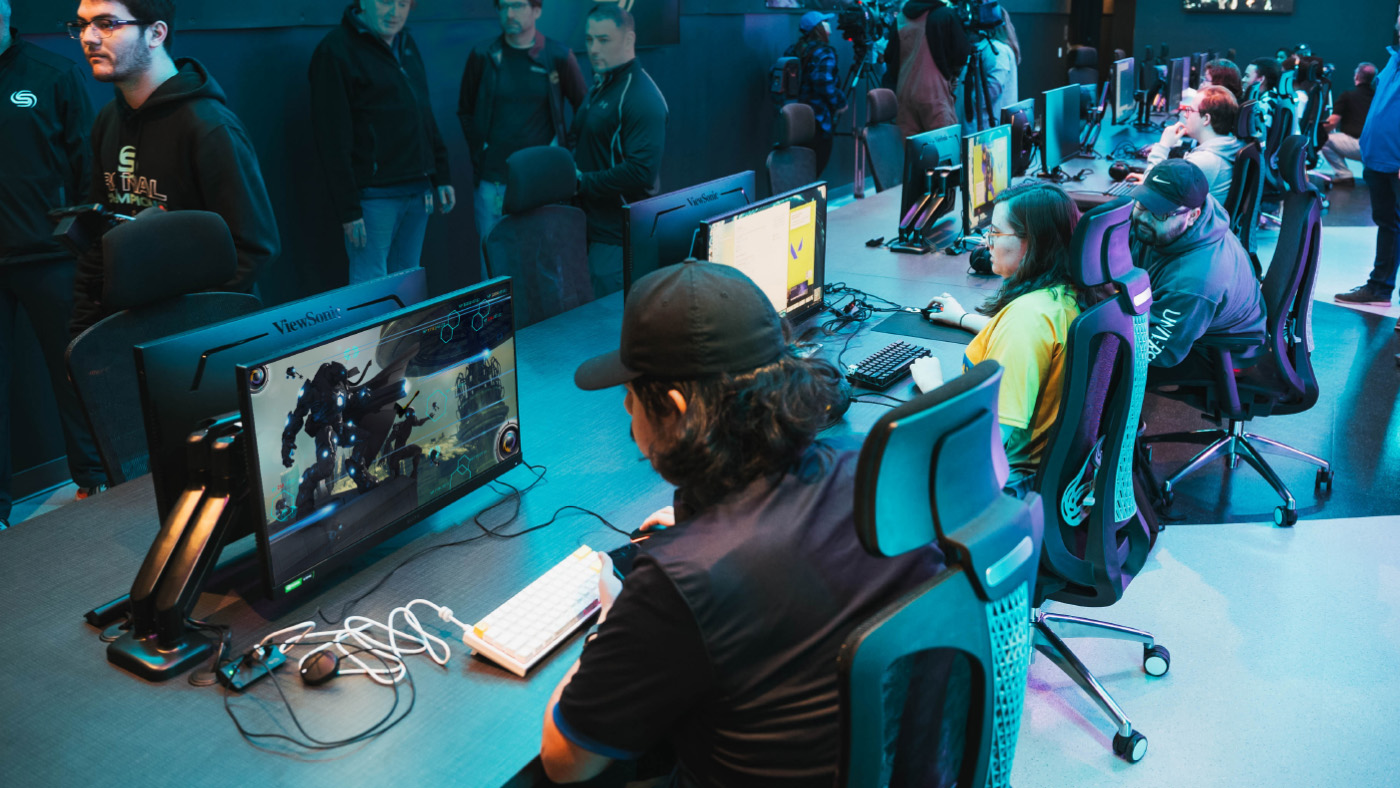
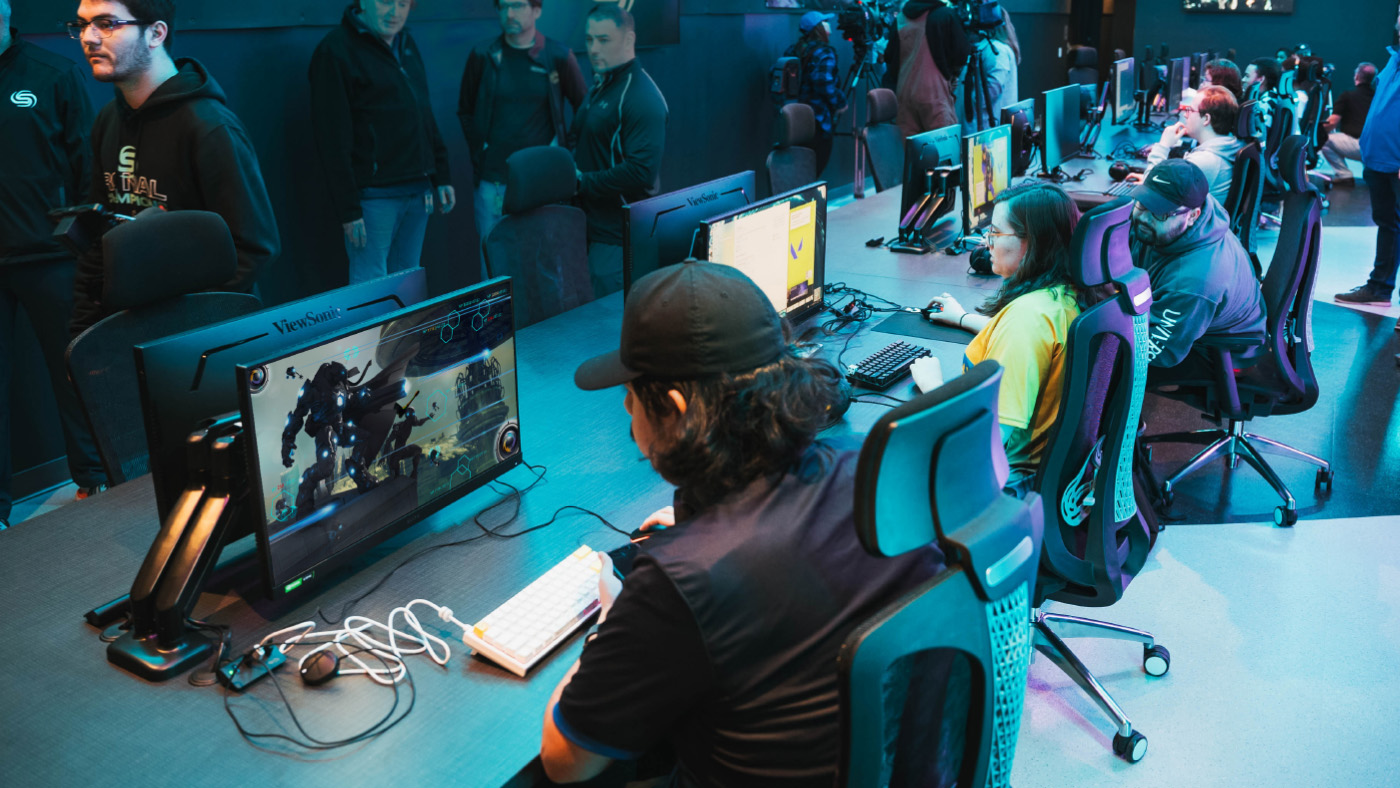
When schools build competitive gaming programs, they see a massive boost in student engagement. Kids who never joined traditional sports or clubs are suddenly excited to participate in school activities. Scholastic esports refers to organized video gaming competitions within an educational setting. It's a powerful educational tool that builds 21st-century skills and prepares students for high-paying careers.

Let's dive into exactly how competitive gaming sets students up for lifelong success.

Why Should Schools Embrace Esports?

Is esports really good for students? Yes! While students engage with esports because it is something they are passionately excited about, educators see another layer of value with the organic development of critical soft skills. Competitive gaming teaches students how to work together under intense pressure. It goes far beyond simply playing games and actively builds a massive range of technical and leadership skills.

Leadership Skills

Can video games help students build college and career skills? Yes, they absolutely can. In fact, the World Economic Forum's The Future of Jobs Report 2025 identifies analytical thinking, creative thinking, leadership and social influence as some of the top core skills that will only increase in importance. Fast-paced competitive gaming requires incredibly clear, concise and effective communication. Students must learn how to cooperate seamlessly and develop shared strategies in a high-stakes environment. Players are constantly forced to analyze complex challenges. When a match changes from second to second they learn how to adapt their strategies on the fly, think critically about cause and effect and make quick decisions under extreme pressure.

Beyond the screen, the esports ecosystem offers a wide range of roles where students can exercise leadership and social influence. They can easily step up to take on roles as team captains or peer coaches. This hands-on experience teaches them how to handle adversity, recover from significant setbacks and maintain a positive focus under intense pressure. It's real-time problem-solving at its most engaging.

Good Digital Citizenship

Can gaming teach good citizenship? Yes. A structured school program creates a safe environment for students to play and learn. Left on their own online, students might run into or participate in toxic behavior. But school coaches teach them how to interact respectfully and handle wins and losses with grace. They develop crucial digital literacy by learning how to be responsible digital citizens and practice healthy online behaviors.

Academic Achievement and Attendance

Can esports improve grades? Yes, they can. When schools build an esports team, they give unengaged students a reason to show up. By setting a minimum GPA requirement to participate, schools give students a massive motivation to try harder in their academics. It provides a crucial new avenue for school engagement and dramatically improves attendance and a sense of belonging. The chance to compete motivates students to pay attention in class, finish their homework and show up to school every single day.

Exploring Esports Career Pathways

Can you get a job in esports? Absolutely. The skills gained in esports don't just stay in the classroom, lab or arena. They are highly transferable and open doors to incredible future opportunities in fields like IT, marketing, graphic design and event organization.

College Scholarships and Academic Programs

Can you get a scholarship for playing video games? Yes, you absolutely can. One of the most rapidly growing facets of higher education is the expansion of esports scholarships and varsity teams. Thousands of colleges now offer substantial financial aid to talented gamers. You can even explore directories of college esports programs to see exactly which schools are actively recruiting players. Beyond the playing field, universities are creating dedicated degree and certificate programs in related fields. Students can now major in game design, media production, esports management and marketing to turn their passion into a legitimized academic path.

Broadcasting and Shoutcasting

What’s a shoutcaster? A shoutcaster is like a sports announcer for video games. Students interested in media can manage the entire backend of an event by handling AV work or coordinating live streams as shoutcasters. This is fantastic practice for a future career in event production and broadcasting.

Video Editing

Can making gaming videos lead to a job? Yes. Many professional editors for major esports teams, popular influencers and top tech companies actually got their start right in this space. They began by making fan edits of pro gameplay or cutting together highlight reels of their own matches. When students create this kind of engaging content, they naturally learn the ropes of media production. This hands-on experience lets them build an impressive portfolio of work before they even graduate.

Game Design and Development

How do students make games? Playing games naturally sparks an interest in how they're built from the ground up. If a student has a passion for the art of gaming, they might be inspired to learn coding and software development to create their own games. They can also learn storytelling, storyboarding and animation, and audio production to build compelling characters and worlds.

Event Management and Marketing

Who runs the program and the tournaments? Schools often partner with official providers like NASEF to host competitive tournaments. But an esports event takes a huge amount of work to pull off successfully and so does running the actual team. Getting students actively involved in day-to-day program management is hugely beneficial alongside live event production. Students can easily take charge of scheduling, marketing, content creation and project management. These hands-on experiences are invaluable for future roles in business operations, marketing and community management.

IT Support and Network Engineering

How does esports teach IT skills? Someone has to keep the computers running and the internet connection stable. Students interested in technology can help set up the gaming lab. This gives them practical experience for future careers in IT and network management.

Best Practices for Implementing Esports Programs

How do you start a successful scholastic esports team? Implementing a successful program requires careful planning and a commitment to positive student outcomes. Here are a few key best practices to guide you:

  • Build an inclusive culture: Prioritize diversity and sportsmanship from day one to ensure a safe and welcoming environment for everyone.
  • Ensure academic balance: Create clear eligibility guidelines and promote a healthy balance between screen time, studies and other activities.
  • Provide quality equipment: Equitable access is key. Secure reliable hardware to level the playing field for all students.
  • Train coaches and mentors: Invest in the development of staff who can serve as effective role models and guides.
  • Partner with the community: Connect with local esports organizations and industry partners to create new learning opportunities and pathways.

Equipping Your Campus for Success

What equipment do you need for a school esports program? You do not have to build a massive arena on day one. Building a new setup from scratch can feel overwhelming but schools can easily take a tiered approach based on their budget and space to get students playing right away.


  • The Economical Approach: Start small with portable monitors paired with a Nintendo Switch. The library media teacher can easily manage these compact displays and allow kids to check them out for flexible play anywhere on campus.
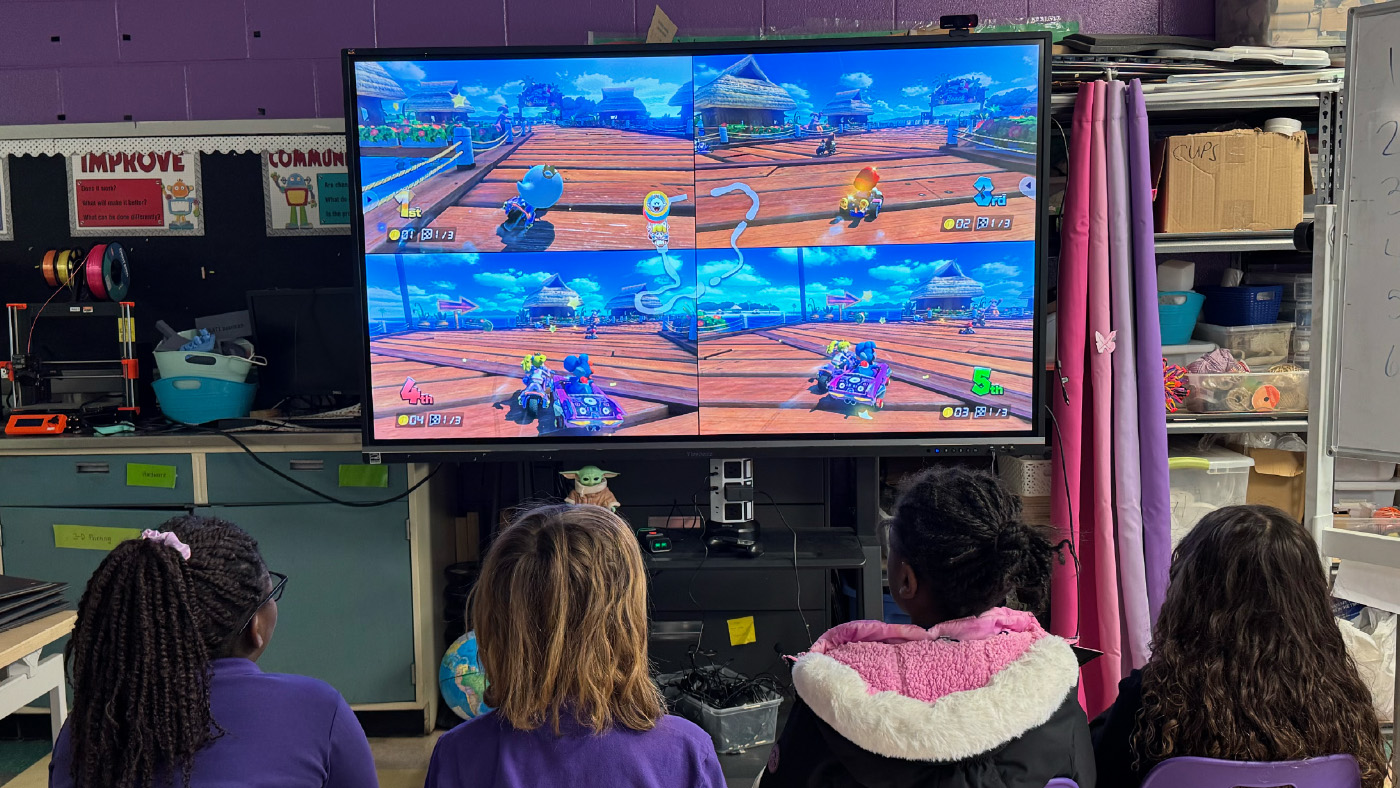
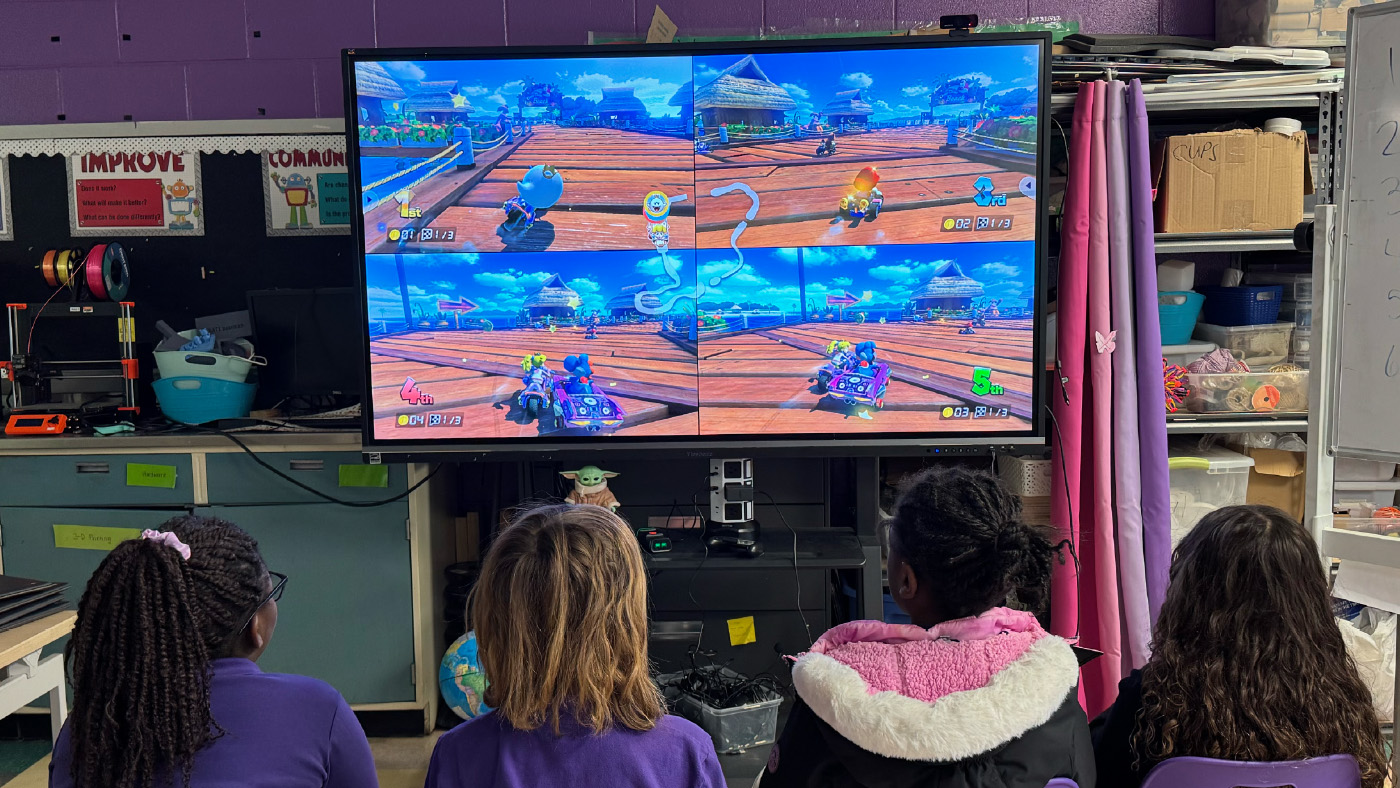
  • The Mid-Level Approach: Use products your school already has. You can easily connect a console to an Interactive Flat Panel (IFP) for instant team gaming in any classroom. Check out our video on an easy way to get started in esports to see why starting simple with games like Mario Kart on the Nintendo Switch is affordable, easy to learn and incredibly fun. You can also explore real-world school examples in our gaming setup video. It shows how educators use IFPs and "gamer backpacks" to create flexible gaming spaces while teaching students responsibility for their setup.
  • The High-End Approach: Build a dedicated lab. This means outfitting a room with a whole fleet of high-performance gaming monitors for a true varsity experience or designing a dedicated esports lounge when your funding allows. You can explore our esports solutions for schools to find the perfect equipment for your new arena.


ViewSonic has extensive experience helping schools build out their esports programs to meet these exact needs. You can see how transformative this technology is by reading how one school district offers esports to all ages by leveraging ViewSonic display infrastructure.

Why the Right Hardware Matters

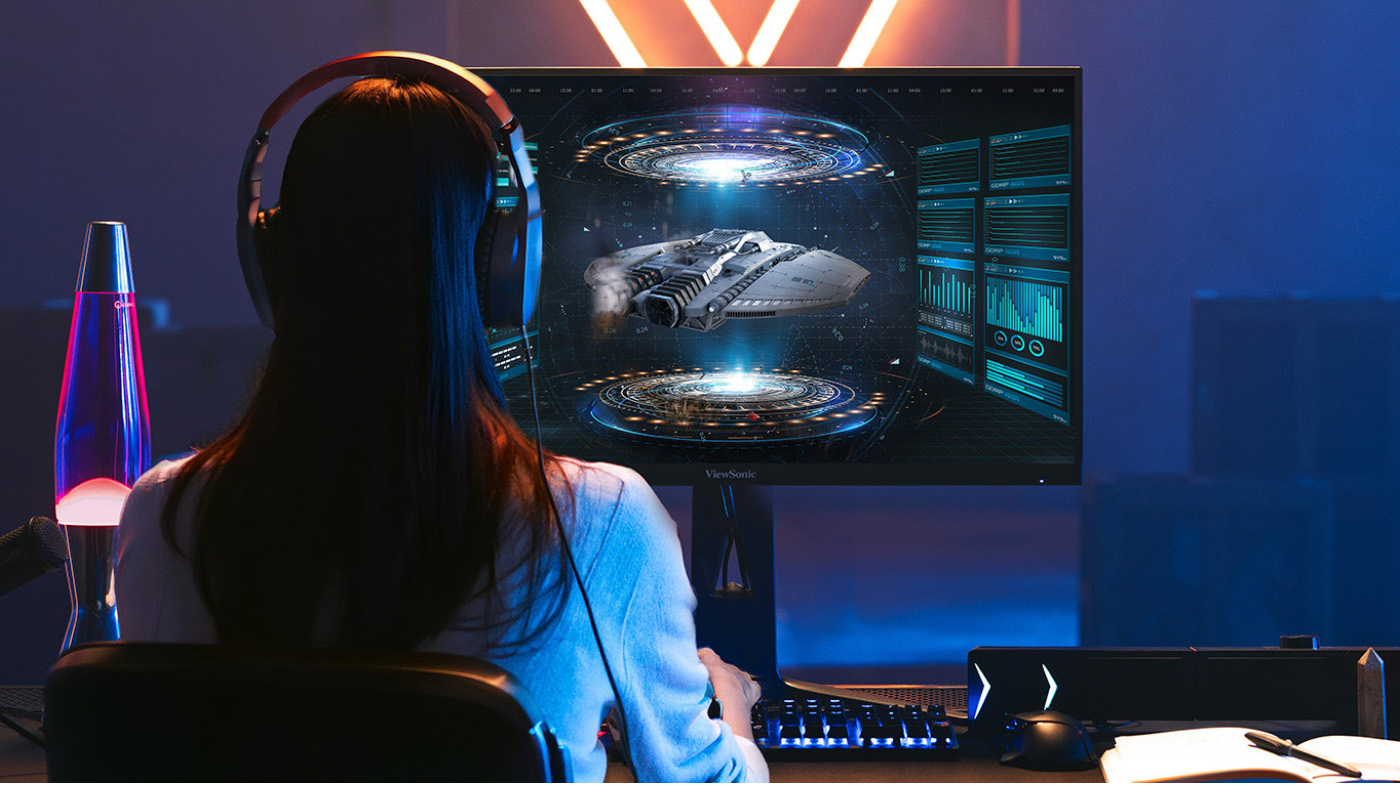
Do monitors impact gaming performance? They make a massive difference. Standard office monitors usually refresh graphics 60 times a second. That's too slow for competitive gaming and causes motion blur. ViewSonic offers a range of high-performance esports displays that deliver the crucial features that competitive players need.

We recently introduced a gaming monitor with switchable refresh rates that's absolutely perfect for school labs. It lets students swap between a stunning 4K resolution for creative design work during the school day and an ultra-fast 288Hz refresh rate for competitive gaming after the bell rings.

**Actual refresh rates may vary depending on system configuration, cable quality, and connected devices.

Build Your Esports Program Today

Every student deserves a place to belong and a clear path to success. By bringing competitive gaming to your school you provide a highly engaging way for students to learn crucial life skills. You aren't just building a place to play games. You're building a modern classroom that prepares them for college and their future careers.

IT Support and Network Engineering

Ready to build your campus arena and inspire your students? Browse our full lineup of ViewSonic gaming monitors and grab the perfect equipment for your school today.

Amplify Your Lessons: The Power of Interactive Displays with a Built-In Microphone

Amplify Your Lessons: The Power of Interactive Displays with a Built-In Microphone

Every laptop or phone you purchase has a built-in microphone. Even your car probably has one! We rely on these tools for a variety of everyday tasks. They help us record audio and seamlessly dictate text. Best of all, they prevent the need to purchase bulky external hardware.

So why should your classroom technology be any different? When searching for the perfect interactive display for schools, audio should not be an afterthought. At ViewSonic, we spend a lot of time listening to educators. We know that managing extra cables and external tech is a massive headache. That’s exactly why we built high-quality microphone arrays directly into our ViewBoard® IFP41 series of interactive displays.

What Is an 8-Array Beamforming Microphone?

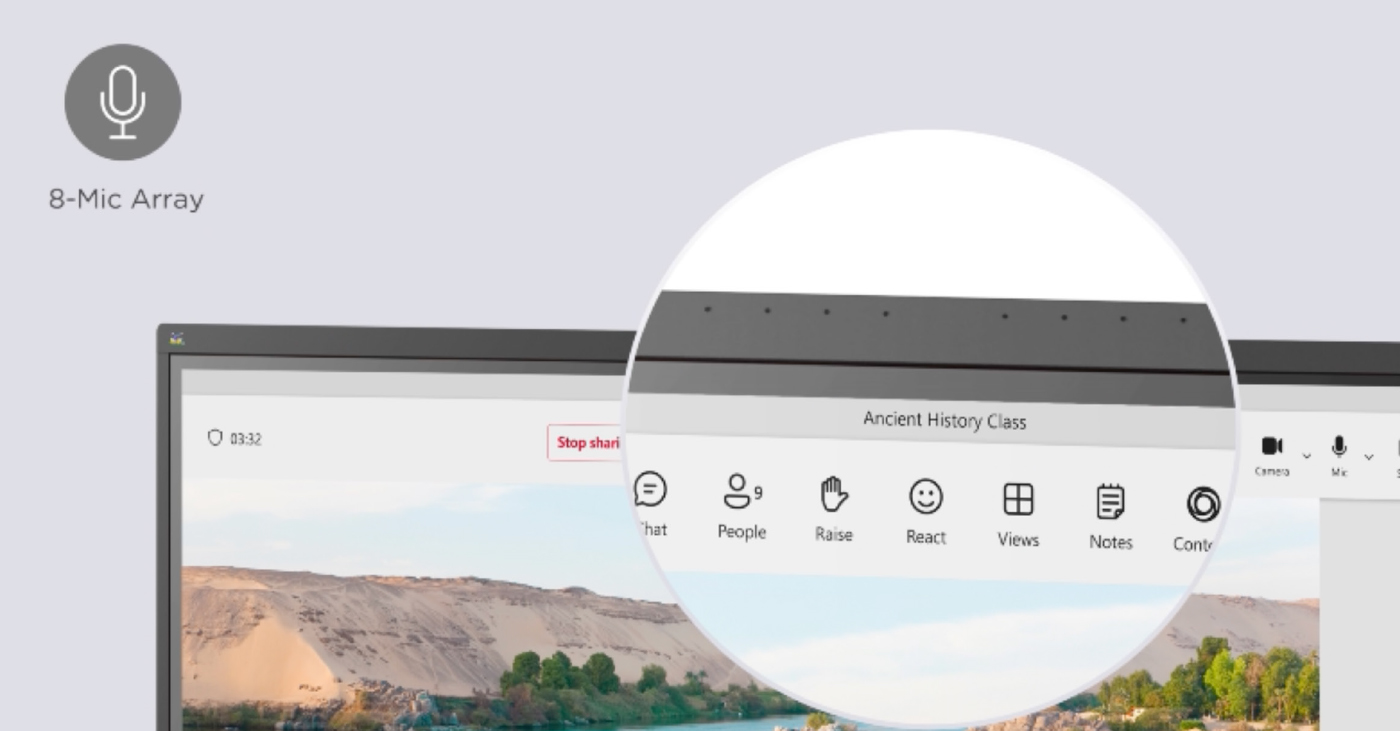
ViewBoard IFP41 displays feature a powerful 8-array beamforming mic. Think of a traditional microphone like a flashlight. It usually only picks up sound from one specific direction.

The microphones on our interactive displays are much smarter than that. It uses eight microphones working together to listen to multiple directions. The system then automatically filters out annoying background noises like loud HVAC units or quiet classroom chatter.

Some competitors expect you to buy expensive external mic pods. Others force you to settle for low-quality audio. A standard mic might just hear the teacher. Our display hears the whole room

How Can Built-In Microphones Transform Your Classroom?

Having a powerful microphone changes the game for daily instruction. Here are a few brilliant ways you can use this technology right now.

Can I Record My Lessons Easily?

Yes, lesson recording is seamless. If you are running a Windows device with our myViewBoard® software, you can easily share your screen and record your entire lesson. It’s the absolute easiest way to create flipped classroom content. It’s also a fantastic tool to catch up students who were out sick.

How Does Audio Help ESL Students?

Integrated mics unlock real-time translation. For classes with English Language Learners, tools like Google Translate are a lifesaver. With the integrated mics on the IFP41, you can use the voice feature in real time. A teacher can speak directions at the board. A student can speak right from their desk. The ViewBoard microphone easily picks up both voices to provide instant translations.

Is There a Way to Type Faster?

Use your voice to dictate text. Typing long directions on a large screen takes too much time. It’s especially tough when you have 20 students waiting for a moment to get distracted. The myViewBoard software offers seamless speech to text. You simply dictate your directions and they instantly show up as text on the ViewBoard screen.

Can I Use AI With My Voice?

You can talk directly to your favorite AI tools. The IFP41 is fully EDLA Certified. This means you have instant access to any app on the Google Play store. You can easily pull up your favorite LLM like Gemini or ChatGPT right on the board. Instead of typing out complex prompts, use the microphone to ask questions or generate lesson ideas. It feels incredibly natural. It’s just like having a teaching assistant standing right there with you.

What About Remote Learning and Class Discussions?

Capture every voice in the room. A built-in microphone bridges the gap between in-person and remote students. You can hop into a virtual meeting and every single participant can hear each other clearly. This ensures everyone learns from different perspectives.

You can also record student discussions directly into a document. Instead of taking frantic notes, let the board do the heavy lifting. It’s a great way to gather evidence of student learning and keep a reliable record of class participation.

Ready to Upgrade Your Classroom Technology?

Why settle for complicated audio setups? You shouldn’t have to purchase additional mics and messy cables to do basic things like recording a lesson. The ViewSonic ViewBoard IFP41 series gives you everything you need right out of the box. It makes your teaching better and your life a little easier.

Want to learn more about how our hardware can transform your school? Check out our full lineup of interactive displays today!

How Teacher Feedback Shapes the Future of the Classroom

Buyer's Guide

How Teacher Feedback Shapes the Future of the Classroom

There was a time when teacher feedback was just a nice bonus for tech companies. Today, it has become the absolute primary driver of classroom innovation. A common misconception is that educational technology is just about replacing an old chalkboard with a shiny new screen. However, true Edtech is about building a teacher-centric roadmap that drives real student engagement and better learning outcomes. When companies listen to the educators who actually use their tools every single day, they can create hardware and software that truly changes the game.

Let’s look at exactly how your feedback has influenced the latest product updates at ViewSonic.

Upgrading the ID2456-4K Touch Display

How did teachers improve this podium display? You shared a major classroom frustration with us. For years, teachers had to turn their backs to students to write on the whiteboard or front-of-classroom display. You asked for a better way. We listened and created the myPodium™ ID2456 touch display. This 24-inch screen lets educators face the class while writing. Whatever you draw instantly shows up on the large classroom display or projector for the whole class to see. It keeps you completely engaged with the room.

But we didn’t stop there. We kept listening to your direct feedback to make the next version even better. You wanted sharper visuals, cleaner setups and smarter tools. We took those notes and rolled out the second generation. We upgraded the screen to stunning 4K. We also made two massive physical design changes.

First, we moved all the cable ports to the back of the device facing downward. This ensures messy wires are no longer sticking out of the sides. Your workspace stays perfectly neat. The entire setup connects to a laptop via one single USB-C cable.

Second, we added a dedicated dock that charges the smart pen wirelessly. Now you never have to plug in a USB cable to charge it again. Your pen is simply always ready to go.

Building a Better myViewBoard 3.0

What’s new in our whiteboarding software? We originally created myViewBoard to give teachers a powerful digital whiteboard. But as educators used the software day to day, they quickly noticed a few practical features were missing. Teachers specifically asked for a way to use tabs and a method for saving participate mode. We listened to those ideas and completely redesigned the user interface to build myViewBoard 3.0.

The absolute biggest win for educators is the brand new tabs feature. Teachers can now open multiple lessons in tabs exactly like a web browser. This allows instructors to switch between different class periods instantly without losing their place.

Teachers also loved Participate Mode, but wanted a way to customize and save work. This mode allows up to six students to write on the ViewBoard display at the exact same time. Thanks to teacher input, the new updates allow you to change the background to things like grid paper for math lessons. You can also easily save the final session as a file for student portfolios.

Lastly, we added crucial accessibility tools to make sure no student is left behind. This includes a Spotlight tool to focus student attention, Irlen filters for color blindness and an Immersive Reader for translation and literacy support. It’s a smarter digital whiteboard built entirely around daily classroom needs.

Creating Safer Wireless Casting With AirSync

Why did we build a dedicated casting tool? We packed myViewBoard with tons of amazing features for the classroom. But we heard from plenty of teachers who didn’t want all those extra bells and whistles. You told us you just wanted a simple and reliable way to cast your screen. We listened to that feedback and created AirSync.

This wireless casting software allows you to mirror your screen from any device to one or multiple larger displays. We also added a highly requested Moderator Mode so teachers can see a list of students who want to share their screens. You can approve them one by one. This completely prevents unapproved content from showing up on the board.

It also offers incredible flexibility for everyone in the room. It supports native casting like AirPlay and Chromecast, but it also has a convenient browser-based version at AirSync.net. This means guests can quickly share their screens without downloading a separate app. It is simple, secure and exactly what you asked for.

Learn more about AirSync

Expanding Classroom Safety Tools

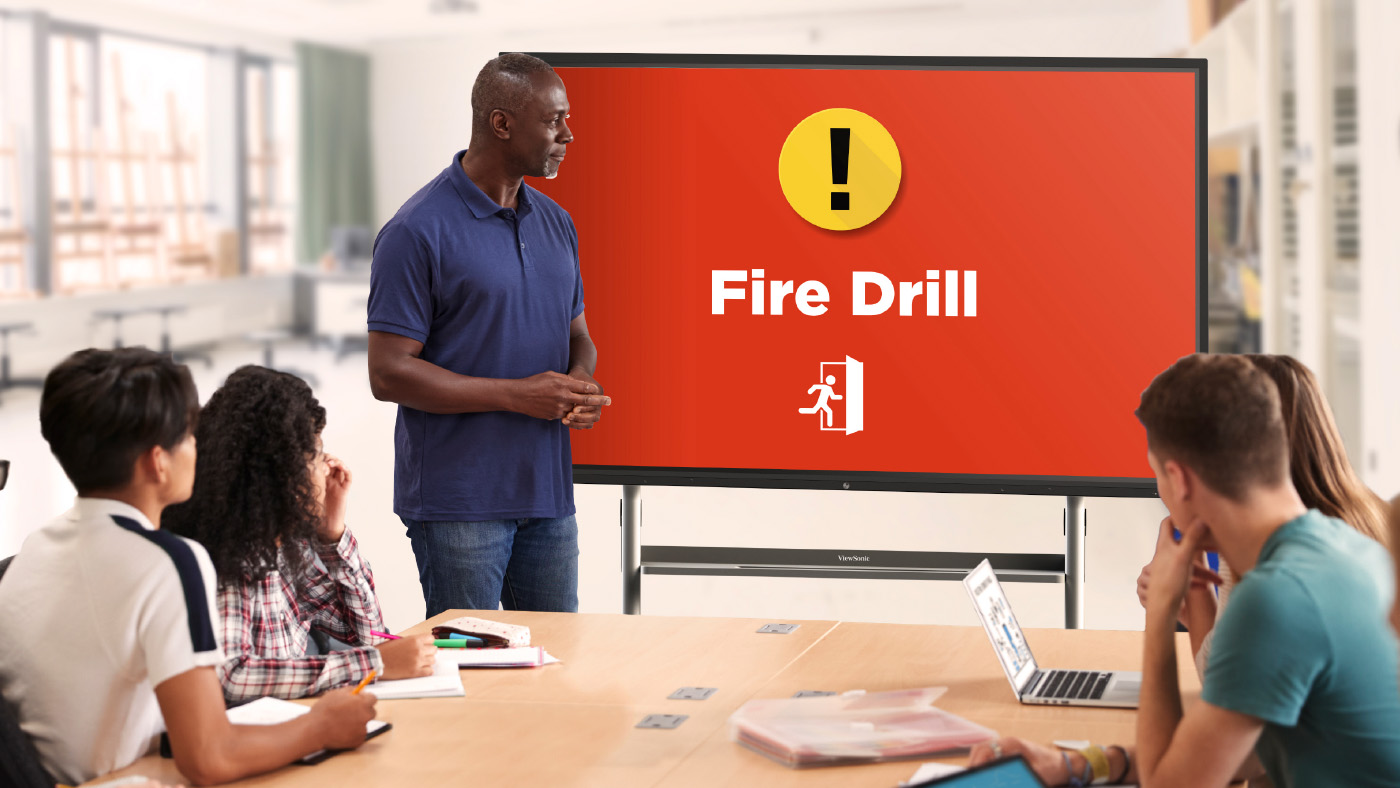
What does ViewSonic Manager software offer schools? School security is a massive issue these days. Administrators came to us with a critical problem. They needed a secure way to send alerts directly to classroom devices. Relying on a loudspeaker simply isn’t safe when a threat could hear it. We listened and updated Manager. Manager is our remote management tool designed specifically for IT staff. It includes a free feature called CAP Messaging. This tool connects your classroom displays directly to the school’s emergency alert system like CrisisGo or Raptor. Thanks to these integrations, teachers can now see clear visual alerts right on their board for fire drills or lockdowns.

Learn more about Manager

How to Share Your Feedback

Where can teachers submit their new ideas? We always want to hear from you! You can easily submit ideas using the in-app form located directly inside your myViewBoard settings. You can also join the ViewSonic Educator Community to request new features, share lesson plans and connect with other amazing teachers.

How USB-C Docking Monitors Reduce School District IT Costs and Complexity

Buyer's Guide

How USB-C Docking Monitors Reduce School District IT Costs and Complexity

USB-C docking monitors are a powerful tool for modernizing school districts from the front office to the classroom. As educational technology becomes more integrated into the daily curriculum, the hidden costs of expensive docking stations, cable management and lost dongles are beginning to pile up.

But the problem goes way beyond just the initial price tag. Think about the massive deployment and asset management headache traditional setups create. Your IT team has to buy, track and maintain separate monitors, bulky docking stations and a huge tangle of power and display cables for every single desk. When a cord breaks or a dongle goes missing, it creates instant frustration for teachers and piles up support tickets for your staff.

For IT directors and school administrators looking to streamline their hardware footprint while staying within budget, the transition to a single-cable solution isn't just a luxury. It's an innovative, strategic move to reduce technical friction for teachers and dramatically cut down the time and money spent managing campus technology.

What is a Docking Monitor?

How does a USB-C docking monitor work? A docking monitor is a high-performance display that acts as a central hub for a workstation. Unlike traditional monitors that only receive a video signal, a USB-C monitor uses a single USB-C cable to handle high-speed data transfer, video output and laptop charging simultaneously.

What really makes it a true docking monitor are the extra built-in features that completely replace a separate external dock:

  • RJ45 Port: This provides a secure and lightning-fast hardwired internet connection directly to your laptop.
  • USB Hub: This lets you easily connect all your daily accessories like a mouse, keyboard and webcam right to the monitor.
  • Daisy Chaining: Select models let you easily link a second monitor directly to the first one for a massive dual-screen setup.

In a school setting, this means a teacher or staff member can walk up to a desk, plug in one cable and instantly have their laptop connected to the school network, their favorite accessories and a large display all while their battery charges.

The Benefits of USB-C Docking Monitors in Education

Why are schools switching to docking monitors? The primary driver behind the shift to docking monitors is unmatched ease of use. By removing the spaghetti mess of cables and the confusion of multiple ports, schools create an environment where technology is a tool rather than a barrier.

Accessibility for All Staff

Are docking monitors easy to use? Technology should never be intimidating. For office staff or educators who may not feel tech-savvy, the docking monitor is a great solution. There's no need to worry about which port goes where or whether they have the right adapter. Once deployed, it’s a simple plug-and-play experience that builds confidence and saves time during busy school days.

Versatility for Shared Spaces and Substitutes

How do these monitors help shared classrooms? Classrooms are high-traffic environments and a USB-C docking monitor makes a classroom truly universal. The classroom teacher can use the large screen for grading and lesson planning in the morning. Then if a substitute or traveling teacher takes over the room later, they can simply plug in their own device and be ready to go in seconds. This flexibility ensures that every workstation remains functional regardless of who is using it.

Creating Learning Stations for Students

Can students use the teacher's monitor? The docking monitor transforms the teacher’s desk into a collaborative learning hub. Instead of a teacher bending down to look at a student’s small laptop screen, the student can simply plug their device into the USB-C cable. The desktop instantly becomes a high-visibility station for one-on-one feedback or small-group work. This allows the teacher to see student work clearly and comfortably. You can see how one school district supports small group and hybrid learning with the ViewSonic 24-inch VG2456 docking monitor to bring this exact concept to life.

Cutting Costs and Reducing IT Complexity

How do docking monitors save money? Budget transparency is vital for school districts. Transitioning to docking monitors provides a clear path to reducing hardware expenditures.

Eliminating the Docking Station Tax

Do you still need a separate dock? You do not. Traditional setups require purchasing a separate docking station in addition to the monitor. Those separate docks can cost between $150 and $300. By choosing a display with a built-in dock, you eliminate an entire category of hardware. This cost saving makes it feasible to outfit all your classrooms and office desks with a professional-grade workstation.

Maximizing Screen Space

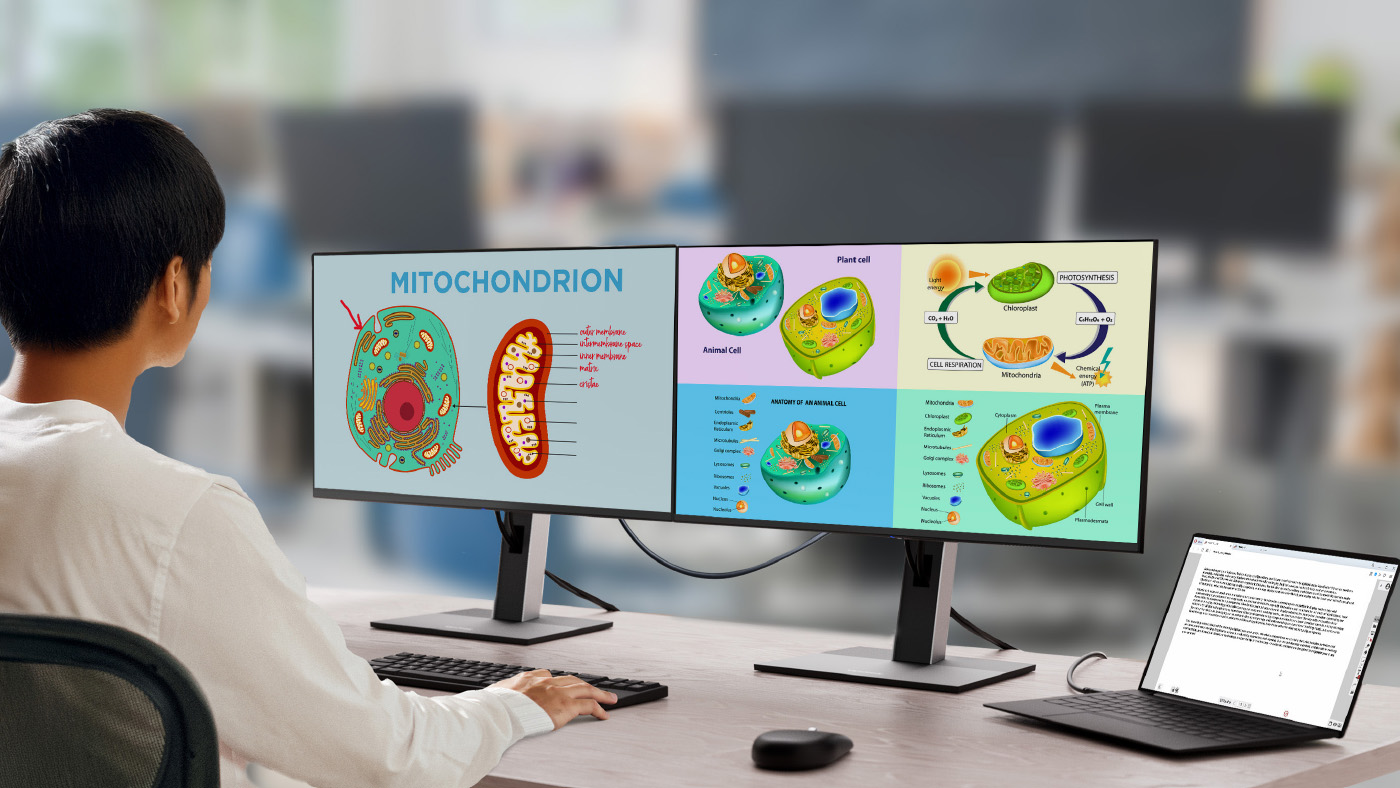
Are laptop screens big enough for teachers and staff? While laptops are portable, they often lack the screen size needed for heavy lifting. Tasks like handling IEPs, grading programs or master scheduling software require educators to see more data at once. With sizes ranging from 24” to 34”, a docking monitor provides the necessary space for these high-detail tasks at a fraction of the cost of a multi-component setup.

Maximizing Productivity with Daisy Chaining

What is daisy chaining? One of the most powerful features of modern docking station monitors is the ability to daisy chain. This allows you to connect a second monitor directly to the first one using a single output rather than running two separate cables to the laptop.

How does it help school staff?

  • For Office Staff: A staff member managing substitute schedules can spread their spreadsheets across two screens to see the whole week at a glance.
  • For Teachers: Grading becomes much faster when you can have student work open on one screen and the digital grading platform open on the other. This allows for side-by-side comparison and instant data entry.

Best Practices for Implementing Docking Monitors

How do you set up a successful monitor refresh? To get the most out of your hardware refresh, consider these implementation tips:

  • Standardize Cables: Ensure every room is equipped with a high-quality and high-bandwidth USB-C cable to prevent connectivity issues.
  • Prioritize Power Delivery: Look for monitors that offer at least 60W to 100W of power delivery to ensure even the most powerful faculty laptops stay charged.

Get Best-in-Class Docking Monitors with ViewSonic

ViewSonic provides a range of USB-C docking monitors specifically designed to simplify school environments. With features like built-in Ethernet ports, daisy-chaining capabilities and ergonomic stands, ViewSonic monitors help schools cut costs without sacrificing performance.

Ready to simplify your school's workstations? Explore ViewSonic's full line of education monitors and see how much your district can save today.

Community Webinar Recap: Turn Your ViewBoard Into a Classroom Powerhouse

BLOG

Community Webinar Recap: Turn Your ViewBoard Into a Classroom Powerhouse

Did you miss our recent webinar: Teach, Translate, Create: Everyday Magic with the ViewSonic® EDLA Panel? Don’t worry. We’ve rounded up the best tips from George Barcenas, a professional development trainer who knows these ViewBoard displays inside and out.

If you’re using one of our Android™ EDLA-certified ViewBoard®displays (like the IFP41 or IFP51 series), you already have a world of Google apps at your fingertips. Here’s how George turns that technology into something truly special.

Make Your ViewBoard Feel Like a Giant Phone

Most of us are used to clicking buttons at the bottom of a screen. George showed a better way. By updating your settings, you can switch to gesture-based navigation.

Imagine swiping down for settings or swiping up to see all your apps. It makes the ViewBoard feel just like a giant smartphone. It is fast, intuitive and keeps your lesson moving without you having to hunt for icons. 

Breaking Language Barriers in Real Time

One of the most powerful tools George highlighted was Google Translate. Because these panels have the Google Play Store, you can download the app directly to your ViewBoard.

George shared a funny story about translating his own parent-teacher conferences as a kid. He joked about “tweaking” the translation so he wouldn’t get in trouble! By using Google Translate on your board, parents will know exactly what you’re saying. Students won’t be able to translate the opposite of your words. 

You can use the split-screen feature to run Google Translate next to your slides or Chrome. As long as your ViewBoard has a microphone (such as the IFP41 series), you can provide live captions for ELL students. It is an easy way to make sure every student and parent feels included.

Level Up Your Engagement with Canva

We all know teachers love Canva. When you run the Canva app on your ViewBoard, you can sync it with your phone.

George showed how you can use your phone as a remote to add fun effects like digital curtains or bubbles. It turns a standard presentation into an interactive experience that keeps students focused. Remember,almost any app you know and love can be used on our ViewBoards® with Google Play Store. 

See the Magic for Yourself

It was even great to see George learn something new! He discovered how to screen record directly on the panel during the session. We are all learning together in this community.

Beyond the Apple Ecosystem: Budget-Friendly MacBook Air Monitors for Higher Education

Buyer's Guide

Beyond the Apple Ecosystem: Budget-Friendly MacBook Air Monitors for Higher Education

We've spent decades working closely with educators and students to understand exactly what works in the classroom. We know firsthand that the MacBook Air is a massive hit on college campuses. It's lightweight, powerful and boasts amazing battery life. But there's a catch: the standard 13-inch screen can feel incredibly small when you're juggling research papers, spreadsheets and video lectures. 

Adding an external monitor is the perfect way to boost your daily productivity. However, staying strictly inside the Apple ecosystem can quickly break a student budget. We believe every student deserves access to a great workstation. That's why high-quality, budget-friendly monitors for the MacBook Air are driving equity in higher education.

Bridging the Gap with ViewSonic® Monitors

What is the best budget monitor for a MacBook Air? We designed our displays to deliver premium features without the premium price tag. For a complete look at our top recommendations, you can read our comprehensive guide on the best monitors for MacBook Air.

Let's look at why these high-value monitors are the ideal companions for your MacBook Air setup.

Single-Cable Simplicity with Thunderbolt 4

Can you connect a MacBook Air to a monitor with one cable? Yes! Our advanced monitors feature lightning-fast Thunderbolt 4 connectivity.

You can connect your laptop to the monitor and charge it at the exact same time using just one cable. This eliminates bulky power adapters and messy cords on your desk. It keeps your study space clean, streamlined and organized.

Ergonomics for Long Study Sessions

Do these monitors have good ergonomics? They absolutely do. Comfort is key when you're pulling a late-night study session.

Our ergonomic monitors let you tilt, swivel, pivot and adjust the height to find your perfect viewing angle. This helps prevent neck and back pain during long hours at your desk.

Crisp Visuals and Color Accuracy

Do budget monitors look as good as a Mac screen? When you're used to the brilliant Retina display on a MacBook Air, you want an external monitor that looks just as vibrant.

Our standard professional monitors use SuperClear IPS panel technology to ensure you get stunning colors and wide viewing angles. However, if you're a creative arts student who needs absolute perfection, we've got you covered there too. Our ColorPro 4K and 5K monitors for Mac and PC ecosystems give graphic designers and video editors elite color accuracy without the massive price tag.

Multi-Monitor Setups with Daisy Chaining

Can you connect two monitors to a MacBook Air? Yes, you can easily expand your workstation using a method called daisy chaining.

Advanced models like the ViewSonic VP2488-4K and VP2788-5K support daisy chaining through lightning-fast Thunderbolt 4. This means you can plug your MacBook Air into the first monitor using a single cable. Then, you just connect that first monitor directly to a second screen. This gives you a massive dual-monitor setup with minimal cable clutter. It's the ultimate productivity hack for handling complex projects, editing videos and managing massive spreadsheets.

Built for the Institution

Why do universities choose ViewSonic? It's not just about individual students. IT departments and university administrators need reliable technology that fits within their campus budgets.

Our monitors are built for the institution. They offer a lower total cost of ownership, easy deployment and industry-leading warranties. This makes them a smart investment for universities looking to upgrade their computer labs, libraries and faculty offices while simultaneously promoting equity across the student body.

Find the Perfect Monitor for Your College Setup

Every student deserves the tools they need to reach their full potential. You don't have to overspend on expensive brand names to get a professional, high-quality workstation.

Best for Creators: ViewSonic VP2788-5K

If you’re an art, film or design student, color accuracy is everything. This monitor delivers breathtaking details and true-to-life colors for your most demanding creative projects.

Standout features:

  • 27-inch 5K resolution for incredibly sharp and detailed visuals.
  • Thunderbolt 4 connectivity for lightning-fast data transfer and easy daisy chaining.
  • Elite color accuracy to bring your photos, graphics and videos to life.
  • Brilliant DCI-P3 color matches Apple's native color space.
  • Advanced ergonomic stand to keep you comfortable during long editing sessions.

Best for Research: ViewSonic VP2488-4K

When you spend hours reading articles, analyzing data and writing essays, you need a screen that is crisp and easy on the eyes. This monitor is the perfect size for cramped dorm desks while still giving you tons of digital workspace.

Standout features:

  • 24-inch 4K resolution for crystal-clear text and vibrant images.
  • Thunderbolt 4 support for a simple one-cable setup and daisy chaining.
  • Built-in eye care technology to reduce eye strain during late-night study sessions.
  • Fully adjustable stand to help you find the perfect viewing angle.

Upgrade Your Setup Today Ready to boost your productivity? Browse our full lineup of ViewSonic monitors and grab the perfect display for your dorm room or home office today.

Summative vs Formative Assessments: When to Use Them and How ClassSwift Can Help

BLOG

Summative vs Formative Assessments: When to Use Them and How ClassSwift Can Help

Assessment has always been a core part of teaching, and it plays an essential role in supporting student learning. Educators are expected to monitor understanding, provide meaningful feedback, meet curriculum requirements, and manage grading and reporting, often within limited instructional time.

Choosing the right type of assessment at the right moment helps teachers support student growth, adjust instruction more effectively, and measure learning outcomes with confidence.

Importantly, assessments do not have to wait until homework is checked or tests are graded.

This guide explains formative and summative assessments, offers practical guidance on when to use each, and shows how tools like ViewSonic ClassSwift can help support better teaching and learning.

What Are Formative and Summative Assessments?

Formative and summative assessments serve different purposes within the learning process. Both are essential, but they answer different questions for teachers and students.

Formative assessment is used during instruction to check understanding and guide next steps. These assessments are typically low stakes and ongoing. The primary goal is to provide feedback that helps students improve while learning is still happening. 

Common examples include:

  • Quick quizzes or polls
  • Exit tickets
  • Class discussions
  • Practice activities
  • Peer feedback
  • Checks for understanding during lessons 

Summative assessment is used after instruction to evaluate overall learning. These assessments are usually higher stakes and often contribute to final grades or reporting.

Common examples include:

  • Unit tests and final exams
  • End-of-term projects
  • Standardized assessments
  • Final presentations or portfolios

Used together, formative and summative assessments provide a more complete picture of student learning.


Key Differences Between Formative and Summative Assessment

While both assessment types measure learning, they differ in purpose, timing, and how the results are used. Understanding these differences helps educators choose the right approach for each instructional moment.

Category Formative Assessment Summative Assessment
Purpose Improve learning during instruction Evaluate learning after instruction
Timing Ongoing throughout lessons At the end of a unit, term, or course
Feedback Immediate and actionable Often provided after completion
Impact on Grades Low or no grade impact High grade impact
Instructional Role Guides instructional adjustments Confirms learning outcomes
Common Formats Polls, quizzes, discussions Exams, projects, standardized tests


Rather than choosing one over the other, effective assessment strategies use both intentionally.

When to Use Each Type of Assessment

The best assessment choice depends on your instructional goals and where students are in the learning process.

Factors to Consider When Choosing Assessment Types

Before deciding which assessment to use, consider:

  • Instructional goals: Are you supporting learning or evaluating mastery?
  • Student needs: Do students need feedback, practice, or a final measure of understanding?
  • Curriculum expectations: What standards or outcomes must be demonstrated?
  • School or district policy: Are specific assessments required?
  • Timing: Is learning still in progress, or has instruction concluded?

These factors help ensure assessment supports learning rather than interrupting it.

When to Use Formative Assessment

If your goal is to guide learning and adjust instruction, formative assessment is the right choice. It works best when you need to:

  • Check understanding during a lesson
  • Identify misconceptions early
  • Adjust pacing or instructional strategies
  • Support student confidence and engagement
  • Encourage reflection and self-assessment
  • Monitor progress on ongoing projects

Formative assessments help teachers respond while there is still time to make a difference.

When to Use Summative Assessment

If your goal is to measure mastery and document learning outcomes, summative assessment is the better fit. Use it when you need to:

  • Evaluate understanding at the end of a unit or course
  • Assign final grades
  • Measure progress toward standards
  • Prepare students for standardized testing
  • Assess final projects or presentations
  • Report achievement to families or administrators

Summative assessments confirm what students have learned after instruction is complete. 


The Role of Technology in Modern Assessment

Technology has changed how assessments are created, delivered, and analyzed. Digital assessment tools reduce manual work while giving educators clearer insights into student learning.

Modern assessment technology can:

  • Automate grading and reduce administrative tasks
  • Deliver instant, actionable feedback to students
  • Monitor student progress in real time
  • Support equity and accessibility
  • Centralize data and reporting
  • Enhance security for high-stakes assessments
  • Integrate with classroom tools and LMS platforms 

For a deeper look at how technology supports assessment, explore ViewSonic’s guide to educational assessment tools for formative and summative learning.


How ClassSwift Supports Both Formative and Summative Assessment

ClassSwift is built to simplify assessment, not complicate it. It supports both formative and summative workflows in one intuitive platform, helping teachers spend less time managing assessments and more time teaching.

With ClassSwift, educators can:

  • Quickly design, assign, and deliver formative assessments
  • Use digital delivery across devices
  • Provide instant feedback with auto-grading tools
  • View analytics dashboards that highlight trends and learning gaps (paid subscription required)
  • Differentiate instruction based on assessment data
  • Support a wide range of question types and formats
  • Ensure test security for summative assessments
  • Integrate smoothly with leading LMS platforms and gradebooks (paid subscription required) 

ClassSwift also supports responsive teaching by turning assessment data into clear next steps.

Learn more about ClassSwift’s holistic approach here.


Tips for Balancing Formative and Summative Assessments in the Classroom


A balanced assessment strategy combines both types to support learning and accountability. These tips can help teachers strike the right balance.

  • Blend assessment types: Use formative assessments to guide instruction and summative assessments to confirm mastery.
  • Use formative data to prepare students: Address learning gaps before high-stakes assessments.
  • Make feedback clear and constructive: Feedback should help students understand how to improve, not just what they missed.
  • Avoid assessment overload: Focus on meaningful assessments rather than frequent testing.
  • Plan ahead: Use ClassSwift’s planning and scheduling tools to align assessments with instruction.
  • Review data regularly: Look for patterns that can inform future lessons and interventions. For more guidance on feedback strategies, check out this resource on creating effective feedback with education technology. 

For more guidance on feedback strategies, check out this resource on creating effective feedback with education technology.


Getting Started with ClassSwift for Smarter Assessment

Effective assessment supports better learning for students and better decision-making for teachers. With the right tools, assessment becomes a natural part of instruction rather than an added burden.

ClassSwift, part of ViewSonic’s education solutions ecosystem, helps schools streamline formative and summative assessments while supporting engagement and responsive teaching.

From quick understanding checks to preparation for end-of-term exams, ClassSwift provides the flexibility, insights, and simplicity educators need.

Learn more about ClassSwift and how to get started:

 https://www.viewsonic.com/edu/classswift-software

Explore additional education solutions from ViewSonic:

 https://www.viewsonic.com/edu/ 

University Faculty and IT Team Gain Efficiency and Efficacy with ViewSonic® Digital Podiums

CASE STUDY

University Faculty and IT Team Gain Efficiency and Efficacy with ViewSonic® Digital Podiums

SCHOOL

Coker University is a student-focused, private liberal arts college located in Hartsville, South Carolina. Founded in 1908, Coker is a bachelor’s and master’s degree-granting institution and competes in 24 NCAA Division II sports. Redefining undergraduate research, Coker students participate in local and regional conferences and competitions. Coker combines round table, discussion-based learning with hands-on experiences to promote active participation in and out of the classroom.

LogoLogo

“I’m just starting to touch on what it can do, and so far, I can’t imagine a better outcome than [the myPodium ID2456-4K]. I’d rate the upgrade a 10/10 and I’m not always that generous.”


— Joseph Flaherty, PhD, Research Director and Professor of Biology at Coker

CHALLENGE

line drawing of a circular mazeline drawing of a circular maze
  • Coker University classrooms contained disparate technology from various manufacturers.

  • Maintaining a broad mix of technology caused inefficiencies for the small IT team.

  • The aging technology frustrated faculty members and generated a high volume of help desk tickets.

  • The IT Director needed to navigate a complex edtech landscape to standardize a common solution across the campus.

When Information Technology Director Charlie Poag joined the Coker University team, edtech across the campus was ripe for an upgrade. Classrooms contained an array of disparate technology from a range of manufacturers, which led to inefficiencies and challenges for both IT and faculty.

“We can’t be experts in every technology out there and maintaining such a broad mix efficiently was more than our small team could do,” said Poag. “Faculty was frustrated and we were receiving a lot of help desk tickets.”

The edtech landscape had changed dramatically since the aging Coker classroom technology had been installed. Poag’s objective was to standardize around a common solution. But first his team would need to identify which solution would best meet their faculty’s needs.

“We began our due diligence and discovered that each manufacturer had many models of each product category – from projectors to interactive displays.” said Poag. “Edtech has become a complex landscape, with a huge array of options.”

As his team began the process of researching the latest edtech, Poag was introduced to Tyler Davis, a regional rep from Howard Technology Solutions. During their initial conversation, Poag recognized the value of partnering with an AV pro like Howard.

“The folks at Howard know the edtech landscape through and through, and it was clear that they could be a big help with our upgrades,” said Poag. “As a starting point, Tyler offered to give us his favorite new edtech product to evaluate – the ViewSonic 4K Digital Podium.”

SOLUTION

line drawing of a jigsaw puzzle pieceline drawing of a jigsaw puzzle piece
  • IT deployed a ViewSonic 4K Digital Podium (model ID2456-4K) in a well-used classroom for faculty evaluation.

  • Following overwhelmingly positive faculty feedback, the university unified more than two-thirds of its classrooms around ViewSonic products.

  • The upgrades included ViewSonic Commercial Displays, Laser Projectors, and the digital podium ID2456-4K solutions.

The Coker IT Team put the Digital Podium (ViewSonic myPodium™ ID2456-4K) in a well-used classroom and invited feedback from faculty.

“The response was very positive,” said Poag. “The faculty loved it. Based on this, we purchased five more, putting one in each academic building.”

After allowing time to get to know the product, the IT team conducted a survey to gain insight into the upcoming upgrades.

“We gave them options based on technology they had been using for some time, such as Promethean and SMART boards, and we asked what technology they would like to use going forward,” said Poag. “Overwhelmingly the faculty wanted to use the ViewSonic podiums.”

At that point, Poag had the direction he needed to begin unifying the technology across all Coker classrooms.

Top of the list were the athletic building classrooms, where users had been increasingly frustrated with the aging technology. While Poag and his team worked with Howard to create an upgrade plan, a grant came in to refurbish the entire science building. In the end, more than two thirds of the Coker classrooms were unified around ViewSonic products, including ViewSonic Commercial Displays (CDE8630 and CDE9830), ViewSonic Laser Projectors 
(LS92OWU) and the ViewSonic myPodium ID2456-4K.

“Wherever possible, we upgraded to the ViewSonic Commercial Displays for front-of the-room viewing,” said Poag. “Where we had pre-existing cabling to the ceiling we upgraded to ViewSonic’s 6000-lumens Laser Projector.”

RESULTS

Line drawing of a rocketLine drawing of a rocket
  • The IT team experienced greater operational efficiency and received far fewer technical support calls.

  • The digital podiums offered an affordable alternative to placing large touchscreens in every classroom.

  • New displays and laser projectors provided highly visible, detailed content while requiring less maintenance.

  • Faculty gained the flexibility to seamlessly connect their own devices via USB-C, eliminating device connection confusion.

From an IT perspective, the results could hardly have been better: faculty were happier and so was the IT team. What’s more, the upgrade made smart use of the university’s limited resources and would continue to reduce costs over time. “These podiums are a terrific solution for so many reasons,” said Poag. “For one thing, they are so much more affordable than putting a large touchscreen in every classroom. And, in my opinion, they’re a better fit for the job because instructors don’t have to turn their back on the students to annotate content.” Unifying around ViewSonic products, said Poag, has enabled his team to operate with greater efficiency and expertise.

“We can really get to know this product, how to best train instructors, and how to effectively maintain and troubleshoot,” said Poag. “Now faculty can move seamlessly from classroom to classroom, and the IT team is fielding far fewer tech support calls.” 

And, with modern laser projectors, the IT team purchases fewer bulbs and spends less time on maintenance.

“Another benefit of the digital podiums,” added Poag, “is the ability for faculty to connect their devices with USB-C, while maintaining the connection to the PC we provide in the room. They have the choice of which to use, and this eliminates any confusion around which device is connected. We used to get a lot of calls about disconnections and faculty having to reboot the PC.” From an instructional perspective, the new technology is enabling more streamlined and interactive instruction, along with more visible content.

“The large screens in the front of the classroom are magnificent,” said Joseph Flaherty, PhD, Research Director and Professor of Biology at Coker.

“The panels are highly visible from everywhere in the room and they’re perfect screens for visualizing detailed content. It’s a big improvement 
over the old projectors.”

Because of past encounters with digital whiteboards that were clunky, slow and challenging to use, Flaherty prefers the smooth, responsive touch panel on the ViewSonic myPodium ID2456-4K.

“The screen is such high quality, it’s like using your phone, and I love not having to turn my back on students.” said Flaherty. “The fast, responsive screen makes it a breeze to interact with content. I particularly appreciate being able to pinch and zoom in to highlight material – that alone makes teaching easier. I look forward to learning more about the functionality and how it can further help me add impact to instruction.”

Although he knows he’s just scratched the surface of what he’ll be able  to accomplish with the digital podium, Flaherty is already thankful that the IT team partnered with ViewSonic.

“I’m just starting to touch on what it can do, and so far, I can’t imagine a better outcome than this product,” he concluded. “I’d rate the upgrade a 10/10 and I’m not always that generous.”

The IT team is likewise thankful for the growing relationship with both Howard and ViewSonic.

“We love having Howard as our AV partner; they’re very responsive and listen well and make sure understand the need before they start recommending products,” said Poag. “They’ve connected us with our ViewSonic rep Randy, who has also been very helpful.”

ViewSonic Launches the ViewBoard IFP41 Series of Interactive Displays with Android™ EDLA Certification

With the Latest Android 16 OS, Built-In Access to Google Workspace, and Microsoft 365, Among Others, the IFP41 Series Delivers Performance and Value


Brea, CA (March 24, 2026)ViewSonic Corp., a leading global provider of visual and edtech solutions, launches ViewBoard® IFP41 series of Interactive Flat Panel Displays with Android 16 EDLA certification. The IFP41 series, which is available in 55-, 65-, 75-, 86-, and 98-inch screen sizes, delivers performance and value, along with secure, built-in access to Google Workspace, Microsoft 365, and other applications. 

The ViewBoard IFP41 series features a 64-point multi-touch display that allows multiple users to write or draw at the same time, whether using styluses, fingers, or both. The built-in palm rejection ignores accidental touches from hands or sleeves, which allows for smooth, accurate writing. An upgraded octa-core CPU paired with high-bandwidth DDR5 memory delivers faster load times and stable performance. Users can easily run apps, switch inputs, and play multimedia content without slowdowns, ensuring lessons and/or meetings stay on track and interruption-free.

Setup is simple with a single USB-C cable that handles video, touch, audio, data, networking, and up to 100W power delivery. myViewBoard®, AirSync™, Manager™, and other ViewSonic® education software tools are included. Deployment is streamlined, and IT teams can easily manage and offer support through ViewSonic Manager, Google Workspace Enterprise Management, and Microsoft Intune. IT teams can easily enforce policies, manage devices remotely, and maintain secure networks across multiple locations.

The displays come with a front-facing 55W multimedia sound bar with an integrated subwoofer, ensuring clear, room-filling sound. A built-in eight-microphone beam-forming array with noise cancellation can capture voices from up to 25 feet away. Integrated ambient light and Passive Infrared (PIR) motion sensors automatically optimize power by waking the display upon approach and entering power-saving mode when idle, significantly reducing energy use and operating costs.

“The ViewSonic IFP41 series is one of our solutions that makes it easier for educators and enterprise teams to get up and running with minimal set-up,” said Sean Liu, Senior Business Line Manager at ViewSonic. “These displays were developed to provide the right balance of value, features, and performance, whether in a classroom or for meeting spaces. Additionally, the IFP41 serves as the perfect replacement for customers currently using the IFP50 series, offering a seamless upgrade to their existing workflow.”

ViewSonic ViewBoard IFP41 Series 

  • Native 4K Ultra HD (3840 x 2160) resolution and a 5,000:1 contrast ratio
  • Front-facing 55W soundbar with an integrated subwoofer; Built-in 8-microphone beamforming array with noise cancellation 
  • Available in 55, 65-, 75-, 86-, and 98-inch screen sizes
  • Upgraded octa-core CPU paired with high-bandwidth DDR5 memory delivers faster load times and stable performance
  • 64-point multi-touch display; Built-in palm rejection ignores accidental touches 
  • Includes myViewBoard®, AirSync™, and Manager™ and other ViewSonic® education software tools at no extra cost. 
  • Connectivity options include: HDMI in 2.1 x 3, VGA x 1, HDMI out x 1, DP in x 1, Audio in x 1, Audio out x 1, SPDIF x 1, USB-B x 3, USB-A x 5 (SmartPort), USB-C (up to 100W Power Delivery) x 2, LAN RJ45 x 2, RS232, and an 80pin OPS slot x 1
  • Available: Now 

To find out more about ViewSonic, visit ViewSonic.com and follow on Facebook, YouTube,  X and Instagram.


About ViewSonic

Founded in 1987 and headquartered in Brea, California, ViewSonic is a leading global provider of visual solutions for the education, business, and consumer markets, with a presence in over 100 countries. Driven by the mission to transform education, workplaces, and lives, the company delivers a unified ecosystem of innovative hardware, software, and services that integrates seamlessly with the platforms, tools, and partners customers trust. Its product portfolio includes monitors, projectors, interactive displays, LED displays, commercial displays, video conferencing systems, and industrial solutions. Complementing its hardware is a robust suite of software offerings—including myViewBoard®, ClassSwift®, TeamOne®, ViewSonic Manager™, and AirSync™—featuring AI-powered tools for collaboration, device optimization, and management. By empowering creativity, collaboration, and lifelong learning, ViewSonic supports customers at every stage in achieving their business and sustainability goals, creating a lasting impact and helping people everywhere connect with purpose—and See the Difference®. Learn more at www.viewsonic.com.

#  #  #


* Actual performance may vary depending on system configuration, usage environment, and other conditions. Features and specifications are subject to change without notice. This news release contains forward-looking statements that reflect the Company’s expectations with regard to future events. Actual events could differ significantly from those anticipated in this document. Trademark footnote: ViewSonic and the ViewSonic trademarks are trademarks or registered trademarks of ViewSonic Corporation in the United States and/or other countries. All other corporate names and trademarks stated herein are the property of their respective companies.


Media Contacts:

Joey Lee
JSL Marketing for ViewSonic [U.S.]
E: joey@jslcomm.com

Nury Lavandier
ViewSonic [Latin America]
E: Nury.Lavandier@viewsonic.com
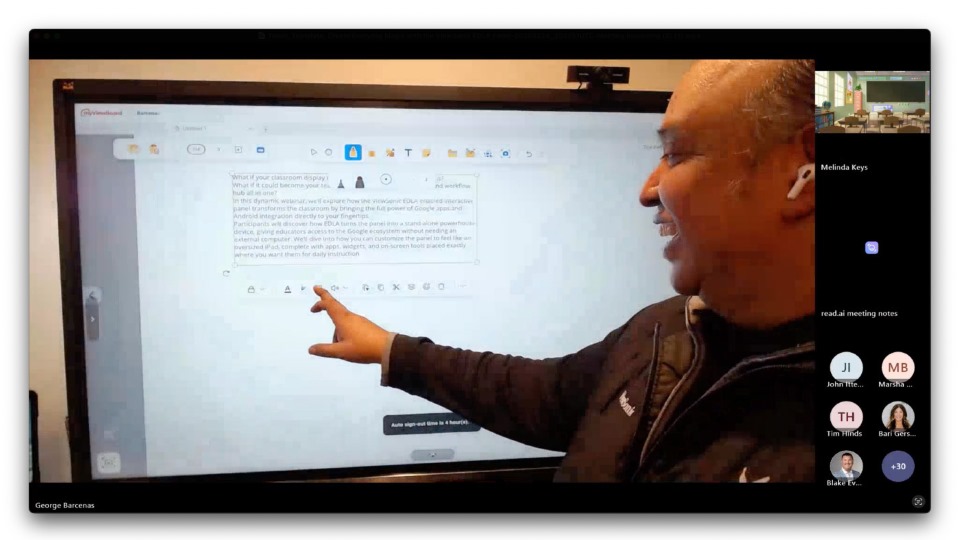
Miranda Bravo
ViewSonic [U.S.]
E: miranda.bravo@viewsonic.com

Higher Education Hybrid Classroom Gets Transformative Upgrade with ViewSonic Direct View LED Displays and More

SOLUTION BRIEF

Higher Education Hybrid Classroom Gets Transformative Upgrade with ViewSonic Direct View LED Displays and More

BACKGROUND

For one school district located in western Canada representing a large and diverse network of K-12 public schools, raising the bar of excellence for digital learning was achieved with ViewSonic’s ViewBoard solution.

LogoLogo

Not only is the upgraded classroom now a cutting-edge digital learning environment, it is also a model for future classroom refreshes. The integrated technology seamlessly blends in-person and remote experiences, delivering a host of benefits to faculty, students, and the IT team.


— Miles Brandon, Owner, Capistrano VW

CHALLENGE

line drawing of a circular mazeline drawing of a circular maze
  • Upgrade outdated classroom displays to seamlessly support hybrid learning.

A recognized leader in STEM higher education, this large state university is dedicated to being on the forefront of classroom technology. To facilitate efficient use of technology resources, the university offers instructors a variety of classroom configurations to meet their edtech needs. At the pinnacle of these options are classrooms equipped to simultaneously deliver instruction to in-person and remote students. Live-monitored by university IT staff to prevent tech-related disruption, these rooms serve an important role in extending the reach of instruction.

One such classroom was due for a major technology update. The existing setup relied on two ceiling-mounted projectors, which cast content onto dual wall screens. It was time to upgrade to technology that would support the range of modern learning options and instructional modalities: a state-of-the-art video wall that would deliver bright, consistently sharp visuals for every student. More importantly, the solution needed to seamlessly deliver content to in-person and distance learners, while creating an environment that connected those audiences and provided intuitive control for the instructor.

Several types of displays would be needed to support these goals, including large, vibrant front-of-room displays for on-site learners; displays to bring Zoom participants into the room; confidence displays for the instructor at the back of the room; and an interactive display at the instructor podium. All of which would be maintained and monitored in real time by university IT staff.

SOLUTION

line drawing of a jigsaw puzzle pieceline drawing of a jigsaw puzzle piece
  • ViewBoard IFP8650 86-inch Interactive Display

  • myViewBoard® Digital Whiteboarding Software

To accomplish these goals, the IT group worked with longtime reseller partner ClarkPowell, which recommended ViewSonic for the display component of the installation. The IT team reviewed the recommendations and agreed that this would be an ideal solution for their needs, commenting in particular on the durability of the ViewSonic® Direct View LED (dvLED) display with Glue-on- Board (GOB) technology and the ability to swap individual panels with included spares, which would streamline maintenance.

The final front-of-room solution included two 136-inch ViewSonic All-in-One dvLED video walls (Model LDM136-151) to present class content. These would be mounted on either side of a ViewSonic 98-inch 4K commercial display (model CDE9830). Two ViewSonic 65-inch commercial displays (model CDE6530) would be mounted to the back wall for instructor visibility: one to mirror the instructional content; one to display Zoom participants.

Finally, the instructor podium would be equipped with a ViewSonic 24-inch digital podium touch display (model ID2456-4K) that would enable faculty to intuitively deliver content and connect with students using integrated ViewSonic® ViewDirector™ software. To ensure seamless operation, the ClarkPowell team would integrate the ViewSonic displays into the classroom’s existing Crestron matrix switcher.

RESULTS

Line drawing of a rocketLine drawing of a rocket
  • Stunning 231-inch seamless video wall transformed showroom aesthetics and energy

  • Reliable all-in-one system resolved previous performance and management issues

  • Easy setup with complete kit enabled quick, frustrationfree installation

  • Day-and-night visibility extended promotional impact to freeway traffic

  • Enhanced content flexibility for events, promotions, and employee recognition

  • Long LED lifespan reduces maintenance and supports 24/7 use

  • Dealership excited to expand usage for movie nights, community engagement, and brand storytelling

The integrated technology seamlessly blends in-person and remote experiences, delivering a host of benefits to faculty, students, and the IT team.

Instructors appreciate no longer having to contend with projector lights shining in their eyes, as well as being able to maintain focus on students. The confidence monitors in the back of the room allow presenters to easily confirm that their content is looking as it should on the front screens, while also providing an interface with students joining on Zoom.

The brightness and clarity of the ViewSonic dvLED displays provides classroom and remote students with a clearer view of content in all lighting conditions, while also delivering outstanding recorded images – a critical component of serving the needs of asynchronous distance learners. Along with this consistency in lighting, the IT team benefits from the lower, and easier, maintenance offered by the dvLED displays. All of which provides more streamlined instruction with greater efficiency and reduced costs. /span>

What’s more, a visiting IT specialist mentioned that one of their university’s classrooms had an outdated dvLED display that lacked GOB surface treatment, which resulted in damage, and added repair costs, when students bumped into it.

The university’s stated objective for its top-tier tech classrooms is to empower faculty to deliver modern, high-impact instruction to a range of students, without the burden of technical barriers. In these spaces, the edtech allows faculty to focus on teaching, not troubleshooting. This classroom upgrade has achieved just that, with bright and durable ViewSonic dvLED video walls, commercial displays, and a digital podium touch display shining as the foundational visual technology.

4 Proven Ways to Increase Student Engagement and Learning

BLOG

4 Proven Ways to Increase Student Engagement and Learning

Keeping students engaged while driving meaningful learning is one of the biggest challenges educators face today. With diverse learning styles, evolving classroom technology, and rising expectations, it can be difficult to keep every student involved and motivated. 

Student engagement plays a critical role in academic success. Research shows that when students are actively engaged, they are more likely to understand concepts, retain information, and participate with confidence (Gallup, 2019).

Interactive tools such as ClassSwift help educators apply proven engagement strategies in practical, classroom-ready ways.

Below are four proven ways to increase student engagement and learning, along with examples of how ClassSwift supports responsive and inclusive instruction.

Why Student Engagement Matters for Learning Success

Student engagement refers to how involved students are in the learning process. This includes participation, motivation, and the ability to think critically about what they are learning.

Studies consistently show a strong link between student engagement and positive learning outcomes. Engaged students tend to perform better academically, demonstrate stronger retention, and develop more positive attitudes toward learning (Fredricks, Blumenfeld, & Paris, 2004).

Active learning strategies such as collaboration, real-time feedback, and student choice help move learning beyond passive listening.

For a deeper look at the research behind engagement, check out ViewSonic’s guide on what student engagement is and why it matters for helpful context and classroom insights.

How ClassSwift Can Help Increase Student Engagement and Learning

ClassSwift is designed to support everyday classroom engagement by helping teachers gather insight quickly, adapt instruction, and keep students actively involved throughout a lesson.

It allows teachers to collect a range of student responses, including multiple choice answers, short written responses, sketches, and audio submissions. This helps participation extend beyond hand-raising or verbal discussion.

1. Real-Time Polls and Quizzes for Instant Feedback

Checking understanding during a lesson helps teachers respond before confusion grows. Real-time polls and short quizzes give educators immediate insight into what students understand and where they may need support.

With ClassSwift, teachers can launch live polls or short quizzes as lessons unfold.

These tools encourage participation from every student, not just those who raise their hands, and provide timely insights so educators can adjust their lessons as needed.

This type of responsive teaching aligns with best practices outlined in ViewSonic’s article on student engagement in the modern classroom


2. Interactive Assignments and Multimedia Responses

Students engage more deeply when they have multiple ways to demonstrate understanding. Assignments that allow students to respond using drawings, images, multiple choice answers, short written responses, or audio recordings help reach learners with different strengths and preferences.

ClassSwift supports these varied response formats, making it easier for teachers to design activities that keep lessons dynamic while encouraging students to take ownership of their learning.

For more ideas on engaging diverse learners, ViewSonic’s resource on student engagement strategies for learners of all ages offers practical classroom examples. 


3.Gamified Learning for Greater Motivation

Gamification is a proven way to increase motivation and participation. Timed challenges, progress tracking, and recognition features help turn learning into an active experience.

ClassSwift includes game-inspired tools such as timers, buzzers, and interactive activities that encourage healthy competition and sustained focus. When learning feels fun and rewarding, students are more likely to stay engaged and push through challenges.


4. Personalized and Adaptive Learning Pathways

Every student learns at a different pace. Personalized instruction helps ensure that learners feel supported without being overwhelmed or bored.

With ClassSwift, teachers can assign differentiated tasks based on individual student needs. Struggling learners receive targeted support, while advanced students can explore more challenging material.

Personalized pathways help improve both engagement and learning outcomes by meeting students at their current level of understanding.

Additional ClassSwift Features That Support Engagement

Beyond daily classroom activities, ClassSwift Pro (for schools and districts) includes features that support engagement for both teachers and students.

These features include the following, which may require a paid subscription:

  • Analytics dashboards that provide insight into participation and understanding
  • Integration with classroom technology, including interactive displays

Together, these tools help create a more supportive and engaging classroom experience.

For a closer look at how these features work together, explore ViewSonic’s overview of ClassSwift’s holistic approach to engagement, assessment, and responsive teaching.


Real Classroom Results: Success Stories with ClassSwift

Educators using ClassSwift have seen measurable improvements in engagement and learning across different subjects and grade levels.

In one real-world example, teachers at Mayfair Middle/High school used ClassSwift in language classrooms to increase participation and accountability.

Gamified tools such as timers and buzzers encouraged students to respond more quickly and stay focused, while real-time insights helped teachers adjust instruction and provide targeted feedback.

See the full case study on how ClassSwift enhanced language learning.

In another instance, teachers at Heathlands Primary Academy used ClassSwift’s push-and-respond quizzes to gather instant feedback during lessons. This allowed educators to revisit topics immediately when students struggled, leading to stronger understanding and higher participation.

Learn how Heathlands Primary Academy improved engagement with ClassSwift.

These examples show how pairing proven engagement strategies with the right technology can support measurable improvements in student learning.


How to Get Started with ClassSwift

Improving student engagement does not require a complete change in teaching approach. Starting with small steps, such as real-time check-ins or interactive assignments, can make a meaningful difference.

ClassSwift helps educators apply these strategies efficiently and at scale. To learn more, visit the ClassSwift software page or explore ViewSonic’s full range of education solutions

5 Innovative Ways to Use Digital Displays Around Your Campus

BLOG

5 Innovative Ways to Use Digital Displays Around Your Campus

As campuses look for better ways to engage students, streamline operations, and manage growing information needs, digital display technology offers a practical solution that scales across the entire campus.

From classroom instruction to safety alerts, digital displays help schools communicate more effectively across both academic and non-academic spaces. Unlike printed signs or static posters, digital displays are flexible, easy to update, and designed for real-time communication. 

The Transformative Power of Digital Displays on Campus

Digital displays are more than just screens mounted on walls. When used strategically, they shape how information flows across campus and how people experience daily life at school.

They support campus culture by highlighting achievements, reinforcing school identity, and creating a stronger sense of connection. They also play a critical role in safety and accessibility by helping schools share clear, consistent messages when timing matters most.

Whether placed in classrooms, hallways, or outdoor common areas, digital displays help campuses stay responsive, informed, and connected. 

How to Use Digital Displays Around Campus

Digital displays can support many goals depending on where they are installed and how they are managed. Below are five effective ways campuses are using them today.

1. Promoting Safety and Emergency Preparedness 

Safety communication is one of the most critical uses of campus digital displays. During important situations, schools need a fast, reliable way to share clear instructions across multiple buildings and spaces.

With ViewSonic Manager, administrators can centrally manage and broadcast urgent messages to connected devices across campus. This provides a single point of control for pushing information quickly and consistently, without relying on manual updates or individual room systems.

ViewSonic Manager also supports integration with CAP (Common Alerting Protocol) messaging systems.

This allows alerts generated by an existing CAP platform to be delivered directly to managed displays, helping ensure emergency information stays aligned across screens, classrooms, and other notification channels.

By keeping messaging consistent, campuses can reduce confusion and provide clearer guidance during critical moments.

https://www.viewsonic.com/library/education/strengthening-campus-safety-with-device-broadcasting/


2. Enhancing Campus Communication and Announcements

High-traffic areas such as lobbies, hallways, cafeterias, and student centers are ideal locations for digital displays. In these spaces, displays act as centralized hubs for sharing real-time information, including academic calendars, key events, news, and general announcements.

By serving as a digital message board, these screens ensure the entire campus community stays informed.

Because content can be updated instantly from a single location with tools like ViewSonic Manager, information remains accurate without the need for reprinting physical signs. This flexibility makes it easy for administrative staff to manage last-minute schedule changes, urgent faculty alerts, or daily cafeteria menus.

ViewSonic digital signage solutions are ideal for this scenario, offering high brightness for visibility in well-lit common areas and supporting centralized content management to streamline updates across the entire campus.

For a deeper look at how schools use signage for communication, check out the link below:

 https://www.viewsonic.com/library/education/digital-signage-at-school-upping-your-campus-communication/

3. Supporting Content Visibility in Classrooms and Lecture Spaces

Digital displays are also used in classrooms and lecture halls to support clear content visibility and consistent information sharing. In these spaces, displays are commonly used to present lesson materials, schedules, or shared visual content that needs to be seen clearly from anywhere in the room.

ViewSonic’s digital displays power on quickly, run for long periods, and integrate smoothly with room control systems and AV infrastructure.

This approach helps ensure classrooms remain easy to manage while still supporting day-to-day teaching needs.


4. Wayfinding and Campus Navigation

Finding the right building or classroom can be a challenge on sprawling campuses, especially for first-time visitors or during high-traffic events.

Digital displays simplify campus navigation by providing interactive maps and clear, high-visibility directories. Because wayfinding content can be updated instantly, campuses can quickly adjust messaging to reflect event changes, temporary closures, or construction routes.

This allows visitors to navigate the campus independently and confidently without needing to stop for directions.

ViewSonic ePosters are well suited for entrances, corridors, and elevator areas thanks to their vertical orientation and space-saving design.

For larger gathering areas, ViewSonic CDE12 series of digital displays offer bigger screen sizes that make campus maps and directories easy to read from a distance. The CDE31 series of commercial displays is especially effective in busy environments where clarity and visibility matter most.


5. Showcasing Achievements and Building Community

Digital displays play an important role in building campus culture by highlighting student achievements, faculty recognition, athletic results, campus events, and creative work.

The ViewSonic CDE series of digital display solutions are a natural choice for showcasing community content in libraries, student centers, lounges, and other shared spaces.

Designed for 24/7 operation in high traffic environments, the CDE series of digital displays can display photos, videos, and rotating content both day and night.

The CDE31 series is especially effective in these environments, delivering strong visual impact and reliable performance in high-traffic areas where visibility matters most.

By regularly refreshing content, campuses can strengthen pride, engagement, and connection across the school community. 

Key Features to Look for in Campus Digital Displays

When evaluating digital displays for education environments, campuses typically focus on features that support long-term reliability, visibility, and centralized management.

Key considerations include:

  • A variety of screen sizes for classrooms, hallways, and large common areas
  • High brightness with anti-glare or haze treatment for visibility in bright indoor spaces
  • Commercial grade durable designs built for daily or extended use
  • Easy content management systems for quick updates
  • Centralized control and secure remote access for IT teams
  • ProAV-ready designs that integrate with existing AV infrastructure, including control systems, media players, and networked environments

This helps ensure displays can scale across campus without adding unnecessary complexity.


Recommended ViewSonic Solutions for Campus Use

ViewSonic offers a range of education-focused solutions designed to support communication, learning, navigation, and campus safety.

Getting Started: Implementing Digital Displays Effectively

A successful rollout starts with thoughtful planning and collaboration.

Assessing Your Needs

Identify your primary goals, whether they are communication, instruction, safety, or a mix of all three. This helps guide display selection and placement.

Stakeholder Involvement

Involve IT teams, administrators, educators, and facilities staff early. This ensures displays meet technical, instructional, and operational needs.

Choosing the Right Hardware and Software

Select displays and management tools that work well together and fit your campus infrastructure. Ease of use and security should be top priorities.

Installing Displays in Strategic Locations

Place displays where people naturally gather or need information. Visibility and accessibility should guide placement decisions.

Training Your Internal Staff

Provide training so staff can manage content confidently, troubleshoot issues, and keep displays relevant over time.

Why Choose ViewSonic for Campus Digital Display Solutions

With nearly 40 years of expertise in the display industry, ViewSonic works closely with colleges and schools to develop campus digital display solutions designed for long-term reliability.

ViewSonic’s commercial digital signage displays deliver clear communication in high-traffic campus environments. These displays support announcements, wayfinding, and safety messaging, and integrate smoothly with centralized content and device management systems.

In addition to commercial digital signage, ViewSonic offers a broader range of display technologies to support other campus needs. These include interactive displays, dvLED video walls, and projection solutions used in classrooms, auditoriums, and large gathering spaces.

With education-focused features, reliable performance, and ongoing support, ViewSonic helps campuses build digital display solutions that work today and scale as needs grow.

To learn more about ViewSonic digital display solutions for education, visit: https://www.viewsonic.com/edu/ 

Quick Links

Digital Signage Displays for announcements, wayfinding, and shared spaces https://www.viewsonic.com/edu/digital-signage-digital-displays

ViewSonic ePosters for wayfinding and navigation in high-traffic areas https://www.viewsonic.com/edu/digital-signage-digital-displays

ViewSonic Manager for secure 24/7 device management and safety messaging https://www.viewsonic.com/edu/viewsonic-manager