 Teacher's Community
  Support
Community Webinar Recap: Turn Your ViewBoard Into a Classroom Powerhouse
- Apr 21, 2026
BLOG
Community Webinar Recap: Turn Your ViewBoard Into a Classroom Powerhouse
Did you miss our recent webinar: Teach, Translate, Create: Everyday Magic with the ViewSonic® EDLA Panel? Don’t worry. We’ve rounded up the best tips from George Barcenas, a professional development trainer who knows these ViewBoard displays inside and out.
If you’re using one of our Android™ EDLA-certified ViewBoard®displays (like the IFP41 or IFP51 series), you already have a world of Google apps at your fingertips. Here’s how George turns that technology into something truly special.
Make Your ViewBoard Feel Like a Giant Phone
Most of us are used to clicking buttons at the bottom of a screen. George showed a better way. By updating your settings, you can switch to gesture-based navigation.
Imagine swiping down for settings or swiping up to see all your apps. It makes the ViewBoard feel just like a giant smartphone. It is fast, intuitive and keeps your lesson moving without you having to hunt for icons.
Breaking Language Barriers in Real Time
One of the most powerful tools George highlighted was Google Translate. Because these panels have the Google Play Store, you can download the app directly to your ViewBoard.
George shared a funny story about translating his own parent-teacher conferences as a kid. He joked about “tweaking” the translation so he wouldn’t get in trouble! By using Google Translate on your board, parents will know exactly what you’re saying. Students won’t be able to translate the opposite of your words.
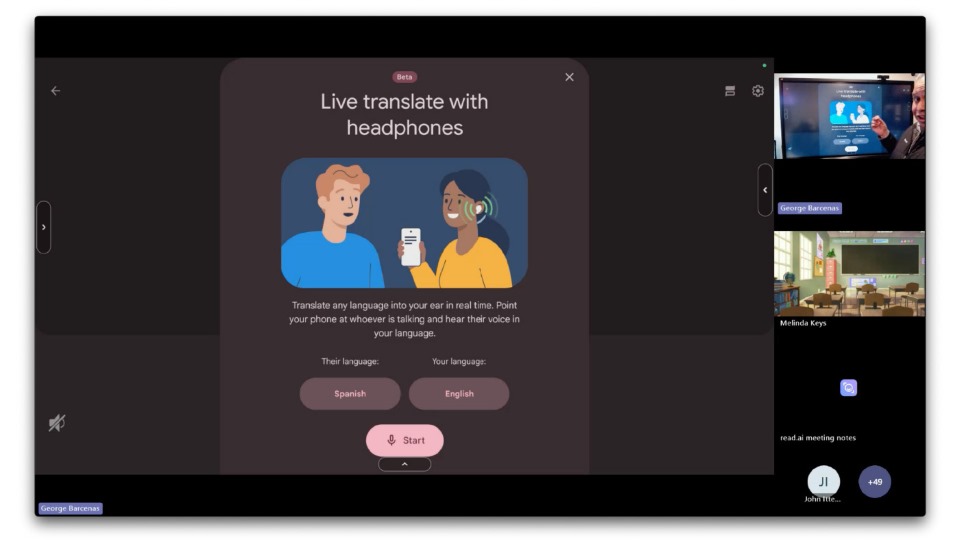
You can use the split-screen feature to run Google Translate next to your slides or Chrome. As long as your ViewBoard has a microphone (such as the IFP41 series), you can provide live captions for ELL students. It is an easy way to make sure every student and parent feels included.
Level Up Your Engagement with Canva
We all know teachers love Canva. When you run the Canva app on your ViewBoard, you can sync it with your phone.
George showed how you can use your phone as a remote to add fun effects like digital curtains or bubbles. It turns a standard presentation into an interactive experience that keeps students focused. Remember,almost any app you know and love can be used on our ViewBoards® with Google Play Store.
See the Magic for Yourself
It was even great to see George learn something new! He discovered how to screen record directly on the panel during the session. We are all learning together in this community.
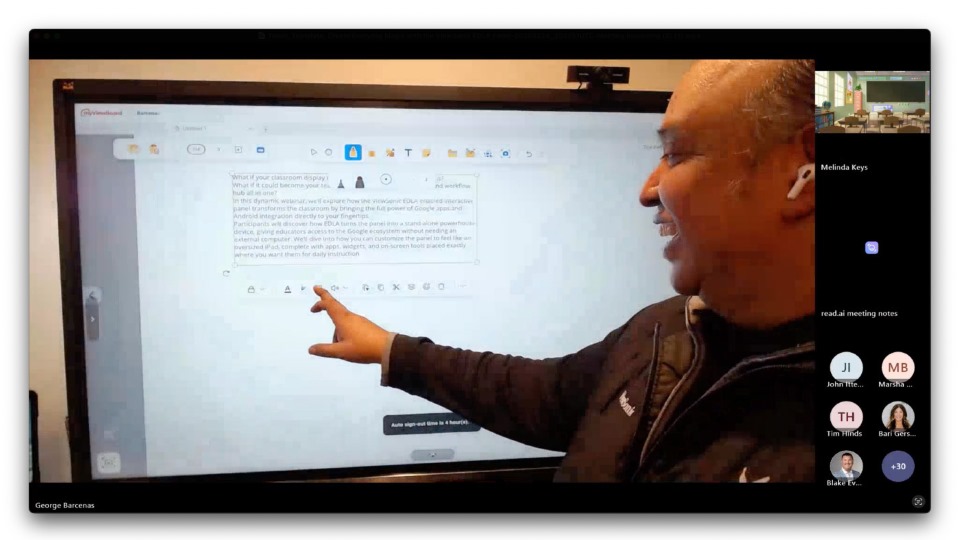
Ready to see these features in action?


Login and Registration Form