 Teacher's Community
  Support
Community Webinar Recap: Best Practices in the Secondary Classroom
- Sep 23, 2026
Community Webinar Recap: Best Practices in the Secondary Classroom
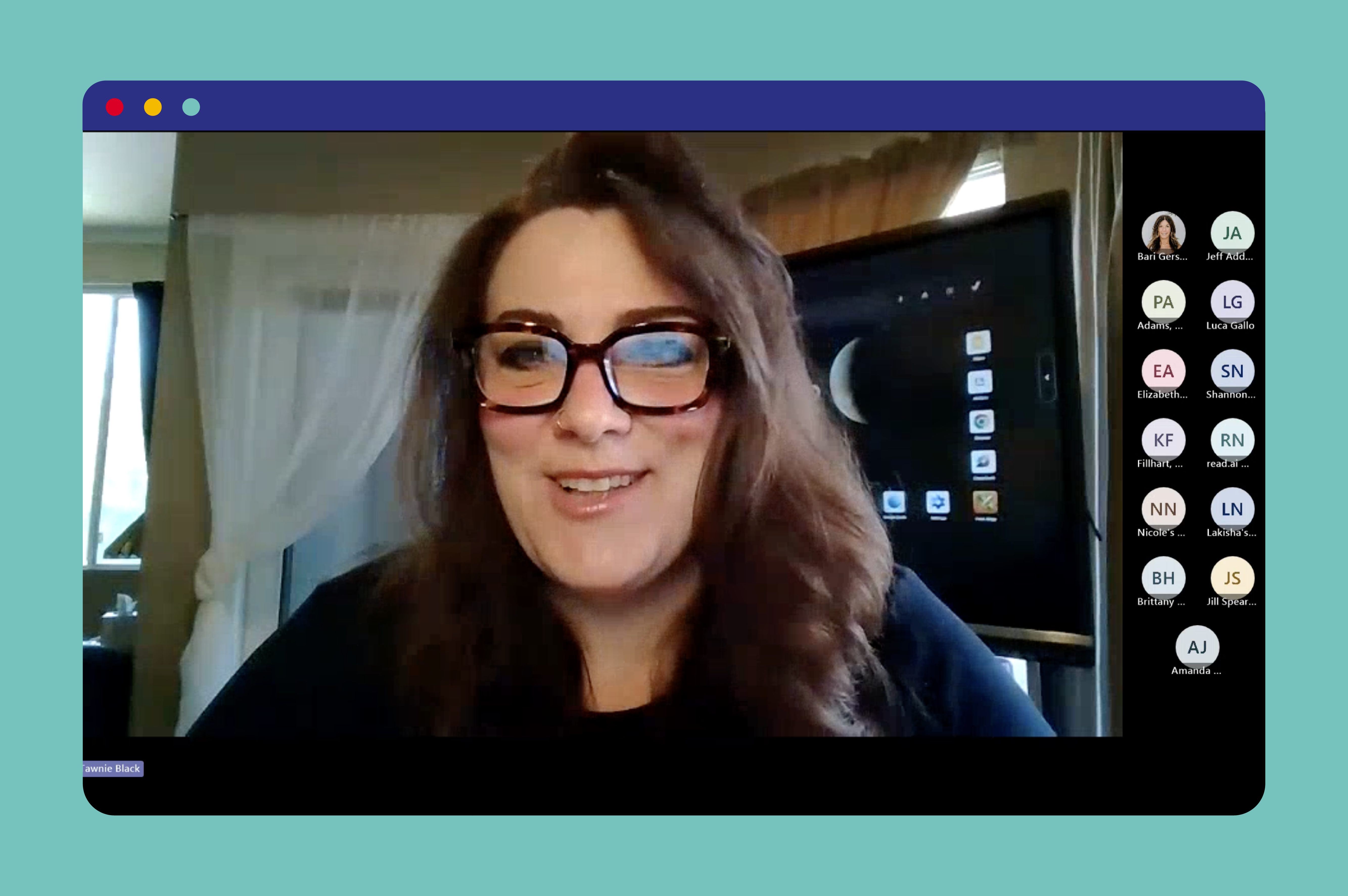
How do you get secondary students up at the ViewBoard® without losing control of the room?
The answer is simple: give students a specific, low-stakes task, and use tools built for more than one student at a time. That’s the approach ViewSonic® trainer Tawnie Black walked through in a recent ViewSonic Community webinar for teachers, tech coaches, and instructional technology specialists.
She covered practical ways to build board interactivity into secondary classrooms using curated interactive websites and a wide range of myViewBoard® software tools.
Read our recap below or watch the full webinar now:
Key Takeaways
- Bringing secondary students up to the ViewBoard works best when the task is focused, low-stakes, and allows more than one person to contribute at once.
- Touch-driven websites like PhET, BioDigital, and Desmos feature fun, ready-made board activities that minimize prep work.
- myViewBoard whiteboarding software offers free classroom engagement tools, such as Sticky Notes, Backgrounds, Magic Box, Participate Mode, and Quiz Tools.
What Interactive Websites Work Best for Secondary Classrooms?
Start with websites, not custom lesson-building. Teachers don’t have to create anything, and students only face one learning curve (the board) instead of two (the board plus a brand-new lesson format).
ViewSonic’s team keeps a running list of interactive, touch-friendly sites organized by subject, from Desmos to PhET’s science simulations and the Poetry Foundation. Some highlights from the training:
- PhET Colorado’s natural selection simulation features a growing bunny population. Students can touch the screen to add mates, mutations, and environmental factors and watch the results play out live.
- BioDigital gives students the opportunity to explore and manipulate 3D body systems by touch, popular with biology teachers.
- Google Earth works well for showing real locations tied to literature or history.
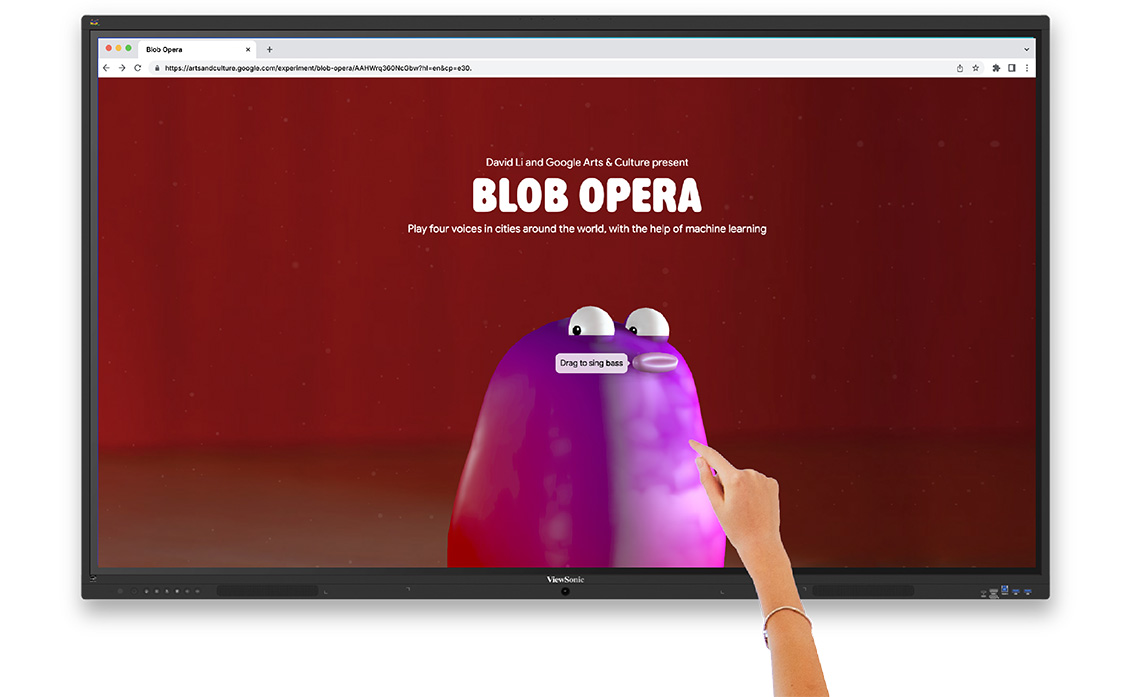
- Blob Opera, built on Google Arts and Culture, lets students drag their finger to build harmonies with colorful blobs, a favorite with music teachers.
Tawnie’s pro tip: pick a single site to start, get comfortable, then add more.
Bring Multiple Students to the Board With myViewBoard
myViewBoard is ViewSonic’s free whiteboarding software, available on ViewBoard interactive displays and downloadable to Windows, Android, macOS, and iPadOS devices. Unlike platforms that force users to share a single cursor, several of myViewBoard’s tools are designed to let multiple students work on the board at the same time. For example:
- Sticky Notes allow small groups to brainstorm and write or type directly on the board, then resize and move their notes into place. Notes can all be saved rather than lost when class ends.
- Backgrounds turn the board into a ready-made graphic organizer. Secondary teachers can drop in a KWL chart, an X-Y axis, a periodic table, or a compare-and-contrast layout instead of building one from scratch.
- Magic Box houses tools like timers, calculators, and customizable dice, which teachers can pair with a background to build a full station activity in four steps: add a background, add directions, add a timer or other tool, then duplicate the page for each group.
Two newer myViewBoard features are also particularly useful for teachers trying to engage groups of students at once: Participate Mode and Quiz Tools.
Give Everyone a Turn With myViewBoard's Participation Mode
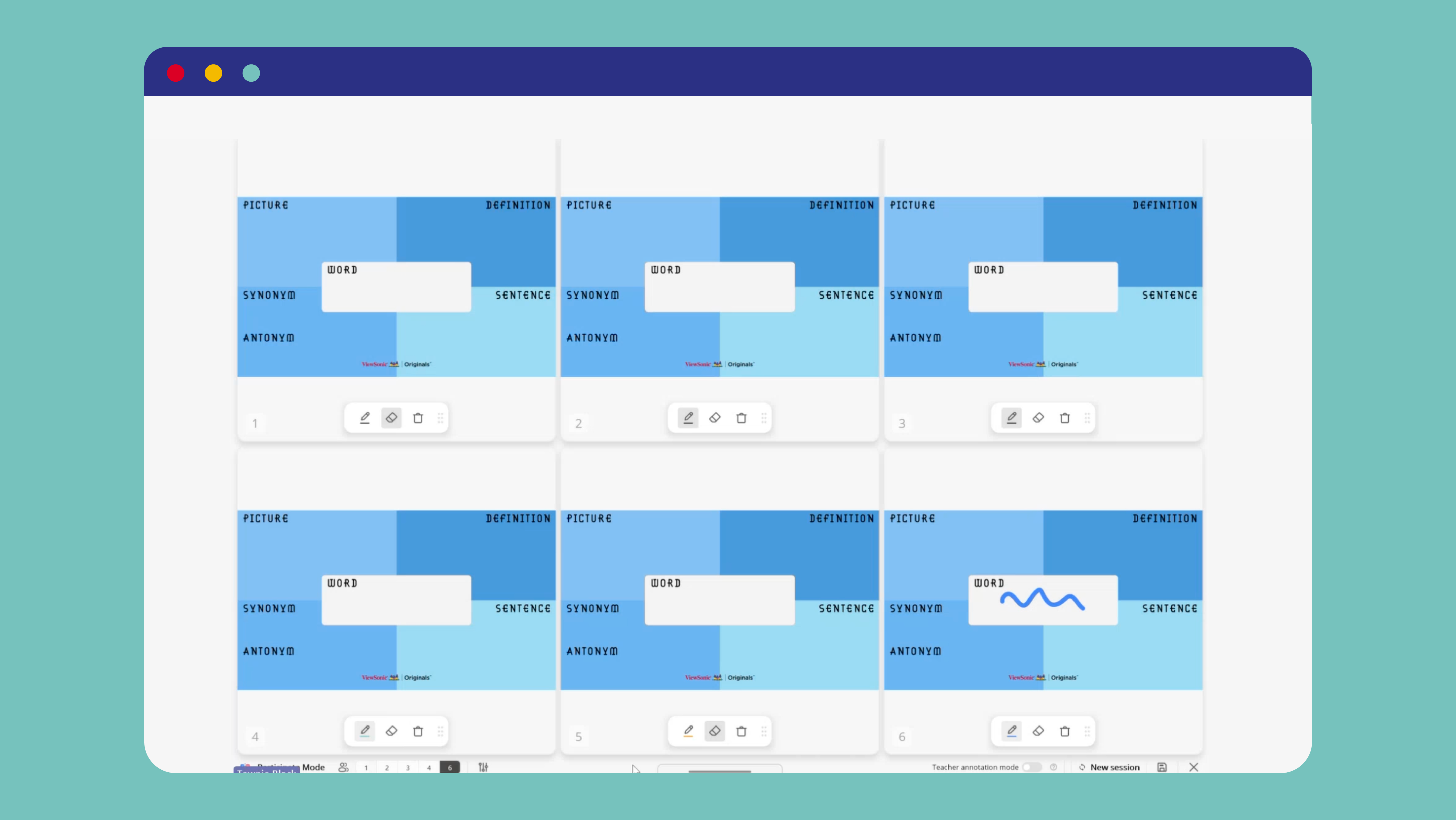
Participate Mode allows up to six students to write on the board at the same time by splitting it into smaller individual sections. Unlike other whiteboard tools, Participate Mode is designed specifically for multiple users. Each student gets their own space on the board, chooses their own pen color, and writes or erases without affecting anyone else’s work. When a group finishes, the teacher swaps in the next set of students, and any background or setup carries over automatically, so there’s no rebuilding between rotations.
Another important difference is that Participate Mode lets teachers drop in any ViewSonic Originals saved image, turning the whiteboard into a structured activity like vocabulary building, labeling, or station work instead of just a blank writing space.
Transform Quick Assessments with myViewBoard’s Quiz Tools
The Quiz Tools in myViewBoard help build entry and exit tickets right into the lesson. They make traditional pop quizzes more interactive by bringing students’ attention to the board for both questions and answers.
The teacher first writes or types a question on the board. Students then scan a QR code or visit a link on their own device, type their name, and respond. No student login is required.
The teacher can reveal answers one at a time or all together, and responses can even be kept anonymous. It’s a fast way to check understanding at the start or end of class without pulling every student into a separate app.
Ready to Level Up Your Classroom?
Involving the whole class in an interactive task is one of the best ways to keep secondary students focused and help the day’s concepts stick. Just a single online experience, well-timed activity, or quick assessment can make a real difference.
Teachers can try the tools covered in this webinar right now with little to no setup. myViewBoard comes pre-installed on ViewSonic interactive displays and is free to download on Windows, Android, macOS, and iPadOS devices. Districts should confirm they’re on the latest myViewBoard version (3.4.6.1088 at the time of this training) to access Participate Mode, Quiz Tools, and other features.
Discover more webinars and resources for educators at the ViewSonic Community.
Frequently Asked Questions
Do students need an account to use myViewBoard’s Quiz Tools?
No. Students join by scanning a QR code or visiting a link and then typing their name. No account, email address, or login is required. Teachers can reveal responses to the class but choose whether to keep answers anonymous, making it a low-friction way to check understanding.
How many students can write on the board at once in Participate Mode?
myViewBoard’s Participate Mode allows 1, 2, 3, 4, or 6 students to write on the board simultaneously. Each student gets their own dedicated space and pen color, and can erase their own work without affecting anyone else’s. When a group finishes, the teacher swaps in the next set and any background or activity setup carries over automatically, so there’s no need to rebuild between rotations.
Can teachers save student work from myViewBoard sessions?
Yes. Sticky Notes, Participate Mode sessions, and Quiz Tools responses can all be saved to Google Drive or OneDrive. Work isn’t lost when class ends, and teachers can refer back to responses for grading or future planning.
Does a school district need to buy separate software to use these tools?
No. myViewBoard is included with ViewSonic interactive boards and is also free to download on other devices such as laptops and tablets.
What if a teacher’s version of myViewBoard doesn’t include these tools?
Older versions of myViewBoard, identifiable by a tan toolbar, don’t include Participate Mode or Quiz Tools. Updating to the latest version, which has a white-bordered toolbar, unlocks both features. Learn how to update myViewBoard for free here.


Login and Registration Form