Education
Business
Consumer

News

How ViewSonic Solved Ecuador’s Room-to-Room Classroom Projection Problem

SOLUTION BRIEF

How ViewSonic Solved Ecuador’s Room-to-Room Classroom Projection Problem

CHALLENGE

A government education agency in Ecuador needed classroom projection that could keep up with real teachers in real rooms. ViewSonic treated it as a design problem, not a race to the lowest bid.

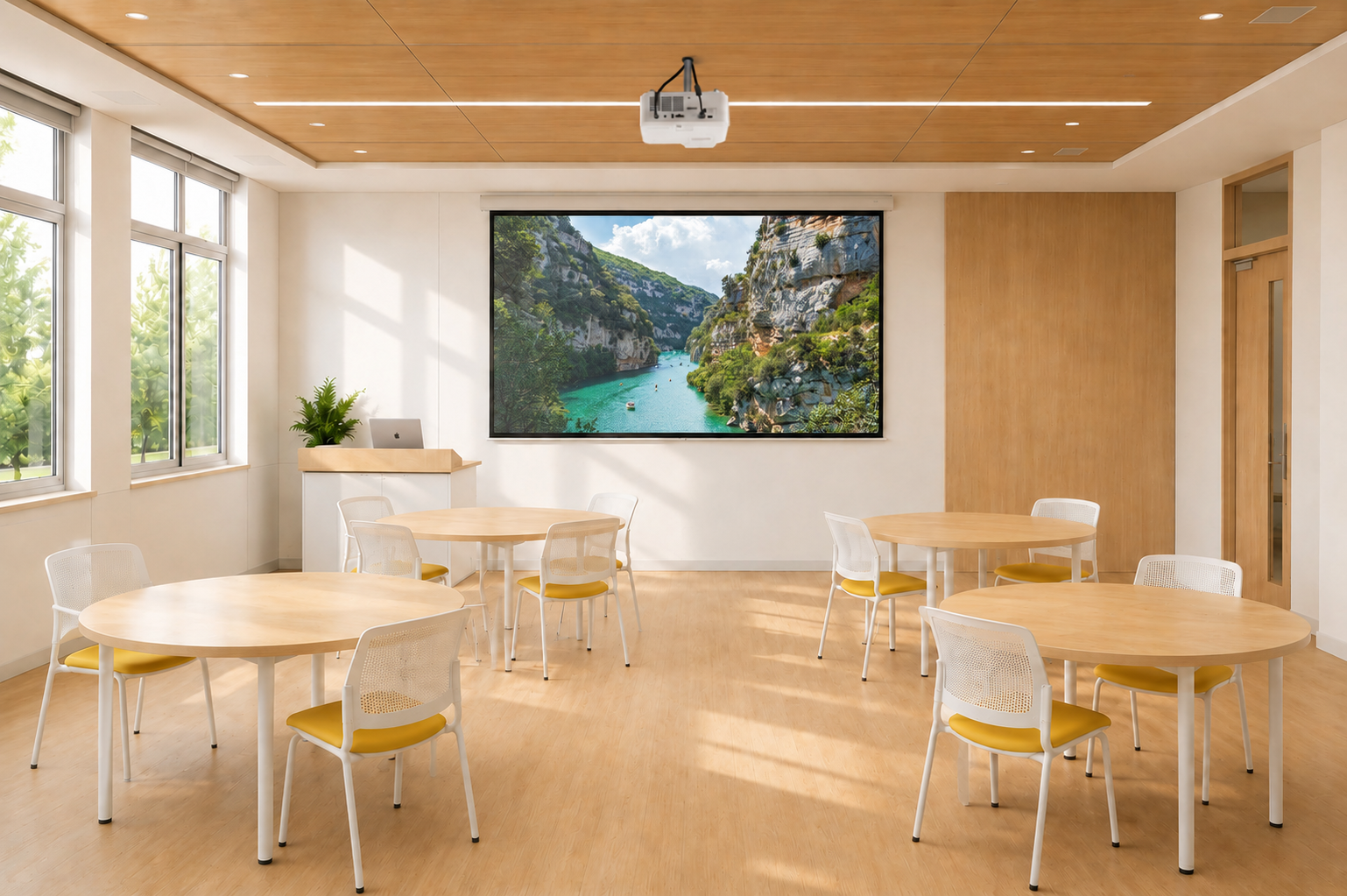
The agency set out to equip classrooms with projectors across several educational zones covering hundreds of public schools. Conditions varied widely, from the capital to towns with far less infrastructure.

In many of those schools, classrooms outnumbered the available projection units, so teachers moved projectors from room to room during the day. That mobility requirement shaped the entire evaluation.

The specifications also had to guarantee enough brightness and the right resolution for reading, graphics and PDF content in a classroom filled with strong natural light, at a price and delivery schedule a large-scale public procurement could accept.

ViewSonic got involved before the tender even opened, testing equipment directly in these classrooms rather than proposing a spec on paper. The first unit under evaluation was an ultra-portable model, and extended testing showed that daily classroom use demanded more brightness and durability than that device could deliver.

Getting it right took time. The process ran close to a year and a half, partly because ViewSonic kept testing until the recommendation matched how teachers actually worked, and partly because a nationwide government purchase has to stay open to other manufacturers throughout.


SOLUTION

ViewSonic’s approach was to keep testing until the solution actually fit the classroom, not to stop once something met the minimum spec. Over the months before the tender opened, the team ran repeated demonstrations, left loaner units in place and returned to the agency every few months to refine the requirements based on what teachers and administrators saw in daily use.

That process, not a sales pitch, is what led to the ViewSonic® PA503 series over another competing portable unit first under evaluation. At under 2.5 kg the PA503W was still light enough for a teacher to carry between rooms, and it delivered the brightness and durability daily classroom use required.

Testing confirmed 4,000 lumens as the right brightness level and WXGA resolution (1280 x 800) as the best balance of image width and sharpness for reading, spreadsheets and PDF content. Those results informed the technical parameters the agency wrote into its tender.

The final tender set a minimum of 3,800 ANSI lumens. Specifying ANSI lumens matters, because it is the industry-standard measurement rather than the “white and color lumens” marketing metric some manufacturers publish. The PA503W came in above that minimum at 4,000 lumens, and the agency’s own classroom testing showed the difference on text, spreadsheets and PDF content.


“We spent a year and a half testing in real classrooms before we ever priced the deal. That’s what actually won it.”


That preparation paid off when the tender for 2,760 projectors was finally published. The PA503W cleared the technical evaluation without a single gap, a direct result of the months of hands-on classroom work that came before it.

Delivery time was the next hurdle. The agency required the full order within 90 days, and competing manufacturers quoted 120 to 150 days for an order that size.

ViewSonic drew on its global supply chain to close that gap. The team redirected units already moving toward the Americas as part of a broader regional shipment, routed them through the local distribution network in Panama and covered the entire 2,760-unit order in 60 days, well ahead of the deadline.

Price was the last piece, not the deciding one. The commercial team secured pricing approval while the supply chain team locked in the 60-day plan. ViewSonic also worked with display technology partner Texas Instruments™ through its education-sector program, so the final offer reflected the value of everything that came before it.


RESULT

This win came from refusing to shortcut the testing. ViewSonic spent a year and a half in the agency’s actual classrooms and built its recommendation around how teachers use the equipment day to day.

The global logistics network behind that recommendation then delivered on a window no competitor could match. Texas Instruments recognized the project as well and asked to document it as a success story of its own.

The agency has since launched a second purchase phase for 730 additional projectors under the same technical standard, bringing the program total to 3,490 units.


MODEL IMPLEMENTED
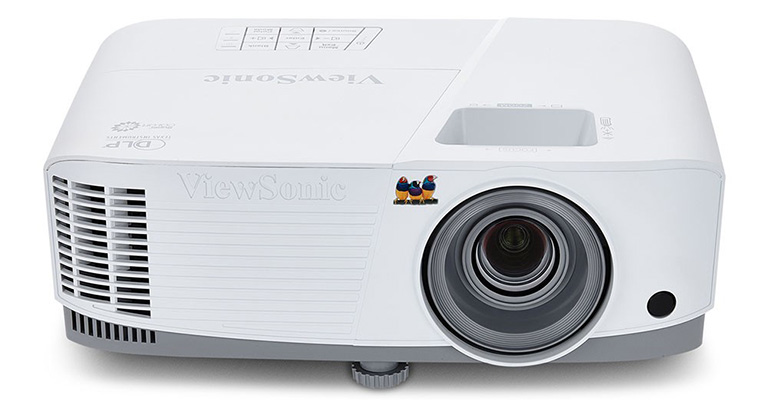
PA503W - ViewSonic 4,000 Lumens WXGA Projector with HDMI and Vertical Keystone

Frequently Asked Questions


How Can a School District Standardize Displays for Both Classrooms and Campus Communications?

A single manufacturer ecosystem can cover both needs: interactive displays for teaching and commercial displays for digital signage, managed from one software platform. This district deployed ViewBoard interactive displays in classrooms and CDE commercial displays in common spaces, managing everything with Manager Advanced software.


What ViewBoard Sizes Work for K-12 Classrooms?

The ViewBoard IFP51 series of interactive displays comes in 65” (IFP6551), 75” (IFP7551) and 86” (IFP8651) sizes, all offering 4K resolution and Android EDLA certification. This district installed 489 ViewBoard interactive displays, standardizing on the 75” IFP7551 while using 65” and 86” models for specific room sizes.


Can School Displays Connect to Emergency Alert Systems?

Yes. Manager Advanced software, ViewBoard interactive displays and the CDE series of commercial displays integrate with emergency systems so urgent safety notices hit every screen instantly.


How Does Centralized Display Management Save a District Money?

ViewSonic Manager Advanced software lets IT admins automate power off schedules when schools are empty, push remote updates and broadcast messages across campus from one console. Automated power management cuts electric bills, while remote admin tools reduce support trips and staff hours.


Ready to Modernize Your District’s Displays?

Talk to a ViewSonic representative or an authorized partner about standardizing classrooms and campus communications on ViewBoard interactive displays, CDE commercial displays and ViewSonic Manager Advanced software.


Training outcomes and participant experiences may vary depending on individual needs, district requirements, and implementation. Performance, security, compliance, and sustainability outcomes may vary depending on system configuration, usage environment, and agency requirements.

Actual performance, security, compliance, sustainability outcomes, and user experience may vary depending on system configuration, usage environment, agency requirements, and other factors. This document contains forward-looking statements that reflect the company’s expectations regarding future events and product offerings. Actual events and product offerings could differ significantly from those referenced herein. Programs, pricing, specifications, and availability are subject to change or cancellation without notice. Corporate names and trademarks mentioned are the property of their respective companies. © 2026, ViewSonic Corporation. All rights reserved. 9/26 [26PRJ-LAT1606]
All-in-One vs. Component-Based dvLED: What’s the Difference?

Buyer's Guide  |  Oct 14 2026

All-in-One vs. Component-Based dvLED: What’s the Difference?

A Direct View LED (dvLED) display is built from LED modules that tile together into one large image. There are two ways to get one, and what separates them is cost, time and risk.

The traditional approach is component-based. The display cabinets, the processing unit, the power distribution and the control system are separate products that have to be designed, purchased and integrated together. It works well for large-scale custom installations.

The modern approach is All-in-One, where all the separate components are built into a single unit. You specify the display, you receive a complete system, and you install it. For most enterprise buyers and AV integrators, that’s the right starting point.

What Goes Into a Component-Based dvLED Build?

The cabinets, the processor, the power distribution and the control system are separate purchases, each sourced and integrated by whoever is building the system.

The cabinets come from one place and the video processor from another. Power distribution has to be designed for the array. Then the modules have to be stitched into a single image, which means stitching software licensed, configured and color-calibrated on site.

Integrators do this well, and for a genuinely custom installation it’s the right approach. Compared to All-in-One dvLED, what adds to each traditional project is cost, time and risk. Every one of those decisions belongs to somebody, and each additional vendor is a delivery date you don’t control.

What Does All-in-One Change?

Processing, power and mounting are built in, so there’s no separate media player or control box to source. Image stitching is software-free and factory-calibrated, which means tiles of the wall arrive already matched instead of needing to be color-tuned in the room.

A pre-configured All-in-One display is a single part number. Even a made-to-order configurable one runs two to three, against the dozens of separate components a component-based build requires. That difference is how the project is quoted, how long it takes the project to finalize, and how many delivery dates need to be scheduled.

Control system compatibility comes with the display too. Every ViewSonic dvLED series supports Q-SYS Library Verified plugins plus Crestron, Extron and AMX over IP and RS-232. On a component-based build that’s a separate question, because the control system has to talk to whichever processor was specified, and confirming it is somebody’s job before the room goes live.

Which Factors Decide Between Component-Based and All-in-One?

Both approaches can put a working wall on the site. The differences show up after the sale, in who owns the design, who services the wall and how many suppliers have to deliver on time.

  • Design Ownership: If the finished wall does not fit the space or the content, who is ultimately responsible for the result? A component-based build involves multiple vendors, so the answer depends on which part of the system is at fault, and sorting that out takes time. With an All-in-One display, one manufacturer owns the design and the outcome.
  • Stitching and Calibration: Is the image matched at the factory or configured on site? A component-based build is stitched and color-matched in the room after installation, and that work has to be repeated whenever modules are replaced. ViewSonic All-in-One dvLED arrives factory-calibrated, so a replacement tile matches the wall without a recalibration pass.
  • Service Without the Integrator: When a module fails in year three, can your facilities team handle it, or does the original integrator have to come back? On a component build, service routes back through whoever specified and calibrated the system. ViewSonic tiles are front-serviceable and hot-swappable, and every system ships with calibrated spare tiles equal to 5% of the tile count, so an in-house team can make the swap.
  • Vendors in the Quote: How many companies have to deliver on schedule for the wall to open on time? A component-based build coordinates cabinets, processing, power distribution and control across separate suppliers, and each one is a delivery date you do not control. A pre-configured All-in-One display is a single part number from a single manufacturer.

Where to Start

For most rooms, All-in-One is the answer. It reduces project complexity, shortens the timeline and makes the system easier to quote, approve and deploy at scale.

Component-based still has a place in large-scale custom installations when no All-in-One display, pre-configured or configurable, meets the requirement. Outside of that, it adds cost, time and risk without adding benefits.

Once you’ve decided on All-in-One, the next question is which ViewSonic series fits, which comes down to whether a standard size serves your space. Our guide to pre-configured versus configurable dvLED walks through that decision.

Explore ViewSonic large venue solutions to see the All-in-One dvLED range built to command attention with high-impact visuals.

Frequently Asked Questions

What Does All-in-One dvLED Mean?

All-in-One dvLED means the processing, power and mounting are integrated into a single unit, rather than being specified, purchased and assembled from separate components on site. There’s no separate media player or control box to source.

What Is Image Stitching, and Why Does Factory Calibration Matter?

Stitching combines multiple LED modules into one continuous image. On a component-based build it’s configured and color-matched on site, which takes time and has to be redone when modules are replaced. ViewSonic All-in-One dvLED uses software-free stitching that’s calibrated at the factory.

Does All-in-One dvLED Still Need a System Integrator?

Not for the system design, since the display arrives as a complete unit. You’ll still want a qualified installer for the physical mount and the electrical work, and ViewSonic’s U.S.-based Solutions Engineers provide pre-sales site assessment at no additional cost. AV integrators can also earn a ViewSonic dvLED Installation Certification through a two-day training program at the Brea, California headquarters.

When Does a Component-Based Build Still Make Sense?

A component-based build makes sense for large-scale custom installations when no All-in-One display, pre-configured or configurable, meets the requirement. For nearly every other project it adds cost, time and risk without adding capability, which is why All-in-One is the starting point for most enterprise deployments.


Proper wall suitability, reinforcement, and professional installation are the sole responsibility of the customer, installer, or system integrator. ViewSonic assumes no liability for any equipment damage, property damage, or personal injury resulting from incorrect installation. Any references to third-party software, control systems, corporate names, or trademarks are for identification and compatibility purposes only and do not imply endorsement, affiliation, or sponsorship by their respective owners.

How Do You Build a Connected Campus Display System?

Buyer's Guide  |  Oct 14 2026

How Do You Build a Connected Campus Display System?

Getting one message onto every screen across a campus should take minutes. On most campuses it takes several logins, more than one vendor and a chunk of somebody’s week.

The screens themselves are usually fine. What’s missing is one place to manage them from, and that gap costs more time than any hardware decision on the campus.

What Kinds of Displays Does a Campus Use?

Before comparing management platforms, it helps to know what you’re managing. Most corporate campuses run four kinds of display, and they don’t all have the same job.

  • Commercial Signage Displays: These cover hallways, break areas and departmental communication. They’re the highest-volume category on most campuses, and they run the longest hours.
  • LED Video Walls: These go in lobbies and atriums, where you want to show impressive images, and there’s too much daylight for a standard display to compete.
  • Interactive Kiosks: These sit at entrances and busy hubs, so visitors and new hires can look up a directory instead of asking at the front desk.
  • Interactive Flat Panels: These belong in meeting rooms and training spaces, where people collaborate on the screen rather than just read it.

Most campuses have all four. Whether they can be run from one platform is what decides how much day-to-day work they create.

Why Do Campus Displays End Up Fragmented?

Because nobody buys them all at once.

A lobby video wall goes in during a renovation. Wayfinding kiosks show up the next year, usually from a different vendor with different software. A building changes tenants and directory screens appear. Three years on, IT has four logins and a spreadsheet tracking which screen belongs to which platform.

Each of those purchases made sense on its own. None of them accounted for the others, and the cost of that doesn’t surface until someone needs to push an emergency alert to every screen at once, or update wayfinding across six buildings before a new tenant moves in Monday. By then what it costs is staff hours, not equipment.

What Should IT Look for in Campus Display Management Software?

Most campuses choose displays based on size, brightness and resolution. The management software matters just as much. Without it, updating a display or putting a message on it means sending someone to that building.

Here’s what to ask about the software:

  • Coverage: Can one login manage every display type, or only one category? Ask for that answer model by model rather than brand by brand, since management support often varies by generation within the same product line. Signage, lobby displays and interactive kiosks on separate platforms leaves you with the same fragmentation, just spread across more logins.
  • Automation: Does the platform handle scheduled tasks across multiple buildings, or does every change need a person?
  • Emergency Broadcast: Can the platform receive alerts from the notification system the campus already runs, and is that integration included? Most campuses already hold a contract for a CAP service. What to watch for is a display vendor that charges again on its own side, or one that expects you to run a separate alerting platform just for the screens.
  • Control System Fit: Does the platform work with the AV control systems already installed, or does it expect to become the new control layer?

Ask them in that order, because the first one rules out the most vendors.

Can Campus Displays Handle Emergency Alerts?

Yes, and facilities and security teams increasingly expect it as a baseline.

Urgent Alert Broadcast is included in both ViewSonic Manager and Manager Advanced, so emergency messaging isn’t gated behind the subscription. It works through ViewSonic and third-party CAP messaging integrations, which means alerts can come from the emergency notification system a campus already runs.

That last part matters most in practice, because during an actual incident nobody should be logging into a second system to send a message.

Does Campus Signage Work With Existing AV Control Systems?

Most campuses have an AV control system in place long before they add displays, so the display has to fit the infrastructure rather than the other way around.

ViewSonic displays integrate into the Q-SYS Ecosystem through a Q-SYS Library Verified plugin, and support Crestron, Extron and AMX control via IP and RS-232. An OpenAPI is shared across the ViewSonic dvLED, commercial display and interactive flat panel lines, so a control system built for one product family doesn’t need rework when another gets added.

The upshot is that new displays connect to what IT already runs, with no parallel control layer and nothing to rip out.

Which ViewSonic Displays Belong in Which Campus Spaces?

Building one connected campus means matching display types to what each space actually needs.

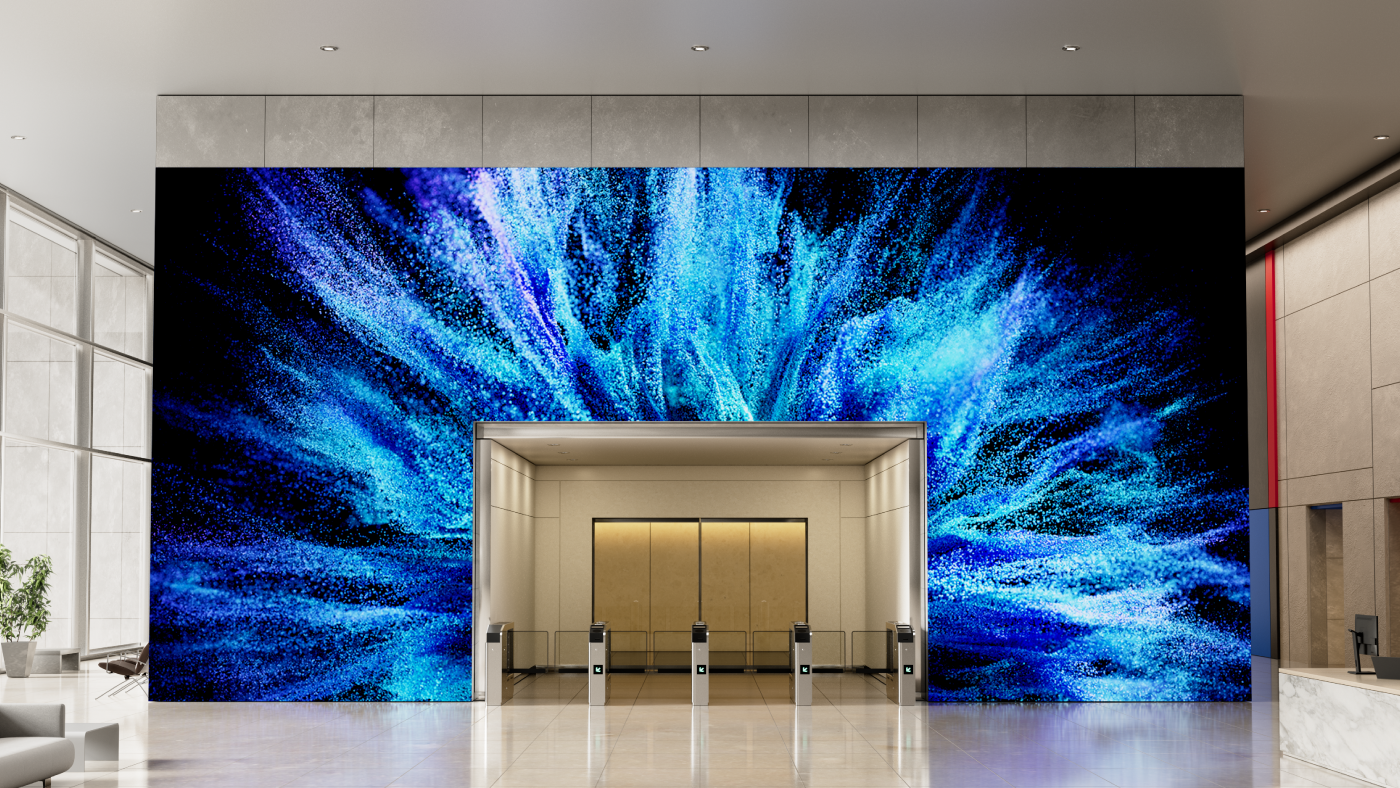
  • Lobbies and Atriums: These spaces need a large-format ViewSonic commercial display or an All-in-One dvLED wall, because ambient light is hard to control here and dvLED holds its image where a standard display washes out.
  • Hallways and Shared Areas: Put ViewSonic CDE series signage displays here, rated for 24/7 operation at 500 nits with anti-glare. Hallway screens run more hours than anything else on campus, so continuous-duty rating matters more than image size.
  • Entrances and Busy Hubs: ViewSonic interactive ePoster kiosks let visitors and new hires search a directory themselves, which takes load off the reception desk.
  • Meeting Rooms and Training Spaces: ViewSonic ViewBoard interactive flat panels from 43 to 110 inches fit these rooms, since collaboration matters more here than broadcast, and touch response and wireless presentation matter more than brightness. ViewSonic meeting space solutions covers sizing and room setup in detail.
  • Auditoriums and All-Hands Spaces: ViewSonic All-in-One dvLED comes in pre-configured sizes from 108 to 231 inches for these rooms, where image size is the priority rather than interactivity. See ViewSonic large venue solutions for sizing guidance.

Mixing display types across a campus is normal, since every space has different requirements. Mixing management platforms is what creates avoidable work, and that’s the part worth sorting out before the next purchase order.

What This Means for Your Next Purchase

Campuses will always add screens at different times, in different renovations, for different reasons. That’s normal and it isn’t going to change.

What makes it manageable is deciding up front how everything gets managed. For some organizations that layer is ViewSonic Manager. For others it’s the Crestron, Extron, Q-SYS or AMX control system already running the buildings, and ViewSonic displays work with those too.

Either way, buying displays from one vendor pays off the same way. One portfolio covers lobbies, hallways, entrances, meeting rooms and auditoriums, which means one support relationship, one firmware path and one integration effort instead of four. Standardizing a management layer is a lot easier when the hardware underneath already speaks the same language.

Explore ViewSonic campus solutions to see how lobby displays, signage and wayfinding kiosks run as one system.

Frequently Asked Questions

What Is Campus Display Management Software?

Campus display management software is a platform that lets IT control every screen across a campus, including lobby displays, digital signage and wayfinding kiosks, from one central dashboard instead of managing each system separately.

Which ViewSonic Displays Enroll in ViewSonic Manager?

CDE series commercial displays, ViewBoard interactive flat panel, and interactive ePoster kiosks enroll in Manager, as do the LDS, LDM, LDP and LDC dvLED series. Three exceptions are worth catching during specification: the CDEG3 series and the IFPG1 series are OS-free by design, and the LDE dvLED series runs a simplified operating system without Manager support.

Is ViewSonic Manager Free?

Yes. ViewSonic Manager is a free browser-based console with no software to install and no server to stand up. It covers device monitoring, batch enrollment, firmware updates and Urgent Alert Broadcast.

What’s the Difference Between ViewSonic Manager and Manager Advanced?

Manager Advanced is a paid tier that adds automation. It includes Task Scheduling for one-off or recurring device actions like screen on and off, power off and media broadcast, plus zoned multimedia broadcast for sending different content to different groups of screens, and remote desktop support for fixing a display without visiting it.

Can Emergency Alerts Be Sent From a System We Already Use?

Yes. Urgent Alert Broadcast works with ViewSonic and third-party CAP messaging integrations, so alerts can come from the emergency notification platform a campus already runs. Staff don’t need to log into a separate display console during an incident.

What AV Control Systems Does ViewSonic Integrate With?

ViewSonic displays integrate into the Q-SYS Ecosystem through a Q-SYS Library Verified plugin and support Crestron, Extron and AMX via IP and RS-232, with a shared OpenAPI across the dvLED, commercial display and interactive flat panel lines.


Performance, security, compliance, and emergency notification outcomes may vary depending on system configuration, usage environment, and agency requirements. Proper wall suitability, reinforcement, and professional installation are the sole responsibility of the customer, installer, or system integrator. ViewSonic assumes no liability for any equipment damage, property damage, or personal injury resulting from incorrect installation. Any references to third-party software, control systems, corporate names, or trademarks are for identification and compatibility purposes only and do not imply endorsement, affiliation, or sponsorship by their respective owners.

dvLED vs. Projection: Which Is Right for Your Space?

Buyer's Guide  |  Oct 14 2026

dvLED vs. Projection: Which Is Right for Your Space?

For decades, putting a large image in a lecture hall or an auditorium meant a projector. Direct View LED changed that. Rather than throwing light onto a screen from across the room, a dvLED display is a wall of LED modules that produce the image directly, at sizes that used to be projection’s exclusive territory.

ViewSonic builds both solutions, so this isn’t a case of one technology replacing the other. Projection still does a specific job well, and there are rooms where it remains the better buy.

What decides the answer is the room itself: how much light you can’t control, what happens when the unit needs service, and whether people will be moving around in front of it.

What’s the Real Difference Between dvLED and Projection?

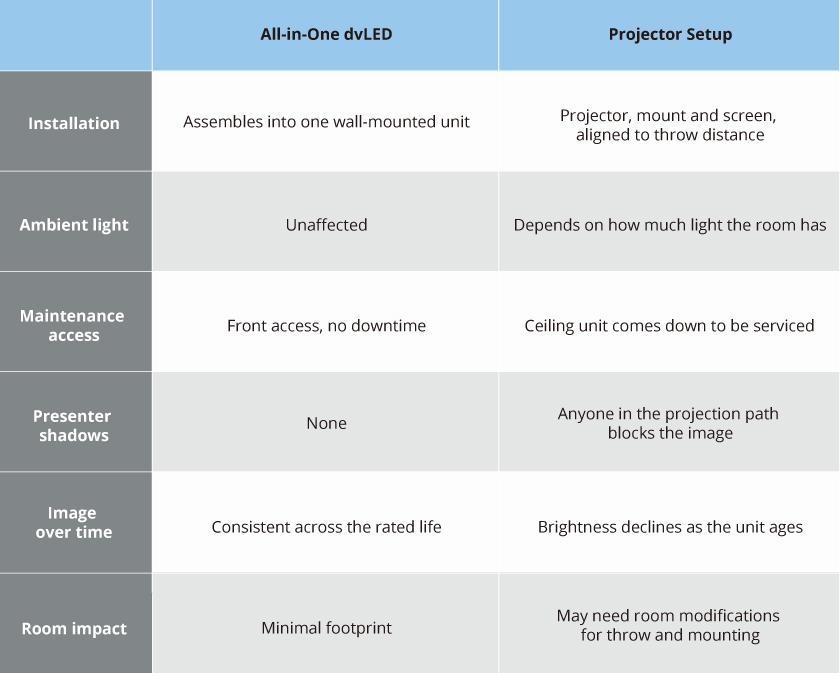
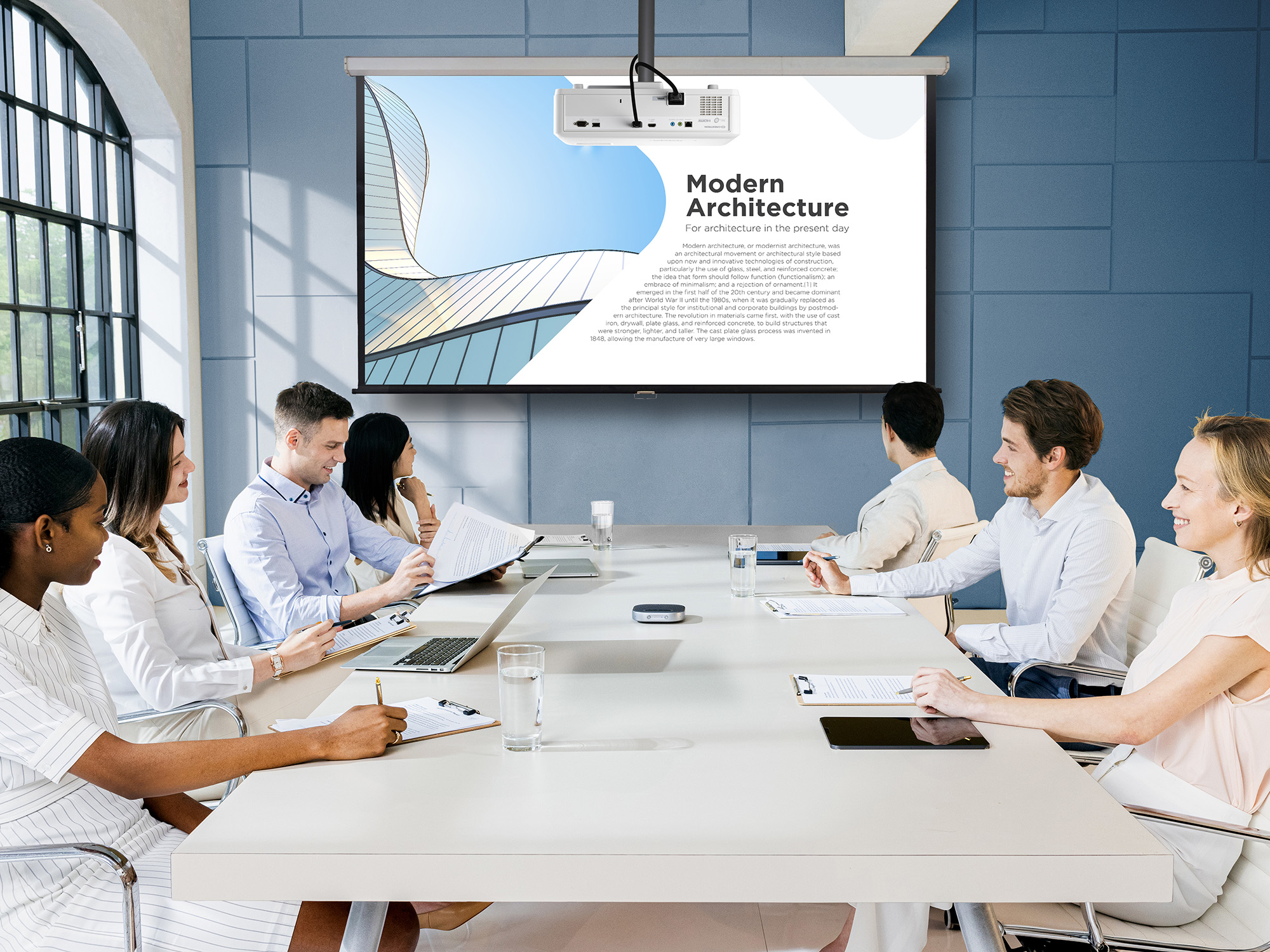
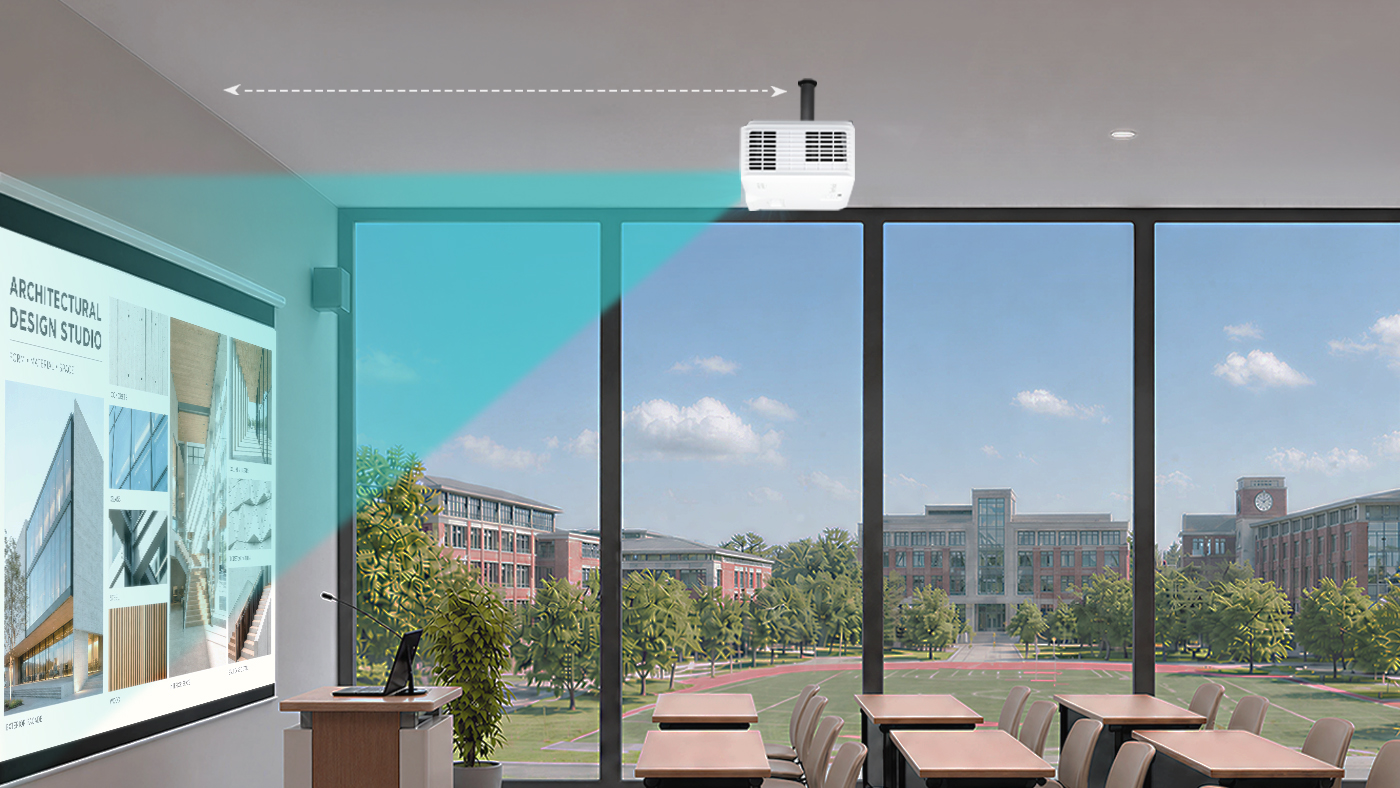
A projector setup has to be designed around the room. Throw distance decides where the unit hangs, the screen has to line up with it, and the ceiling structure has to carry the mount. A dvLED display goes on the wall like any other display, and most of the practical differences between the two follow from that.

What Changes at Install and Service Time?

This is the difference that shows up on a schedule rather than on a spec sheet.

A projector install has to fit the room requirements before it satisfies the audience. Throw distance dictates where the unit hangs, the screen has to be positioned and aligned, and ceiling structure has to support the mount. If the room can’t accommodate that geometry, the layout changes. All-in-One dvLED arrives as a single plug-and-play unit, which cuts installation time and labor cost, and the constraint becomes wall space and power rather than the shape of the room.

Service day is where the gap widens. A ceiling-mounted projector has to be brought down to be worked on, which means a lift, a scheduling window and a room that’s out of service while it happens. dvLED modules are front-serviceable and hot-swappable, so a technician replaces a module from the front of the wall in minutes without taking the room offline.

What Happens When Someone Walks in Front of the Screen?

With a projector, the image travels from the unit to the screen, and anything in that path becomes part of the picture. A presenter who steps the wrong way casts a shadow across their own slide, and so does anyone crossing to a seat.

A dvLED wall produces its image at the surface, so there’s no beam to cross. It’s also large enough that a person standing at it doesn’t obstruct too much. On a 136 or 163-inch video wall, a presenter occupies a fraction of the surface and the content stays readable around them, which means they can work at the display rather than beside it. They also aren’t squinting into a lens while facing the room.

How Much Ambient Light Can Each One Handle?

Think of it as a threshold rather than a verdict.

A high-lumen laser projector handles a room with controlled or moderate light perfectly well. ViewSonic laser installation projectors run 5,000 to 6,000 ANSI lumens and hold a clear image in a lecture hall or a training room with the lights on. If your space is enclosed and you have some control over the lighting, projection is a legitimate answer.

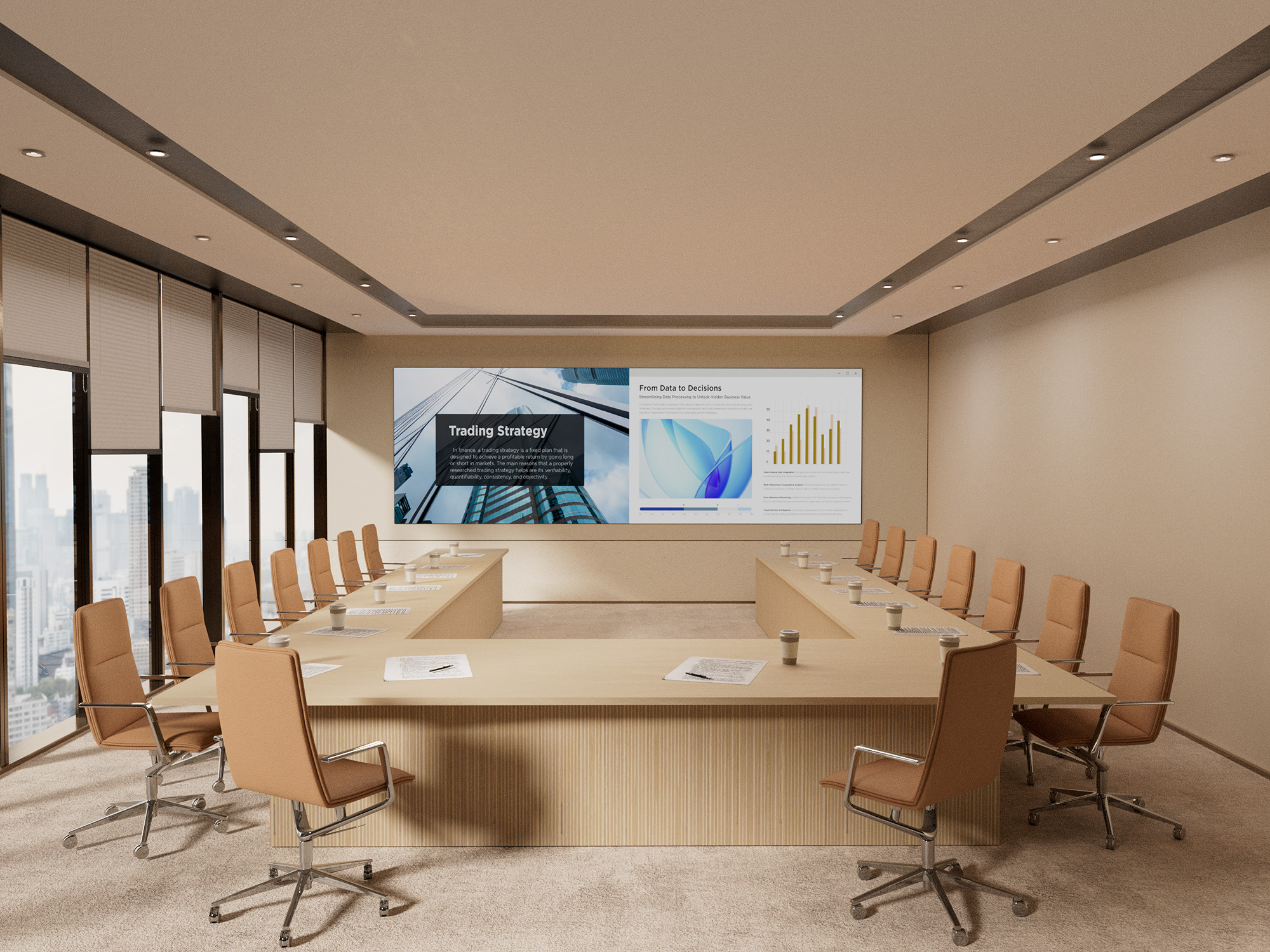
dvLED sits above that threshold entirely. Because it emits its own light rather than reflecting it, ambient light doesn’t factor in at all, which is what lets a dvLED wall cut through daylight in a corporate atrium or an auditorium with glass on two sides. Those are spaces where lighting normally stay at the same level without frequent adjustments.

The question isn’t which one is brighter. It’s how much light is in the room that you can’t do anything about.

When Is Projection Still the Right Choice?

Projection is the right call when the room is dark and stays dark. A dedicated auditorium with a controlled lighting rig already gets a clear image, and dvLED won’t improve on it.

It’s also the right call when you need a very large image and the budget is tight. Projection reaches large sizes for less money up front.

Also, projection is the only choice when the wall can’t take a dvLED array or when a room does not have the structure or the power for it.

If your projector works and your room is dark, keep it.

Where to Start

Start with the light. How much light does the room have that you can’t control? If the answer is a lot, dvLED stops being a preference and becomes the requirement.

Then look at how often the space gets booked and what an hour of downtime costs. The more the room is used, the more the front-service advantage compounds.

Explore ViewSonic large venue solutions to see the All-in-One dvLED range built to command attention with high-impact visuals.

Frequently Asked Questions

Does a dvLED Wall Need a Dark Room?

No. dvLED emits its own light rather than reflecting it off a surface, so ambient light doesn’t wash out the image. That’s the main reason it suits lobbies, atriums and multi-use halls where ambient light is hard to control.

Can a Projector Be Serviced Without Taking the Room Offline?

Usually not. A ceiling-mounted projector has to be unmounted for service, which means a lift, a scheduling window and a room that’s unavailable while the work happens. dvLED modules are front-serviceable and hot-swappable, so a technician works from the front of the wall without the room becoming unavailable.

What’s Included in an All-in-One dvLED Display?

Cabinets, power, processing and mounting arrive pre-integrated as one system, rather than being specified and assembled from separate components on site.

How Long Does a dvLED Display Last?

ViewSonic dvLED is rated for roughly 100,000 hours of LED life, which means far fewer replacements. The warranty covers three years standard, and is extendable to five years.

What Makes a Conference Room Actually Work?

Buyer's Guide  |  Oct 14 2026

What Makes a Conference Room Actually Work?

People collaborate all day, in chat, in shared documents and in threads. Decisions get made in the meeting, and a well-equipped room gets that meeting started quickly and keeps it moving.

With hybrid schedules now standard, a room must work as well for the people dialing in as for the people sitting in it. Time lost to setup gets multiplied by everyone in the room, every time it gets booked, which makes meeting efficiency a productivity question rather than a facilities one.

What decides whether a meeting room works starts with the display on the wall. From there it comes down to how easily people can share to that screen and whether everyone can be seen and heard. The last piece is how well the room fits the systems the building already runs.

Why Do Meetings Take So Long to Start?

Because most conference room technology assumes everyone already knows the system. That worksfor the handful of people who use the room often, and it falls apart for everyone else, which on any given day is most of the people walking into it.

In practice, someone is under the table hunting for the right dongle while someone else clicks through an installer they’ve never seen, and a third person restarts the video call because the wrong input is selected. Then a guest from another company tries to present and none of it works for them at all.

Multiply that across dozens of meetings a day and it adds up to real time. There’s a second cost too, and it’s the one that lasts: people stop booking the room with the bad setup, which puts more pressure on the rooms that work.

How Do You Match the Display to the Room?

Start with how the room gets used in addition to how big it is. Screen size follows from headcount and sightlines, but whether the display needs a touch layer at all depends on what people actually do in that room, and that’s the decision that moves the budget most.

ViewBoard interactive displays suit rooms where people annotate, mark up documents and build on each other’s work directly on the screen. CDE commercial displays cover rooms that only need to present content, which describes most standard conference rooms, and they cost less because they aren’t paying for a touch layer nobody uses. Both run from 43 to 110 inches.

For the largest rooms, All-in-One dvLED delivers one seamless image up to 231 inches, with no bezel lines running through the middle of a slide. That’s what makes it the answer for all-hands spaces and large boardrooms instead of tiling several panels together.

  • Huddle Rooms, Two to Six People: A 55-to-65-inch display puts the screen in comfortable reading range for everyone at the table. Most huddle spaces only present content, so a CDE commercial display covers it without paying for touch.
  • Standard Conference Rooms, Six to Twelve: A 75-to-98-inch display keeps the far end of the table in range. Choose ViewBoard if people mark up documents together, CDE if the room only presents.
  • Boardrooms and Executive Rooms: A large-format display toward the top of the 110-inch range, since these rooms run longer tables and more detailed content than a standard conference room.
  • All-Hands Spaces and Large Boardrooms: All-in-One dvLED, sized to the wall rather than to a standard panel size. A display’s pixel pitch matters more than screen size in these rooms, because the fine pitch a boardroom’s front row needs is different from what a space viewed at 40 feet needs. A useful rule of thumb is that pixel pitch in millimeters times 10 gives the minimum comfortable viewing distance in feet, so a 1.5 mm pixel pitch wall reads well from about 15 feet. ViewSonic large venue solutions covers pitch selection in more detail.

That covers the screen. The rest of the room is about what connects to it.

What Should a Meeting Space Get Right?

The display is the starting point, and three more things decide whether the room works day to day. They cover how people get content onto the screen, whether the people joining remotely can follow along and whether the room cooperates with the systems the building already runs.

  • Getting Content on Screen: How quickly can anyone in the room share, including a guest who has never been in the building before?
  • Being Seen and Heard: Can remote participants see who’s talking and hear the far end of the table, so they can take part rather than just listen?
  • Fitting the Building: Does the room work with the AV control system and scheduling tools already in place?

Get all three working alongside a well-matched display and the room fades into the background, which is what a productive meeting space does. Each one is worth looking at on its own.

How Do You Get Content on Screen Without the Setup Delay?

Take out the two steps that cause most of the delay, which are installing an app and joining a network. Both assume the presenter has permissions, patience and prior experience with the room, and a guest usually has none of the three.

The ViewShare® WPD-900 Wireless Presentation System is a pocket-sized transmitter that plugs into a laptop. Presenting takes seconds, with nothing to install and no network password to track down, because the connection runs peer-to-peer with AES-128 encryption instead of routing through the corporate network.

Some wireless presentation systems still require an app or a Wi-Fi join before anyone can share. That difference shows up the moment a client, a candidate or a new hire needs to present and nobody wants to open a support ticket to make it happen.

The peer-to-peer design matters to IT for a separate reason. A presentation system that never touches the main network is one less endpoint to secure, patch and review. ViewShare also carries USB-C power delivery through the transmitter, so a presenter’s laptop charges while they present, and it supports AirPlay, Miracast and ChromeOS mirroring, which is what makes BYOD work with whatever device someone walks in with.

What Does a Meeting Room Need to Include the People Who Aren’t There?

A camera that finds whoever is speaking and a microphone that reaches the end of the table. Remote participants drop out of a conversation when they can’t tell who’s talking or can’t make out half the room. A good display keeps them watching, and good audio keeps them in the conversation.

  • 4K Conference Camera: The VB-CAM-201 is a 4K conference camera with a 120-degree wide-angle lens, motorized pan and tilt, 5x digital zoom and voice tracking that follows the current speaker. It’s Zoom Certified and includes a four-microphone beamforming array with a 20-foot pickup range.
  • Converse Speakerphone: The ViewSonic Converse (VB-AUD-201) speakerphone adds 360-degree pickup across four omnidirectional microphones with a 20-foot range. It connects over Bluetooth 5.0 or USB-C, and its 6,500mAh battery runs 24 hours of call time, which makes it the option for spaces that aren’t really rooms.
  • Expansion Microphone: The VB-MIC-201 expansion microphone extends pickup to 26 feet and pairs with the VB-CAM-201, covering the end of a long table a single mic array can’t reach.

Buy them together rather than across two budget cycles. Bought as a set they behave as one system, and bought piecemeal they behave like three separate purchases.

Does It Work With the Systems the Building Already Runs?

Usually the room’s system has to fit the building rather than the other way around. Most organizations settled on an AV control platform and a scheduling tool long before this room came up for refresh, and a display that ignores either one becomes a second system somebody has to learn.

ViewSonic displays integrate into the Q-SYS Ecosystem through a Q-SYS Library Verified plugin, and support Crestron, Extron and AMX via IP and RS-232. If the building already runs one of those, the room joins it instead of becoming a separate thing to operate.

Scheduling is the other half of fitting in. The EP1052T-A is a 10.1-inch touch panel that shows room status at the door, handles one-touch join and doubles as a communication display between meetings. A programmable multi-color LED halo shows availability from down the hallway, and the panel installs on a single cable with PoE+. It works with certified scheduling software including EMS, PLANON, Appspace and Pronestor, and supports NFC and RFID badge access for rooms that need it.

Where to Start

Start with the display. Screen size and whether the room needs a touch layer are the decisions that move the budget most, and the rest of the room follows from them.

From there, match the camera and audio to the table, so the people joining remotely can hear the room as clearly as they can see it. Then confirm the room works with the control and scheduling systems the building already runs.

Explore ViewSonic meeting space solutions to see displays, cameras, audio and scheduling panels built to work as one setup.

Frequently Asked Questions

What Is a Wireless Presentation System?

A wireless presentation system lets someone share a laptop or device screen to a conference room display without a cable, usually through a small transmitter or a network connection. ViewSonic’s is the ViewShare WPD-900, which uses a transmitter rather than a network connection.

Does the ViewShare WPD-900 Require an App or a Network Password?

No. It connects through a pocket-sized transmitter using a peer-to-peer AES-128 encrypted link, so there’s no app to install, no network password and no traffic on the corporate network.

How Far Can a Conference Room Microphone Pick Up Voices?

It depends on the device. The VB-CAM-201’s four-microphone beamforming array and the Converse speakerphone both reach about 20 feet, and the VB-MIC-201 expansion microphone extends coverage to 26 feet for longer tables. Measure from the far end of the table rather than from the middle of the room.

Do Meeting Rooms Need Interactive Displays?

Not all of them. Rooms where people annotate and collaborate on the screen together benefit from a ViewBoard interactive display, while rooms that only present content are usually better served by a CDE commercial display at a lower cost. Both ranges span 43 to 110 inches, so the decision is about how the room gets used.

What Does the EP1052T-A Room Scheduling Panel Do?

It displays room availability, supports one-touch join and shows communication content between meetings. It installs over a single PoE+ cable, uses a programmable LED halo to show status at a glance, and works with certified scheduling platforms including EMS, PLANON, Appspace and Pronestor.

Does ViewSonic Meeting Room Equipment Work With Existing AV Control Systems?

Yes. ViewSonic displays integrate into the Q-SYS Ecosystem through a Q-SYS Library Verified plugin and support Crestron, Extron and AMX via IP and RS-232.


Any references to third-party software, control systems, corporate names, or trademarks are for identification and compatibility purposes only and do not imply endorsement, affiliation, or sponsorship by their respective owners.

How Do You Spec a dvLED Display for a Large Venue?

Buyer's Guide  |  Oct 14 2026

How Do You Spec a dvLED Display for a Large Venue?

How Do You Spec a dvLED Display for a Large Venue?

Auditoriums, lobbies, atriums and event halls are where Direct View LED (dvLED) displays do their best work, and they’re also where a specification mistake gets expensive.

Specifying one starts with the room rather than the product. Measure from the display wall to your closest viewer and divide that distance by 10, and you have the pixel pitch the room calls for. Measure the wall and the sightlines, and you have the screen size it will carry. Take both figures to facilities and confirm the structure, the electrical supply and the freight access can support them.

That order matters, because the price of a dvLED display for a large venue often comes down to size and pixel pitch. Screen size is usually dictated by room size. With pixel pitch, overspend and you may be paying for detail nobody can see from their seat. Underspend and the front row may see individual LEDs.

None of it requires a vendor. A tape measure and a conversation with facilities gets you to a specification accurate enough to quote against, and the sections below show how each figure is derived.

Use the 10x rule. Pixel pitch in millimeters times 10 gives the approximate optimized viewing distance in feet, so a 1.5 mm display looks right from about 15 feet and a 1.8 mm from about 18 feet.

Run the rule in reverse to spec a display for a specific room. Measure from the display wall to your closest viewer and divide by 10, and that gives you the largest pixel pitch that will still look sharp from that distance. In a large venue the closest viewer usually isn’t the person you designed for, since someone will always walk right up to a lobby wall.

The 10x rule gives you a starting point rather than a final specification. What the room shows, how bright it is and how long the display has to stay current all move the starting point, and not always in the same direction:

  • Diminishing Returns: Tighter pitch costs more, but past a certain distance the extra detail is too fine for anyone to see. If your closest viewer is 20 feet from the display, the 10x rule puts a 2.0 mm pixel pitch right at that distance, which means it already delivers sufficient detail for that room. A 1.2 mm display at the same size costs substantially more and looks no different from 20 feet.
  • Content Type: High-resolution video and detailed data visualization reward tighter pitch. General presentations and digital signage can perform well at looser pitch.
  • Ambient Light: In bright rooms, ambient light reduces perceived resolution and brightness matters more than pixel pitch. Every ViewSonic dvLED model delivers 600 nits at a 6,500:1 contrast ratio, or 10,000:1 on the Chip-on-Board LDP Series.
  • Margin for Change: Rated at approximately 100,000 hours, a dvLED wall stays in service well over a decade, long after the room around it changes. Seating plans get rearranged, queue lines form in front of lobby walls, and content that starts as brand video often becomes dashboards and wayfinding. When the budget allows it, specifying one step tighter than your current minimum keeps the display usable if the closest viewer ends up nearer than you planned.

Does the Room Need 4K, or Is 1080p Enough?

On a dvLED wall, pitch and resolution are linked by size. Divide the width of the wall by the pixel pitch and you get the pixel count across it, so a tighter pitch on the same wall produces a higher resolution. What separates them is the question each one answers. Pitch determines how close a viewer can stand before the individual LEDs become visible. Resolution determines how much content the display can show legibly at one time.

The ViewSonic LDS, LDE and LDM Series are 1080p. The LDP Series is 4K. For presentations, video and digital signage, 1080p across a large format is sufficient. For spreadsheets, CAD, GIS, dashboards or any content where small text and fine lines have to stay readable, specify 4K. A boardroom reviewing financial models needs a different display than a lobby playing brand video, even at the same size.

Check source count while you’re there. Most ViewSonic dvLED series provide four video inputs with picture-by-picture and picture-in-picture support. The LDE Series provides two inputs without either, which matters if the room needs to show two sources side by side.

What Should You Confirm About the Room Before You Buy?

These are the room details that keep a large venue project on schedule, and every one of them can be confirmed before you issue an RFQ.

  • Wall Structural Load: Confirm the wall can carry the system weight.
  • Power Availability: Confirm circuit amperage and how close the supply sits to the install location.
  • Mounting Depth and Clearance: ViewSonic All-in-One dvLED mounts at approximately 2.7 inchesdeep. Confirm clearance against any protrusion limits that apply in circulation paths.
  • Conduit and Cable Routing: Map the paths before install day rather than during it.
  • Ceiling Height and Access: Installation equipment needs room to work.
  • HVAC and Ambient Heat: Confirm heat management near the display.

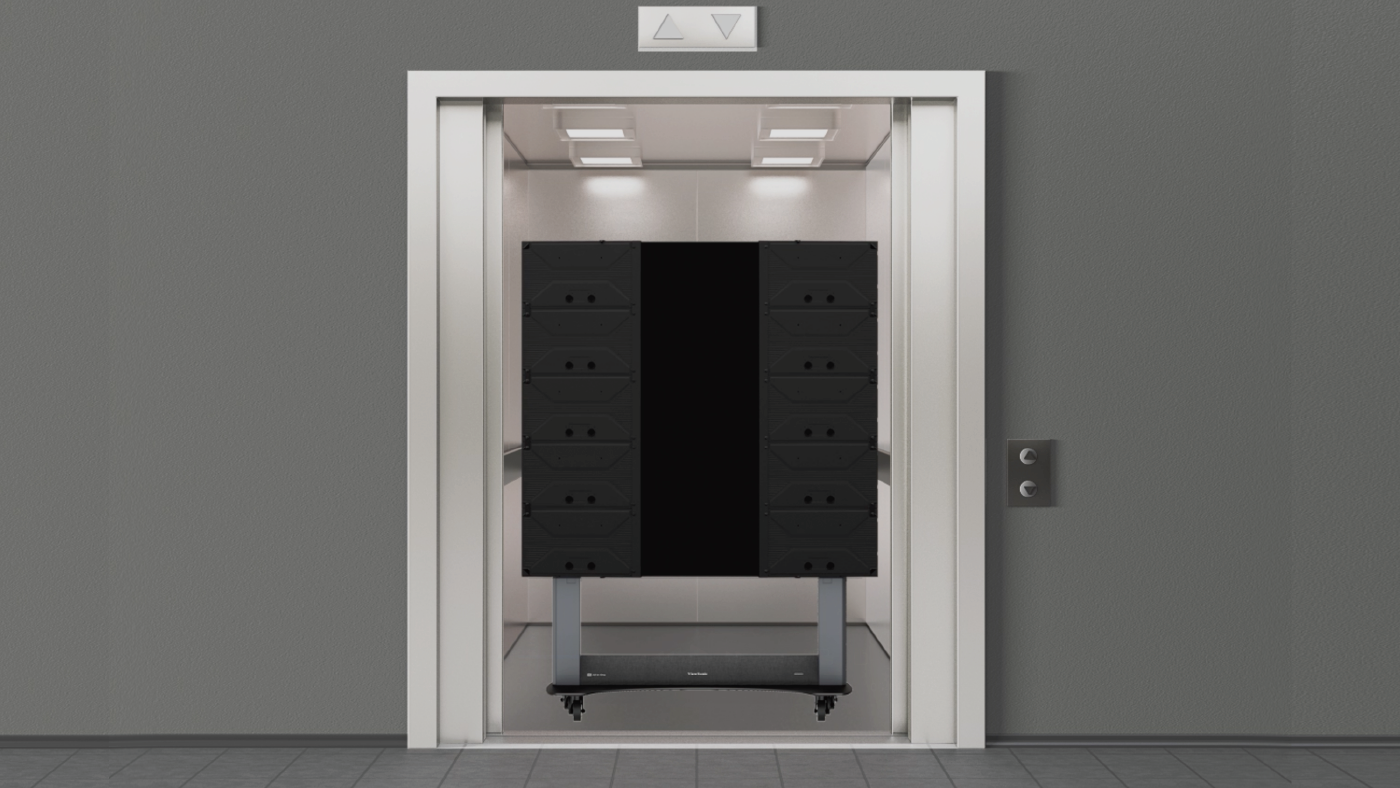
One thing worth checking early for an upper-floor install: a 100-inch-plus LCD display often won’t fit a standard elevator, which rules it out above the ground floor. dvLED arrives in crates and assembles in the room, so its display size is not limited by the logistics of the building.

Who Handles the Installation?

A qualified installer or AV integrator does the physical work, and ViewSonic supports the project on both ends of it. dvLED installation is more involved than mounting a flat panel, so confirm what your vendor includes while you’re still building the budget. A clear scope up front keeps the numbers accurate and the schedule realistic.

ViewSonic’s U.S.-based Solutions Engineers provide pre-sales site assessment at no additional cost and can validate wall structure, power and layout before you commit to a purchase. On-site installation supervision is also included at no additional cost, covering pre-installation site validation, supervision during the install itself and post-installation commissioning support.

How much site work the job takes depends on how the display mounts. ViewSonic dvLED supports wall, floor-standing and ceiling-mount configurations depending on the series and the environment. The Mobile LDS Series requires no fixed mounting, no conduit and no structural work at all, which removes most of the installation question for rooms that need to move the display.

AV integrators who want the expertise in-house can earn a ViewSonic dvLED Installation Certification through a two-day hands-on training program at the Brea, California headquarters and in select U.S. cities. Certification carries CTS renewal units and prepares installers to deploy ViewSonic systems with first-install efficiency.

Where to Start

Measure from the display wall to your closest viewer before you shop for sizes, because that distance determines the pixel pitch, and pixel pitch drives the budget. Then check with facilities to confirm the wall can carry the display.

Explore ViewSonic large venue solutions to see the All-in-One dvLED range built to command attention with high-impact visuals.

Frequently Asked Questions

What Is Pixel Pitch?

Pixel pitch is the distance in millimeters between the centers of two adjacent LED pixels. It determines how close a viewer can stand before individual LEDs become visible, which makes it a major factor in both image quality and cost.

How Do You Calculate the Right Pixel Pitch for a Room?

Use the 10x rule. Pixel pitch in millimeters times 10 gives the approximate optimized viewing distance in feet. Run it in reverse to spec a display: measure to your closest viewer and divide by 10 for the coarsest pitch that will work.

Does a Large Venue dvLED Display Need to Be 4K?

It depends on the content rather than the size. Presentations, video and digital signage read well at 1080p across a large format. Spreadsheets, CAD, GIS and dashboards need 4K, which on ViewSonic dvLED means the LDP Series.

What Should You Check Before Installing a dvLED Display?

Confirm the wall’s structural load capacity, the amperage of the power circuit and how close the supply runs to the install location. Then check mounting depth against any protrusion limits that apply in circulation paths, map the conduit and cable routing, confirm the ceiling height where installation equipment has to work and confirm heat management around the display. Having these answers before you issue an RFQ keeps the project on schedule and removes the most common reasons a dvLED install gets redesigned. ViewSonic Solutions Engineers validate the full list during a pre-sales site assessment at no additional cost.

Does ViewSonic Provide Installation Support?

Yes. ViewSonic’s U.S.-based Solutions Engineers handle pre-sales site assessment at no additional cost, and installation supervision is also included. AV integrators can earn a ViewSonic dvLED Installation.


Proper wall suitability, reinforcement, and professional installation are the sole responsibility of the customer, installer, or system integrator. ViewSonic assumes no liability for any equipment damage, property damage, or personal injury resulting from incorrect installation. Any references to third-party software, control systems, corporate names, or trademarks are for identification and compatibility purposes only and do not imply endorsement, affiliation, or sponsorship by their respective owners.

Higher Education Hybrid Classroom Gets Transformative Upgrade with ViewSonic® dvLED Displays and More

CASE STUDY

Higher Education Hybrid Classroom Gets Transformative Upgrade with ViewSonic® dvLED Displays and More

CUSTOMER

Founded in 1887, NC State University is a public land grant university in Raleigh, NC. The largest university in the Carolinas, NC State has a total enrollment of over 36,000 students and is known for its leading programs in science, technology, engineering and math. Also a leader in agriculture, education, textiles, business and natural resources, NC State is at the forefront of teaching and research in design, the humanities and the social sciences.

CHALLENGE

Sample Image
  • Replace a dual-projector hybrid classroom with a video wall that serves in-person and remote students equally, and that IT can monitor and maintain without disruption.

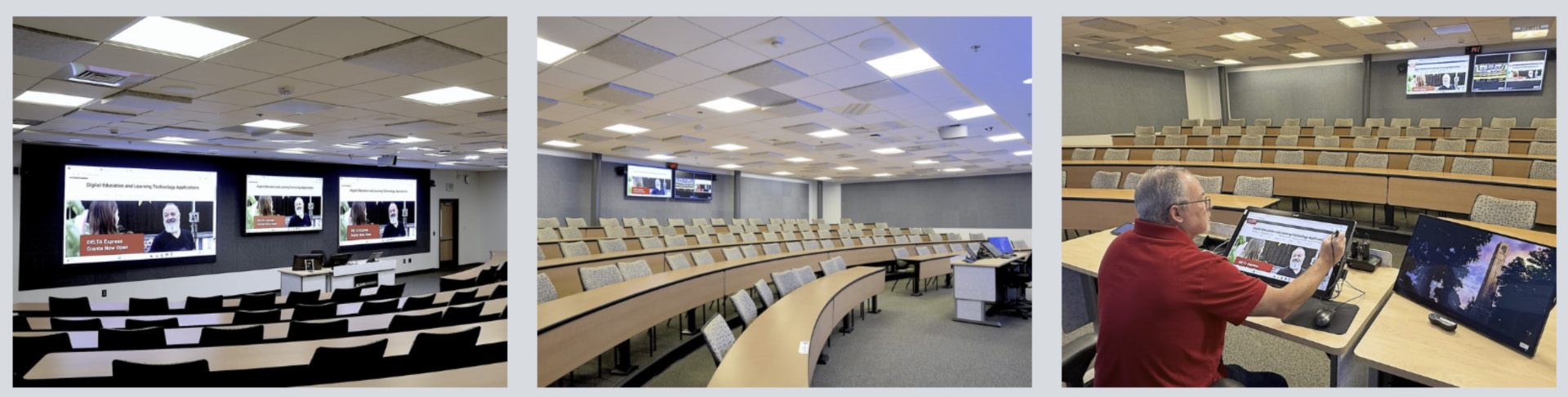
A recognized leader in STEM higher education, NC State is likewise dedicated to being at the forefront of classroom technology. To facilitate efficient use of technology resources, the university offers instructors a variety of classroom configurations to meet their edtech needs. At the pinnacle of these options are the university’s DELTA (Digital Education & Learning Technology Applications) classrooms. Equipped to simultaneously deliver seamless instruction to inperson and remote students, these rooms are live-monitored by DELTA staff to prevent tech-related disruption.

One such classroom in NC State’s Park Shops building was due for a major technology update. The existing setup relied on two ceiling-mounted projectors, which cast content onto dual wall screens. It was time to upgrade to technology that would support the range of modern learning options and instructional modalities: a state-of-the-art video wall that would deliver bright, consistently sharp visuals for every student. Importantly, the solution needed to seamlessly deliver content to in-person and distance learners, while creating an environment that connected those audiences and provided intuitive control for the instructor.


“It’s truly been an amazing transformation and we’re extremely happy with the ViewSonic displays.”

— Tim Hinds, A/V and Network Infrastructure Manager, NC State University DELTA


“A majority of DELTA-supported classes incorporate a Zoom call for students who aren’t able to make it to class or choose the distance learning option,” said Tim Hinds, A/V and Network Infrastructure Manager for Digital Media Support Services Engineering (DMSSE) and DELTA.

“Additionally, most classes also offer asynchronous learning, so in our classrooms everything we do is redundant because it’s critical that lectures are recorded and uploaded – all while providing a smooth live experience for distance and in-room learners.”

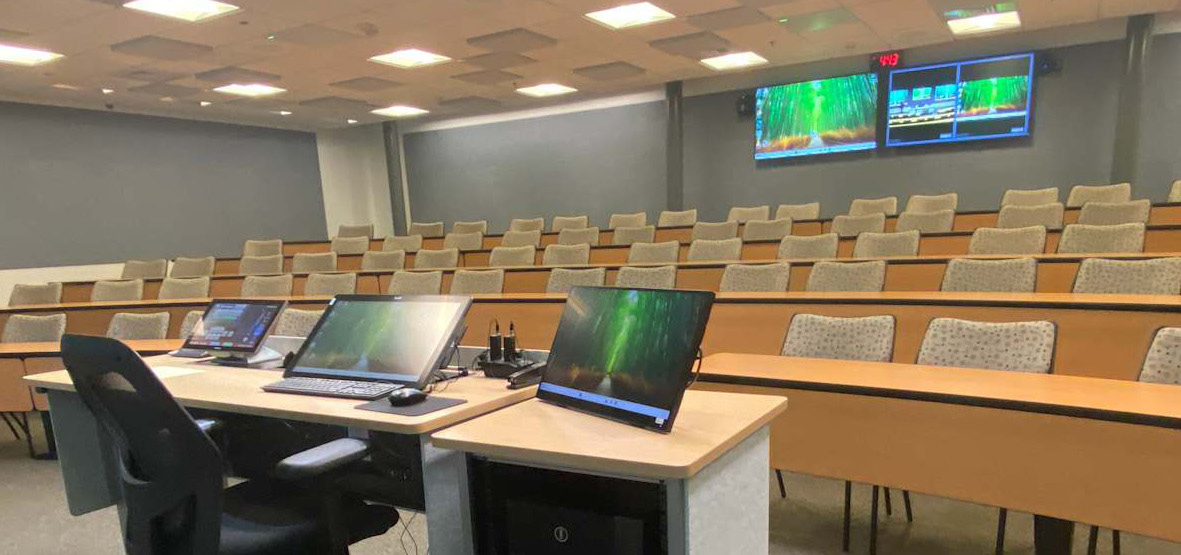
Several types of displays would be needed to support these goals: large, vibrant front-of-room displays for on-site learners; displays to bring Zoom participants into the room; confidence displays for the instructor at the back of the room; and a desktop smart display at the instructor podium. All of which would be maintained and monitored in real time by DELTA team members.

SOLUTION

Sample Image
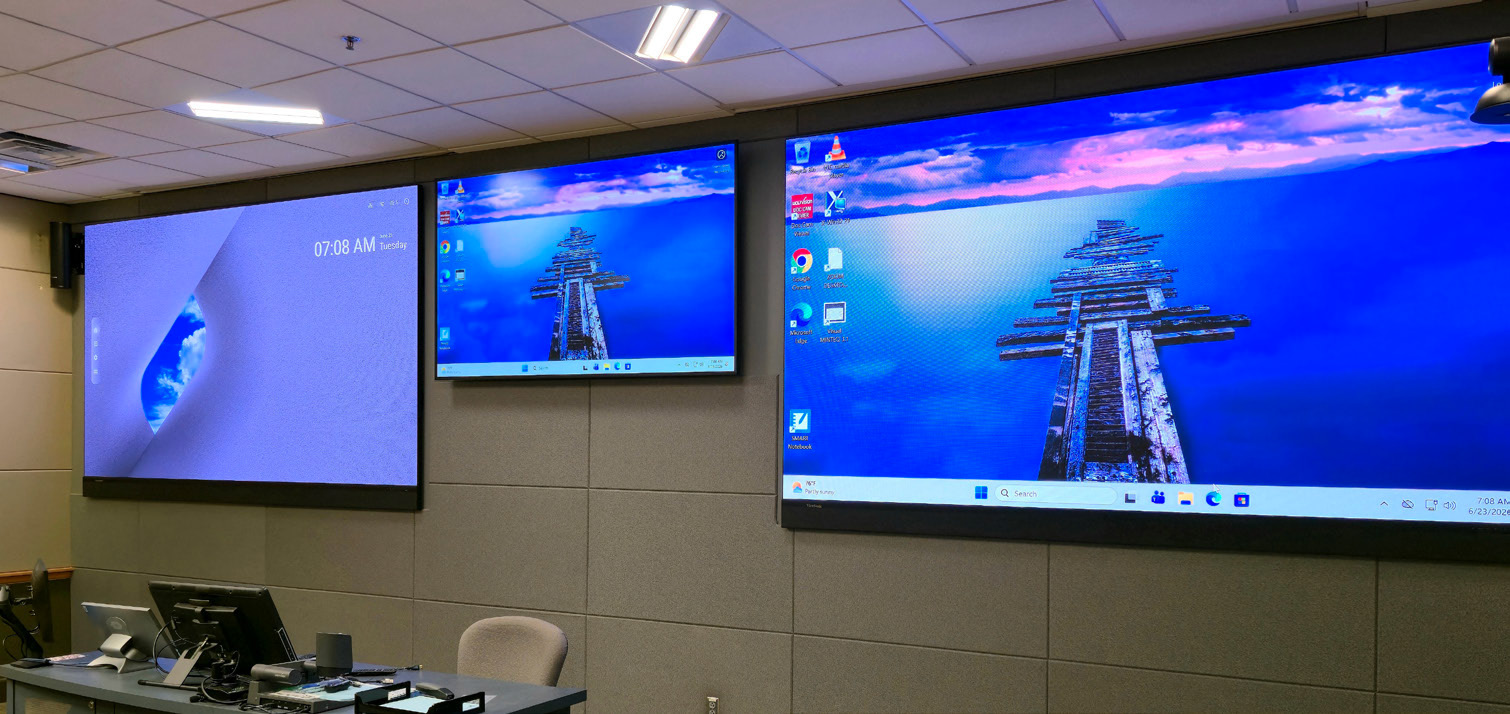
  • 136” All-in-One Direct View LED Video Walls (LDM136-151)
  • 98” Commercial 4K Display (CDE9830)
  • 65” Commercial Displays, rear-wall confidence monitors (CDE6530)
  • 24” Touch Display at the instructor podium (myPodium™ ID2456-4K)

To accomplish these goals, Hinds worked with longtime reseller partner ClarkPowell, which recommended ViewSonic for the display component of the installation.

“I looked into the ViewSonic products they suggested and was happy with those recommendations,” said Hinds. “I particularly liked that the ViewSonic dvLED had the Glue-on-Board surface, which adds durability. The boards in the front of the classroom are low enough that they could easily be bumped by backpacks or elbows, so this durability was very appealing.” Additionally, Hinds mentioned that the specs overall added up to a great product, and that he appreciated that the ability to replace individual panels would streamline maintenance.

The final front-of-room solution included two 136-inch ViewSonic All-in-One Direct View LED (dvLED) Video Walls (Model LDM136-151), which would present class content, complemented by a ViewSonic 98-inch Commercial Grade 4K Display (Model CDE9830-2) to integrate Zoom participants. Two ViewSonic 65-inch Commercial Displays (Model CDE6530) would be mounted to the back wall for instructor visibility: one to mirror the instructional content; one to display Zoom participants. Finally, the instructor podium would be equipped with a ViewSonic 24-inch Touch Monitor (Model ID2456-4K) that would enable faculty to intuitively deliver content and connect with students using integrated ViewSonic software. To ensure seamless operation, the ClarkPowell team would integrate the ViewSonic displays into the DELTA classroom’s existing Crestron matrix switcher.

RESULTS

Sample Image
  • Removed projector glare from the instructor sightline

  • Unified in-person and Zoom instruction on one front-of-room system
  • Reduced maintenance to individual panel swaps
  • Improved recorded image quality for asynchronous learners
  • Established a repeatable model for future classroom refreshes

The DELTA team was more than satisfied with the service and support from the ClarkPowell team, which was professional and detailed from start to finish. Today, NC State’s Park Shops DELTA classroom is a cutting-edge digital learning environment, with integrated technology that seamlessly blends in-person and remote experiences.

“It’s truly been an amazing transformation and we’re extremely happy with the ViewSonic displays,” said Hinds. “It’s such a big improvement over the projector system. The professors don’t have to worry about lights shining in their eyes and the in-person and Zoom learners are visually well-integrated.”

What’s more, added Hinds, the brightness of the dvLED displays has provided outstanding images for the class recordings – a critical component of serving the needs of distance learners.

“These video walls deliver bright, clear images, and they’re highly visible in all lighting conditions,” said Hinds. “When we record content for distance education, we can’t dim the lights, or the students wouldn’t be able to see the professor. With the ViewSonic dvLED walls that’s not a problem at all. Not only is it better for students, our team doesn’t have to worry about issues related to lighting and visibility.”

The NC State DELTA team has received positive feedback from a variety of stakeholders, along with visitors from other universities.

“We’ve received many comments about how great the new displays look,” said Hinds. “And we’ve also had IT people from other universities come look at them. Everyone who has seen the setup has loved it and given us positive feedback.”

In fact, Hinds reflected, a visiting IT specialist mentioned that one of their university’s classrooms had a dvLED board that lacked the glue-on LED surface treatment.

“They were unhappy with the product because it created issues and added maintenance, because students do bump into it,” said Hinds. “This was great reinforcement for my initial impression of the ViewSonic dvLED durability.”

Likewise, faculty and other instructors have been overwhelmingly pleased with the upgrade.

“The confidence monitors in the back of the room allow presenters to easily confirm that their content is looking as it should on the front screens and provides an interface with the students joining on Zoom,” said Hinds. “

These displays alert the instructor if there’s a problem with either feed and they offer great reassurance when they can see our team in the central control room quickly resolve issues.”

As noted on the university’s DELTA website, the ultimate goal of DELTA classrooms is to empower faculty to deliver modern, high-impact instruction to a range of students, using a variety of modalities, without the burden of technical barriers. In these spaces, the range of edtech allows faculty to focus on teaching, not troubleshooting. The Park Shops classroom upgrade has achieved just that, with bright and durable ViewSonic dvLED walls, Commercial Displays, and Touch Display shining as the foundational visual technology.

“We’re extremely happy with our ViewSonic display set up,” concluded Hinds. “I’m planning to use those same ViewSonic products in another room we are working on.”

Institutional requirements, compatibility, and user experience may vary depending on system configuration and environment. Third-party corporate names, logos, and trademarks stated herein belong to their respective owners and do not imply endorsement or affiliation. 10/26 [26ALL-EDU1603a]

Foldable dvLED Displays: What to Know Before You Buy

Foldable dvLED Displays: What to Know Before You Buy

A foldable dvLED display unfolds and powers on without an install crew. Here is how mobile dvLED works, how it compares and what to check first.

Foldable dvLED Displays:
What Buyers Should Know

A foldable dvLED display should roll into a room, unfold and power on without a truck, a lift or an integration team. That's the whole premise of mobile dvLED. It's also what separates this tier from the fixed-install LED walls most people picture.

Say you need a large-format display for a boardroom, lobby or event space. Start with two questions: how many rooms do you need to cover, and does the room's job change? If one space needs a permanent centerpiece, a fixed-install dvLED is the best choice. If you want to host an all-hands in one room this month and a customer briefing in another next month, mobile dvLED covers both with one display. And if the room rules out a permanent install altogether, historic walls you cannot touch or glass with nothing to mount to, mobile is the only display that works there.

What is a foldable, all-in-one dvLED display?

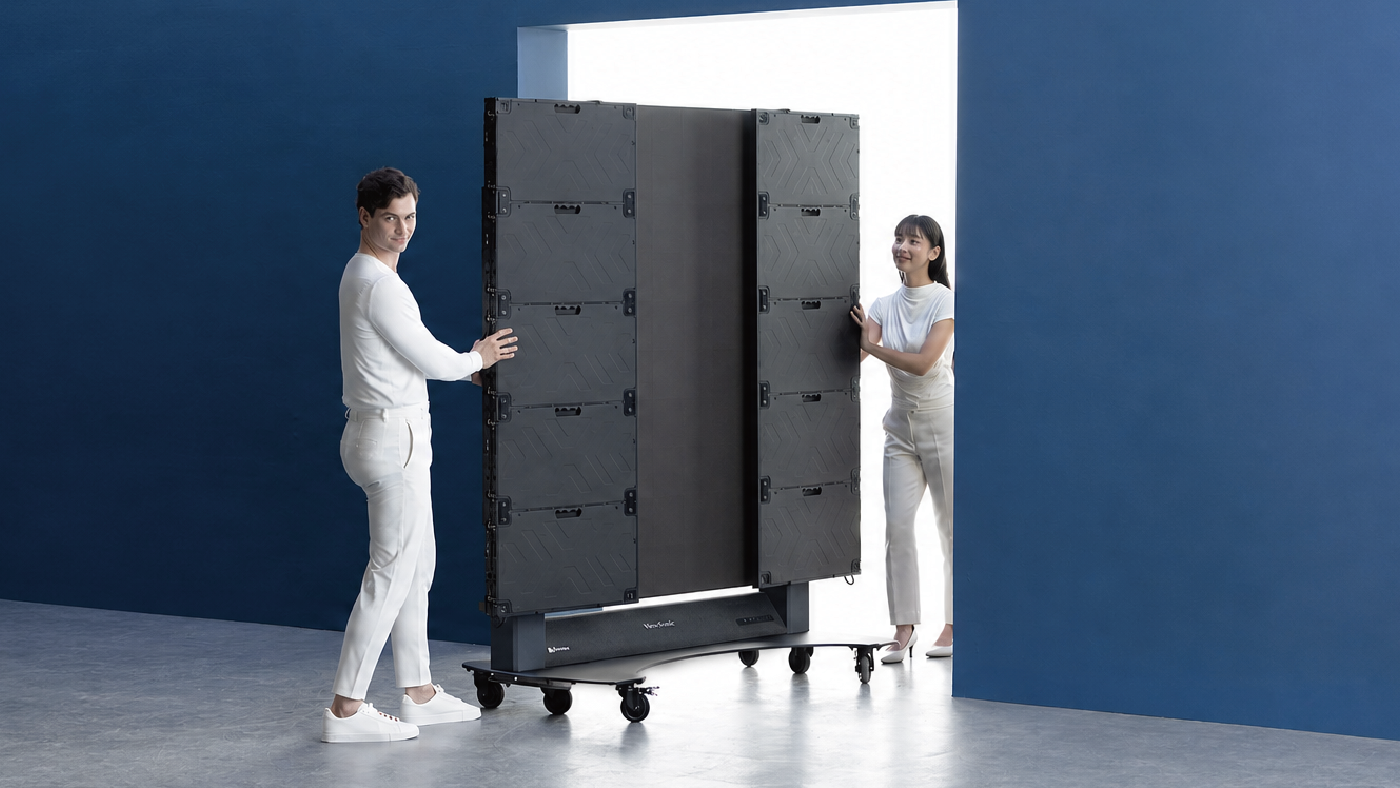
A foldable dvLED display is a Direct View LED (dvLED) video wall built to travel. Cabinets, power, processing and mounting are integrated into one folding unit, so there's nothing to source or configure. Think of it like a giant monitor: unfold it, connect power and an input source, and you're presenting.

The ViewSonic LDS136-152 is a 136-inch foldable dvLED display with a 1.52 mm pixel pitch. It folds for transport and ships ready to present. There's no system design phase and no control unit to wire in. It rolls on silent wheels, fits a passenger elevator and plugs into a 20-amp outlet.

LDS136-152 specifications at a glance

SpecLDS136-152
Screen size136"
Resolution1920 x 1080
Pixel pitch1.52 mm
Brightness600 nits
Lift travel range2.95 ft
Max height, top of screen9.34 ft
HDMI inputs4 (HDMI 2.0, HDCP 2.2)
Protective designGOB, IP65, IK06
LED lifespan100,000 hours
Power20-amp outlet
Control integrationQ-SYS Library Verified, Crestron, Extron, AMX
Warranty3-year limited, parts and labor, on-site service

How do foldable dvLED displays compare?

Foldable dvLED exists for two reasons: easy assembly and easy transportation. Plenty of vendors now ship an all-in-one dvLED. Fewer belong in the foldable category, and far fewer deliver on both halves of that premise.

The differences show up on install day. Some foldable displays still need an assembly step before they're ready to present. Some ship pre-installed in a transport case that limits how you position the screen. Others leave you mounting and wiring a control box separately, which defeats the point of buying an all-in-one.

Then there is the fold itself, where direction matters more than it sounds. The LDS136-152 folds inward, so the LED surface faces in and stays protected every time the display moves. Some competitors fold outward, leaving the LEDs exposed in transit, which is exactly when a doorframe or a wall corner is most likely to find them. On a display you plan to move often, that difference adds up.

Lift height is the spec buyers most often skip. A 136-inch screen sitting low in the room still blocks sightlines for anyone past the third row. The LDS136-152 lift raises the top of the screen to 9.34 feet across a 2.95-foot travel range, higher than any display in its class. Four HDMI inputs mean you're not choosing which source gets a port.

Is mobile dvLED the same as Samsung The Wall or LG dvLED?

No. Mobile foldable dvLED and premium fixed-install dvLED solve different problems. Samsung's The Wall and LG's large-venue dvLED lines are built to be installed for good. They're usually custom-configured for one space by an integration team. ViewSonic builds fixed-install dvLED too, in preconfigured and custom-sized ranges.

The LDS136-152 is built for the opposite job. Think temporary setups, multi-room deployments, events and any space where a permanent build-out isn't the goal. Comparing the two on specs alone misses the point. The better question is which one matches how and where you deploy.

Why does a fourth-generation product matter?

Most foldable dvLED options on the market today are first-generation products from brands new to the category. That means the setup friction, stability issues and deployment gaps are yours to find. On site. For the first time.

ViewSonic has the longest track record in mobile All-in-One dvLED: four generations of refinement for an innovative, foldable all-in-one design. The upgrades in this fourth generation came from asking corporate IT and AV teams what they actually needed.

  • Increased height range: The motorized lift now raises the top of the screen to 9.34 feet, meaning no more blocked sightlines for the back row.
  • Easy connectivity, built to expand: The I/O moved to the rear, so connecting devices is fast, with no flipping open panels or fumbling with the control bar. An integrated OPS slot lets you add computing power later without swapping out the display.
  • The right size for corporate spaces: At 136 inches with 600 nits of brightness, this dvLED holds up in bright rooms like lobbies, atriums and large conference rooms.

Those preferable upgrades sit on top of what earlier generations already got right. It rolls on silent wheels, folds to fit a passenger elevator and sets up in minutes.

The LDS136-152 is the current version of a product that has already been through three generations of real deployments. It won Best All-in-One LED Display at the rAVe Best of InfoComm 2026 awards.

What should you check before choosing a foldable dvLED display?

A few questions cut through most of the noise.

  • Does it fold and power on without assembly, or does something still need mounting and wiring on site?
  • How high does the lift actually reach, measured at the top of the screen?
  • How many HDMI inputs do you get, and does it work with your control system?
  • Who do you call when you need help, and do they know this specific display?
  • Is this a first-generation product, or has the design been refined across several rounds of real deployments?

Frequently Asked Questions

What is a foldable dvLED display used for?

Foldable all-in-one dvLED displays are built for temporary and multi-room use. Think events, boardrooms, conference rooms and any space where a big display needs to go up fast and move later. They also solve for rooms where a permanent install is not an option: historic buildings where you cannot touch the walls, glass and curtain wall surfaces with nothing to mount to, and leased space where structural changes are off the table. They fold for transport and unfold ready to present, with no separate install phase.

Is mobile dvLED as reliable as a permanent installation?

Mobile dvLED is a different product built for a different job, not a lesser version of a permanent install. The GOB protective design and IP65 and IK06 ratings on the LDS136-152 are built for repeated setup, transport and use. A fixed install is never asked to handle that. Modules are hot-swappable and five calibrated spares ship in the box.

How does the LDS136-152 compare to other 136-inch foldable dvLED displays?

Its lift reaches 9.34 feet at the top of the screen, higher than any display in its class. It also folds and powers on without an assembly step, and it ships with four HDMI inputs plus Q-SYS, Crestron, Extron and AMX control integration.

What installation is required for the LDS136-152?

None. That is the point. The LDS136-152 ships ready to present. Unfold it, roll it into place and plug it into a standard 20-amp outlet. No crew, no lift, no system design phase and no install date on the calendar. Our U.S.-based Field Solutions Engineers are there for customers building a fixed-install dvLED, where design support and installation guidance actually earn their keep.

Why does it matter that this is ViewSonic's fourth generation of mobile dvLED?

Because the design shows it. First-generation foldable dvLED still asks something of you on site: an assembly step, a screen that stands inside the case it shipped in, LEDs facing outward during transport. Four generations of customer feedback is how those get engineered out. The LDS136-152 unfolds, lifts and presents on its own.

See how the LDS136-152 fits your space


*Comparative claims are based on specific features and publicly available manufacturer specifications as of the date of publication, and are not intended to represent a comprehensive evaluation of all product attributes. Any references to competitors' products or trademarks, including Samsung, 'The Wall,' LG, Q-SYS, Crestron, Extron, and AMX, are for identification purposes only and do not imply endorsement, affiliation, or sponsorship by their respective owners.

Community Webinar Recap: Best Practices in the Secondary Classroom

Community Webinar Recap: Best Practices in the Secondary Classroom

How do you get secondary students up at the ViewBoard® without losing control of the room?

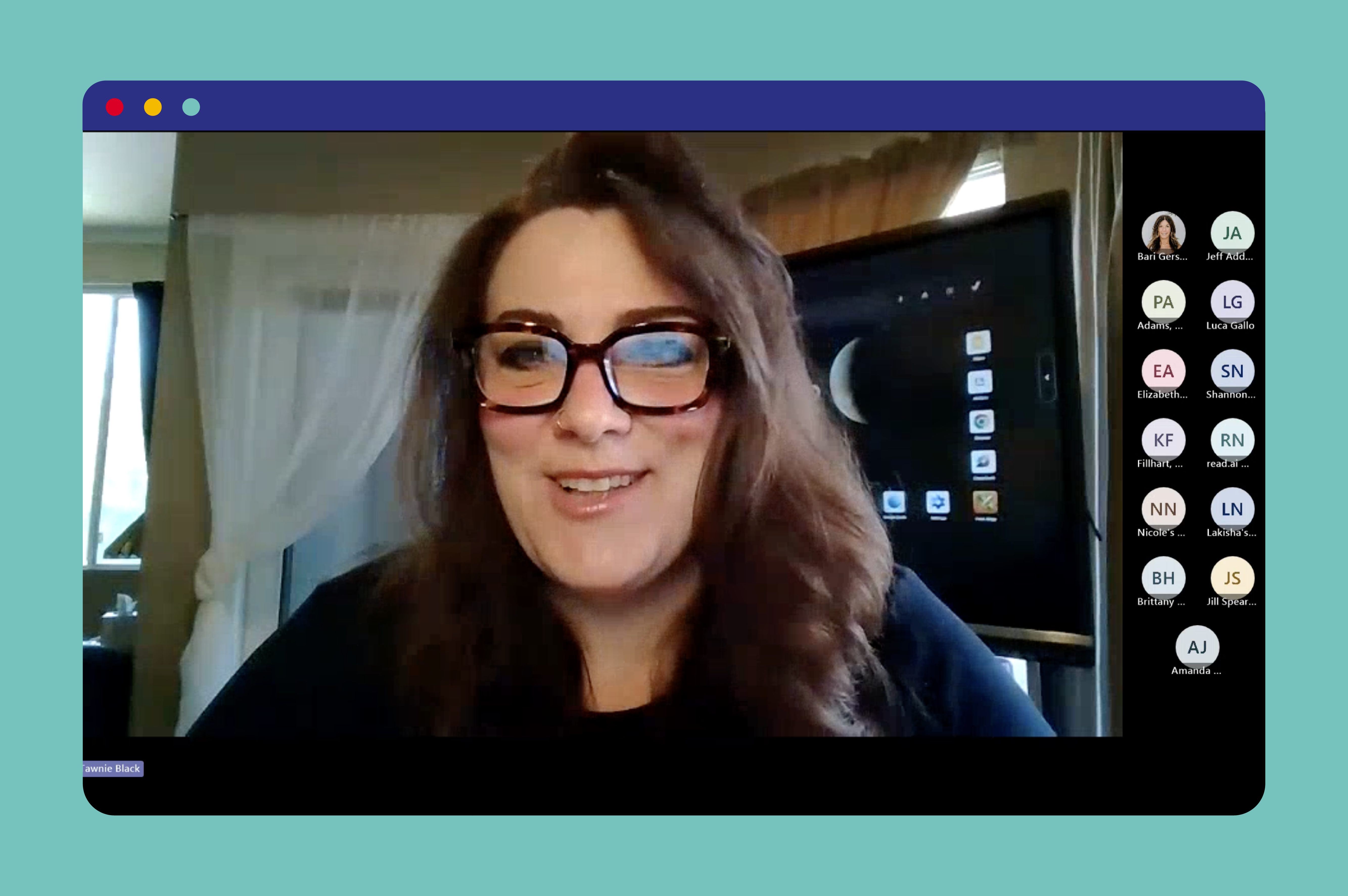
The answer is simple: give students a specific, low-stakes task, and use tools built for more than one student at a time. That’s the approach ViewSonic® trainer Tawnie Black walked through in a recent ViewSonic Community webinar for teachers, tech coaches, and instructional technology specialists.

She covered practical ways to build board interactivity into secondary classrooms using curated interactive websites and a wide range of myViewBoard® software tools.

Read our recap below or watch the full webinar now:

Key Takeaways

  • Bringing secondary students up to the ViewBoard works best when the task is focused, low-stakes, and allows more than one person to contribute at once.
  • Touch-driven websites like PhET, BioDigital, and Desmos feature fun, ready-made board activities that minimize prep work.
  • myViewBoard whiteboarding software offers free classroom engagement tools, such as Sticky Notes, Backgrounds, Magic Box, Participate Mode, and Quiz Tools.

What Interactive Websites Work Best for Secondary Classrooms?

Start with websites, not custom lesson-building. Teachers don’t have to create anything, and students only face one learning curve (the board) instead of two (the board plus a brand-new lesson format).

ViewSonic’s team keeps a running list of interactive, touch-friendly sites organized by subject, from Desmos to PhET’s science simulations and the Poetry Foundation. Some highlights from the training:

  • PhET Colorado’s natural selection simulation features a growing bunny population. Students can touch the screen to add mates, mutations, and environmental factors and watch the results play out live.
  • BioDigital gives students the opportunity to explore and manipulate 3D body systems by touch, popular with biology teachers.
  • Google Earth works well for showing real locations tied to literature or history.
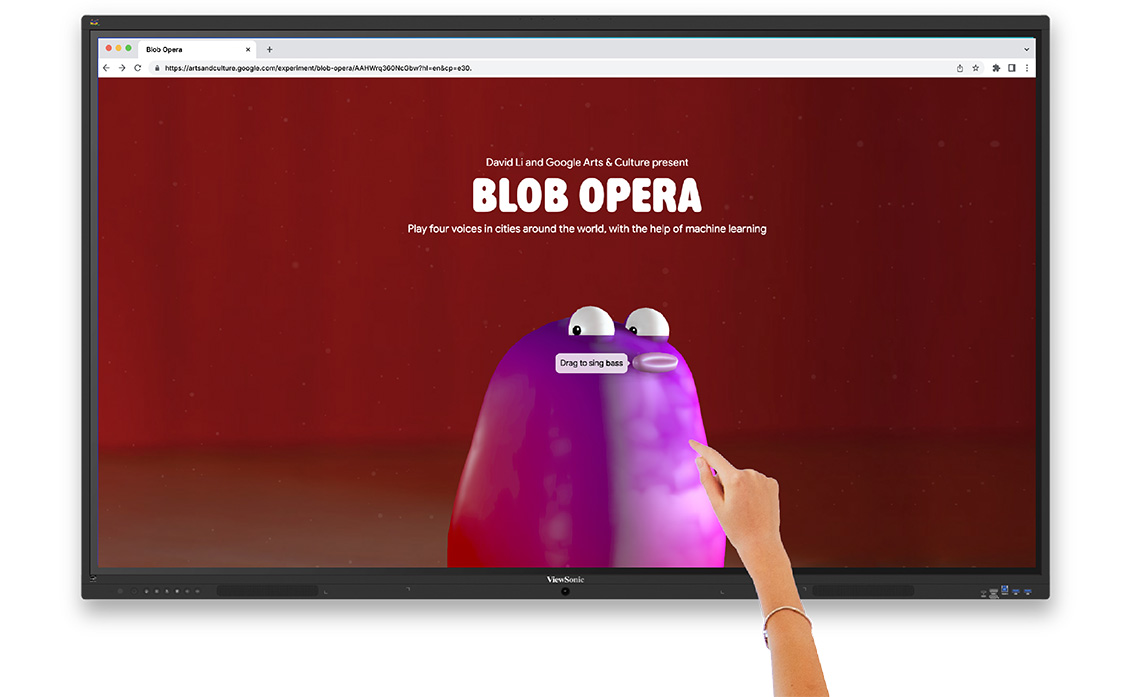
  • Blob Opera, built on Google Arts and Culture, lets students drag their finger to build harmonies with colorful blobs, a favorite with music teachers.

Tawnie’s pro tip: pick a single site to start, get comfortable, then add more.

Bring Multiple Students to the Board With myViewBoard

myViewBoard is ViewSonic’s free whiteboarding software, available on ViewBoard interactive displays and downloadable to Windows, Android, macOS, and iPadOS devices. Unlike platforms that force users to share a single cursor, several of myViewBoard’s tools are designed to let multiple students work on the board at the same time. For example:

  • Sticky Notes allow small groups to brainstorm and write or type directly on the board, then resize and move their notes into place. Notes can all be saved rather than lost when class ends.
  • Backgrounds turn the board into a ready-made graphic organizer. Secondary teachers can drop in a KWL chart, an X-Y axis, a periodic table, or a compare-and-contrast layout instead of building one from scratch.
  • Magic Box houses tools like timers, calculators, and customizable dice, which teachers can pair with a background to build a full station activity in four steps: add a background, add directions, add a timer or other tool, then duplicate the page for each group.

Two newer myViewBoard features are also particularly useful for teachers trying to engage groups of students at once: Participate Mode and Quiz Tools.

Give Everyone a Turn With myViewBoard's Participation Mode

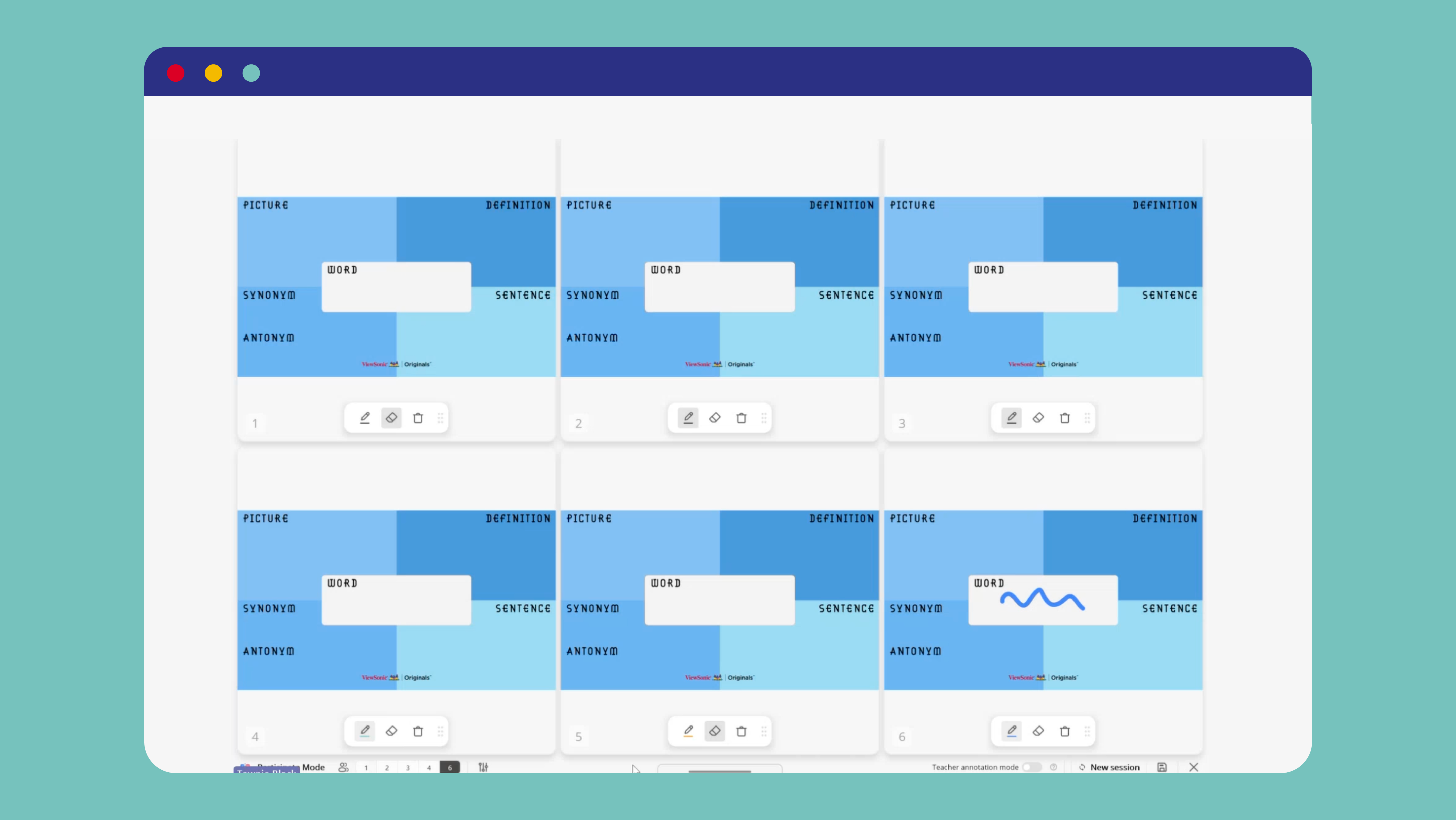
Participate Mode allows up to six students to write on the board at the same time by splitting it into smaller individual sections. Unlike other whiteboard tools, Participate Mode is designed specifically for multiple users. Each student gets their own space on the board, chooses their own pen color, and writes or erases without affecting anyone else’s work. When a group finishes, the teacher swaps in the next set of students, and any background or setup carries over automatically, so there’s no rebuilding between rotations.

Another important difference is that Participate Mode lets teachers drop in any ViewSonic Originals saved image, turning the whiteboard into a structured activity like vocabulary building, labeling, or station work instead of just a blank writing space.

Transform Quick Assessments with myViewBoard’s Quiz Tools

The Quiz Tools in myViewBoard help build entry and exit tickets right into the lesson. They make traditional pop quizzes more interactive by bringing students’ attention to the board for both questions and answers.

The teacher first writes or types a question on the board. Students then scan a QR code or visit a link on their own device, type their name, and respond. No student login is required.

The teacher can reveal answers one at a time or all together, and responses can even be kept anonymous. It’s a fast way to check understanding at the start or end of class without pulling every student into a separate app.

Ready to Level Up Your Classroom?

Involving the whole class in an interactive task is one of the best ways to keep secondary students focused and help the day’s concepts stick. Just a single online experience, well-timed activity, or quick assessment can make a real difference.

Teachers can try the tools covered in this webinar right now with little to no setup. myViewBoard comes pre-installed on ViewSonic interactive displays and is free to download on Windows, Android, macOS, and iPadOS devices. Districts should confirm they’re on the latest myViewBoard version (3.4.6.1088 at the time of this training) to access Participate Mode, Quiz Tools, and other features.

Discover more webinars and resources for educators at the ViewSonic Community.

Frequently Asked Questions

Do students need an account to use myViewBoard’s Quiz Tools?

No. Students join by scanning a QR code or visiting a link and then typing their name. No account, email address, or login is required. Teachers can reveal responses to the class but choose whether to keep answers anonymous, making it a low-friction way to check understanding.

How many students can write on the board at once in Participate Mode?

myViewBoard’s Participate Mode allows 1, 2, 3, 4, or 6 students to write on the board simultaneously. Each student gets their own dedicated space and pen color, and can erase their own work without affecting anyone else’s. When a group finishes, the teacher swaps in the next set and any background or activity setup carries over automatically, so there’s no need to rebuild between rotations.

Can teachers save student work from myViewBoard sessions?

Yes. Sticky Notes, Participate Mode sessions, and Quiz Tools responses can all be saved to Google Drive or OneDrive. Work isn’t lost when class ends, and teachers can refer back to responses for grading or future planning.

Does a school district need to buy separate software to use these tools?

No. myViewBoard is included with ViewSonic interactive boards and is also free to download on other devices such as laptops and tablets.

What if a teacher’s version of myViewBoard doesn’t include these tools?

Older versions of myViewBoard, identifiable by a tan toolbar, don’t include Participate Mode or Quiz Tools. Updating to the latest version, which has a white-bordered toolbar, unlocks both features. Learn how to update myViewBoard for free here.

The Ultimate App Toolkit: Why the ViewSonic EDLA ViewBoard Display Is the Heart of the Modern Classroom

Buyer's Guide  |  Nov 12 2025

The Ultimate App Toolkit: Why the ViewSonic EDLA ViewBoard Display Is the Heart of the Modern Classroom


The beauty of ViewSonic® EDLA-certified ViewBoard® displays, like the IFP41 and IFP51 series, is the native integration of the Google Play Store. For teachers, this means the panel behaves like a giant, intuitive smartphone. For administrators, it means a secure, manageable and highly compatible ecosystem that protects school data while getting the most from the hardware investment.


Here’s are the must-have apps to turn your interactive display into a powerhouse of engagement.


1. The Essential Google Suite (Optimized for EDLA)


Because these panels are EDLA-certified, Google apps run natively with full security updates and seamless Google Workspace integration.

  • Google Drive: Access all your resources instantly. Pro tip: add a Drive widget to your home screen so your starred and recent files are there the second you walk into class.
  • Google Translate: Use this on panels with integrated microphones, like the IFP41 and IFP51, to provide real-time translation for ESL and ELL students, making your lectures instantly inclusive.
  • Google Arts & Culture: A favorite for humanities classes. Display high-resolution masterpieces for visual thinking strategies or use it as a creative prompt for English, music and art projects.
  • Google Maps: Perfect for social studies and geography. Use Street View to take students on virtual field trips without leaving the room.


2. Proven Edtech Tools for High Engagement


These tools work across subjects and grade levels, and most teachers already know them.

  • ViewSonic myViewBoard®: The native digital whiteboarding software for annotation, screencasting and lesson recording. Includes Quiz Tools powered by ClassSwift for quick checks for understanding.
  • ClassDojo: Manage classroom behavior and routines right on the shared screen.
  • Canva: Open your lessons directly on the board and let students collaborate on designs in real time.
  • Book Creator: Celebrate student voice by showcasing digital books the class has created together.
  • XL: Display practice problems on the board while students work through them on their own devices or notebooks
  • CK-12: A free, standards-aligned content library you can pull from across nearly any subject.
  • GoNoodle: The perfect cure for the after-lunch slump. Use the panel’s speakers to get the class moving with a quick brain break.


3. Subject-Specific Powerhouses


  • STEM: Use PhET Simulations and GeoGebra for interactive math and science visualizations, and Stellarium Mobile to turn your classroom into a planetarium.
  • Earth and Space Science: NASA’s Earth Now app shows climate data and satellite imagery in stunning 4K detail.
  • Anatomy: BioDigital Human and Visible Body offer incredible 3D views of the human body, no lab coats required.
  • Primary Education: Khan Academy Kids, Starfall, Endless Alphabet and PBS Kids are built for multi-touch interaction during station rotation.
  • Music: Soundtrap enables students to create music or podcasts right from the board.


Bonus Tips for Power Users


  • Customize Your Workspace: Use Muzei or Resplash to keep your classroom environment fresh with high-quality, inspiring panel wallpapers.
  • One-Touch Access: Save your favorite websites, like BouncyBalls.org for noise management or Wordle for a morning warm-up, directly to your home screen as web apps for instant access.


The Bottom Line for Schools


Whether you’re a teacher looking to streamline your workflow or an administrator looking to provide the most secure, future-ready smart technology for your district, ViewSonic EDLA panels are the answer. They don’t just display content, they drive active learning.

ViewSonic Modernizes the Technology Infrastructure of One of Mexico’s Leading Pharmacy Chains

SOLUTION BRIEF

ViewSonic Modernizes the Technology Infrastructure of One of Mexico’s Leading Pharmacy Chains

CHALLENGE

One of Mexico’s leading pharmacy chains was undergoing an expansion and modernization of its technology infrastructure, with the need to standardize equipment across both corporate offices and branch locations to improve operations, customer service, and the experience at points of sale.

SOLUTION

The deployment used three ViewSonic monitor lines, each matched to the work happening in that part of the business.

VG2441V monitors equip workstations in the corporate offices. The VG2441V is built for people at a desk all day, with a fully adjustable ergonomic stand and a built-in camera for video calls.

VA1903H monitors run the price lookup and verification stations inside the pharmacies. The VA1903H delivers dependable everyday performance at a price that holds up when you are equipping hundreds of locations.

TD2465 touch monitors run the points of sale at branch locations. The TD2465 is a durable multi-touch display made for continuous use by staff and customers through a full trading day.

The TD2465 deployment marks the second consecutive year this model has been selected for the nationwide rollout, cementing it as the standard platform for the organization’s sales terminals thanks to its reliability and performance in continuous-operation environments.


“The reliability and performance of the TD2465 in continuous-operation environments made it the standard platform for our sales terminals.”


RESULTS

The investment enabled a comprehensive modernization of the chain’s technology, from the corporate level down to every branch, with standardized equipment that streamlines daily operations. In the offices, the VG2441V unified workstations; on the sales floor, the VA1903H facilitates price inquiry and verification; and the TD2465 continues to solidify its position — for the second consecutive year — as the standard point-of-sale platform, thanks to its reliability and performance in continuous-operation environments.

The result is a faster, more consistent shopping experience nationwide, and a technology infrastructure ready to support the chain’s next phase of expansion.

Frequently Asked Questions

What Made the Old Projector Setup a Problem for Hybrid Instruction?

Two ceiling-mounted projectors cast onto dual wall screens, which created three issues at once. Projector light shone into the instructor’s eyes at the front of the room, image brightness and consistency varied with ambient lighting, and the setup was never designed to serve remote students alongside the in-person class.

Why Choose dvLED Instead of Replacing the Projectors?

Direct View LED holds brightness and consistency in a fully lit room, which matters when the same content has to read clearly for students in the room and on a recording. It also removes the consumables and alignment work a projector requires. For a room that runs most of the day and is monitored in real time by IT, that changes the maintenance profile as much as the image quality.

What Does Glue-on-Board Construction Change for Facilities Teams?

Glue-on-Board encapsulates the LEDs and electronics in a thin resin layer, so the display surface tolerates contact rather than losing pixels to it. In a classroom where students walk past the wall every day, that is the difference between a durable install and a recurring repair line. Tiles are also individually replaceable, so a damaged section is a panel swap rather than a full-unit service call.

How Do Confidence Monitors Help an Instructor Teaching to Two Audiences?

An instructor facing the class cannot see the front-of-room displays. Rear-wall confidence monitors let them verify that content is displaying correctly without turning around, and a second monitor keeps remote participants visible. That is what makes it possible to teach to both audiences without treating one as an afterthought.

Can ViewSonic Displays Integrate With an Existing Crestron System?

Yes. In this installation the integrator brought the ViewSonic displays into the classroom’s existing Crestron matrix switcher, so control stayed on the system the campus already runs. ViewSonic also offers integration with Q-SYS, Extron and AMX platforms.

Is This Configuration Repeatable for Other Classrooms?

That was one of the stated goals. The university treats this room as a model for future refreshes, and the configuration scales down for smaller rooms by reducing the number of front-of-room displays while keeping the same podium and confidence monitor pattern.

Ready to Modernize Your Hybrid Classrooms?

Talk to a ViewSonic representative or an authorized partner about a hybrid classroom configuration for your campus, including dvLED sizing, confidence monitor placement and control system integration.

*Actual performance, compatibility, and user experience may vary depending on system configuration, network conditions, usage environment, and other factors. ViewSonic products are not considered medical devices and are not intended for use in the diagnosis of disease or other conditions, or in the cure, mitigation, treatment, or prevention of disease. Programs, pricing, specifications, and availability are subject to change without notice. © ViewSonic Corporation 2026. All rights reserved.

The ViewSonic LDS136-152 Mobile Direct View LED Display Solution Recognized as a 2026 Pro AV Best in Market Award Winner

The LDS136-152 Was Honored by AV Technology, Systems Contractor News, and Sound & Video Contractor Magazines

Brea, CA (Oct. 5, 2026) – ViewSonic Corp., a leading global provider of visual and edtech solutions, announced that the LDS136-152 Mobile Direct View LED Display Solution has been awarded Pro AV Best in Market Award from AV Technology, Systems Contractor News, and Sound & Video Contractor magazines. The award recognizes the LDS136-152 as one of the standout products making an impact across the professional audiovisual industry, highlighting ViewSonic’s commitment to developing innovative solutions that meet the evolving needs of today's Pro AV market.

The Pro AV Best in Market Awards shine a spotlight on the products and technologies helping to shape the future of professional audiovisual. Judged by a panel of experienced industry experts, the awards recognize solutions that demonstrate innovation, excellence and real impact within the Pro AV landscape. For ViewSonic, this award is a testament to the innovation and expertise behind the LDS136-152, and the value it brings to AV professionals and their customers.

The Pro AV Best in Market Awards editorial team stated, “The Pro AV Best in Market Awards celebrate the companies and products driving innovation across the professional AV industry. This year's entries showcased an exciting range of new ideas, technologies and solutions, and our industry experts were impressed by the quality and innovation on display. Congratulations to all of our 2026 winners.”

“We’re excited that the LDS136-152 was recognized as a winner by all three editorial publications,” said Jeff Muto, Business Line Director at ViewSonic. “This fourth-generation mobile display solution provides users the flexibility to deliver high-impact visuals wherever they’re needed without the complexity or permanence of traditional dvLEDs. Without the limitation of a fixed installation, it can be utilized as a mobile solution in various markets and industries.”

The ViewSonic® LDS136-152 is a 136-inch all-in-one, foldable Direct View mobile LED display. It is a mobile video wall solution on wheels built for maximum flexibility and delivers a large screen display in a pre-assembled design, which enables effortless setup within minutes.

A 4th generation model, the LDS136-152 features beneficial upgrades that make setup and operation even easier. The motorized lift raises the top of the screen to 9.34 feet, helping everyone get a clearer view. An integrated stand and display remote control allow the management of both the screen settings and motorized lift. Rear I/O ports are easy to reach and provide direct connectivity without opening panels or exposing internal boards, so connecting devices is quick and simple.

The display features durable Glue-on-Board (GOB) surface treatment technology that safeguards the display against impact, dust, and moisture—earning an IP65 rating. The robust construction delivers IK06-rated impact protection for extra durability in heavy-use environments.

To find out more about ViewSonic, visit ViewSonic.com and follow on Facebook, YouTube, X and Instagram.

About ViewSonic

Founded in 1987 and headquartered in Brea, California, ViewSonic is a leading global provider of visual solutions for the education, business, and consumer markets, with a presence in over 100 countries. Driven by the mission to transform education, workplaces, and lives, the company delivers a unified ecosystem of innovative hardware, software, and services that integrates seamlessly with the platforms, tools, and partners customers trust. Its product portfolio includes monitors, projectors, interactive displays, LED displays, commercial displays, video conferencing systems, and industrial solutions. Complementing its hardware is a robust suite of software offerings—including myViewBoard, ClassSwift, TeamOne, Manager, and AirSync—featuring AI-powered tools for collaboration, device optimization, and management. By empowering creativity, collaboration, and lifelong learning, ViewSonic supports customers at every stage in achieving their business and sustainability goals, creating a lasting impact and helping people everywhere connect with purpose—and See the Difference. Learn more at www.viewsonic.com.

# # #

* Actual performance, compatibility, and user experience may vary depending on system configuration, network conditions, usage environment, and other factors. Eye care and ergonomic features are designed to help reduce potential discomfort during extended viewing, but individual experiences may vary. Programs, pricing, specifications and availability are subject to change without notice. This news release contains forward-looking statements that reflect the Company’s expectations with regard to future events; actual events could differ significantly from those anticipated in this document. Corporate names and trademarks stated herein are the property of their respective companies. © 2026 ViewSonic Corporation. All rights reserved.
Media Contacts:

Joey Lee
JSL Marketing for ViewSonic [U.S.]
E: joey@jslcomm.com

Miranda Bravo
ViewSonic [U.S. / Canada]
E: miranda.bravo@viewsonic.com

Nury Lavandier
ViewSonic [Latin America]
E: Nury.Lavandier@viewsonic.com

Three ViewSonic Products Named Winners in the Tech & Learning Awards of Excellence Back to School 2026

myViewBoard with Quiz Tools, WPD-900E Wireless Presentation System, and LDE Series of Direct View LED Displays Each Won in Their Respective Categories

Brea, CA (Oct. 2, 2026) – ViewSonic Corp., a leading global provider of visual and edtech solutions, announces the launch of the VP2766-2K and VP2766-4K, the company’s latest 27-inch ColorPro® monitors. Both monitors bring precision and stunning color performance for graphic design, animations, video editing, and other creative endeavors. For more accurate and consistent color performance, the VP2766-2K and VP2766-4K are Pantone® validated with factory hardware calibration, which fine-tunes color settings within the monitor itself, without relying solely on computer-side software adjustments. With 100 percent sRGB coverage, the two monitors deliver true-to-life color reproductions, so the content looks exactly as intended.

Now celebrating another year of recognizing innovation across the education industry, the Tech & Learning Awards of Excellence highlight the products and solutions making a meaningful difference to educators and learners. The Back-to-School awards recognize products and solutions that demonstrate versatility, value, innovation, and the ability to address real-world challenges across today’s education landscape.

Judged by a panel of experienced education technology experts, the awards represent recognition from one of the industry’s leading education technology publications. The awards showcase the products and solutions that are helping educators deliver more engaging, effective and innovative teaching and learning experiences as the new academic year gets underway.

The Tech & Learning awards editorial team commented, “The 2026 awards saw an impressive range of products and solutions designed to meet the evolving needs of today’s education sector. Our expert judges were particularly impressed by the quality, innovation and practical impact demonstrated by this year’s winners. Each winning product has shown its ability to support educators and learners in meaningful ways, and we’re delighted to recognize their achievements. Congratulations to all of this year’s well-deserved winners.”

“We’re proud to have all three products recognized as winners in their respective categories,” said Jeff Muto, Business Line Director at ViewSonic. “To be recognized with a Tech & Learning Award of Excellence: Back to School 2026 means that myViewBoard with Quiz Tools, the WPD-900E, and the LDE Series are making an impact in the highly competitive education market, and that our focus on making sure these products enhance learning is moving in the right direction.”

myViewBoard with Quiz Tools, the WPD-900E, and the LDE Series will be featured across Tech & Learning’s editorial and promotional channels, including the website and newsletter, providing further recognition of this achievement among the publication’s engaged education technology audience.

To find out more about ViewSonic, visit ViewSonic.com and follow on Facebook, YouTube, X and Instagram.

About ViewSonic

Founded in 1987 and headquartered in Brea, California, ViewSonic is a leading global provider of visual solutions for the education, business, and consumer markets, with a presence in over 100 countries. Driven by the mission to transform education, workplaces, and lives, the company delivers a unified ecosystem of innovative hardware, software, and services that integrates seamlessly with the platforms, tools, and partners customers trust. Its product portfolio includes monitors, projectors, interactive displays, LED displays, commercial displays, video conferencing systems, and industrial solutions. Complementing its hardware is a robust suite of software offerings—including myViewBoard, ClassSwift, TeamOne, Manager, and AirSync—featuring AI-powered tools for collaboration, device optimization, and management. By empowering creativity, collaboration, and lifelong learning, ViewSonic supports customers at every stage in achieving their business and sustainability goals, creating a lasting impact and helping people everywhere connect with purpose—and See the Difference. Learn more at www.viewsonic.com.

# # #

* Actual performance, compatibility, and user experience may vary depending on system configuration, network conditions, usage environment, and other factors. Eye care and ergonomic features are designed to help reduce potential discomfort during extended viewing, but individual experiences may vary. Programs, pricing, specifications and availability are subject to change without notice. This news release contains forward-looking statements that reflect the Company’s expectations with regard to future events; actual events could differ significantly from those anticipated in this document. Corporate names and trademarks stated herein are the property of their respective companies. © 2026 ViewSonic Corporation. All rights reserved.
Media Contacts:

Joey Lee
JSL Marketing for ViewSonic [U.S.]
E: joey@jslcomm.com

Miranda Bravo
ViewSonic [U.S. / Canada]
E: miranda.bravo@viewsonic.com

Nury Lavandier
ViewSonic [Latin America]
E: Nury.Lavandier@viewsonic.com

ViewSonic Launches Two New 27-Inch VP ColorPro Monitors Designed for Video Editing, Graphic Design, and Other Creative Works

The VP2766‑2K and VP2766‑4K are Pantone‑Validated Displays that Feature 120Hz Refresh Rate, QHD and UHD Resolutions, and USB‑C Connectivity for Streamlined Cable Management

Brea, CA (Sept. 30, 2026) – ViewSonic Corp., a leading global provider of visual and edtech solutions, announces the launch of the VP2766-2K and VP2766-4K, the company’s latest 27-inch ColorPro® monitors. Both monitors bring precision and stunning color performance for graphic design, animations, video editing, and other creative endeavors. For more accurate and consistent color performance, the VP2766-2K and VP2766-4K are Pantone® validated with factory hardware calibration, which fine-tunes color settings within the monitor itself, without relying solely on computer-side software adjustments. With 100 percent sRGB coverage, the two monitors deliver true-to-life color reproductions, so the content looks exactly as intended.

The ViewSonic® VP2766-2K features a native 2K QHD (2560x1440) resolution and the VP2766-4K comes a native 4K UHD (3840x2160) panel. Both monitors come with a 120Hz refresh rate for smooth visual motion and playback. The USB-C connection makes cable management easy, as the single USB-C cable handles video, data and up to 90W of power delivery while an HDMI port adds greater flexibility. A USB hub with three USB-C ports and one USB-A port provides ample options for connecting a keyboard and mouse or charging other devices such as a phone or tablet. The VP2766-2K and VP2766-4K both have a sleek ergonomic stand that can easily adjust the tilt, swivel, pivot, and height. Built-in flicker-free technology and a low blue light solution can help reduce eye fatigue.

“To offer more options for the creative community, we’ve added the VP2766-2K and VP2766-4K monitors to the ColorPro line-up,” said Jenny Lopez, Sr. Product Manager of Monitors at ViewSonic. “Creative work requires precision and accuracy, whether it’s with color or motion, and both these monitors offer that at great price points. We also made sure that the monitors can be used easily with Macs. With ColorPro® Display Manager, brightness and volume are easily adjusted using Mac function keys. The on-screen menu allows users to personalize settings like ViewMode™ and customize other display options to match.”

VP2766-2K ColorPro Monitor

  • 27-inch monitor with native 2K QHD (2560 x 1440) resolution
  • 120Hz refresh rate with 5ms response time
  • Connectivity options include USB-C, USB-A, HDMI 2.1, and Audio-Out
  • Available: Now for an estimated street price of $239.99 [USD]

VP2766-4K ColorPro Monitor

  • 27-inch monitor with native 4K UHD (3840 x 2160) resolution
  • 120Hz refresh rate with 5ms response time
  • Connectivity options include USB-C, USB-A, HDMI 2.1, and Audio-Out
  • Available: Now for an estimated street price of $339.99 [USD]

To find out more about ViewSonic, visit ViewSonic.com and follow on Facebook, YouTube, X and Instagram.

About ViewSonic

Founded in 1987 and headquartered in Brea, California, ViewSonic is a leading global provider of visual solutions for the education, business, and consumer markets, with a presence in over 100 countries. Driven by the mission to transform education, workplaces, and lives, the company delivers a unified ecosystem of innovative hardware, software, and services that integrates seamlessly with the platforms, tools, and partners customers trust. Its product portfolio includes monitors, projectors, interactive displays, LED displays, commercial displays, video conferencing systems, and industrial solutions. Complementing its hardware is a robust suite of software offerings—including myViewBoard, ClassSwift, TeamOne, Manager, and AirSync—featuring AI-powered tools for collaboration, device optimization, and management. By empowering creativity, collaboration, and lifelong learning, ViewSonic supports customers at every stage in achieving their business and sustainability goals, creating a lasting impact and helping people everywhere connect with purpose—and See the Difference. Learn more at www.viewsonic.com.

# # #

* Actual performance, compatibility, and user experience may vary depending on system configuration, network conditions, usage environment, and other factors. Eye care and ergonomic features are designed to help reduce potential discomfort during extended viewing, but individual experiences may vary. Programs, pricing, specifications and availability are subject to change without notice. This news release contains forward-looking statements that reflect the Company’s expectations with regard to future events; actual events could differ significantly from those anticipated in this document. Corporate names and trademarks stated herein are the property of their respective companies. © 2026 ViewSonic Corporation. All rights reserved.
Media Contacts:

Joey Lee
JSL Marketing for ViewSonic [U.S.]
E: joey@jslcomm.com

Miranda Bravo
ViewSonic [U.S. / Canada]
E: miranda.bravo@viewsonic.com

Nury Lavandier
ViewSonic [Latin America]
E: Nury.Lavandier@viewsonic.com

Formative Assessment Tools for Teachers | myViewBoard

Formative Assessment Tools for Teachers | myViewBoard

See how free Quiz Tools inside myViewBoard 3.0 turn any lesson into a live check for understanding, from a former science teacher’s webinar.

Formative Assessment Tools for Teachers: Webinar Recap

Feedback works best the moment students need it, not at the end of the semester.


That’s the premise behind Smarter Formative Assessment Made Simple, a recent ViewSonic webinar on myViewBoard® Quiz Tools powered by ClassSwift®. It was led by Bari Gersten, a former middle school science teacher who has spent more than twenty years in professional development and the last seven at ViewSonic.


Her argument, in one line: formative assessment gets easier when it works with the content you already have. No need to build any quizzes on separate apps.

Why real-time feedback changes what you do next

Most teachers know the feeling. You ask a question, a few hands go up, and you’re left guessing about the other 25 students in the room.


A quiz grade tells you who struggled three days after the moment you could have helped. A live check tells you before the class moves on. That’s the whole difference, and Bari framed it around the answers most software treats as failures:


“I always appreciate when I see a wrong answer, because that allows me to have information into what’s going on in my classroom.”


Formative assessment isn’t more testing. It’s faster information, while you can still act on it.


She also named the limit that makes this necessary. She loves that interactive panels are “getting students out of their seat and up to the board” but she wants every student to participate, not just a few. Only a few can be at the board at once. Quiz Tools is how the other 25 participate at the same time.

Capture, share, collect: one workflow, no tab switching

The session’s throughline was that the whole loop happens in one place.

  • Capture. Bari opened a PDF on physical and chemical changes, a file she already had rather than something she had to build. Using the screen capture tool, she shared the static image from that PDF into a quick quiz. Later she did the same with a live PhET simulation, loaded inside myViewBoard’s Embedded Browser so the site opens with the page. Her reason for that one is pure classroom management:

    “As soon as I had to turn my back and enter in a website, I was going to lose my students.”
  • Share. One toggle turned the lesson into a live session. Students joined from a phone, tablet or Chromebook by scanning a QR code or opening a link. Nothing to install on the student side. Bari shared the content that she screenshotted.
  • Collect. Answers arrived on her screen as students submitted, along with how quickly they came in, which is its own read on the room. She demonstrated True/False on the image captured from the PDF and Multiple Choice on perimeter using the simulation. When she was ready, she revealed the correct answer and reviewed results as a whole-class view and then student by student.

Questions can be built into a lesson in advance or created on the spot. An attendee asked about exactly that mid-session, and Bari answered it by building one live on a blank page.


The mechanism is the same screen capture tool she used on the PDF. Screenshot a question you already wrote, wherever it happens to live, and that becomes the prompt students see. Or annotate the question on the board by hand and screenshot that.


So there’s no separate quiz authoring step. A question you wrote in your lesson plan last night and a question you thought of ten seconds ago both get into Quiz Tools the same way.

What students see, and what stays private

Results show the distribution of answers to the room. Student names can stay hidden in that view, so the class can look at what went wrong together without anyone’s name attached to it.

For a teacher trying to build a room where students feel comfortable sharing any misunderstandings, that setting matters more than any feature on the list.

What you need before you try it

  • myViewBoard 3.0. Quiz Tools live in 3.0. If you don’t see the Quiz Tool toggle on your whiteboard, you’re likely on 2.0 or your administrator needs to run an update in Manager.
  • Windows or Android. Free on both, with macOS coming soon.
  • Any student device. Phone, tablet or Chromebook all work.

For IT teams evaluating panels, the same facts read differently: the assessment software is included rather than licensed per teacher, and there’s nothing to deploy to student devices. This saves you from having to purchase a panel and formative assessment software like Kahoot, PearDeck or Wayground.

Frequently Asked Questions

Do I need myViewBoard 3.0?

Yes. Quiz Tools are built into myViewBoard 3.0. On 2.0 the toggle won’t appear.

Does Quiz Tools work on an iPad?

Students can answer on an iPad, but myViewBoard does not offer the Quiz Tools features on macOS yet. It’s free on Windows and Android today, with macOS coming soon. Students can respond from any device once you’re running the session from a supported panel or computer.

What if my students don’t all have devices?

It still works. Students can share a device or work in pairs. You may also consider using Participate Mode to get students or groups of students to board.

Can students see who got the answer wrong?

Only if you want them to. Hide student names in the results view and the class sees the distribution without the names.

Watch the replay, then try one question

For the step-by-step mechanics, the six question types, class rosters and engagement tools like the Spinner and Buzzer, see the myViewBoard Quiz Tools quick-start guide https://www.viewsonic.com/solution/kb/en_PH/qt-overview/quizzing-tool-overview.


Then pick one lesson you already teach and add a single True/False question. That’s the whole first step.


Programs, pricing, specifications and availability are subject to change or cancellation without notice. Actual performance, compatibility and user experience may vary depending on system configuration, network conditions, usage environment and other factors. Selections, offers and programs may vary by country. Corporate names and trademarks stated herein are the property of their respective companies. Copyright © 2026, ViewSonic Corporation. All rights reserved. 8/26 [26SFT-EDU1565a]

Rolling Into Learning: Why Mobile Carts Are the Secret to Flexible, High-Engagement Classrooms

Buyer's Guide  |  Nov 12 2025

Rolling Into Learning: Why Mobile Carts Are the Secret to Flexible, High-Engagement Classrooms


When people picture an interactive display, they usually picture it mounted at the front of the classroom. That’s changing. More schools and districts are moving their panels onto mobile carts, and the reasons go well beyond convenience.


Beyond the Front of the Room: Why Schools Are Taking ViewBoard Displays Off the Wall


Moving a ViewBoard display onto a cart does more than free up wall space. It changes how teachers actually use the room.


Reclaiming the Whiteboard: Keeping Your Marker Space While Adding Digital Power


Teachers still love a good old whiteboard marker, and that isn’t going away. Putting your ViewBoard display on a mobile cart frees up the wall space teachers already use for analog teaching. You get digital power without giving up the marker board behind it. This kind of setup works well in schools that combine interactive technology with analog instruction, where the digital display and the traditional marker board serve complementary purposes instead of competing for space.


Breaking the “Fixed Front” Classroom Model


A wall mount keeps your panel in one spot. And while that might be helpful in many classrooms, a mobile cart lets you roll it wherever a lesson needs it, whether that’s a reading corner, a different wall or the center of the room. So much changes in a classroom throughout the day, and a panel that moves with the lesson keeps students more engaged than one that stays fixed in place.


Sizing and Accessibility: Solving the “Kindergarten Height” Problem


Every classroom has a mix of heights, from kindergartners to teachers well over six feet tall. Mobile carts help you meet everyone in the middle.


Reaching Every Student: How Adjustable Carts Bridge the Gap for Early Learners


Younger students need to actually reach the screen, and teachers need to write on it without bending over all day. A cart with adjustable height solves both problems at once, so the same board works for a kindergartner and a six-foot-tall teacher in the same classroom.


Motorized Precision: Using BalanceBox® and Motorized Carts for Ergonomic Teaching


Our motorized carts, including the BalanceBox line, let you raise or lower the panel with the push of a button. That means the board is always at the right height for whoever is using it, whether that’s a student reaching the screen or a teacher writing at the top. This kind of ergonomic accessory often gets overlooked in procurement conversations, but it has a real impact on daily usability, especially in early education where students and teachers of very different heights share the same display.


The “Anywhere” Board: Utilizing ViewBoard Displays in Hallways, Gyms and Beyond


A ViewBoard display doesn’t have to stay in one classroom. Once it’s on a cart, it can go wherever your campus needs it that day.


From Gallery Walks to Parent Nights: Interactive Tech Outside the Classroom


A mobile cart means your ViewBoard display isn’t stuck in one room. For a back-to-school night, a teacher can display student work in the classroom, then roll the panel into the hallway for a gallery walk. During a parent-teacher event, the same board can run a sign-in station right outside the door, so parents stay engaged while they wait. One panel can do the job that used to take several.


Strategy in the Gymnasium: Safe, Mobile Tech for Coaches and Athletics


Another option is placing the board in strategic spaces, such as a basketball court or a gymnasium. A basketball or volleyball coach can use it to highlight strategy and plan out plays for students before they play. While you may not want to put a permanent wall mount in a gymnasium where balls are flying, a mobile cart allows you to move the panel out of the way when the game is in progress but still lets you strategize during practice.


Scaling Your Campus Fleet: Finding the Right Fit for Every Space


Different spaces call for different setups, and ViewSonic gives you room to mix and match across your campus.


Choosing Between Fixed Mounts and Mobile Deployment Strategies


Every district has different needs, so ViewSonic offers both options. Choose a wall mount for spaces that need a permanent, secure setup, or choose a mobile cart for spaces that need flexibility. Most campuses end up using a mix of both.


Centralized Control: Managing Your Mobile ViewBoard Displays via ViewSonic Manager


Moving panels between rooms doesn’t mean losing visibility. With ViewSonic Manager, IT teams can push updates, monitor device status and manage security settings remotely, no matter which room or gym a panel is in that day.


There’s no single right answer. Some spaces need a fixed wall mount. Others need a cart that can roll from the classroom to the hallway to the gym. ViewSonic offers both, so you can build a fleet that matches how your campus actually teaches.


Ready to find the right setup for your classroom? Contact your ViewSonic education representative to explore mobile cart and wall mount options.

How Modern Visual Communication Systems Keep Campuses Connected and Safe

How Modern Visual Communication Systems Keep Campuses Connected and Safe

When severe weather moves in or a schedule shifts on short notice, getting the word out fast isn’t just convenient; it’s critical. Relying on printed notices or manual updates across multiple buildings can leave gaps in campus communication.

A campus visual communication system solves this by connecting every display to a single central dashboard, giving administrators the power to reach the entire campus in just a few clicks. IT retains full control over every device on the network, from firmware to content permissions.

What is a Campus Visual Communication System?

At its core, a campus visual communication system connects digital screens, media players and device management software across every building on campus.

Instead of treating every screen like an isolated TV, content management software like TSN Visual Communication Solutions links commercial displays into a single network.

TSN Visual Communication Solutions and ViewSonic ManagerTM device management software are built to work together.

TSN handles the content side, letting campus teams create and schedule what appears on screen, while ViewSonic Manager handles the device side, keeping every screen updated, monitored and running smoothly.

Together, the two cover both halves of a campus communication system.

Why Digital Displays Beat Paper Announcements

Paper posters and static signs often get ignored, blending into the background once people have walked past them a few times. Connected digital signage is live and responsive, reflecting campus activity as it happens.

A long line at the campus bookstore or cafeteria feels much shorter when nearby screens show live social media feeds, athletic game countdowns or student photos. When hooked up to live data feeds, displays can turn into helpful daily assistants. They can show upcoming bus arrival times or pull room calendars so student groups can instantly spot open meeting spaces.

Safety, Wayfinding and Campus Culture

Schools lean on their large-format displays for several everyday responsibilities.

Instant Safety Alerts

When bad weather hits or a hazard arises, ViewSonic Manager’s CAP messaging integrates with the campus emergency alert system to trigger an automatic override. Displays can instantly switch from regular programming to bold, high-visibility messages or instructions that can be seen throughout the school.

Stress-Free Wayfinding

Getting lost on a sprawling campus can be a common frustration for visitors and new students alike. ViewSonic’s interactive ePoster kiosks let people tap, zoom and search a digital directory to find their way.

Building Campus Spirit

Large-format displays help bring the campus together. Spotlighting student art, congratulating the debate team and posting club signups keeps the whole community feeling involved.

Commercial Displays vs Standard Consumer TVs

It can be tempting to buy cheap consumer TVs from a local retail store for school hallways, but home electronics aren’t built for that kind of daily demand.

Consumer TVs are designed for use in a dim living room, while commercial displays are heavy-duty units built to handle continuous operation in bright spaces.

The Feature Consumer TVs Commercial Displays (like the ViewSonic CDE31 series)
Daily Runtime Built for intermittent home viewing, typically not rated for continuous commercial use 16 to 24 hours a day, 7 days a week
Screen Glare High gloss finish that turns into a mirror under bright lights Matte anti-glare finish for clear reading in bright sunlight
Warranty Usually voided if installed in a school or business 3-year commercial warranty with extended options
Durability Plastic shells that trap internal heat Durable construction built for continuous commercial use


Choosing purpose-built hardware like the ViewSonic CDE31 series of commercial displays prevents frequent screen failures and can help protect school budgets long-term.

The Advantage of Remote Device Management

Remote device management platforms like ViewSonic Manager let IT teams update, troubleshoot and control every screen across multiple buildings without leaving their desks.

Imagine a campus with 50 screens spread across five buildings right when Daylight Savings Time kicks in. Without centralized management software, an IT technician has to physically walk to every single screen with a remote control just to change the clock.

With a solid management platform, the tech team can push firmware updates, set automatic power schedules to save electricity at night and fix software glitches remotely. That keeps the entire network running smoothly without turning minor tech hiccups into full-day headaches.

Finding the Right Display for Every Space

Every location on campus serves a different purpose, so a smart setup mixes standing displays, touch kiosks and wall mounts based on what people need in that area.

  • Direct View LED Displays: Place these high-impact messaging solutions in lobbies and cafeterias to reach students throughout campus.
  • ePoster Kiosks: Position these kiosks in busy hubs like student unions or main courtyards where people need to look up directories, browse digital maps or view announcements.
  • Commercial Displays: Set up these reliable workhorses in classrooms, lecture halls, hallways and breakrooms. The ViewSonic CDE31 series of commercial displays offers wide viewing angles so everyone in the back of the room can read the text without eye strain.
  • Interactive Displays: Installing ViewSonic® ViewBoard® interactive displays in classrooms turns lessons into a hands-on learning experience that facilitates participation and boosts learning outcomes.

Planning Checklist Before Buying

A great display system brings the right hardware, software and network together, so everything keeps working in sync as campus needs grow. Here’s what to check before buying.

  • Open Software Compatibility: Ensure the hardware works with the school’s preferred content management software without locking it into a restrictive ecosystem.
  • Security: Restrict who can push content to the screens with role-based user permissions.
  • Room Lighting: Test how displays handle unique lighting challenges, like bright sunlit glass atriums versus harsh fluorescent hallway lights.
  • Room to Grow: Make sure the network setup can easily expand to add a dozen more screens next semester.
  • Reliable Support: Verify what level of professional B2B tech support and warranty backing is available when a screen needs immediate troubleshooting. 

Frequently Asked Questions

How Fast Can Screens Switch Over to an Emergency Alert?

Almost instantly. ViewSonic Manager integrates with a school’s primary emergency alert system using CAP messaging, triggering an automatic override the moment an alert goes live and swapping in clear, on-screen safety guidance.

Do We Need a Separate Media Player for Every Single Screen?

Not necessarily. Many modern commercial displays, including the ViewSonic CDE31 series, include a built-in Android media player, so there’s no external hardware required out of the box. For more demanding setups, the same displays also include an OPS (Open Pluggable Specification) slot, letting you add a dedicated PC module without an external box hanging off the display.

Can Student Clubs Create and Post Content to the Screens?

Yes, if your school permits it. Content management systems let you set up user permissions. Solutions like TSN Visual Communication Solutions come with a student-specific portal that lets students share information while administrators retain final control over what shows up and when.

What Happens if Campus Wi-Fi Drops Out?

Most high-quality commercial displays and media players have local storage built in. If the internet blinks out, the screen will keep playing its cached loop of content rather than going blank or displaying an error message.

7 Things to Look for in a Next-Gen School Projector

7 Things to Look for in a Next-Gen School Projector

If your school is conducting an audit for an upcoming hardware refresh, you don’t just want to replace your current equipment. You want to future-proof your classrooms and multi-purpose spaces.

Five years ago, managing classroom projectors meant dealing with dim bulbs, heavy maintenance schedules, and limited options. Following significant strides in projector technology, they now present a durable, budget-friendly alternative to flat-panel displays.

Key Takeaways

When choosing a next-gen projector, look for:

  • High Brightness
  • Flexible optical zoom and keystone
  • Centralized management
  • Low maintenance
  • 360° rotation
  • Light source
  • Display engine

1. Daylight-Defeating Brightness

While the actual brightness of your projector will depend on the size of the room you’re outfitting, look for a projector with a high lumen output. The 5,500 ANSI lumens found in the ViewSonic® LSD500HD ensure teachers never have to switch off the lights just to make a slide or worksheet legible.

2. Flexible Optical Zoom and Keystone

Modern classrooms come in all shapes and sizes, and hardware placement is rarely ideal. But if you get a projector that has optical zoom and a similar throw ratio as your existing projector, you won’t have to install a new wall mount elsewhere.

Look for a minimum of 1.3x optical zoom and 4-corner keystone adjustment so the image stays perfectly proportioned from any angle. These alignment capabilities eliminate distortion caused by offset ceiling mounts, ensuring a perfectly square image without manual physical readjustments.

3. Centralized IT Remote Management

Your projector should work with systems you already use, so you don’t have to purchase new or proprietary software. When upgrading your AV setup, ensure the unit features full LAN control and integrates directly with professional systems like Crestron, Extron, AMX, and Q-SYS.

4. Low Maintenance and Long Lifespan

Gone are the days of spending your AV budget on replacement bulbs or filters for LCD projectors. Next-gen lamp-free projectors ensure a longer lifespan without the recurring maintenance strain.

Upgrading your old projectors can also save you money in terms of electricity spending. The ViewSonic LSD500HD laser projector, for example, uses 62% less power than traditional lamp models.

5. 360-Degree Placement

Your hardware shouldn’t dictate your physical space. From portrait mode setups for digital signage to floor projections for unique learning experiences, look for 360° rotation capabilities that open up new teaching possibilities.

6. Light Source

Consider your environment before choosing a light source. While lamp-based projectors remain a cost-effective choice for low-use classrooms, laser technology is the clear winner for heavy daily use. Lasers eliminate replacement bulbs, warm up instantly, and maintain bright, true-to-life colors for years.

7. Display Engine

With vivid color performance a major benefit, DLP technology leads in text sharpness and contrast while offering a compact, filter-free design that reduces ongoing IT maintenance in dust-prone environments.

Key Projector Feature at a Glance

Here’s a table to give you a quick summary of the key projector features to look for and why they matter:

Projector Feature Why It Matters
High Brightness
(5,000+ lumens)
Ensures high clarity so teachers don’t have to dim classroom lights.
Long Lifespan
(up to 30,000 hours)
Laser phosphor light sources eliminate costly bulb replacements and slash power consumption.
Flexible Optical Zoom & Keystone
(Min. 1.3x optical zoom, 4-corner keystone)
Allows adjustment of the image without needing to change the ceiling mount’s placement and costly re-wiring.
Centralized IT Management
(LAN control; Crestron, Extron, AMX, Q-SYS integration)
Enables remote device administration through the control system your IT team already uses.
360-Degree Placement
(Multi-angle and portrait orientation capabilities)
Opens up creative setup possibilities across the campus.
Light source Laser projectors are more expensive upfront but cheaper to run than lamp projectors.
Display Engine DLP delivers vivid colors as well as sharp text, deep contrast and low maintenance.

Final Thoughts

Future-proofing your school’s screens isn’t just about replacing old hardware with newer models. It’s about making a strategic investment that supports both teachers and IT teams. By focusing on high brightness, low-maintenance lamp-free technology, installation flexibility, and central network management, school districts can upgrade lecture halls and classrooms without stretching their AV budgets.

Solutions like the ViewSonic LSD500HD demonstrate that modern projectors are more than just a big-screen option. They’re a convenient, cost-effective display alternative built to keep up with the demands of modern education. By striking the ideal balance between low total cost of ownership and simplicity of use, next-gen projectors ensure your school or district’s edtech is future-proofed. Check understanding during a lesson.

Frequently Asked Questions

Here are answers to some of the most frequently asked questions we get about projectors in school environments:

Do modern laser projectors turn on as quickly as flat-panel displays?

Yes. Unlike traditional lamp-based projectors that require a few minutes to warm up or cool down, modern laser projectors offer instant power-on and power-off functionality. Teachers can turn on the system and start class immediately with no downtime.

How does a lamp-free projector lower total cost of ownership for schools?

Lamp-free projectors reduce TCO for schools in two key ways:

  • Lower energy consumption and maintenance costs.
  • Reduced hardware replacement costs and maintenance labor since lamp-free projectors last longer and have no bulbs or filters to replace.

Can we install modern projectors using our existing ceiling mounts?

If the projector has the same or a similar throw ratio, then yes. Projectors equipped with wide optical zoom, ideally 1.3x, and comprehensive keystone adjustment allow IT teams to fit the new projector into existing mounting locations.

How do modern projectors perform in brightly lit classrooms?

High-brightness lamp-free projectors that deliver 4,000 to 5,500+ ANSI lumens are explicitly engineered to work even in ambient daylight conditions. This ensures vibrant colors, high-contrast, and crisp text from anywhere in the room. without forcing teachers to draw the blinds or dim classroom lights.

Comparative claims and energy savings are based on specific features and publicly available manufacturer specifications as of the date of publication, and are not intended to represent a comprehensive evaluation of all product attributes. Actual performance, energy usage, and compatibility may vary depending on system configuration, network conditions, usage settings, and environmental factors. Any references to third-party platforms (including Crestron, Extron, AMX, and Q-SYS) are for identification and compatibility purposes only and do not imply endorsement, affiliation, or sponsorship by their respective owners. Proper wall and ceiling suitability, reinforcement, and professional mounting hardware are the sole responsibility of the customer, installer, or system integrator; ViewSonic assumes no liability for equipment damage, property damage, or personal injury resulting from incorrect installation.