Complete Guide to Dual-Screen Portable Monitors
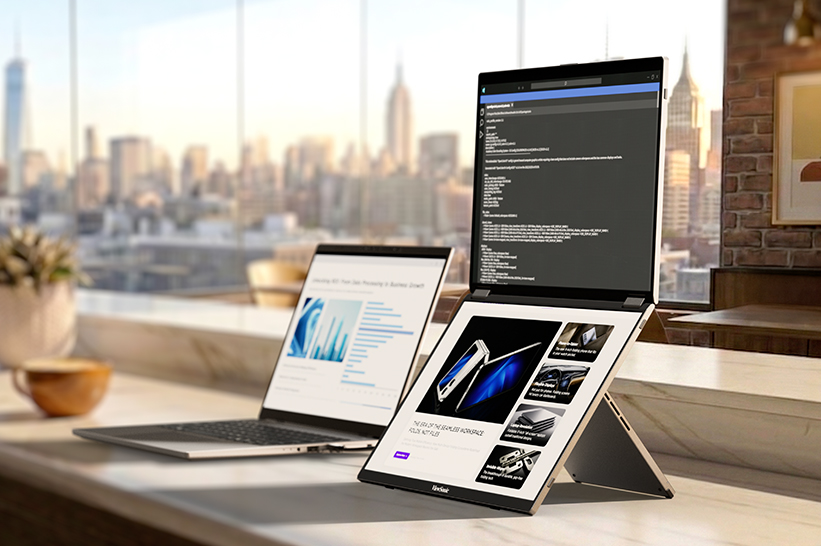
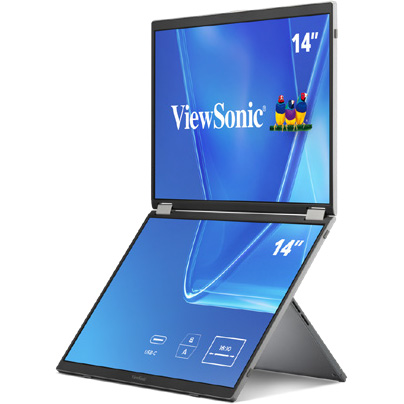
A dual-screen portable monitor is a foldable external display with two built-in screens that expands a laptop into a multi-monitor setup.
This solution is useful for business travel, remote work, coding, presentations, financial workflows, content review or any task that would benefit from keeping multiple windows visible at once. The best models are easy to carry, connect through USB-C, support multiple viewing modes and clearly explain device compatibility.
In this guide, we’ll break down how dual-screen displays boost productivity, key features to look for, real-world setups for mobile work and more.
We’ll also explain why the ViewSonic® VG1457 is one of our top picks for a dual-screen portable monitor.
What Is a Dual-Screen Portable Monitor?
A dual-screen portable monitor is a single unit that folds open to reveal two separate screens, usually connected by a center hinge. That sets it apart from two other common setups people often mix up:
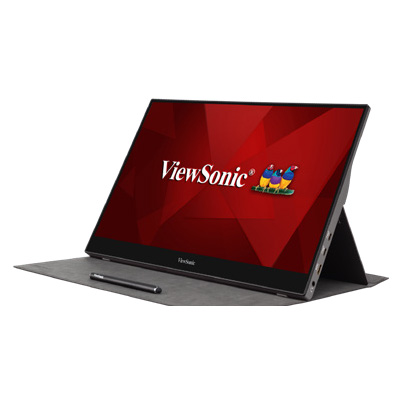
A single portable monitor adds one extra screen to a laptop. It’s a lighter, simpler setup than a dual-screen unit, and a solid fit for anyone who just needs one extra screen rather than a full three-screen workspace.
A laptop screen extender (the kind that clips onto the back of a laptop lid) adds a second screen physically connected to the laptop.
Because it’s tied to the laptop’s exact screen size, it can’t fold flat for travel the way a standalone dual-screen unit does. Most extenders rely on adhesive mounts, which make them a semi-permanent fit for one laptop rather than something you move easily between devices.
They also add weight directly onto the laptop and often need multiple cables depending on the laptop’s connectivity.
Dual-Screen Portable Monitor Use Cases
Business Travelers
Business travelers want an easy way to boost productivity no matter where work takes them. But when you’re constantly on the go, every extra charger becomes one more thing you have to carry around.
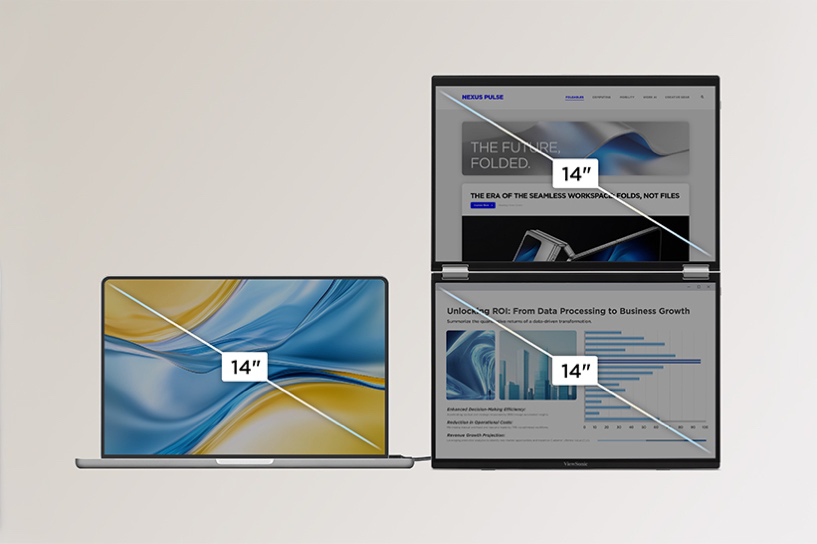
The ViewSonic VG1457 portable monitor solves this with an ultra-lightweight design with 65W two-way USB-C Power Delivery. Its dual 14-inch WUXGA screens give you an expanded workspace that requires just a single power source.
Hybrid and Remote Workers
Hybrid and remote workers frequently move between home, office desks and temporary workspaces, meaning they don’t always have an ideal setup. A dual-screen portable monitor gives them an instant multi-screen layout for emails, documents and spreadsheets, then folds flat to travel with them when work is over.
Sales, Customer Success and Field Teams
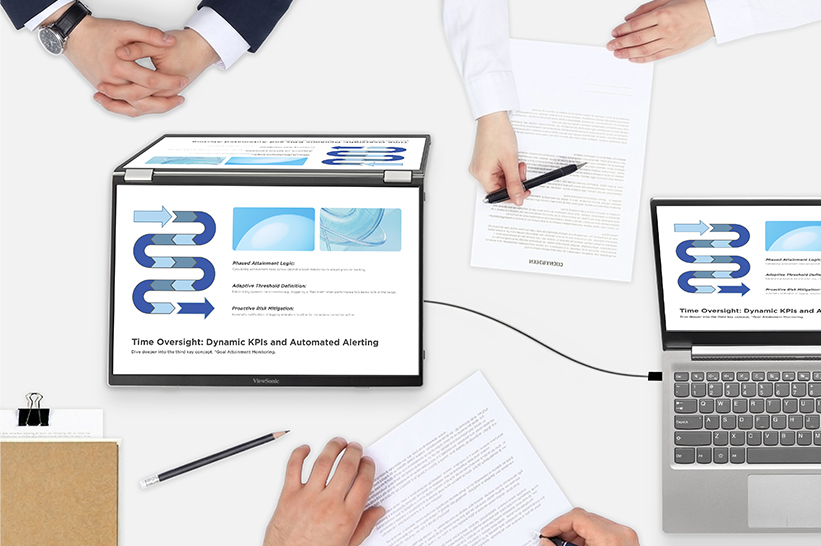
For sales, customer success and field teams, a dual-screen portable monitor simplifies client interactions and call management. Reps can compare quotes and specs side by side, or keep CRM notes visible on a second screen during a presentation. On the VG1457, Share mode turns the screens outward so two people sitting across a table can view the same content simultaneously.
Developers, Analysts and Finance Professionals
Financial analysts and developers rely heavily on multi-monitor setups, but lose that efficiency when working away from their main setup. A dual-screen portable display restores that multi-window workspace for professionals on the go.
Instead of constantly cycling through overlapping windows, they can keep key tools visible side by side, running code next to a live preview, keeping spreadsheets alongside dashboards or referencing documentation next to a terminal.
Creators and Review Workflows
For creators in the field, a dual-screen portable monitor works well as a secondary workspace for reviewing footage, referencing notes and scripts or keeping tool panels open next to a timeline.
If color grading, high brightness or OLED-level color performance is the priority, ViewSonic’s single-screen portable OLED monitors (like the VP16-OLED and VX1655-4K-OLED) are worth looking into.
Why Choose a Dual-Screen Portable Monitor?
A dual-screen portable monitor solves a simple problem: one laptop screen isn’t enough for serious multitasking. Here’s what two screens make possible.
Desktop-level productivity anywhere: Bring a true multi-monitor workflow on the go instead of downsizing to a single extra display.
An expanded canvas: Combine two panels into one larger workspace for deep-focus tasks.
Face-to-face sharing: Present across a table in Share mode without crowding around a single screen.
Two inputs, one unit: Run two separate devices side by side at the same time.
Features of a Dual-Screen Portable Monitor
A few setup details determine whether a dual-screen portable monitor will work with a given laptop or phone.
USB-C DisplayPort Alt Mode: This lets a single USB-C port carry a video signal, not just data and charging. It’s what most USB-C monitors, portable or otherwise, rely on to receive a picture from a laptop. Your laptop or phone needs a USB-C port that specifically supports DisplayPort Alt Mode for this to work, since not every USB-C port does.
USB-C Power Delivery: Power flows through that same cable, in either direction. That two-way flow means the cable can pull power from a laptop or power bank to run the monitor, or pass power the other way to charge the laptop when the monitor is plugged into an outlet. On the VG1457, dual USB-C inputs support 65W two-way Power Delivery.
HDMI vs. USB-C: HDMI carries video only, so a monitor that relies on HDMI alone needs a separate power cable. Some portable monitors offer HDMI as a fallback for laptops that don’t support DisplayPort Alt Mode over USB-C.
Drivers vs. Plug-and-Play: A plug-and-play monitor works the moment it’s connected. Others need drivers installed first, which adds setup time and depends on OS compatibility.
MST Limitations: MST (Multi-Stream Transport) is the technology that lets a single video output drive more than one display. This feature is unavailable on macOS and mobile devices due to MST limitations over USB-C. Only the lower display activates when extending on these devices.
Power Source: Options include a connected laptop, a wall adapter or a power bank with enough wattage to run the unit.
Display Modes Explained
Different portable monitors can offer different display modes. Here are some of the most popular ones explained.
Mirror Mode
Mirror mode shows the same content on the laptop and the monitor. It’s the simplest mode to set up and works well for demos, training sessions or presentations where separate windows on each screen aren’t necessary.
Extend Mode
Extend mode treats the monitor’s screen space as additional desktop rather than a duplicate of the laptop screen. On a dual-screen unit like the VG1457, that means the two panels function as extended workspace alongside the laptop, which is the mode most people reach for when multitasking is the goal.
Not every device can extend content across both screens of a dual-screen monitor because of MST limitations.
Dual-screen Extend mode isn’t available on macOS or mobile devices for the VG1457, since macOS doesn’t support MST via USB-C. Only the lower display activates when extending on those devices. Windows laptops generally handle it without issue, though MST support can still vary by specific hardware.
Full-Screen Mode
Full-Screen mode is different from Extend mode in one important way. Instead of treating the two panels as separate extended space, it merges them into a single continuous area. On the VG1457, that means both 14-inch panels combine into one 19-inch workspace, which works well for work that benefits from one larger screen rather than two adjacent windows.
Share Mode
Share mode turns the screens outward so two people can view them from opposite sides at once. It’s built for client meetings, interviews and small-group reviews, where someone needs to show something to a person across a table rather than share their own screen. In Share mode, the VG1457 uses a built-in G-sensor to auto-rotate the upper display, so its orientation adjusts automatically for the person on that side.
Dual Source Mode
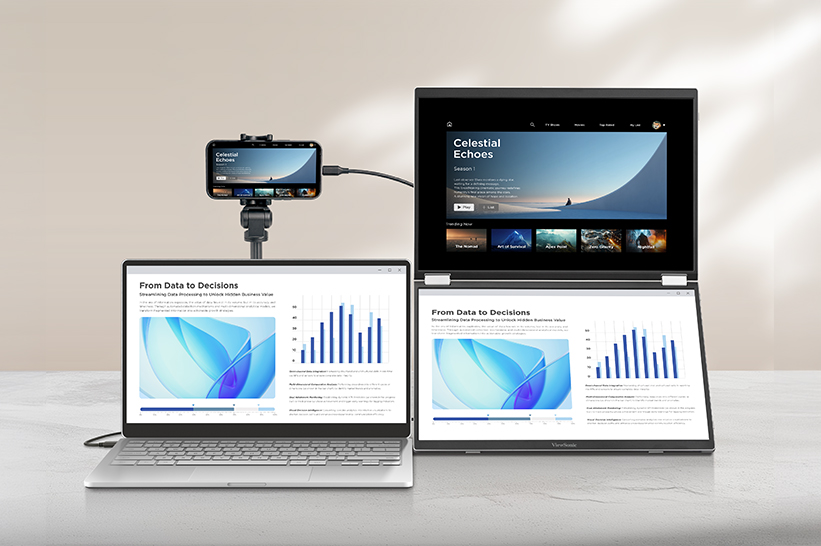
Dual Source mode uses two independent USB-C ports to run two separate devices on screen at the same time. Whether that’s pairing a laptop with a smartphone or managing two laptops on one desk, it provides users with a live side-by-side view without juggling cables or input toggles.
Dual-Screen Portable Monitor vs. Single Portable Monitor
| Feature |
Single Portable Monitor |
Dual-Screen Portable Monitor |
| Best For |
Streamlined single-screen focus |
Multi-window power workflows |
| Portability |
Lightweight, single monitor |
Two panels in one slim, foldable unit |
| Presentation Use |
Good for solo demos, one screen to share |
Better for two-person viewing via Share mode |
| Workflow Fit |
Great for quick tasks and multitasking |
Best for deep multitasking and side-by-side work |
| Ideal Users |
Anyone who just needs one extra screen |
Business travelers, remote workers, analysts, coders, creators |
Not sure which fits your workflow? Browse the full lineup of ViewSonic portable monitors, including single-screen options, to compare.
What to Look For in a Dual-Screen Portable Monitor
Screen Size and Resolution
Screen sizes on dual-screen units are typically dual 14-inch panels, like the VG1457’s dual 14-inch WUXGA displays, though single 14-inch and 15.6-inch models are common in the single-screen category.
Aspect ratio is almost as important as screen size. A 16:10 panel gives more vertical space than a standard 16:9 panel, which matters for reading documents, scrolling spreadsheets or following code top to bottom. WUXGA resolution (1920 x 1200) is the 16:10 counterpart to Full HD, with extra vertical pixels that come from the taller aspect ratio rather than a wider one.
The VG1457's 16:10 panels also pair cleanly with newer 16:10 laptops for a matching aspect ratio.
Weight and Thickness
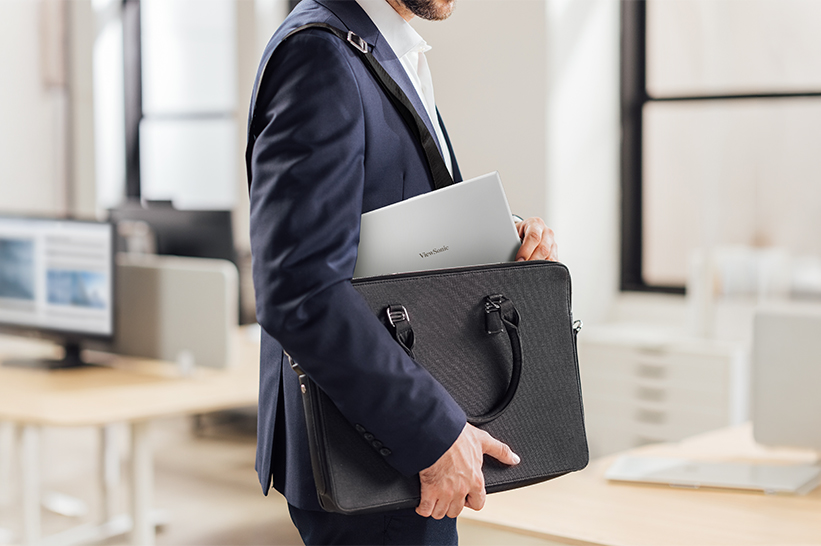
Dual-screen monitors naturally add size, making total weight and thickness key considerations before buying. A practical setup needs to stay thin enough to slide into a bag alongside your laptop without taking over the whole compartment.
USB-C Power Delivery
Power Delivery over USB-C cuts down on cable clutter and eliminates the need to pack extra wall chargers. The most versatile monitors feature two-way power, meaning you can charge your laptop through the display when plugged into an outlet, or run the screens off your laptop battery when working away from a plug.
Compatibility
Before buying, check compatibility across Windows, macOS and mobile devices, along with USB-C Alt Mode support, MST limitations, HDMI fallback options and whether drivers or software are required. This is one of the most common sources of buyer frustration with portable monitors, since a unit that works perfectly on one laptop can behave differently on another.
Display Modes
Confirm the monitor actually supports the modes you need: Mirror, Extend, Full-Screen, Share and Dual Source. Not every portable monitor offers all five, and naming can vary by brand, so check the specs of the model you’re considering. The VG1457 does offer all five modes.
Ergonomics and Orientation
Hinge range, tilt, orientation and auto-pivot support can all affect how comfortable the monitor is to use day to day.
The VG1457 lists specific swivel, pivot and tilt ranges, including a 340-degree hinge for Share mode, and supports ViewSonic Display Portal and vDisplay Manager software for auto-pivot control, which automatically switches the display into portrait orientation when needed.
When a Dual-Screen Portable Monitor May Not Be the Right Choice
A dual-screen portable monitor is built for expansive productivity. It may not be the right fit if:
- You only need one extra display, not two.
- You do color-critical creative work that needs OLED or higher brightness than most dual-screen portable panels offer.
- You want to play games and require a higher refresh rate.
- Your device doesn’t support the USB-C display output the monitor requires.
- You’re on a Mac or mobile device and expect full dual-screen Extend mode, which runs into MST limitations on those platforms.
- You want one seamless larger screen instead of two hinged panels.
- You want a wireless connection instead of a wired USB-C setup.
ViewSonic’s portable OLED monitors are designed for exceptional color accuracy. ViewSonic’s portable gaming monitors, like the 144Hz VX1754, can help players work hard and play harder on the go.
Want one continuous screen instead of two hinged panels? That same 17-inch VX1754 delivers a single larger display in a similarly portable design.
And for a cable-free setup, the VG1656N pairs a 16-inch display with built-in wireless casting, so you can skip the USB-C connection altogether.
How to Set Up a Dual-Screen Portable Monitor
Portable monitor setup varies between devices, but the sequence is largely the same across brands.
Step 1: Check your laptop ports. Confirm your laptop’s USB-C port supports DisplayPort Alt Mode, not just charging and data. This is the single most common reason why a portable monitor won’t display a picture.
Step 2: Connect power. Depending on the monitor, you can run it from the laptop itself, a wall adapter or a power bank rated for enough wattage.
Step 3: Choose your display mode. Pick Mirror, Extend, Full-Screen or Dual Source in the on-screen display (OSD) menu.
Step 4: Adjust orientation. Select landscape or portrait manually or enable auto-pivot using vDisplay Manager (downloadable from the ViewSonic Display Portal). Auto-pivot automatically rotates your display based on screen content and physical monitor position.
Step 5: Arrange displays in your OS. On Windows, use Display Settings to arrange screen order and orientation. On macOS, check for the Extend mode limitations covered above before assuming both screens will behave like an extended desktop. On mobile, confirm the device supports external display output at all before connecting.
Troubleshooting: Why Is My Portable Monitor Not Detected?
If a USB-C portable monitor isn’t detected, work through these steps in order:
- Confirm the USB-C cable supports video, not just charging or data. Not every USB-C cable does.
- Confirm the laptop’s USB-C port supports DisplayPort Alt Mode.
- Connect external power if the monitor needs it to turn on.
- Check for MST limitations if you’re trying to extend across two screens rather than mirror.
- Select the correct input on the monitor if it has more than one.
- Check your operating system’s display settings to confirm the second screen is recognized.
- Update firmware or software tools if the manufacturer provides them.
- Confirm a power bank is rated to deliver enough wattage if that’s your power source.
Why the ViewSonic VG1457 Is Built for Mobile Productivity
The VG1457 is ViewSonic’s first portable dual-screen monitor, built around the idea that a single laptop screen shouldn’t be the ceiling for productivity.
Two 14-inch WUXGA displays fold into a 2.6-lb setup that fits in a laptop bag, and open into 19 inches of combined viewing space in Full-Screen mode.
Five viewing modes cover everything from solo focused work to a face-to-face client presentation: Mirror, Extend, Full-Screen, Share and Dual Source. Two independent USB-C inputs mean separate devices can each run on their own screen at the same time.
A single USB-C cable handles the rest of the setup. 65W two-way Power Delivery keeps a connected laptop charged while both screens run, or lets the laptop power the monitor directly when there’s no outlet nearby. Connect over USB-C and both screens come on in seconds, with no drivers or software installation required.
The VG1457 ships with a protective sleeve case, includes dual built-in speakers and is backed by an industry-leading three-year limited warranty.
Frequently Asked Questions
What is a dual-screen portable monitor? A dual-screen portable monitor is a foldable external display with two built-in screens that connects to a laptop, usually over USB-C, to add a multi-window workspace without a full desktop setup.
Are dual-screen portable monitors worth it? For anyone accustomed to a dual-display setup, yes. Coders, analysts, field teams and hybrid workers can see an immediate benefit simply by keeping critical reference documents, spreadsheets and emails open side by side.
Can a dual-screen portable monitor replace a desktop setup? For daily work, hot-desking and remote setups, yes. It gives you the full workspace of a dual-monitor desk setup wherever you choose to work, making it easy to handle spreadsheets, coding, video calls and heavy multitasking without feeling cramped.
Do dual-screen portable monitors work with MacBooks? Yes, but Extend mode across both screens is limited on macOS due to MST limitations. Mirror mode and single-screen usage typically work without issue.
Why does dual-screen Extend mode not always work on macOS? Extending a single video signal across two separate screens depends on MST (Multi-Stream Transport) support, which macOS handles differently than Windows. On monitors like the VG1457, only the lower display activates when extending on macOS or mobile devices.
Can I use a dual-screen portable monitor with two devices? Yes, monitors that support Dual Source mode let two separate devices each run on their own screen at the same time, which is useful for comparing systems or working from two laptops.
Do I need drivers for a dual-screen portable monitor? Not for a plug-and-play model. The ViewSonic VG1457, for example, connects over USB-C with no drivers or software installation required.
What is the best dual-screen portable monitor for business travel? Look for an ultralight device, a protective case, USB-C Power Delivery and a single-cable setup. The ViewSonic VG1457 weighs 2.6 lbs, ships with a protective sleeve case and runs on 65W two-way USB-C Power Delivery.
What is the difference between Mirror, Extend, Share, Full-Screen and Dual Source modes? Mirror duplicates the laptop screen. Extend adds workspace across both panels where supported. Full-Screen merges both panels into one larger screen instead of two separate windows. Share turns the screens outward for two-person viewing. Dual Source connects two separate devices at once, one per screen.
Why is my USB-C portable monitor not detected? The most common causes are a USB-C cable that doesn’t support video, a laptop port that doesn’t support DisplayPort Alt Mode or a monitor that needs external power to turn on. Working through each of these usually resolves it.
Is OLED better than IPS for portable monitors? It depends on the job. OLED panels, such as ViewSonic’s OLED portable monitors, generally offer deeper black levels and wider color coverage, which matters for color-critical creative work. IPS panels are typically lighter, less expensive and well suited to general productivity.
What cable do I need for a dual-screen portable monitor? You’ll need a full-featured USB-C cable that supports video output (DisplayPort Alt Mode), not just standard charging. If you plan to pass power through the monitor to charge your laptop, check the cable’s wattage rating too. USB-C cables are rated in fixed tiers, typically 60W or 100W, so a monitor drawing up to 65W (like the VG1457) needs a cable rated for at least 100W to deliver its full Power Delivery.
Eye care and ergonomic features are designed to help reduce potential discomfort during extended viewing, but individual experiences may vary. Any references to third-party hardware, operating systems, software platforms, or corporate trademarks are for identification and compatibility purposes only and do not imply endorsement, affiliation, or sponsorship by their respective owners.
 Teacher's Community
  Support














Login and Registration Form