Education
Business
Consumer

Education

Rolling Into Learning: Why Mobile Carts Are the Secret to Flexible, High-Engagement Classrooms

Buyer's Guide  |  Nov 12 2025

Rolling Into Learning: Why Mobile Carts Are the Secret to Flexible, High-Engagement Classrooms


When people picture an interactive display, they usually picture it mounted at the front of the classroom. That’s changing. More schools and districts are moving their panels onto mobile carts, and the reasons go well beyond convenience.


Beyond the Front of the Room: Why Schools Are Taking ViewBoard Displays Off the Wall


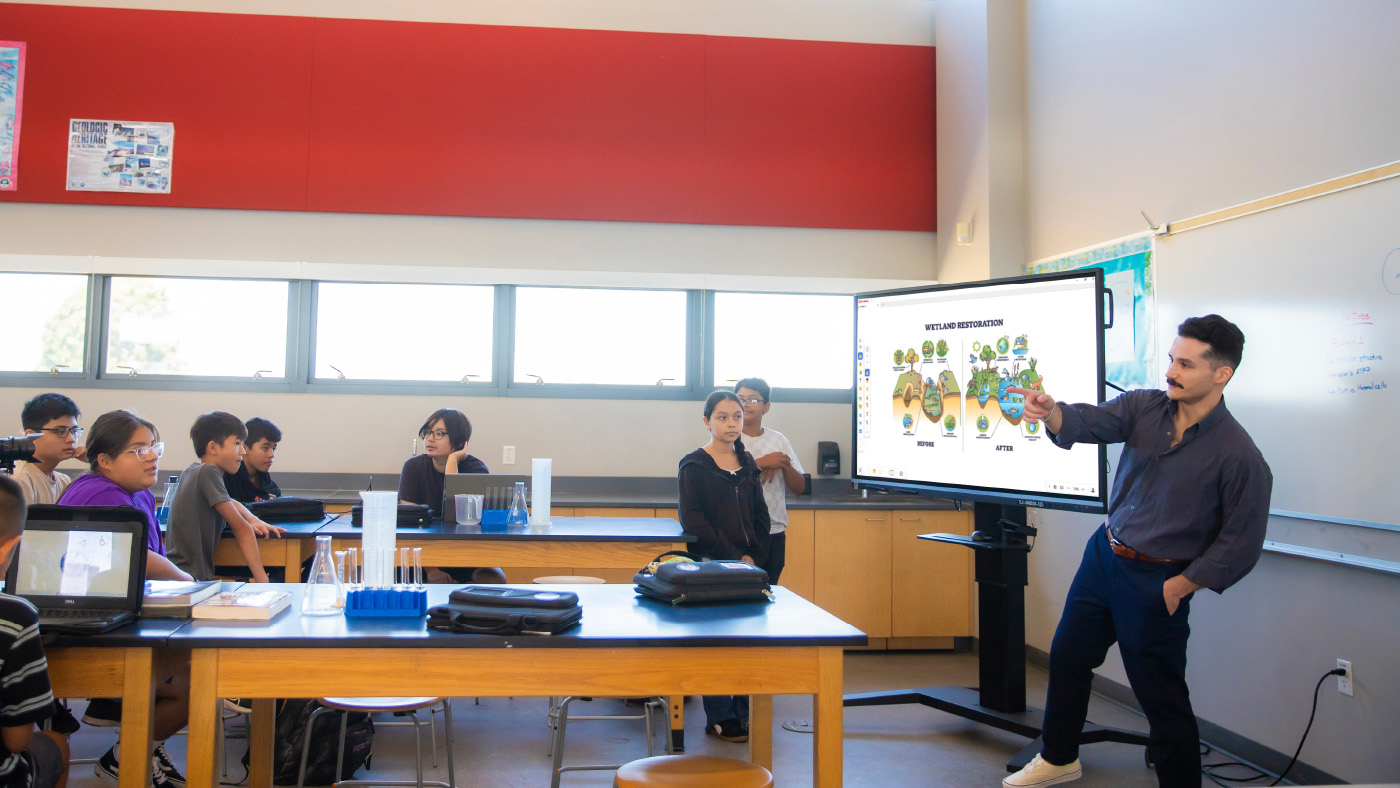
Moving a ViewBoard display onto a cart does more than free up wall space. It changes how teachers actually use the room.


Reclaiming the Whiteboard: Keeping Your Marker Space While Adding Digital Power


Teachers still love a good old whiteboard marker, and that isn’t going away. Putting your ViewBoard display on a mobile cart frees up the wall space teachers already use for analog teaching. You get digital power without giving up the marker board behind it. This kind of setup works well in schools that combine interactive technology with analog instruction, where the digital display and the traditional marker board serve complementary purposes instead of competing for space.


Breaking the “Fixed Front” Classroom Model


A wall mount keeps your panel in one spot. And while that might be helpful in many classrooms, a mobile cart lets you roll it wherever a lesson needs it, whether that’s a reading corner, a different wall or the center of the room. So much changes in a classroom throughout the day, and a panel that moves with the lesson keeps students more engaged than one that stays fixed in place.


Sizing and Accessibility: Solving the “Kindergarten Height” Problem


Every classroom has a mix of heights, from kindergartners to teachers well over six feet tall. Mobile carts help you meet everyone in the middle.


Reaching Every Student: How Adjustable Carts Bridge the Gap for Early Learners


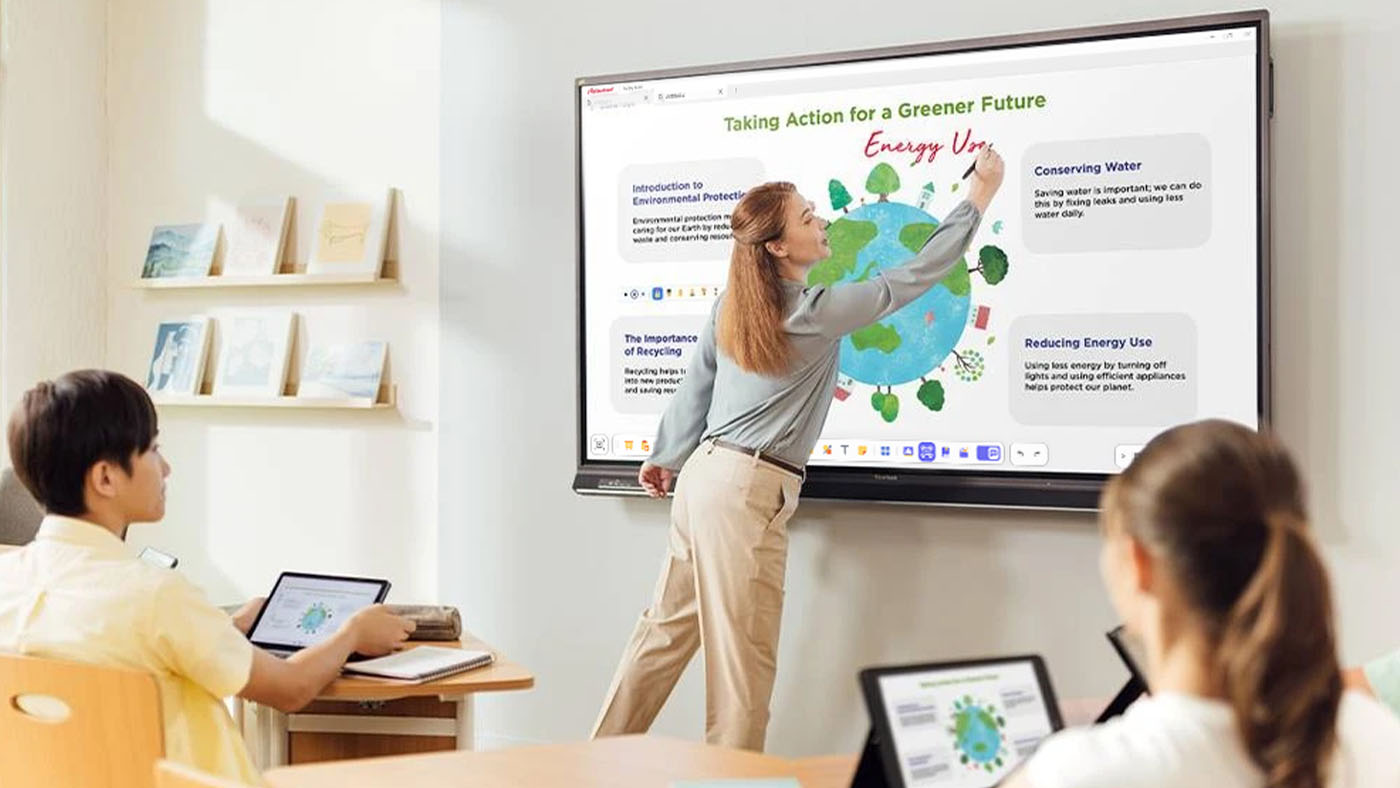
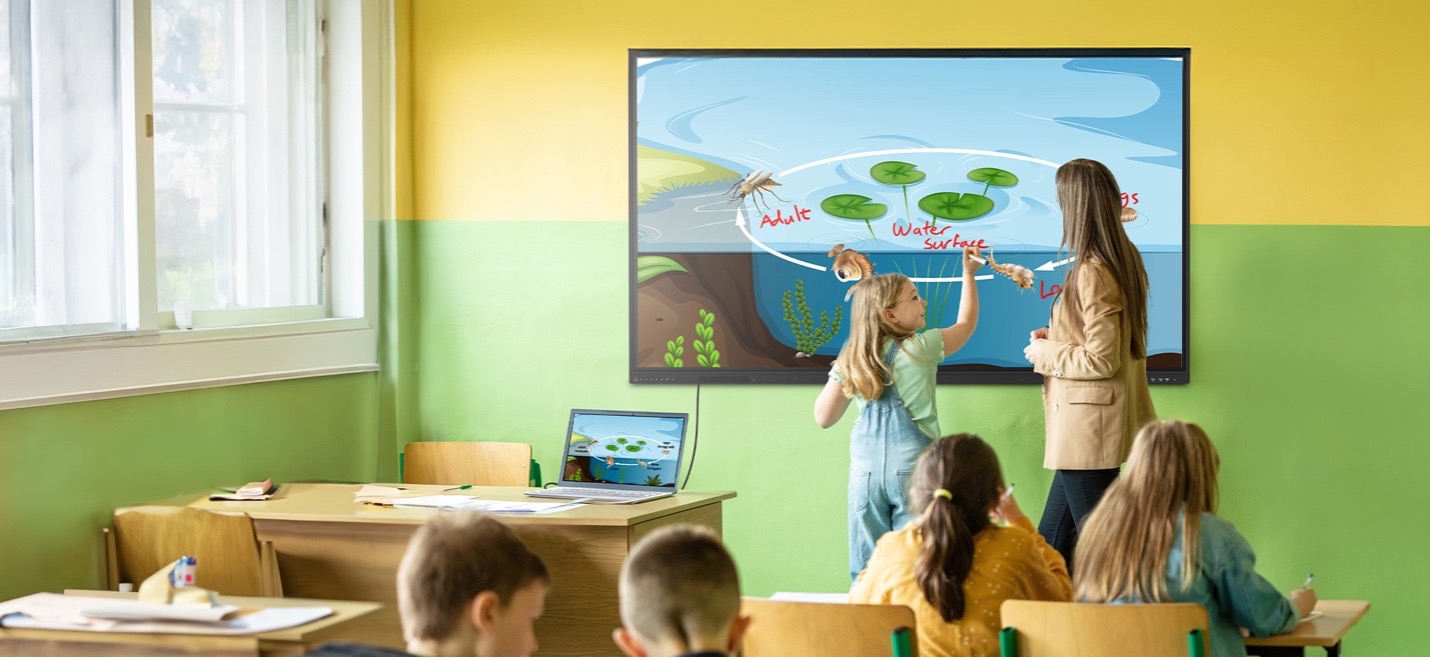
Younger students need to actually reach the screen, and teachers need to write on it without bending over all day. A cart with adjustable height solves both problems at once, so the same board works for a kindergartner and a six-foot-tall teacher in the same classroom.


Motorized Precision: Using BalanceBox® and Motorized Carts for Ergonomic Teaching


Our motorized carts, including the BalanceBox line, let you raise or lower the panel with the push of a button. That means the board is always at the right height for whoever is using it, whether that’s a student reaching the screen or a teacher writing at the top. This kind of ergonomic accessory often gets overlooked in procurement conversations, but it has a real impact on daily usability, especially in early education where students and teachers of very different heights share the same display.


The “Anywhere” Board: Utilizing ViewBoard Displays in Hallways, Gyms and Beyond


A ViewBoard display doesn’t have to stay in one classroom. Once it’s on a cart, it can go wherever your campus needs it that day.


From Gallery Walks to Parent Nights: Interactive Tech Outside the Classroom


A mobile cart means your ViewBoard display isn’t stuck in one room. For a back-to-school night, a teacher can display student work in the classroom, then roll the panel into the hallway for a gallery walk. During a parent-teacher event, the same board can run a sign-in station right outside the door, so parents stay engaged while they wait. One panel can do the job that used to take several.


Strategy in the Gymnasium: Safe, Mobile Tech for Coaches and Athletics


Another option is placing the board in strategic spaces, such as a basketball court or a gymnasium. A basketball or volleyball coach can use it to highlight strategy and plan out plays for students before they play. While you may not want to put a permanent wall mount in a gymnasium where balls are flying, a mobile cart allows you to move the panel out of the way when the game is in progress but still lets you strategize during practice.


Scaling Your Campus Fleet: Finding the Right Fit for Every Space


Different spaces call for different setups, and ViewSonic gives you room to mix and match across your campus.


Choosing Between Fixed Mounts and Mobile Deployment Strategies


Every district has different needs, so ViewSonic offers both options. Choose a wall mount for spaces that need a permanent, secure setup, or choose a mobile cart for spaces that need flexibility. Most campuses end up using a mix of both.


Centralized Control: Managing Your Mobile ViewBoard Displays via ViewSonic Manager


Moving panels between rooms doesn’t mean losing visibility. With ViewSonic Manager, IT teams can push updates, monitor device status and manage security settings remotely, no matter which room or gym a panel is in that day.


There’s no single right answer. Some spaces need a fixed wall mount. Others need a cart that can roll from the classroom to the hallway to the gym. ViewSonic offers both, so you can build a fleet that matches how your campus actually teaches.


Ready to find the right setup for your classroom? Contact your ViewSonic education representative to explore mobile cart and wall mount options.

Formative Assessment Tools for Teachers | myViewBoard

Formative Assessment Tools for Teachers | myViewBoard

See how free Quiz Tools inside myViewBoard 3.0 turn any lesson into a live check for understanding, from a former science teacher’s webinar.

Formative Assessment Tools for Teachers: Webinar Recap

Feedback works best the moment students need it, not at the end of the semester.


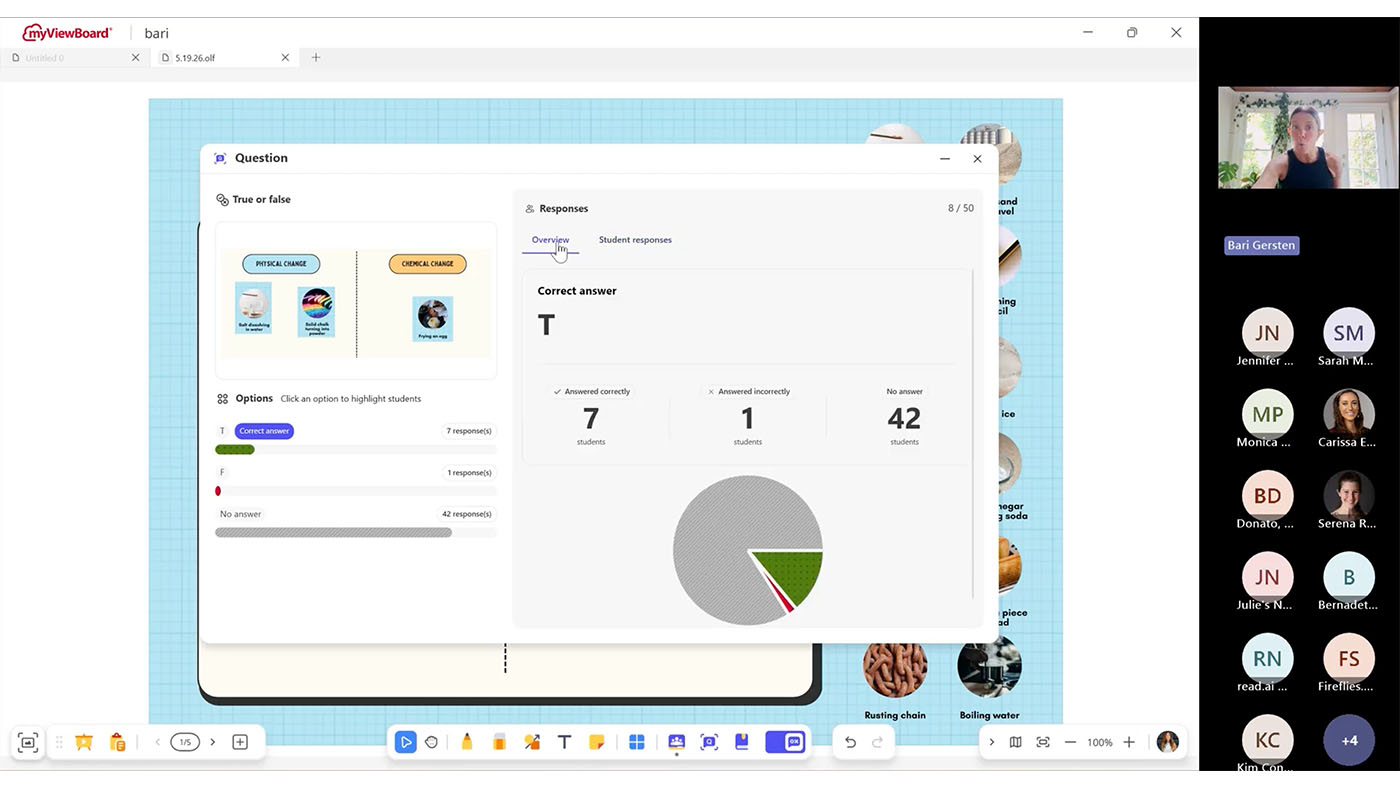
That’s the premise behind Smarter Formative Assessment Made Simple, a recent ViewSonic webinar on myViewBoard® Quiz Tools powered by ClassSwift®. It was led by Bari Gersten, a former middle school science teacher who has spent more than twenty years in professional development and the last seven at ViewSonic.


Her argument, in one line: formative assessment gets easier when it works with the content you already have. No need to build any quizzes on separate apps.

Why real-time feedback changes what you do next

Most teachers know the feeling. You ask a question, a few hands go up, and you’re left guessing about the other 25 students in the room.


A quiz grade tells you who struggled three days after the moment you could have helped. A live check tells you before the class moves on. That’s the whole difference, and Bari framed it around the answers most software treats as failures:


“I always appreciate when I see a wrong answer, because that allows me to have information into what’s going on in my classroom.”


Formative assessment isn’t more testing. It’s faster information, while you can still act on it.


She also named the limit that makes this necessary. She loves that interactive panels are “getting students out of their seat and up to the board” but she wants every student to participate, not just a few. Only a few can be at the board at once. Quiz Tools is how the other 25 participate at the same time.

Capture, share, collect: one workflow, no tab switching

The session’s throughline was that the whole loop happens in one place.

  • Capture. Bari opened a PDF on physical and chemical changes, a file she already had rather than something she had to build. Using the screen capture tool, she shared the static image from that PDF into a quick quiz. Later she did the same with a live PhET simulation, loaded inside myViewBoard’s Embedded Browser so the site opens with the page. Her reason for that one is pure classroom management:

    “As soon as I had to turn my back and enter in a website, I was going to lose my students.”
  • Share. One toggle turned the lesson into a live session. Students joined from a phone, tablet or Chromebook by scanning a QR code or opening a link. Nothing to install on the student side. Bari shared the content that she screenshotted.
  • Collect. Answers arrived on her screen as students submitted, along with how quickly they came in, which is its own read on the room. She demonstrated True/False on the image captured from the PDF and Multiple Choice on perimeter using the simulation. When she was ready, she revealed the correct answer and reviewed results as a whole-class view and then student by student.

Questions can be built into a lesson in advance or created on the spot. An attendee asked about exactly that mid-session, and Bari answered it by building one live on a blank page.


The mechanism is the same screen capture tool she used on the PDF. Screenshot a question you already wrote, wherever it happens to live, and that becomes the prompt students see. Or annotate the question on the board by hand and screenshot that.


So there’s no separate quiz authoring step. A question you wrote in your lesson plan last night and a question you thought of ten seconds ago both get into Quiz Tools the same way.

What students see, and what stays private

Results show the distribution of answers to the room. Student names can stay hidden in that view, so the class can look at what went wrong together without anyone’s name attached to it.

For a teacher trying to build a room where students feel comfortable sharing any misunderstandings, that setting matters more than any feature on the list.

What you need before you try it

  • myViewBoard 3.0. Quiz Tools live in 3.0. If you don’t see the Quiz Tool toggle on your whiteboard, you’re likely on 2.0 or your administrator needs to run an update in Manager.
  • Windows or Android. Free on both, with macOS coming soon.
  • Any student device. Phone, tablet or Chromebook all work.

For IT teams evaluating panels, the same facts read differently: the assessment software is included rather than licensed per teacher, and there’s nothing to deploy to student devices. This saves you from having to purchase a panel and formative assessment software like Kahoot, PearDeck or Wayground.

Frequently Asked Questions

Do I need myViewBoard 3.0?

Yes. Quiz Tools are built into myViewBoard 3.0. On 2.0 the toggle won’t appear.

Does Quiz Tools work on an iPad?

Students can answer on an iPad, but myViewBoard does not offer the Quiz Tools features on macOS yet. It’s free on Windows and Android today, with macOS coming soon. Students can respond from any device once you’re running the session from a supported panel or computer.

What if my students don’t all have devices?

It still works. Students can share a device or work in pairs. You may also consider using Participate Mode to get students or groups of students to board.

Can students see who got the answer wrong?

Only if you want them to. Hide student names in the results view and the class sees the distribution without the names.

Watch the replay, then try one question

For the step-by-step mechanics, the six question types, class rosters and engagement tools like the Spinner and Buzzer, see the myViewBoard Quiz Tools quick-start guide https://www.viewsonic.com/solution/kb/en_PH/qt-overview/quizzing-tool-overview.


Then pick one lesson you already teach and add a single True/False question. That’s the whole first step.


Programs, pricing, specifications and availability are subject to change or cancellation without notice. Actual performance, compatibility and user experience may vary depending on system configuration, network conditions, usage environment and other factors. Selections, offers and programs may vary by country. Corporate names and trademarks stated herein are the property of their respective companies. Copyright © 2026, ViewSonic Corporation. All rights reserved. 8/26 [26SFT-EDU1565a]

How Modern Visual Communication Systems Keep Campuses Connected and Safe

How Modern Visual Communication Systems Keep Campuses Connected and Safe

When severe weather moves in or a schedule shifts on short notice, getting the word out fast isn’t just convenient; it’s critical. Relying on printed notices or manual updates across multiple buildings can leave gaps in campus communication.

A campus visual communication system solves this by connecting every display to a single central dashboard, giving administrators the power to reach the entire campus in just a few clicks. IT retains full control over every device on the network, from firmware to content permissions.

What is a Campus Visual Communication System?

At its core, a campus visual communication system connects digital screens, media players and device management software across every building on campus.

Instead of treating every screen like an isolated TV, content management software like TSN Visual Communication Solutions links commercial displays into a single network.

TSN Visual Communication Solutions and ViewSonic ManagerTM device management software are built to work together.

TSN handles the content side, letting campus teams create and schedule what appears on screen, while ViewSonic Manager handles the device side, keeping every screen updated, monitored and running smoothly.

Together, the two cover both halves of a campus communication system.

Why Digital Displays Beat Paper Announcements

Paper posters and static signs often get ignored, blending into the background once people have walked past them a few times. Connected digital signage is live and responsive, reflecting campus activity as it happens.

A long line at the campus bookstore or cafeteria feels much shorter when nearby screens show live social media feeds, athletic game countdowns or student photos. When hooked up to live data feeds, displays can turn into helpful daily assistants. They can show upcoming bus arrival times or pull room calendars so student groups can instantly spot open meeting spaces.

Safety, Wayfinding and Campus Culture

Schools lean on their large-format displays for several everyday responsibilities.

Instant Safety Alerts

When bad weather hits or a hazard arises, ViewSonic Manager’s CAP messaging integrates with the campus emergency alert system to trigger an automatic override. Displays can instantly switch from regular programming to bold, high-visibility messages or instructions that can be seen throughout the school.

Stress-Free Wayfinding

Getting lost on a sprawling campus can be a common frustration for visitors and new students alike. ViewSonic’s interactive ePoster kiosks let people tap, zoom and search a digital directory to find their way.

Building Campus Spirit

Large-format displays help bring the campus together. Spotlighting student art, congratulating the debate team and posting club signups keeps the whole community feeling involved.

Commercial Displays vs Standard Consumer TVs

It can be tempting to buy cheap consumer TVs from a local retail store for school hallways, but home electronics aren’t built for that kind of daily demand.

Consumer TVs are designed for use in a dim living room, while commercial displays are heavy-duty units built to handle continuous operation in bright spaces.

The Feature Consumer TVs Commercial Displays (like the ViewSonic CDE31 series)
Daily Runtime Built for intermittent home viewing, typically not rated for continuous commercial use 16 to 24 hours a day, 7 days a week
Screen Glare High gloss finish that turns into a mirror under bright lights Matte anti-glare finish for clear reading in bright sunlight
Warranty Usually voided if installed in a school or business 3-year commercial warranty with extended options
Durability Plastic shells that trap internal heat Durable construction built for continuous commercial use


Choosing purpose-built hardware like the ViewSonic CDE31 series of commercial displays prevents frequent screen failures and can help protect school budgets long-term.

The Advantage of Remote Device Management

Remote device management platforms like ViewSonic Manager let IT teams update, troubleshoot and control every screen across multiple buildings without leaving their desks.

Imagine a campus with 50 screens spread across five buildings right when Daylight Savings Time kicks in. Without centralized management software, an IT technician has to physically walk to every single screen with a remote control just to change the clock.

With a solid management platform, the tech team can push firmware updates, set automatic power schedules to save electricity at night and fix software glitches remotely. That keeps the entire network running smoothly without turning minor tech hiccups into full-day headaches.

Finding the Right Display for Every Space

Every location on campus serves a different purpose, so a smart setup mixes standing displays, touch kiosks and wall mounts based on what people need in that area.

  • Direct View LED Displays: Place these high-impact messaging solutions in lobbies and cafeterias to reach students throughout campus.
  • ePoster Kiosks: Position these kiosks in busy hubs like student unions or main courtyards where people need to look up directories, browse digital maps or view announcements.
  • Commercial Displays: Set up these reliable workhorses in classrooms, lecture halls, hallways and breakrooms. The ViewSonic CDE31 series of commercial displays offers wide viewing angles so everyone in the back of the room can read the text without eye strain.
  • Interactive Displays: Installing ViewSonic® ViewBoard® interactive displays in classrooms turns lessons into a hands-on learning experience that facilitates participation and boosts learning outcomes.

Planning Checklist Before Buying

A great display system brings the right hardware, software and network together, so everything keeps working in sync as campus needs grow. Here’s what to check before buying.

  • Open Software Compatibility: Ensure the hardware works with the school’s preferred content management software without locking it into a restrictive ecosystem.
  • Security: Restrict who can push content to the screens with role-based user permissions.
  • Room Lighting: Test how displays handle unique lighting challenges, like bright sunlit glass atriums versus harsh fluorescent hallway lights.
  • Room to Grow: Make sure the network setup can easily expand to add a dozen more screens next semester.
  • Reliable Support: Verify what level of professional B2B tech support and warranty backing is available when a screen needs immediate troubleshooting. 

Frequently Asked Questions

How Fast Can Screens Switch Over to an Emergency Alert?

Almost instantly. ViewSonic Manager integrates with a school’s primary emergency alert system using CAP messaging, triggering an automatic override the moment an alert goes live and swapping in clear, on-screen safety guidance.

Do We Need a Separate Media Player for Every Single Screen?

Not necessarily. Many modern commercial displays, including the ViewSonic CDE31 series, include a built-in Android media player, so there’s no external hardware required out of the box. For more demanding setups, the same displays also include an OPS (Open Pluggable Specification) slot, letting you add a dedicated PC module without an external box hanging off the display.

Can Student Clubs Create and Post Content to the Screens?

Yes, if your school permits it. Content management systems let you set up user permissions. Solutions like TSN Visual Communication Solutions come with a student-specific portal that lets students share information while administrators retain final control over what shows up and when.

What Happens if Campus Wi-Fi Drops Out?

Most high-quality commercial displays and media players have local storage built in. If the internet blinks out, the screen will keep playing its cached loop of content rather than going blank or displaying an error message.

7 Things to Look for in a Next-Gen School Projector

7 Things to Look for in a Next-Gen School Projector

If your school is conducting an audit for an upcoming hardware refresh, you don’t just want to replace your current equipment. You want to future-proof your classrooms and multi-purpose spaces.

Five years ago, managing classroom projectors meant dealing with dim bulbs, heavy maintenance schedules, and limited options. Following significant strides in projector technology, they now present a durable, budget-friendly alternative to flat-panel displays.

Key Takeaways

When choosing a next-gen projector, look for:

  • High Brightness
  • Flexible optical zoom and keystone
  • Centralized management
  • Low maintenance
  • 360° rotation
  • Light source
  • Display engine

1. Daylight-Defeating Brightness

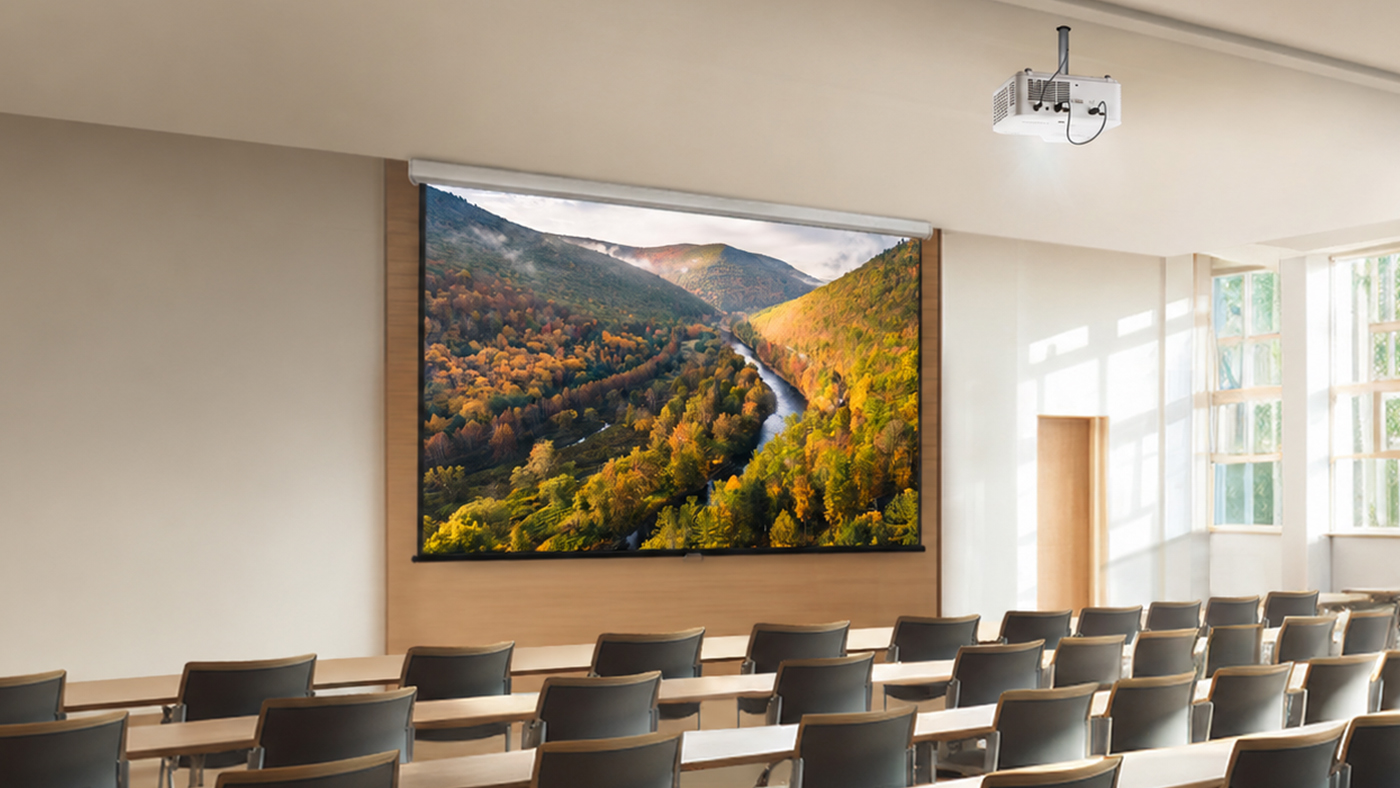
While the actual brightness of your projector will depend on the size of the room you’re outfitting, look for a projector with a high lumen output. The 5,500 ANSI lumens found in the ViewSonic® LSD500HD ensure teachers never have to switch off the lights just to make a slide or worksheet legible.

2. Flexible Optical Zoom and Keystone

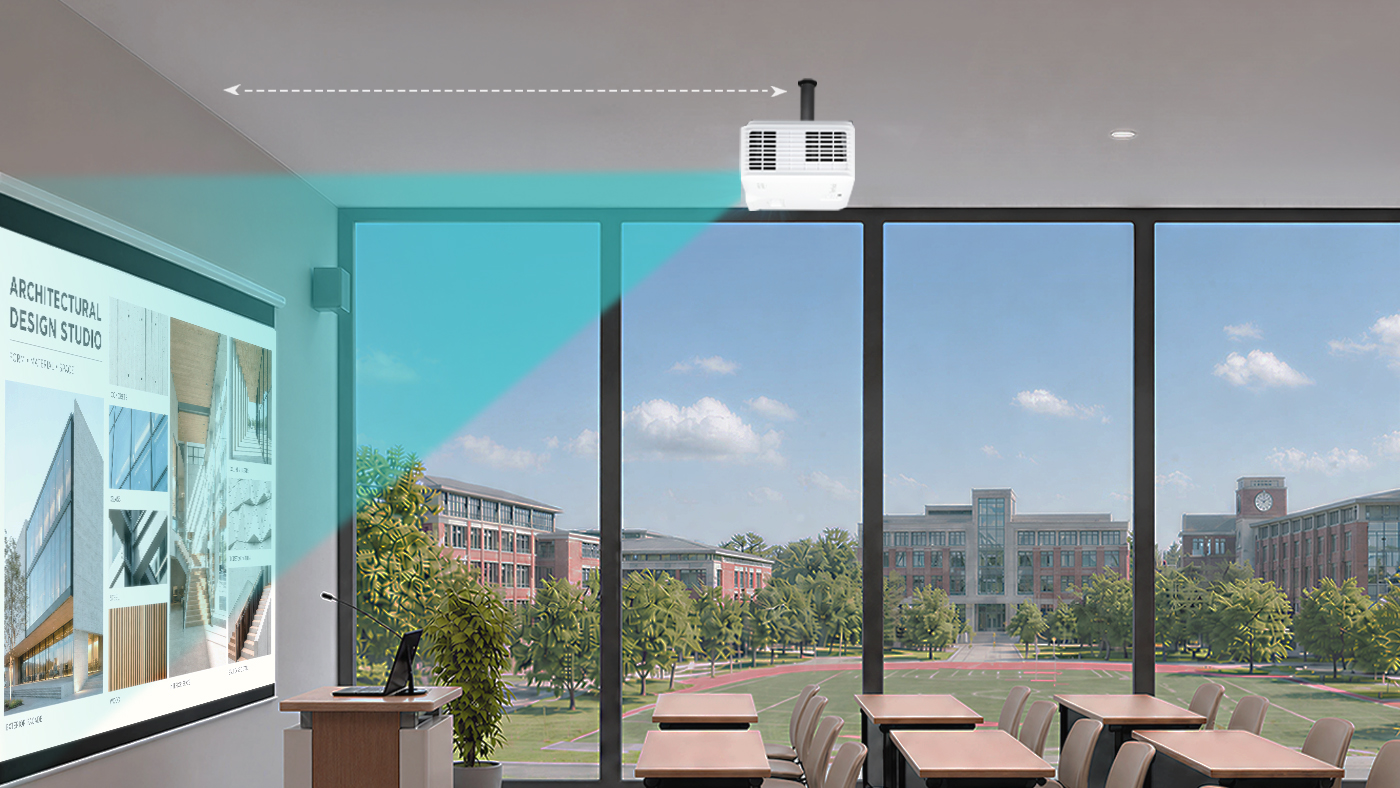
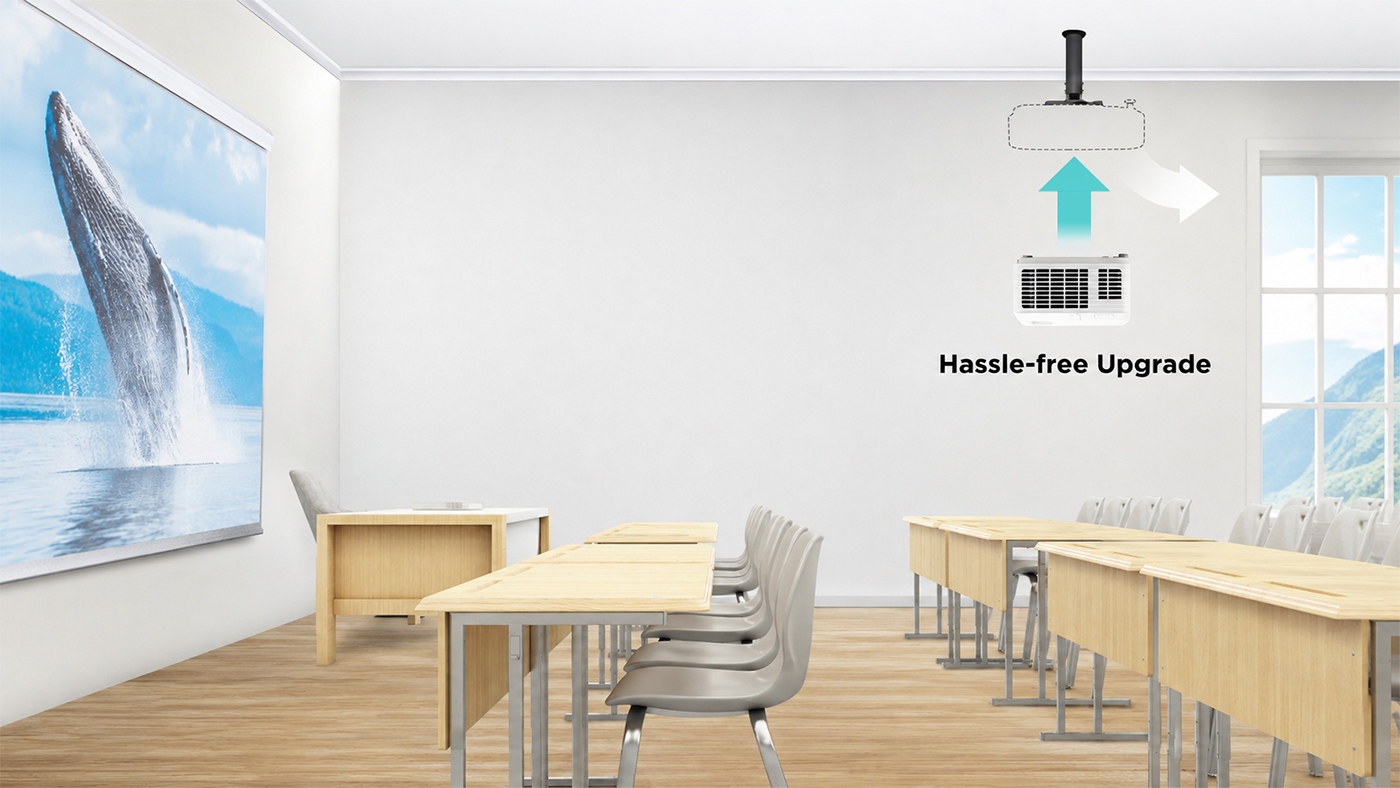
Modern classrooms come in all shapes and sizes, and hardware placement is rarely ideal. But if you get a projector that has optical zoom and a similar throw ratio as your existing projector, you won’t have to install a new wall mount elsewhere.

Look for a minimum of 1.3x optical zoom and 4-corner keystone adjustment so the image stays perfectly proportioned from any angle. These alignment capabilities eliminate distortion caused by offset ceiling mounts, ensuring a perfectly square image without manual physical readjustments.

3. Centralized IT Remote Management

Your projector should work with systems you already use, so you don’t have to purchase new or proprietary software. When upgrading your AV setup, ensure the unit features full LAN control and integrates directly with professional systems like Crestron, Extron, AMX, and Q-SYS.

4. Low Maintenance and Long Lifespan

Gone are the days of spending your AV budget on replacement bulbs or filters for LCD projectors. Next-gen lamp-free projectors ensure a longer lifespan without the recurring maintenance strain.

Upgrading your old projectors can also save you money in terms of electricity spending. The ViewSonic LSD500HD laser projector, for example, uses 62% less power than traditional lamp models.

5. 360-Degree Placement

Your hardware shouldn’t dictate your physical space. From portrait mode setups for digital signage to floor projections for unique learning experiences, look for 360° rotation capabilities that open up new teaching possibilities.

6. Light Source

Consider your environment before choosing a light source. While lamp-based projectors remain a cost-effective choice for low-use classrooms, laser technology is the clear winner for heavy daily use. Lasers eliminate replacement bulbs, warm up instantly, and maintain bright, true-to-life colors for years.

7. Display Engine

With vivid color performance a major benefit, DLP technology leads in text sharpness and contrast while offering a compact, filter-free design that reduces ongoing IT maintenance in dust-prone environments.

Key Projector Feature at a Glance

Here’s a table to give you a quick summary of the key projector features to look for and why they matter:

Projector Feature Why It Matters
High Brightness
(5,000+ lumens)
Ensures high clarity so teachers don’t have to dim classroom lights.
Long Lifespan
(up to 30,000 hours)
Laser phosphor light sources eliminate costly bulb replacements and slash power consumption.
Flexible Optical Zoom & Keystone
(Min. 1.3x optical zoom, 4-corner keystone)
Allows adjustment of the image without needing to change the ceiling mount’s placement and costly re-wiring.
Centralized IT Management
(LAN control; Crestron, Extron, AMX, Q-SYS integration)
Enables remote device administration through the control system your IT team already uses.
360-Degree Placement
(Multi-angle and portrait orientation capabilities)
Opens up creative setup possibilities across the campus.
Light source Laser projectors are more expensive upfront but cheaper to run than lamp projectors.
Display Engine DLP delivers vivid colors as well as sharp text, deep contrast and low maintenance.

Final Thoughts

Future-proofing your school’s screens isn’t just about replacing old hardware with newer models. It’s about making a strategic investment that supports both teachers and IT teams. By focusing on high brightness, low-maintenance lamp-free technology, installation flexibility, and central network management, school districts can upgrade lecture halls and classrooms without stretching their AV budgets.

Solutions like the ViewSonic LSD500HD demonstrate that modern projectors are more than just a big-screen option. They’re a convenient, cost-effective display alternative built to keep up with the demands of modern education. By striking the ideal balance between low total cost of ownership and simplicity of use, next-gen projectors ensure your school or district’s edtech is future-proofed. Check understanding during a lesson.

Frequently Asked Questions

Here are answers to some of the most frequently asked questions we get about projectors in school environments:

Do modern laser projectors turn on as quickly as flat-panel displays?

Yes. Unlike traditional lamp-based projectors that require a few minutes to warm up or cool down, modern laser projectors offer instant power-on and power-off functionality. Teachers can turn on the system and start class immediately with no downtime.

How does a lamp-free projector lower total cost of ownership for schools?

Lamp-free projectors reduce TCO for schools in two key ways:

  • Lower energy consumption and maintenance costs.
  • Reduced hardware replacement costs and maintenance labor since lamp-free projectors last longer and have no bulbs or filters to replace.

Can we install modern projectors using our existing ceiling mounts?

If the projector has the same or a similar throw ratio, then yes. Projectors equipped with wide optical zoom, ideally 1.3x, and comprehensive keystone adjustment allow IT teams to fit the new projector into existing mounting locations.

How do modern projectors perform in brightly lit classrooms?

High-brightness lamp-free projectors that deliver 4,000 to 5,500+ ANSI lumens are explicitly engineered to work even in ambient daylight conditions. This ensures vibrant colors, high-contrast, and crisp text from anywhere in the room. without forcing teachers to draw the blinds or dim classroom lights.

Comparative claims and energy savings are based on specific features and publicly available manufacturer specifications as of the date of publication, and are not intended to represent a comprehensive evaluation of all product attributes. Actual performance, energy usage, and compatibility may vary depending on system configuration, network conditions, usage settings, and environmental factors. Any references to third-party platforms (including Crestron, Extron, AMX, and Q-SYS) are for identification and compatibility purposes only and do not imply endorsement, affiliation, or sponsorship by their respective owners. Proper wall and ceiling suitability, reinforcement, and professional mounting hardware are the sole responsibility of the customer, installer, or system integrator; ViewSonic assumes no liability for equipment damage, property damage, or personal injury resulting from incorrect installation.

Tight Edtech Budget? An OPS Slot-In PC Can Help You Do More with Less

Tight Edtech Budget? An OPS Slot-In PC Can Help You Do More with Less


Today’s classrooms move fast, and the technology supporting them needs to keep up. But budget cycles don’t always align with full hardware refreshes. When a complete display upgrade isn’t in this year’s budget, IT teams shouldn’t have to compromise on classroom performance.


ViewSonic® slot-in PCs offer a seamless bridge strategy. By upgrading the computing engine behind your existing screens, you can deliver immediate speed and memory gains for teachers today while keeping your long-term refresh strategy on track.


Change the Brain: Upgrade Aging Interactive Displays with a Slot-In PC


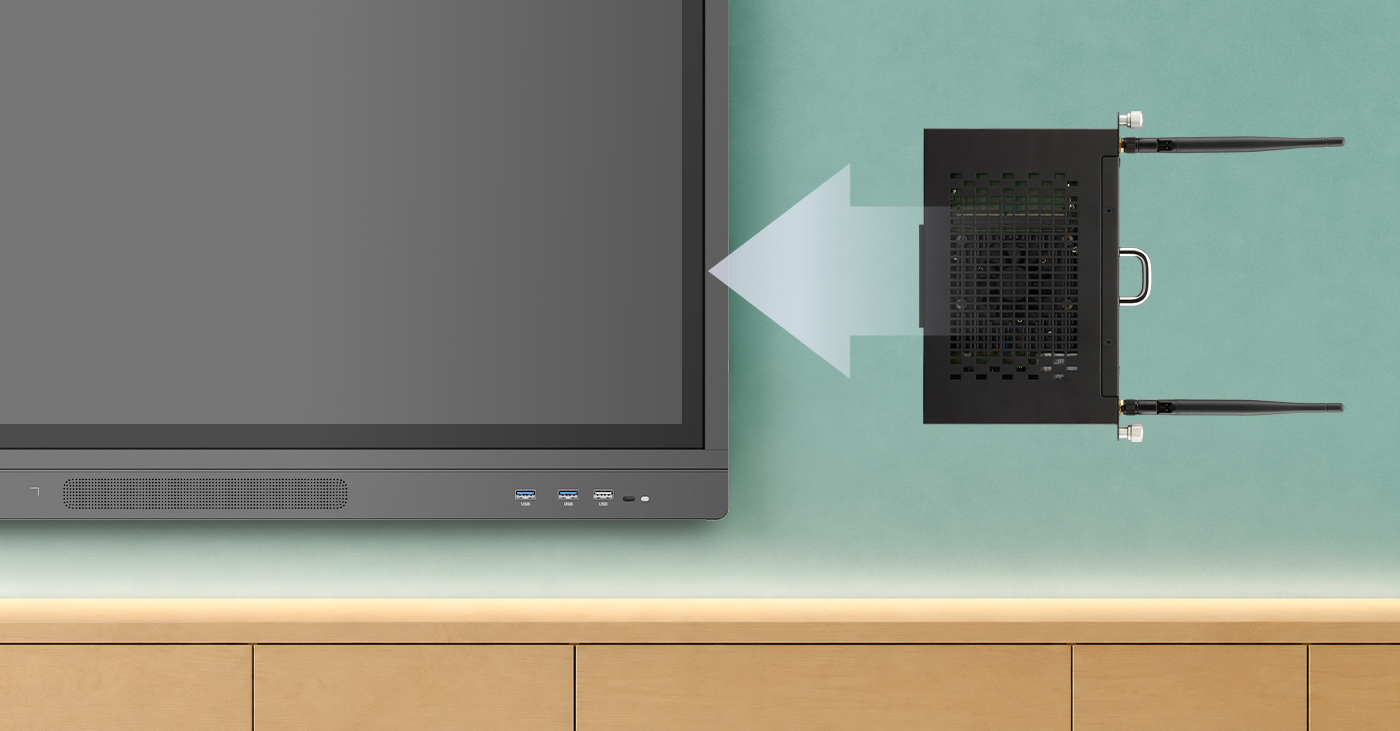
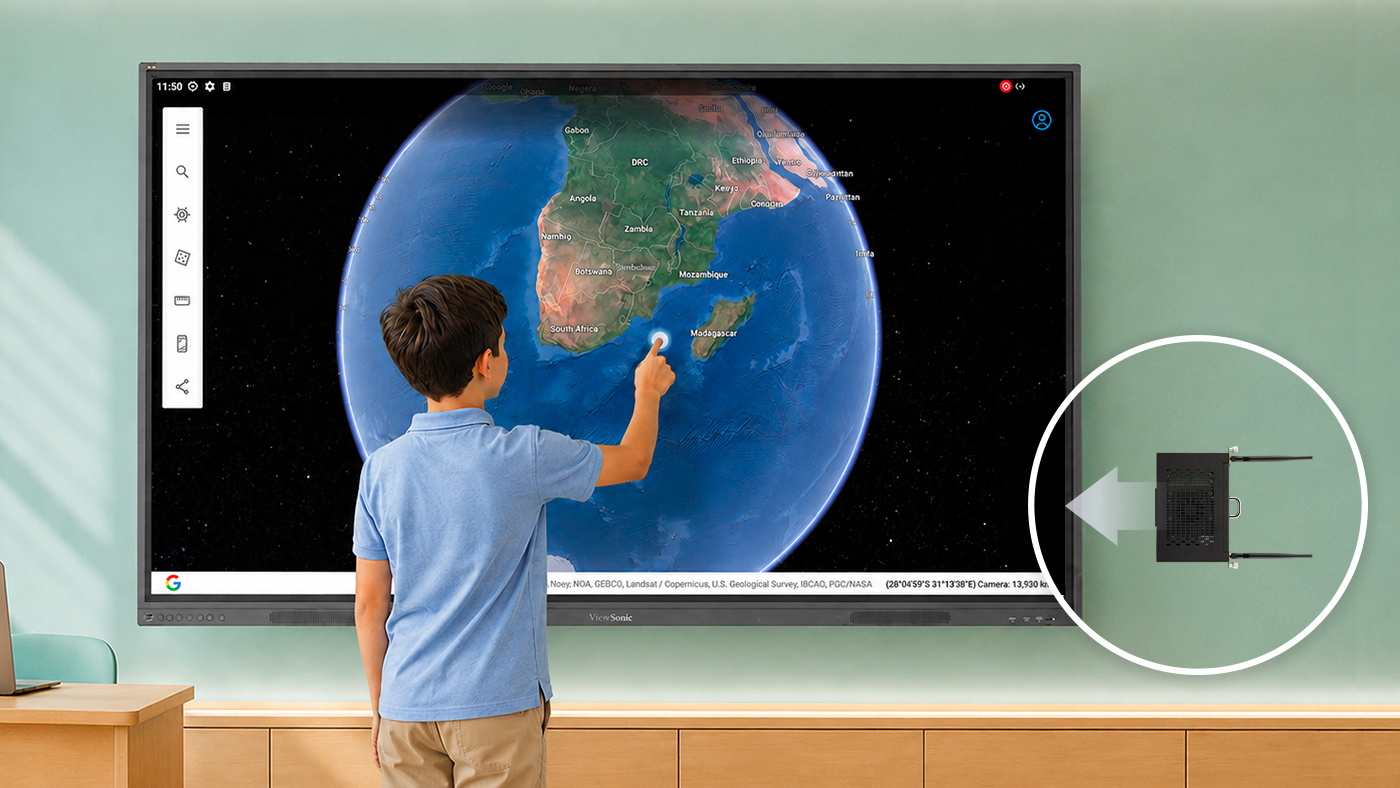
The most cost-effective way to increase the processing speed of your existing interactive flat panels is with an OPS (Open Pluggable Specification) slot-in device.


Think of it as a brain transplant for your classroom technology. Instead of replacing the entire 65”, 75”, or 86” screen—which is often still in great physical condition—you simply add in a new ViewSonic OPS unit to replace the original processor inside.


Why Choose a ViewSonic Slot-In PC?


  • Instant Speed Boost: An OPS slot-in PC lets you upgrade your interactive whiteboards with the latest processors and expanded memory when you’re facing tight budget for a new panel update.
  • Near-universal Compatibility: ViewSonic slot-in PCs are compatible with many other brands, including Newline, Promethean, Smart, and BenQ. So even if your district has a mix of panels, our OPS PC units can likely fit those as well (talk to our experts to find the right match for your setup).


  • Future-Proofing: As educational software and AI tools demand more power over time, modular slot-in PCs let you upgrade computing performance effortlessly. Your displays stay capable and ready for tomorrow’s tech updates without needing a full system redesign.
  • Minimal Downtime: An IT admin can swap an OPS unit in seconds, keeping classrooms functional and teachers productive without losing a full day to installation.
  • Ecosystem Flexibility: If you’ve already purchased or are planning to buy new panels, a slot-in PC can still work for you. Slotting an OPS module into an OS-free or compatible panel allows you to align with your district’s tech stack—whether that’s ChromeOS, Android EDLA, or Windows. Teachers get seamless access to their everyday apps, while you retain the flexibility to adapt as your needs evolve.


Maximize Your Current Investment


You don’t have to settle for “old” just because your classroom technology budget is tight. By focusing on “brains” rather than the external display, you can ensure a fast, premium experience for both teachers and students at a fraction of the cost of a new installation.


Explore ViewSonic slot-in PCs for education now.


Frequently Asked Questions About OPS Slot-In PCs


Can you upgrade an old interactive display without replacing it?
Yes. If the display includes an OPS slot, you can add a slot-in PC instead of purchasing a whole new display. ViewSonic OPS slot-in PCs provide modern processing power that can help older interactive whiteboards run faster and support newer educational applications.


What is an OPS slot-in PC?
An OPS (Open Pluggable Specification) slot-in PC is a compact computer that slides directly into a compatible interactive display. ViewSonic OPS slot-in PCs add processing power, memory, and storage to the display without requiring you to replace the entire unit.


Are ViewSonic OPS slot-in PCs compatible with non-ViewSonic displays?
Many interactive displays from major manufacturers support the OPS standard. While compatibility should always be verified before purchase, ViewSonic OPS slot-in PCs can often be used with compatible displays from multiple brands.


Why are schools upgrading OPS modules instead of replacing displays?
Many older interactive displays still have functional screens and touch technology. Replacing the OPS computing module allows schools to improve performance and support newer software at a lower cost than replacing the entire display. ViewSonic OPS solutions help districts extend technology investments while reducing refresh costs.


How much performance improvement can an OPS upgrade provide?
Performance improvements depend on the age of the existing hardware and the specifications of the new OPS module. Upgrading to a newer ViewSonic OPS slot-in PC can improve application responsiveness, multitasking, startup times, and support for modern classroom software.


What are the benefits of using an OPS slot-in PC in education?
An OPS slot-in PC helps schools extend the life of interactive displays, reduce technology replacement costs, minimize classroom downtime, and provide teachers with a faster, more reliable classroom experience. ViewSonic OPS solutions make these upgrades simple and scalable for school districts, fitting seamlessly into your existing tech stack with ChromeOS, EDLA, or Windows.


Comparative claims and compatibility statements are based on specific features and publicly available manufacturer specifications as of the date of publication, and do not represent a comprehensive evaluation of all product attributes. Actual performance, computing speed, compatibility, and user experience may vary depending on system configuration, legacy panel model, network conditions, usage environment, and other factors. Any references to competitor products, brands, or corporate trademarks, including Newline, Promethean, SMART, and BenQ are for identification and compatibility reference purposes only and do not imply endorsement, affiliation, or sponsorship by their respective owners. Programs, pricing, specifications, and availability are subject to change without notice. Corporate names and trademarks stated herein are the property of their respective companies. © 2026, ViewSonic Corporation. All rights reserved.

Why the LSD500HD is the Perfect Replacement for Aging School Projectors

Buyer's Guide  |  Nov 12 2025

Why the LSD500HD is the Perfect
Replacement for Aging School
Projectors

Projector technology has come a long way, and the gap between today’s units and decades-old models still in use in many schools is significant. For teachers who already spend enough time on lesson preparation, a modern projector means they don’t have to worry about whether the projector will be bright enough, or whether it will be ready to go when class starts.

The best part is, with a laser projector like the ViewSonic® LSD500HD, it doesn’t have to become a full infrastructure project.

Key Takeaways

  • Aging lamp projectors lose brightness over time and come with ongoing bulb replacement costs that add up fast.
  • A drop-in replacement projector can modernize every classroom without moving your existing ceiling mounts.
  • The LSD500HD offers up to 30,000 hours of use and up to 62% less power consumption than traditional lamp models.
  • Pairing the LSD500HD with a wireless sharing solution simplifies classroom presenting.

How to Approach Projector Replacements Across Your Campus

A campus-wide refresh goes smoother when you know what to prioritize before the first unit gets swapped out.

Ensure Compatibility with Existing Infrastructure

Having to remeasure and redrill mounts and patch up holes left behind from old ceiling mounts can quickly turn a simple hardware swap into an expensive and time-consuming infrastructure project. However, this can all be avoided by choosing a replacement projector that fits into your current setup.


The LSD500HD was designed to match the standard throw ratios and zoom profiles of the most common classroom Epson models. Specifically, it offers:

  • Flexible 1.3x optical zoom
  • 1.13~1.47 throw ratio
  • Vertical/horizontal keystone correction
  • Full 360-degree projection capability
  • Centralized LAN control

It’s thanks to these features that the LSD500HD can adapt perfectly to your existing infrastructure. Your AV team simply unmounts the old unit, installs the LSD500HD in the same position, uses the 4-corner adjustment to square the image, and moves on to the next room. No new drilling, no ceiling patching.

Look for High Brightness

One of the most common complaints about aging projectors is declining brightness, as lamp-based projectors lose luminosity steadily over time. A projector that was adequate at installation may be producing a noticeably dimmer image a few years later, particularly in classrooms with large windows and ambient light.

High-brightness projectors deliver 5,000 or more ANSI lumens, which is strong enough to hold up in real classroom environments. The image is clear and vibrant regardless of the time of day, making it a meaningful upgrade for any classroom that has been making do with a dimming lamp-based unit.

The ViewSonic LSD500HD also powers on instantly at full brightness with no warm-up period, which means teachers are not standing in front of a class waiting for the projector to be ready before the lesson can begin.

Choose a Laser Projector

Bulb replacements are one of the most persistent ongoing costs of traditional lamp projector ownership. Replacement lamps need to be installed every 2,000-5,000 hours and can run anywhere from $50 to $400 apiece, plus any labor cost. Schools also bear the responsibility of disposing of them properly when they fail, as some projector lamps contain hazardous materials that require specific disposal processes.

A laser projector eliminates this hassle entirely. Unlike lamp-based models, laser projectors require no bulb replacements and are typically rated for between 20,000 and 30,000 hours of use. To put that in context, a projector used for eight hours a day, five days a week across a 40-week school year accumulates roughly 1,600 hours of use annually.

Complete the Upgrade with a Wireless Screen Sharing Solution

A brighter, longer-lasting projector solves the infrastructure side of the problem. But there is another side: the teacher experience. There’s nothing more disruptive to a lesson than ten minutes of troubleshooting a laptop connection. Missing adapters, dropped Wi-Fi, and incompatible cables are a daily reality in many classrooms. Pairing a projector like the LSD500HD with the ViewSonic® ViewShare™ WPD-900 wireless presentation system closes that gap.

Teachers just plug a small transmitter into their device of choice and are sharing their screen within seconds. There’s no need for app downloads or network passwords, and it works with any laptop, MacBook, iPad, tablet, or smartphone with a fully enabled USB-C port. And if you’re concerned about unauthorized student takeovers, the WPD-900E model disables Miracast and AirPlay by default.

The result is a classroom where the technology simply works. Teachers walk in, connect, and teach while students get more out of the lesson.

Final Thoughts

Replacing aging projectors doesn’t have to mean a disruptive, expensive infrastructure overhaul. With the right hardware, it can be as straightforward as swapping the unit, adjusting the image, and the projector is ready for use. By adopting the same throw ratio as the most common models found in classrooms, the ViewSonic LSD500HD laser projector is designed to make that upgrade as painless as possible. Paired with the WPD-900, it gives both IT teams and teachers a setup they can rely on for many years to come.

Learn more about how the ViewSonic LSD500HD can provide a better teaching experience in your school or district.

Frequently Asked Questions

What is the difference between a laser projector and a lamp-based projector?

The core difference between a laser projector and a lamp-based projector is the light source. As the name suggests, lamp-based projectors use a replaceable bulb that dims over time and typically needs replacing every 2,000 to 5,000 hours.

Laser projectors use a solid-state light source that maintains consistent brightness for up to 20,000 to 30,000 hours with no replacements required. Laser projectors also power on instantly at full brightness, whereas lamp-based models often require a warm-up period.

What throw ratio should I look for when replacing an existing projector?

When replacing an existing unit, the ideal replacement matches or closely approximates the throw ratio of the outgoing model so that no repositioning of the ceiling mount is required.

A projector with optical zoom gives additional flexibility, allowing it to fill the same screen size from a slightly different distance.

Will the LSD500HD fit my existing ceiling mount?

The LSD500HD’s 1.3x optical zoom, keystone correction, and 360-degree projection capability are designed to accommodate a wide range of existing installations without requiring new mounts or structural changes.

How bright does a projector need to be for classroom use?

It depends on the room. As a general rule, a classroom with controlled lighting can get by with 2,500 to 3,500 ANSI lumens. For rooms with ambient light, large windows, or no ability to dim the lights, 4,000 to 5,500 lumens or more is recommended.

Comparative claims are based on specific features and publicly available manufacturer specifications as of the date of publication, and are not intended to represent a comprehensive evaluation of all product attributes. Any references to competitors’ products or trademarks, including ‘Epson,’ as well as third-party hardware or software platforms, are for identification and compatibility purposes only and do not imply endorsement, affiliation, or sponsorship by their respective owners.

Fourth-Generation Model of the Award-Winning LDS Series of Mobile LED Displays from ViewSonic Now Shipping

The LDS136-152, From the Industry Leading Mobile Direct View LED Line, Offers an All-in-One Solution with Better Accessibility and Effortless Setup


Brea, CA (Sept. 22, 2026) – ViewSonic Corp., a leading global provider of visual and edtech solutions, announces that the latest generation of the award-winning Mobile Direct View LED display solution is now shipping. The ViewSonic LDS136-152 mobile solution delivers a large screen display in a pre-assembled design, which enables effortless setup within minutes. The LDS136-152 is a foldable 136-inch Direct View LED video wall on wheels built for maximum flexibility.

A 4th generation model, the LDS136-152 introduces beneficial upgrades that make setup and operation even easier. The motorized screen lifts higher than any other dvLED in its class, helping everyone get a clearer view of content on the screen. The new commercial-grade built-in motorized stand provides an industry-leading extra 3.7 feet of vertical adjustment. An integrated stand and display remote control allow the management of both the screen settings and motorized lift. Rear I/O ports are easy to reach and provide direct connectivity without opening panels or exposing internal boards, so connecting devices is quick and simple.

“The ViewSonic mobile dvLED solution delivers a giant LED screen that arrives ready to go, so our partners and customers can skip complex installations,” said Shane Roma, Technical Product Manager of dvLED/Commercial Displays at ViewSonic. “The LDS136-152 sets up in minutes and ships in a rugged flight case for easy transport and storage. Just unfold it, plug it in and you’re ready to showcase content or present messaging to your audience. It’s one of the easiest ways to get a larger-than-life, stunning display wherever you need it. We have inventory in the U.S., along with technical support to assist as needed.”

The LDS136-152 features an integrated OPS slot to make it easy to expand the system when needed. Glue-on-Board (GOB) technology protects the LED panels from daily wear-and-tear, while its IP65 and IK06 ratings ensure resistance to bumps, dust, and moisture, ensuring that it can work in public spaces like auditoriums and lobbies. A redesigned hinge adds durability for repeated setup and transport, so the display can be used for events, trade shows and pop-up spaces. It glides silently on 360-degree wheels, making it simple to share between rooms or venues, while the foldable design fits into most elevators.


LDS136-152 All-in-One Direct View Mobile LED Display

  • 136-inch foldable screen pre-assembled in a protective flight case
  • New commercial-grade built-in motorized stand provides an industry-leading extra 3.7 feet of vertical adjustment
  • Integrated stand and display remote control allow management of both the screen settings and motorized lift
  • I/O ports are more accessible and provide direct connectivity without opening panels or exposing internal boards
  • Glue-on-Board (GOB) Technology is designed to provide additional resistance to impact, dust, and moisture for an IP65 rating; IK06 rating for impact protection in heavy-usage environments
  • Versatile connectivity includes HDMI (x4), HDMI output (x1), SPDIF and 3.5mm Audio Out, USB connectivity, WiFi, Bluetooth, Ethernet, RS-232, and an OPS slot
  • Native 1080p (1920x1080) Full HD resolution, 600-nit brightness, 3840Hz refresh rate, 6,500:1 contrast ratio, and dual 30W speakers
  • Supports split-screen functionality, as well as Picture-by-Picture (from up to 4 different inputs) and Picture-in-Picture in real-time (requires an HDMI source input)
  • With the ViewSonic AirSync software, the screen can be shared wirelessly from any device with tools such as AirPlay and Google Cast
  • Can be integrated into the Q-SYS ecosystem via a Q-SYS LIBRARY VERIFIED plug-in; also compatible with Crestron, Extron, and AMX systems

ViewSonic dvLED solutions are developed and engineered to make large-scale display solutions more accessible for AV/IT teams. With the latest features and technologies, the ViewSonic dvLED All-in-One solutions ensure easy deployment, management, and scalability for various applications and real-world environments. The LDS mobile solution is a plug-and-play display that can be used almost anywhere without the extensive setup that comes with a traditional, permanent dvLED installation.

To find out more about ViewSonic, visit ViewSonic.com and follow on Facebook, YouTube, X and Instagram.


About ViewSonic
Founded in 1987 and headquartered in Brea, California, ViewSonic is a leading global provider of visual solutions for the education, business, and consumer markets, with a presence in over 100 countries. Driven by the mission to transform education, workplaces, and lives, the company delivers a unified ecosystem of innovative hardware, software, and services that integrates seamlessly with the platforms, tools, and partners customers trust. Its product portfolio includes monitors, projectors, interactive displays, LED displays, commercial displays, video conferencing systems, and industrial solutions. Complementing its hardware is a robust suite of software offerings—including myViewBoard®, ClassSwift®, TeamOne®, ViewSonic Manager™, and AirSync™—featuring AI-powered tools for collaboration, device optimization, and management. By empowering creativity, collaboration, and lifelong learning, ViewSonic supports customers at every stage in achieving their business and sustainability goals, creating a lasting impact and helping people everywhere connect with purpose—and See the Difference®. Learn more at www.viewsonic.com.


# # #


*Actual performance, compatibility, and user experience may vary depending on system configuration, network conditions, usage environment, and other factors. Features and specifications are subject to change without notice. This news release contains forward-looking statements that reflect the Company’s expectations with regard to future events. Actual events could differ significantly from those anticipated in this document. Trademark footnote: ViewSonic and the ViewSonic trademarks are trademarks or registered trademarks of ViewSonic Corporation in the United States and/or other countries. All other corporate names and trademarks stated herein are the property of their respective companies.


Media Contacts:

Joey Lee
JSL Marketing for ViewSonic [U.S.]
E: joey@jslcomm.com

Miranda Bravo
ViewSonic [U.S. / Canada]
E: miranda.bravo@viewsonic.com

Nury Lavandier
ViewSonic [Latin America]
E: Nury.Lavandier@viewsonic.com

dvLED Procurement Guide For Enterprise End Users and AV Integrators

dvLED Procurement Guide For Enterprise End Users and AV Integrators

1. What Is All-in-One dvLED?

Direct View LED (dvLED) is a display technology built from individual LED modules assembled to create large-format screens. Unlike LCD or projection systems, dvLED produces its own light. There is no backlight, no projection gap and no screen-door effect. The result is a display that delivers vivid, consistent image quality at any size.

The term All-in-One means something specific in the dvLED world. Most dvLED systems are component-based: the display cabinets, the processing unit, the power distribution and the control system are separate products that need to be designed, purchased and integrated together. That approach works for large-scale custom installations, and it adds cost, time and risk to nearly every other project.

An All-in-One dvLED system integrates all of those components into a single cohesive unit. Processing, power and mounting are built in. There is no separate media player or control box to source. You specify the display, you receive a complete system, and you install it.

ViewSonic’s entire dvLED portfolio is All-in-One. Every product ships as a complete, integrated system. No component sourcing. No system design from scratch. No surprise line items.

2. All-in-One vs. Component-Based: Why It Matters

If you are evaluating dvLED for the first time, you will encounter two fundamentally different approaches to building a system. Understanding the difference is the most important decision you will make in the procurement process.

Traditional component-based dvLED All-in-One dvLED (ViewSonic)
Separate cabinets, processor, power, control One integrated system with cabinets, power and processing included
Requires custom system design per project Pre-engineered. Spec a size, deploy the system
Multiple vendors, multiple SKUs Single SKU for most configurations
Complex quoting, hidden integration costs All-inclusive pricing, no surprise line items
Longer lead times, custom build required U.S.-stocked standard sizes, faster delivery
Higher integration risk Reduced project risk, U.S.-based deployment support included

For most enterprise end users and AV integrators, All-in-One is the right starting point. It reduces project complexity, shortens timelines and makes it easier to quote, approve and deploy at scale.

3. Key Buying Criteria

Whether you are an end user evaluating options for a boardroom, lobby or auditorium, or an integrator specifying a system for a client, these are the factors that matter most in a dvLED procurement decision.

3.1 Environment and Viewing Distance

Pixel pitch is the distance in millimeters between the centers of two adjacent LED pixels. It determines how close a viewer can sit before individual LEDs become visible. Tighter pitch means a sharper image at close range and a higher cost, so matching pitch to your actual viewing distance is one of the most important spec decisions you will make.

Use the 10x rule. Pixel pitch multiplied by 10 gives the approximate optimized viewing distance in feet. A 1.5 mm display looks right from about 15 feet, a 1.8 mm from about 18 feet. Run it in reverse to spec a room: divide the distance to your closest viewer by 10, and that is the coarsest pitch that still looks clean.

Environment Closest viewing distance Recommended pixel pitch ViewSonic series
Close viewing / fine pitch Under 7 ft 0.7 mm LDP
Boardroom, briefing center, control room 7 to 10 ft 0.7 to 0.9 mm LDP
Conference room 10 to 15 ft 0.9 to 1.5 mm LDP, LDE, LDM, LDC
Wayfinding, high-traffic 12 to 25 ft 1.2 to 2.5 mm LDE, LDM, LDC
Corporate lobby, atrium 15 to 25 ft 1.5 to 2.5 mm LDE, LDM, LDC
Auditorium, large venue 25 ft and beyond 2.5 mm LDM, LDC

Pixel pitch determines how close a viewer can sit before individual LEDs become visible. A useful rule of thumb: minimum comfortable viewing distance in feet is roughly the pixel pitch in millimeters times 10. Measure from the wall to your nearest seat, divide by 10, and that’s the coarsest pitch that will work in the room.

ViewSonic offers fine-pitch options for close-viewing spaces like boardrooms through coarser pitches built for large venues viewed from across a room. A Solutions Engineer will confirm the right pitch for your space before you commit to a quote.

Pixel Pitch Selection Guide

  • Do not over-specify. Tighter pitch costs more. If your closest viewer sits 20 feet away, a 1.2 mm display delivers no visible improvement over a 2.0 mm display at that distance.
  • Content type matters. High-resolution video and detailed data visualization benefit from tighter pitch. General-purpose presentations and digital signage perform well at looser pitch.
  • Ambient light affects perceived sharpness. In bright environments, ambient light reduces perceived resolution and brightness matters more than pitch. Every ViewSonic dvLED model delivers 600 nits with a 6,500:1 contrast ratio, or 10,000:1 on the Chip-on-Board LDP Series.
  • Future-proof modestly. Viewers move closer to displays over time as content density increases. A slightly tighter pitch than your minimum gives you headroom.

ViewSonic Solutions Engineers will validate your pixel pitch selection against your actual environment before you purchase, at no cost.

3.2 Resolution and Content Sources

Pixel pitch and native resolution are related decisions, not the same one. Pitch governs how close a viewer can sit. Resolution governs how much detail the display can show at all.

The LDS, LDE and LDM Series are 1080p. The LDP Series is 4K. For presentations, video and digital signage, 1080p across a large format is entirely appropriate. For spreadsheets, CAD, GIS, dashboards or any content where fine detail carries meaning, specify 4K. A boardroom that reviews financial models needs a different display than a lobby that plays brand video, even at the same size.

Confirm source count as well. Most series provide four video inputs with picture-by-picture and picture-in-picture support. The LDE Series provides two inputs without PBP or PIP, which matters if the room needs to show two sources side by side.

3.3 Screen Size and Aspect Ratio

dvLED screens are modular, so they can be built to virtually any size. That flexibility is powerful, and it adds complexity without a defined target. Start with your wall space and viewing distance, then work backward to the right size and aspect ratio.

  • 16:9 is the most common aspect ratio for corporate and enterprise use cases
  • Custom aspect ratios are available and typically require longer lead times and custom quoting
  • Standard sizes of 108”, 136”, 163”, 217” and 231” simplify procurement and are U.S.-stocked for faster delivery

One practical note for upper-floor installs. A 100-inch-plus LCD display often will not fit a standard elevator, which quietly rules it out above the ground floor. A dvLED arrives in crates and assembles in the room, so the building stops dictating the display size.

3.4 Durability and Protection Ratings

If your display will sit in a high-traffic area, near food service, or in a space where physical contact is likely, durability ratings matter.

  • IP rating measures dust and water resistance. IP54 is partial dust protection and splash resistance. IP65 is fully sealed against dust and water jets.
  • IK rating measures impact resistance. IK06 withstands a 1-joule impact. IK08 withstands 5 joules.
  • Glue-on-Board (GOB) and Chip-on-Board (COB) technology. Glue-on-Board encapsulates the LEDs and electronics in a thin epoxy resin layer, shielding against moisture, dust and physical impact while reducing light reflection and raising contrast. Chip-on-Board mounts LED chips directly to a substrate, delivering higher contrast and enabling sub-1.2 mm pitch.

GOB or COB protection is standard across every ViewSonic dvLED product, not an optional upgrade. Impact protection is IK06 on Glue-on-Board models and IK08 on Chip-on-Board. Ingress protection is IP54 or IP65 depending on model.

  • MIP (Micro LED in Package). Micro LED chips individually packaged before mounting, which supports ultra-fine pixel pitches with tighter color uniformity across the wall, higher contrast and optimized thermal management for long-term reliability. Built for premium installations where the display is the focal point of the room.

3.5 Installation Environment

Before specifying a system, confirm the following with your facilities or IT team.

  • Wall space and structural load. Confirm the wall can carry the system weight.
  • Power availability. Confirm circuit amperage and proximity to the install location.
  • Mounting depth and clearance. ViewSonic All-in-One dvLED mounts at approximately 2.7 inches deep, which keeps the display inside the 4-inch protrusion limit ADA sets for circulation paths. An LCD video wall at 6 to 8 inches deep does not.
  • Conduit and cable routing paths.
  • Ceiling height and access for installation equipment.
  • HVAC and ambient heat management near the display.

ViewSonic’s U.S.-based Solutions Engineers provide pre-sales site assessment support and can validate your environment before you purchase, at no additional cost.

3.6 Control System and Management

If your facility uses an AV control system, confirm compatibility before specifying any display. Every ViewSonic dvLED series supports:

  • Q-SYS Library Verified plugins
  • Crestron, Extron and AMX control via IP and RS-232
  • OpenAPI shared across the ViewSonic dvLED, commercial display and IFP portfolio
  • Software-free image stitching, factory-calibrated and ready from the box

For remote device management, the LDS, LDM, LDP and LDC Series include ViewSonic Manager, a free browser-based console for device status monitoring, batch enrollment, grouping by site or room, firmware updates and urgent alert broadcast. The LDE Series runs a simplified OS without Manager support, so if central management is a requirement, specify LDM or LDP.

3.7 Installation

dvLED installation is more involved than mounting a flat-panel display. Understanding what the process requires, and what your vendor includes, is essential before you budget and approve a project.

  • Site prep. Confirm wall structural capacity, power circuit availability and conduit routing before installation begins. ViewSonic Solutions Engineers can assess your site before you commit.
  • Mounting options. ViewSonic dvLED supports wall mounting, floor-standing and ceiling-mount configurations depending on product category and environment. Mobile LDS systems require no fixed mounting at all.
  • Installation supervision included at no additional cost. ViewSonic is on-site to support your team when it matters most.
  • Certified installer program. AV integrators can earn a ViewSonic dvLED Installation Certification through a two-day hands-on program at the Brea, California headquarters and in select U.S. cities. Certification provides CTS renewal units and prepares installers to deploy ViewSonic systems with first-install efficiency.

The first dvLED install always takes longer than the second. ViewSonic certification and on-site supervision give your team, and your integrator, that experience before they need it on a live customer job.

3.8 Serviceability and Warranty

dvLED displays are long-term investments, so how easily the display can be maintained over its lifetime belongs in the procurement decision.

  • Front-serviceable tiles. All ViewSonic dvLED tiles are accessible from the front. No rear access is required, which is critical for displays mounted flush to a wall or in spaces where rear access is impossible.
  • Hot-swappable design. Individual tiles can be removed and replaced without powering down the display, which minimizes disruption in mission-critical environments.
  • 5% spare tiles included. Every system ships with calibrated spare tiles equal to 5% of the total tile count. Spares are pre-calibrated to match the display, so a replacement does not require color recalibration.
  • GOB and COB protection shields LEDs from contact, cleaning products and daily wear, reducing tile damage and extending service intervals.
  • LED lifespan of approximately 100,000 hours. At 16 hours per day, that is roughly 17 years before LED degradation becomes significant.
  • U.S. support continuity. The same U.S.-based team that supported your pre-sales design and installation manages ongoing technical support. No offshore handoffs, no starting over with a new contact.
  • Warranty. Terms vary by product category. Your ViewSonic representative will confirm the term for your configuration in writing as part of the quote.

3.9 Total Cost of Ownership

TCO analysis for dvLED should span five to ten years. Purchase price is the starting point, not the picture

Cost category Component-based system ViewSonic All-in-One
System purchase price Lower upfront, integration adds cost All-inclusive, no hidden line items
Integration and design Significant, custom per project Minimal, pre-engineered system
Installation supervision Typically billed separately Included at no extra cost
Spare parts Sourced separately, calibration required 5% calibrated spares included
Serviceability Varies, rear access often required Front-serviceable, hot-swappable standard
LED lifespan Varies by manufacturer Approximately 100,000 hours portfolio-wide
Technical support Varies, often offshore U.S.-based, design-to-support continuity
Downtime cost Higher if rear access required Lower, front-serviceable minimizes disruption

When building a TCO case for internal approval, ViewSonic can provide supporting documentation. Contact your account representative or Solutions Engineer.

4. The ViewSonic dvLED Portfolio

Three categories, all All-in-One. The right category depends on your flexibility requirements, project timeline and budget.

Category 1: Mobile (Plug-and-Play)

BEST FOR: DEMOS, FLEXIBLE SPACES, QUICK DEPLOYMENT

The LDS Series is a foldable, self-contained dvLED system that requires zero fixed installation. Roll it in, power it on, present. It is the fastest path to dvLED for organizations that want the visual impact without committing to a permanent install.

  • Fourth-generation foldable All-in-One design, with improvements built from customer feedback
  • 136 inches, 1080p, 1.5 mm pitch, IP65 and IK06 rated
  • No wall mounting, conduit or structural work required
  • Ships in a reusable flight case, ready to use from U.S. stock

Category 2: Pre-configured (Fast Deployment)

BEST FOR: CORPORATE OFFICES, HIGHER ED, GOVERNMENT, LOBBY DISPLAYS

The LDE, LDM and LDP Series are standard-sized systems available as single-SKU orders. These are the right choice when you need a fast, low-risk path to a permanently installed display.

  • LDE Series. 108, 136 and 163 inches at 1080p, 1.2 to 1.8 mm. The cost-effective entry point. Simplified OS, so no ViewSonic Manager support and two video inputs.
  • LDM Series. 136, 163 and 217 inches at 2K+ or 4K, 0.9 to 1.5 mm. The mainstream choice for lobbies and large meeting spaces.
  • LDP Series. 163 and 217 inches at 4K, 0.9 to 1.2 mm Micro LED in Package (MIP) with 10,000:1 contrast. For boardrooms and control rooms where viewers sit close.
  • U.S.-stocked, shipping from California
  • Single part number simplifies quoting, purchasing and project approval

Category 3: Configurable All-in-One

BEST FOR: NON-STANDARD SIZES, UNIQUE ENVIRONMENTS, LARGE VENUES

The LDC Series provides made-to-order sizing while maintaining All-in-One architecture. If your space requires a non-standard aspect ratio or an unusual size, LDC delivers the fit without introducing component-based complexity.

  • Made-to-order sizing, 1.2 to 2.5 mm pitch
  • Two to three part numbers per configuration, not dozens of components
  • Designed for indoor applications requiring precise fit
  • Pre-sales design support included from ViewSonic Solutions Engineers

5. Use Case by Environment

Environment Recommended category Key considerations
Corporate lobby / atrium Pre-configured (LDE, LDM) High-traffic durability, ambient light, brand presence
Boardroom / executive suite Pre-configured (LDP) or Configurable Fine pitch at close range, 4K detail, control system integration
Auditorium / town hall Configurable (LDC) Large format, viewing distance, content versatility
Training / conference room Mobile (LDS) or Pre-configured Flexibility, ease of use, no fixed install
Higher ed lecture hall Pre-configured or Configurable Long-term reliability, sightlines, source count
Government / public sector Pre-configured See the note below on procurement compliance
Retail / digital signage Pre-configured or Configurable Ambient brightness, content management, durability
Command / control room Pre-configured (LDP) or Configurable Fine pitch, 24/7 reliability, pixel-level control

A note for government and public sector buyers

Public sector procurement adds requirements that do not appear in a spec sheet. Three worth raising early with your ViewSonic representative:

  • Supplier diversity. ViewSonic is a certified Minority-Owned Business, which counts directly toward supplier diversity requirements in federal, state, local and education procurement.
  • Accessibility. Mounting depth of approximately 2.7 inches keeps the display inside the 4-inch protrusion limit ADA sets for circulation paths.
  • Contract vehicles and sourcing requirements. Ask your representative to confirm current availability and compliance posture for your specific vehicle.

6. Questions to Ask Before You Buy

For end users evaluating a dvLED purchase

Before you issue an RFQ or engage integrators, make sure you can answer these.

  • What is the primary use case? Presentations, wayfinding, video wall, collaboration
  • How far away is the closest viewer? This sets the pixel pitch
  • What content will run on it? Detail-heavy content calls for 4K rather than 1080p
  • What are the wall dimensions and structural load limits?
  • What is the ambient light environment? Direct sunlight, controlled, mixed
  • What control systems are already in place? Crestron, Q-SYS, Extron, AMX
  • What is the full budget including installation, integration and ongoing support?
  • Is a permanent or mobile install required?
  • Who will manage ongoing support and maintenance?

For AV integrators specifying a dvLED system

  • Has the site been physically assessed for power, conduit and wall structure?
  • Is a standard-size pre-configured system sufficient, or does the client need custom dimensions?
  • What pitch does the closest viewing distance require? • Does the content require 4K, or is 1080p appropriate for the application?
  • Are there control system integration requirements?
  • Does the client need central device management? If so, specify LDM or LDP rather than LDE
  • What is the client’s timeline from approval to installation?
  • Is on-site installation supervision needed? Included from ViewSonic at no extra cost
  • Has the client approved All-in-One versus component-based architecture?

7. The dvLED Procurement Process

A dvLED purchase involves more steps than a standard display procurement. Here is what to expect from first contact through installation.

Step Phase What happens
1 Discovery Define use case, environment, viewing distance and budget. Engage ViewSonic Solutions for pre-sales support.
2 Site assessment Evaluate wall structure, power availability, conduit routing and ambient light. ViewSonic engineers assist remotely or on site.
3 Specification Select category, pitch, resolution, size and aspect ratio. Receive system drawings and layout documentation.
4 Quoting Receive all-inclusive pricing: display, delivery, installation supervision and spare tiles. No hidden line items.
5 Approval Submit for internal budget approval. ViewSonic can provide ROI and TCO documentation to support the business case.
6 Order and lead time U.S.-stocked pre-configured and mobile solutions ship from California. Configurable LDC requires additional lead time.
7 Installation On-site ViewSonic installation supervision included. Integrators can earn credentials through the dvLED Certification Program.
8 Commissioning System powered on, calibrated and validated. 5% spare tiles delivered with the system.
9 Ongoing support U.S.-based technical support provides continuity from deployment through the life of the system.

8. Why ViewSonic All-in-One dvLED

100% All-in-One portfolio

ViewSonic is one of the only dvLED manufacturers with All-in-One architecture across the entire product line, at every size from 108 inches through 231 inches plus made-to-order. Their portfolios span both architectures, which gives integrators flexibility and also introduces a decision: buyers must work out which architecture they need, navigate multiple product lines and manage the system design requirements that come with each. ViewSonic’s portfolio is All-in-One only. There is no component-based option to specify, no multi-SKU system design and no fragmented quoting. For most enterprise projects that means a simpler procurement process, a faster path to deployment and less exposure to integration surprises.

Guided deployment

U.S.-based Solutions Engineers are involved from pre-sales design through installation and ongoing support: site validation, system drawings, on-site installation supervision and postdeployment technical support, all under one relationship rather than three.

U.S. operations and support

Mobile and pre-configured solutions are stocked in the U.S. and ship from California. The support team is U.S.-based, which means faster response and people who understand North American compliance requirements and project timelines.

Transparent, all-inclusive pricing

Pricing includes system drawings, shipping, on-site installation supervision and 5% spare tiles. No surprise integration charges. Budget approval moves faster and overrun risk drops.

Proven in corporate, higher ed and government

ViewSonic dvLED solutions are deployed in corporate offices, university lecture halls and government facilities across the Americas. The pre-configured category was specifically designed to fit these verticals without requiring custom builds or extended design cycles. You can also see working systems in person at ViewSonic demo centers across the U.S. and Canada, with your own content on the screen.

Most competitors require component-based design thinking. ViewSonic delivers solution-based simplicity across every tier.

9. Frequently Asked Questions

How do I determine the right pixel pitch for my space?

Use the 10x rule. Pixel pitch multiplied by 10 gives the approximate optimized viewing distance in feet, so divide the distance to your closest viewer by 10 to find the coarsest pitch that still looks clean. A 15-foot closest viewer suggests 1.5 mm or tighter. A 10-foot boardroom suggests 1.0 mm or tighter, which means the LDP Series. Solutions Engineers will validate the calculation against your actual room.

Do I need 4K, or is 1080p enough?

It depends on the content, not the size. Presentations, video and signage look excellent at 1080p across a large format. Spreadsheets, CAD, GIS and dashboards benefit from 4K because the detail carries meaning. The LDP Series is 4K. LDS, LDE and LDM are 1080p.

How long does a dvLED installation take?

A Mobile LDS deployment can be operational in minutes. A permanently installed preconfigured system typically takes one to three days depending on wall prep, cable routing and commissioning. Configurable LDC systems may require additional time. Installation supervision is included at no extra cost and helps first-time installs go smoothly.

Does ViewSonic offer installation support?

Yes. On-site installation supervision is included at no additional cost. The U.S.-based Solutions Engineering team provides pre-installation site validation, on-site supervision during the install and post-installation commissioning support. Integrators building a dvLED practice can also earn credentials through the two-day dvLED Installation Certification Program.

What control systems are compatible with ViewSonic dvLED?

Every series supports Q-SYS through Library Verified plugins, plus Crestron, Extron and AMX via IP and RS-232. The portfolio shares an OpenAPI across ViewSonic dvLED, commercial displays and IFPs. Image stitching is handled in the display, factory-calibrated, with no stitching software to license or configure.

Can I manage a ViewSonic dvLED remotely?

Yes on the LDS, LDM, LDP and LDC Series, which include ViewSonic Manager, a free browser-based console. Monitor device status, enroll displays in batches, group them by site or room, push firmware and broadcast alerts from one tab. The LDE Series runs a simplified OS without Manager.

How does ViewSonic dvLED compare to Samsung or LG?

Samsung and LG both offer All-in-One and component-based dvLED, so buyers and integrators have to determine which product line fits the project and then manage the design and quoting complexity that follows. ViewSonic’s portfolio is All-in-One only, at every size, so there is no architecture decision to make. ViewSonic also includes U.S.-based presales design support, on-site installation supervision and post-deployment technical support as standard rather than as billable services.

Can ViewSonic dvLED be used outdoors?

ViewSonic dvLED is designed for indoor use. Ingress protection of IP54 or IP65 depending on model, combined with GOB or COB encapsulation, gives real latitude in demanding indoor and outdoor-adjacent spaces such as covered entrances, atriums with exterior glazing, and areas exposed to cleaning and foot traffic. For any space that is not fully enclosed and climate-controlled, have the Solutions Engineering team assess the specific conditions before you specify.

How do I get started with a ViewSonic dvLED quote?

Contact ViewSonic Americas or your regional account manager. The Solutions Engineering team will engage within one business day to collect your environment details, viewing distance and project timeline, and provide a preliminary specification and pricing estimate.

10. Ready to Take the Next Step?

Talk to a Specialist

Get expert guidance on the right system for your space.

https://www.viewsonic.com/business/led-displays

Request a Quote

All-inclusive pricing with no hidden integration fees.

https://www.viewsonic.com/business/led-displays

Get Certified

AV integrators: earn your dvLED installation credential.

https://www.viewsonic.com/business/direct-view-led-certification-program

Any references to third-party software, control systems, corporate names, or trademarks (including Crestron, Q-SYS, Extron, AMX, Samsung, and LG) are for identification and compatibility purposes only and do not imply endorsement, affiliation, or sponsorship by their respective owners, and compliance with local codes, structural load limits, and ADA mounting guidelines remains the responsibility of the customer or installer.

How a Canadian School District Simplified IT Support Across 155 Classrooms with ViewSonic

SOLUTION BRIEF

How a Canadian School District Simplified IT Support Across 155 Classrooms with ViewSonic

What Challenge Was the District Trying to Solve?

This district set out to modernize its classrooms by replacing aging, non-interactive displays across 155 classrooms. The goal was to equip every room with identical interactive capabilities without overloading IT support staff.

Operating under provincial public procurement rules, the district issued a competitive Request for Quotation (RFQ) for 86” commercial and interactive displays.

Beyond initial prices, evaluation criteria focused heavily on system standardization, simplified IT maintenance and long-term operating costs. 

What ViewSonic Solution Did the District Deploy?

The contract was awarded to an audio-visual integration partner bidding with ViewSonic, delivering an identical hardware kit for each of the 155 classrooms. In total, the district ordered:

  • 155 ViewBoard® 86” IFP86G1 4K OS-free interactive displays
  • 155 IFP-EW-86-05 extended warranty coverage for each display, extending coverage to 5 years total
  • 155 WMK-047-2 wall mounts with Mini PC bracket
  • 155 WPD-900 ViewShare wireless presentation systems

Choosing OS-free displays gave the district total control over its software setup. IT teams paired each 86-inch panel with their preferred Windows, Chrome OS or Android computing engine. Down the road, technicians can upgrade system performance simply by swapping out the PC module rather than replacing the display.

The rest of the kit completed the classroom setup, using custom mounts to hide cables, wireless casting to reduce cable clutter and five-year warranties to protect budgets. 

Why Did the District Choose ViewSonic?

The contract was won through open competition against established display manufacturers.

What started as a standard request for display panels grew into a complete per classroom solution covering hardware, custom mounting, wireless presentation tools and multiyear protection.

Rather than forcing IT staff to source piecemeal accessories from different suppliers, ViewSonic and its integration partner delivered a single package built for reliable, daily classroom use. 

Spec LDS138-151
Screen size / resolution 138", Full HD 1920x1080
Mobility Foldable design on a motorized, height-adjustable stand with 360-degree wheels; packed in a custom flight case
Setup time Minutes, no system integration required
Durability GOB (Glue-on-Board) protection, IP54 and IK06 rated, built for high-traffic public spaces
Serviceability Hot-swappable front LED modules for minimal downtime
Casting/Connectivity AirSync wireless screen casting (AirPlay, Google Cast); Q-SYS, Crestron, Extron and AMX compatible
Warranty 3-year limited warranty on parts and labor, with on-site service
Recognition Best New Mobile dvLED Product, rAVe Publications' Best of InfoComm, June 2025

What Results Has the District Seen?

  • Standardized 155 classrooms on an identical hardware kit containing a display, wall mount, wireless presentation system and extended warranty. •
  • Established a single, predictable hardware platform for IT staff to install, manage and support district-wide.
  • Protected hardware budgets with OS-free displays that allow computing modules to be upgraded without replacing entire displays.
  • Gave teachers reliable equipment and uniform technology in every building. 


Frequently Asked Questions

What Does a Complete ViewBoard Classroom Kit Include?

The district's standard package pairs an OS-free 86” ViewBoard IFP86G1 interactive display with a WMK-047-2 wall mount, an integrated Mini PC bracket, a WPD-900 ViewShare wireless presentation system and extended warranty coverage. Deploying one identical kit per classroom simplifies installation, daily operation and spare parts inventory district-wide.

What Is an OS-Free Interactive Display?

An OS-free display like the ViewBoard IFP86G1 ships without a built-in operating system. Instead of being locked into factory software, IT departments can run Windows, Chrome OS or Android using their choice of slot-in PC or media device. Omitting onboard software reduces common network security risks while allowing IT to refresh computing performance years later without replacing the entire display.

How Do Teachers Share Their Screens Wirelessly on an OS-Free ViewBoard Interactive Display?

Teachers can connect using the WPD-900 ViewShare wireless presentation system, which provides full casting capabilities without relying on an onboard display OS or Wi Fi. The teacher plugs the USB-C transmitter button into their laptop or device, while the receiver module connects directly to the HDMI port on the ViewBoard interactive display. This creates an isolated, encrypted peer-to-peer connection from any Mac, Windows, Chromebook or mobile device without installing software or entering network passwords.

Why Bundle Extended Warranties Into a Classroom Display Purchase?

Bundling extended coverage aligns display protection with the actual expected life of classroom hardware. For public sector buyers managing school board budgets, locking in five full years of coverage upfront establishes total cost of ownership and eliminates unexpected repair expenses.

Ready to Standardize Your District's Classrooms?

Talk to a ViewSonic Canada representative or an authorized AV integration partner about complete ViewBoard classroom kits for your next refresh.

Related Links

Comparative claims are based on specific features and publicly available manufacturer specifications as of the date of publication, and are not intended to represent a comprehensive evaluation of all product attributes. Actual performance, compatibility, delivery schedules, network performance, training outcomes, and user results may vary depending on system configuration, network conditions, usage settings, individual needs, district or agency requirements, implementation conditions, environmental conditions, and other factors. Any references to third-party products, competitors, software platforms, hardware architectures, certification seals, control systems, or corporate trademarks are for identification, compatibility, and comparative reference purposes only and do not imply endorsement, affiliation, or sponsorship by their respective owners. Environmental protection ratings (including GOB, IP54, and IK06 ratings) are based on standard operating conditions; proper wall mounting, structural reinforcement, mobile assembly, freight handling, and professional installation are the sole responsibility of the customer or installer. ViewSonic assumes no liability for property damage or personal injury resulting from improper installation. Programs, pricing, specifications, and availability are subject to change or cancellation without notice. Corporate names and trademarks stated herein are the property of their respective companies. © 2026, ViewSonic Corporation. All rights reserved. [26ALL MLT1533c]

Making the Move: Transitioning to ViewSonic ViewBoard Interactive Displays

Buyer's Guide  |  Nov 12 2025

Making the Move: Transitioning to ViewSonic ViewBoard Interactive Displays

ViewSonic® ViewBoard® interactive displays are the centerpiece of a modern, connected classroom ecosystem built to replace aging, static technology. As the demand for dynamic, interactive classrooms grows, many districts find their current tools just aren’t keeping up.


Maybe you're moving away from projectors or an aging smart board. Maybe your current brand no longer offers the stability or service you need. Either way, ViewSonic offers a high-quality alternative. We don’t just provide a board for the front of the room. We offer a complete portfolio of interactive flat panels backed by strong support and seamless software integration.

Why Schools Are Upgrading to Interactive Displays

Education is shifting toward tech-enabled spaces that put the student experience first. Modern interactive technology needs to do more than display content. It needs to respond, connect and adapt. Modern schools are moving toward:

  • Personalized Learning: More classrooms need tools that let students engage with content at their own pace.
  • Seamless Tool Access: Educators need their everyday apps and platforms to work without technical hiccups.
  • Budget-Friendly Longevity: Districts want upgrades that hold their value over time instead of high-maintenance tech that needs constant repairs.

Signs It’s Time to Transition

If your current setup is causing more headaches than it’s solving, it might be time to look at your options. Common signs include:

  • Outdated Hardware: Projectors or older boards that aren’t bright or effective enough for a modern classroom.
  • Incompatibility: Systems that don’t play well with your current software or cloud platforms. Outdated firmware or a lack of USB-C and HDMI support makes it harder to keep up with the devices your staff and students already use.
  • Lack of Support: Frustration with vendors who don’t provide timely service or have moved to AI-only troubleshooting.
  • Missing Resources: Little to no training or professional development to help staff actually use the tech they have.
  • Vendor Financial Stability: A low price today doesn’t help if your vendor can’t support you tomorrow. When it’s time to refresh your technology, it’s worth weighing a company’s financial health along with its hardware.

What Is a ViewSonic® ViewBoard® Display?

Interactive displays have become standard equipment in classrooms, not an occasional upgrade. Teachers rely on them daily for lessons, collaboration and assessment, so panel quality matters. A display that lags, disconnects or breaks down creates more work, not less.


That’s where a ViewBoard display comes in. It’s a high-performance interactive flat panel built for real classroom use, with intuitive touch input and the option to add a slot-in PC for extra computing power. Think of it as a big display with interactive touch capability built for the realities of modern education. Sizes range from 55 inches all the way up to 110 inches, so there’s a fit for any space.


A ViewBoard display goes beyond a touch panel on the wall. Here’s what comes with it:

  • The ViewSonic Education Ecosystem: Our built-in software suite for whiteboarding, annotation, formative assessment and device management, included at no extra cost.
  • Professional Development: Every panel comes with complimentary training, including one-on-one sessions, video tutorials and a certification program, so your staff feels confident from day one.
  • US-Based Support: We’re a US-based company with a support team you can actually talk to. When you need help, you get a real person on the phone or by email.
  • Built to Last: Every panel is built for daily classroom use, with impact-resistant glass and flexible warranty options so your investment lasts.

Key Features That Support Seamless Collaboration
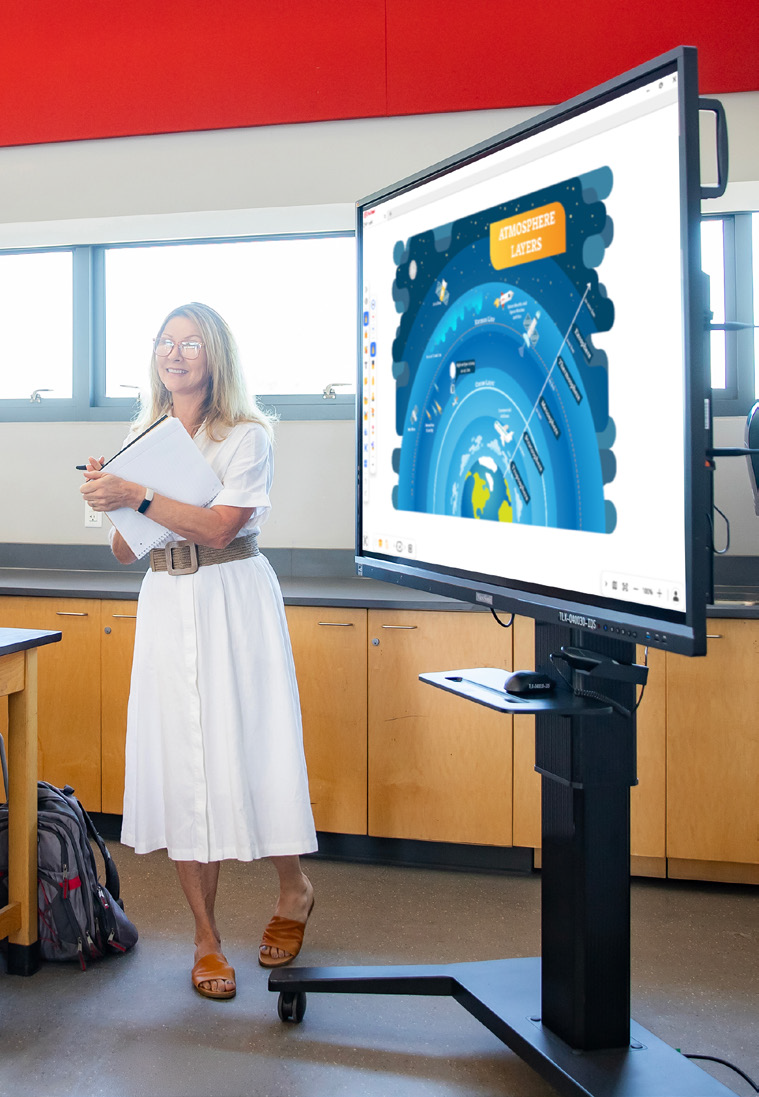
Our hardware and software work together, so teachers get a smooth workflow and IT admins can manage devices with ease.

  • ViewBoard Display Hardware: multi-touch functionality lets multiple students work on the screen at the same time.
  • Integrated Software: get real-time annotation, wireless screencasting with touchback control, engagement tools like myViewBoard Quiz Tools for formative assessments, and device management through ViewSonic Manager.
  • Dedicated Support: you get access to our professional learning team, a certification course and an active online community where teachers share lessons and tips.

Benefits of Switching to ViewSonic ViewBoard Displays

We aim for the right balance of value and performance, so you get a high-quality product backed by people who care about your success.


For Educators and Trainers


Teachers get tools that make daily lessons easier to plan, deliver and reuse.


Increased Student Engagement During Lessons


With myViewBoard Quiz Tools, teachers can run real-time comprehension checks right from the toolbar, snip and share content from the screen in seconds and turn a quick check-in into a game with buzzers and timers. Flexible response options like multiple choice, audio and sketch mean every student can answer in a way that works for them.


Access to Teaching Tools All in One Place


Our Android EDLA certified panels give you direct access to the Google Play Store. Run Google apps or Microsoft apps right on the board, or use split-screen mode to work in Google Slides and Google Translate at the same time.


Simplified Content Delivery and Reusability


We know how hard teachers work on their lessons. If your district switches brands, you shouldn’t lose your files. With myViewBoard, you can import your existing Google Slides, PowerPoint files, PDFs, Promethean whiteboard files, SMART Notebook files and even legacy files from other interactive whiteboard brands, then turn them into board files you can still interact with.


Ongoing Training


Our professional development team offers one-on-one meetings, YouTube tutorials and a full certification program, so you feel confident using every feature. You can also purchase premium in-person or virtual training led by our ViewSonic experts, former educators with real classroom and school experience.


A Community of Teachers Who Get It


Our online community connects you with other educators using ViewBoard displays every day. Share lesson ideas, ask questions and see how other teachers use their panels in real classrooms.


Resources Whenever You Need Them


Beyond live training, you get access to a library of guides, lesson templates and how-to articles. Look something up whenever you need it, without waiting on a support ticket.


For IT Administrators


IT teams get centralized control, easy integration and hardware built to survive daily classroom use.


Simplified Device Management and Security


With ViewSonic Manager, you can manage every panel from a single web dashboard. Check device status, install or uninstall apps and broadcast emergency messages across the whole school instantly. You can even push firmware updates remotely across your entire fleet, so every panel stays current without a technician visiting each one in person.


Easy Integration With Existing Network Systems


Our panels work with the AV systems you already have, including Crestron, Extron, AMX and Q-SYS.


Durable Hardware With Low Maintenance


ViewBoard displays are built for the classroom with anti-glare, 9H pencil-hardness glass and flexible warranty options up to seven years, because we know this is a big investment and we want it to last. Lower maintenance costs and remote firmware management also help keep your total cost of ownership down over the life of the product.


Optional Accessories That Complete Your Setup


Round out your deployment with accessories built for the way your campus works. Add a wall mount or mobile cart depending on your space, a slot-in PC to fit your existing systems and workflows and ViewShare™ WPD-900E for wireless presentation without extra apps or cables.


A Reputable Brand Built to Support Schools
 

When you choose a vendor, you’re also choosing a long-term partner. ViewSonic has built a stable, well- established business serving schools for years, so you can count on us to support your panels long after the sale. That matters most when it’s time for warranty service, a software update or a support call.

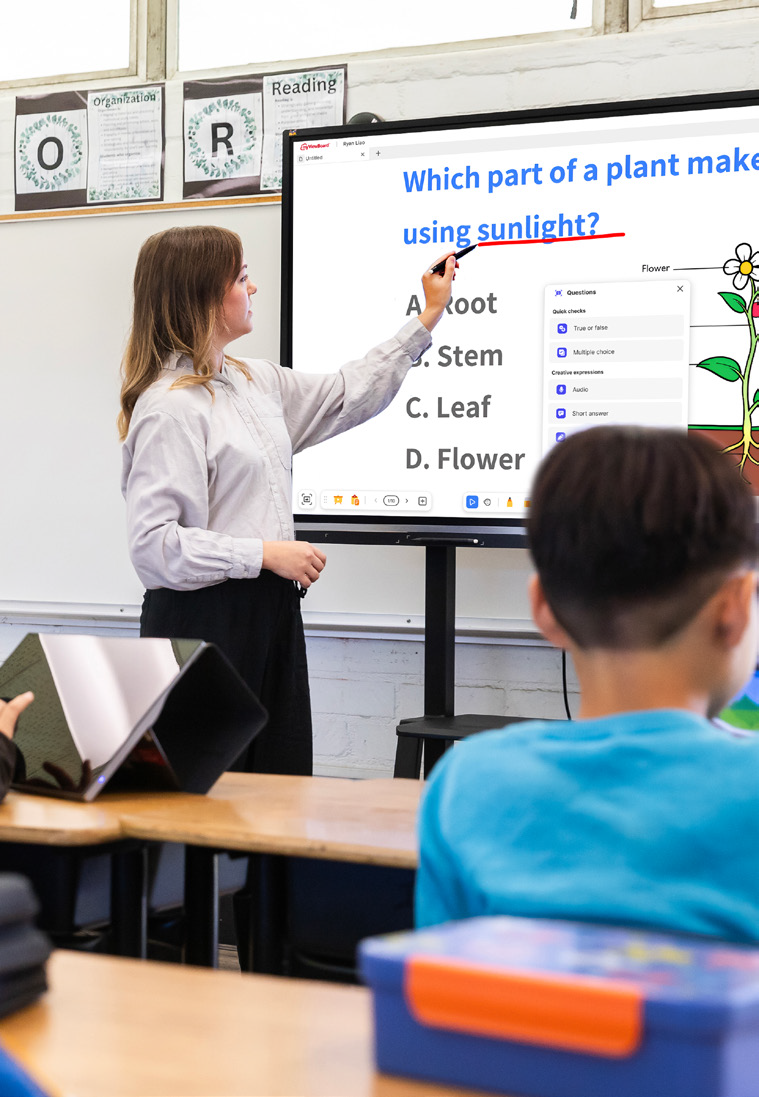
 

For Students and Learners


Every student gets more ways to participate and stay engaged in the lesson.


More Personalized and Interactive Learning Experiences


With myViewBoard Quiz Tools, students get quick, game-like check-ins with buzzers and timers instead of another worksheet. They can answer in whatever way feels most natural, whether that’s multiple choice, a quick sketch or a recorded audio response. That flexibility turns passive listening into active participation for every kind of learner.

The Transition Process: What to Expect

Here’s how a switch to ViewSonic typically comes together, step by step.


Planning and Assessment


We work with you to find the right sizes, models and accessories for your campus. Contact our sales team to discuss your needs.


Shipping and Delivery


We ship from warehouses across the US and Canada, so your panels and accessories arrive quickly without extra customs delays.


Installation and Setup


Our team makes sure your panels are installed correctly and integrated with your network from day one.


Training and Onboarding


We don’t just drop off a board. Every district gets complimentary training and resources to get started, with premium professional development available for purchase if you want a deeper, hands-on experience.


Software Integration


For teachers who want simple screen casting, AirSync™ makes it effortless. For those with years of lessons to bring over, we make migrating your files easy, so you don’t have to recreate years of work. Once your files are in myViewBoard, they become fully interactive.


Ongoing Professional Development


The support doesn’t stop after the sale. Training and professional development options let your teachers keep building their skills over time, and many can even earn CE credits along the way.
 

Frequently Asked Questions

Here are quick answers to the questions we hear most often from districts considering a switch.


Will Our Staff Be Overwhelmed by New Technology?


No. Our interface is simple and intuitive, and every district gets complimentary training and one-on-one support.


How Hard Is It to Switch from Another Platform?


Less than you’d think. We handle installation and network setup, help you migrate your existing files and provide training so your staff feels confident from day one.


Is It Compatible With Our Existing Systems?


Yes. ViewBoard displays work across major platforms, operating systems and professional AV setups.


Will It Be Worth the Cost?


Yes. Long-term durability, low maintenance and included software help ViewSonic save you money over the life of the product.


Getting Started With ViewSonic ViewBoard Displays

Whether you need a single 55-inch interactive display for a huddle space or a 110-inch panel for a lecture hall, ViewSonic has a solution. Professional development is often included in the bid, so your staff is ready on day one.


Ready to make the move?
Contact your ViewSonic education representative to start planning your transition.

How Canadian School District NLSchools Standardized Classroom Displays and Projectors with ViewSonic

SOLUTION BRIEF

How Canadian School District NLSchools Standardized Classroom Displays and Projectors with ViewSonic

What Challenge Was NLSchools Trying To Solve?

As the public school system for Newfoundland and Labrador, NLSchools operates across one of the most geographically spread-out regions in Canada. Upgrading technology across a territory that size involves far more than unboxing new displays. Because the district was replacing its legacy interactive displays and annotation software, getting teachers comfortable with the new system was critical. That meant pairing a new software suite with hands-on training from day one.

From an IT perspective, supporting remote Labrador classrooms required cloud tools, simply because sending a technician on-site often meant booking a flight or a ferry. Adding to the challenge, several older school buildings featured unique structural layouts, including solid rock walls that ruled out standard hardware mounts. 

What ViewSonic Solution Did NLSchools Deploy?

  • 820 ViewBoard® interactive displays deployed across the province, replacing older legacy hardware
  • 273 ViewSonic® projectors
  • OS-free IFPG1 Series displays paired with ViewSonic VPC Windows slot-in PCs
  • The complete ViewSonic education software suite
  • ViewSonic Manager Advanced for remote cloud management
  • BalanceBox specialized wall mounts for complex wall surfaces 

Pairing OS-free ViewBoard IFPG1 displays with Windows VPC slot-in PCs brought flexible desktop computing directly into classrooms. Manager Advanced software provided IT admins remote access to classroom displays. For older facilities, specialized BalanceBox mounts solved structural hurdles by safely anchoring heavy gear directly onto solid rock walls.

Why Did the NLSchools Move to ViewSonic?

Replacing a brand that had been standard issue across Canadian classrooms for decades took more than a competitive price tag. NLSchools needed a partner that could solve their classroom software and geographic hurdles at the same time.

ViewSonic earned the district's trust because its displays, classroom software and cloud management tools functioned as a unified system.

To help teachers adapt, ViewSonic backed its software suite with direct, hands-on training, taking the stress out of moving away from legacy tools.

On the operational side, ViewSonic Manager Advanced software gave IT full control over displays in remote Labrador classrooms. Being able to monitor and update hardware remotely from a single dashboard eliminated unnecessary flight and ferry trips, saving significant travel expenses every school year. 

How Did Microsoft-Restricted Funding Shape the IFPG1 Purchase?

NLSchools received a grant exclusively for Microsoft products. ViewSonic's OS-free IFPG1 ViewBoard offered a direct fit. Pairing the display with a VPC slot-in PC running Windows 11 Pro satisfied the grant requirement while equipping classrooms with a complete Windows system.

That modular setup also protects the district's investment over time. Instead of replacing an entire display when computing hardware ages, IT can simply swap in an upgraded PC module. By removing the operating system from the display itself, the district eliminated potential security backdoors into school networks. 

Spec LDS138-151
Screen size / resolution 138", Full HD 1920x1080
Mobility Foldable design on a motorized, height-adjustable stand with 360-degree wheels; packed in a custom flight case
Setup time Minutes, no system integration required
Durability GOB (Glue-on-Board) protection, IP54 and IK06 rated, built for high-traffic public spaces
Serviceability Hot-swappable front LED modules for minimal downtime
Casting/Connectivity AirSync wireless screen casting (AirPlay, Google Cast); Q-SYS, Crestron, Extron and AMX compatible
Warranty 3-year limited warranty on parts and labor, with on-site service
Recognition Best New Mobile dvLED Product, rAVe Publications' Best of InfoComm, June 2025

What Results Has the NLSchools Seen?

  • Standardized classroom technology across the province, deploying 820 ViewBoard interactive displays, including the OS-free IFPG1 series paired with VPC slot-in PCs, alongside 273 ViewSonic projectors.
  • Helped teachers fully migrate from legacy annotation tools to the ViewSonic education software suite without disrupting daily instruction.
  • Empowered IT admins to manage remote classroom displays through Manager Advanced software, eliminating expensive flight and ferry service trips.
  • Safely mounted heavy displays in legacy buildings with solid rock walls using specialized BalanceBox hardware. 


Frequently Asked Questions

Why Do School Districts Switch to ViewSonic?

NLSchools switched 820 classrooms to ViewSonic because the decision delivered a complete, long-term ecosystem. The district gained an interactive software suite backed by hands-on educator training, ensuring teachers didn't struggle during the transition off old annotation tools. On the operational side, centralized cloud management solved massive geographic hurdles by allowing remote updates for isolated schools. Ultimately, districts make the switch when they need intuitive software, reliable teacher adoption support and lower total cost of ownership across the hardware lifecycle.
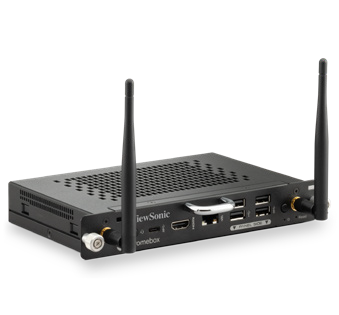
How Do Districts Manage Classroom Displays in Remote Communities?

ViewSonic Manager Advanced provides cloud-based device management, so IT teams can monitor, update and manage ViewBoard displays remotely. NLSchools uses it to support schools across Labrador without sending technicians to communities reachable only by air or ferry.
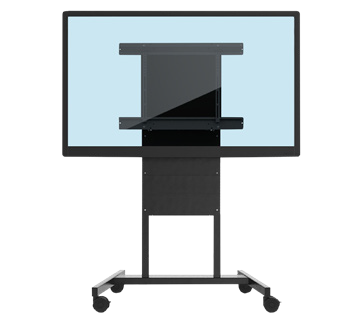

Can Interactive Displays Be Installed on Nonstandard Walls?

Yes. NLSchools used BalanceBox specialized wall mounts to install ViewBoard displays in buildings with special construction, including rock walls and remote schools built with nonstandard materials.

What Is the ViewBoard IFPG1 Series?

The IFPG1 is a 4K interactive display built without an onboard operating system. Instead, districts add a slot-in PC that fits their exact network and security setup. Sliding in a ViewSonic VPC module creates a full Windows classroom environment. Future hardware refreshes stay affordable, requiring just a new PC module rather than replacing the whole screen.

Ready to Standardize Your District's Classrooms?

Talk to a ViewSonic Canada representative about ViewBoard displays, the education software suite and remote device management for your district.

Related Links

Comparative claims are based on specific features and publicly available manufacturer specifications as of the date of publication, and are not intended to represent a comprehensive evaluation of all product attributes. Actual performance, compatibility, delivery schedules, network performance, training outcomes, and user results may vary depending on system configuration, network conditions, usage settings, individual needs, district or agency requirements, implementation conditions, environmental conditions, and other factors. Any references to third-party products, competitors, software platforms, hardware architectures, certification seals, control systems, or corporate trademarks are for identification, compatibility, and comparative reference purposes only and do not imply endorsement, affiliation, or sponsorship by their respective owners. Environmental protection ratings (including GOB, IP54, and IK06 ratings) are based on standard operating conditions; proper wall mounting, structural reinforcement, mobile assembly, freight handling, and professional installation are the sole responsibility of the customer or installer. ViewSonic assumes no liability for property damage or personal injury resulting from improper installation. Programs, pricing, specifications, and availability are subject to change or cancellation without notice. Corporate names and trademarks stated herein are the property of their respective companies. © 2026, ViewSonic Corporation. All rights reserved. [26ALL-MLT1533b]

Training outcomes and participant experiences may vary depending on individual needs, district requirements, and implementation.

Classroom Screens: When to Choose a Projector Over an Interactive Flat Panel

Buyer's Guide  |  Nov 12 2025

Classroom Screens: When to
Choose a Projector Over an
Interactive Flat Panel

Interactive flat panels (IFPs) play a big role in modern schools, turning lessons into engaging, hands-on learning experiences. However, when you’re outfitting a large lecture hall or planning a district-wide refresh with a limited budget, you might have to look at other solutions.


That’s where projectors come in. When the goal is maximum visual impact per dollar, a high-brightness projector like the ViewSonic® LSD500HD laser projector is a better choice.

Interactive Display vs Projector: What’s the Difference?

Both interactive flat panels and projectors have a place in modern education. The right choice comes down to the size of the space, how the screen will be used, and what your AV budget allows for.

Here is a closer look at what each brings to the table.

Benefits of a Projector for Education

For venues like lecture halls or auditoriums or when your goal is maximum visual impact per dollar, projectors are the best choice. They come with several benefits for school environments:


They come with several benefits for school environments:

  • Large image size: Projectors like the ViewSonic LSD500HD can project up to a 300” screen, offering a lower cost-per-inch compared to other types of screens.
  • Brightness that holds up in daylight: Gone are the days of darkening the room to see a washed-out image. Projectors delivering over 5,000 ANSI lumens ensure vibrant, sharp projection across all campus spaces.
  • Flexible installation: Projectors can be installed in a wide variety of room configurations, including ceiling-mounted, portrait mode, or non-standard setups.
  • Wireless casting ready: Paired with a casting device like the ViewShare™ WPD-900, instructors can wirelessly share their content instantly, supporting BYOD environments without any app or network dependency.

Benefits of an Interactive Display for Education

Interactive flat panels are the premium option for active, small to medium-sized classrooms where interactivity and collaboration are central to the teaching approach.


Key benefits of these displays include:

  • Touch interactivity: Interactie whiteboards allow teachers and students to interact directly with content on screen, supporting hands-on learning and collaborative activities.
  • Split-screen multitasking: Teachers can run side-by-side applications, such as displaying a textbook or quiz on one side while taking whiteboarding notes on the other, without switching tabs or losing context.
  • Built-in software ecosystem: Models like the ViewSonic IFP41 Series come with myViewBoard built in and feature Android EDLA, providing access to the Google Play Store.
  • All-in-one simplicity: With a built-in microphone, speakers, and software, interactive displays are a single-device solution that minimizes cable clutter and setup time.
  Interactive Flat Panel Projector
Best for Small to medium classrooms Large venues and budget-conscious rollouts
Max screen size Typically up to 110" Up to 300"
Upfront cost Higher Lower
Image in ambient light Consistent regardless of lighting Good with a high-brightness projector
Installation flexibility Fixed wall mount or trolley Ceiling, floor, portrait, or non-standard setups
Interactivity Yes No
Maintenance Minimal Minimal (lamp-free projector)
Lifespan 50,000+ hours (LED backlight) 20,000-30,000 hrs (laser) / 2,000-5,000 hrs (lamp)


Final Thoughts

Choosing between an interactive flat panel and a projector isn’t about deciding which technology is better. It’s about matching the right tool to the right environment.

If your priority is improving collaboration in classrooms, an IFP is the clear winner. However, if you need to fill a massive space, outfit multiple rooms on a tight budget, or simply need high-impact visual delivery, a high-brightness projector like the ViewSonic LSD500HD provides unmatched value per inch.


Frequently Asked Questions

Your hardware shouldn’t dictate your physical space. From portrait mode setups for digital signage to floor projections for unique learning experiences, look for 360° rotation capabilities that open up new teaching possibilities.

How do I decide between an IFP and a projector for my school?

Here’s a quick rule of thumb:

  • Choose an interactive display for small to medium-sized classrooms where interactivity, group work, and integrated software would enhance the teaching and learning experience.
  • Choose a projector for large spaces like auditoriums and lecture halls requiring display sizes over 100 inches.

Do projectors require frequent maintenance?

Traditional lamp-based projectors require regular bulb changes. LCD technology-based projectors require air filter replacements. Modern LED and laser-powered DLP projectors, on the other hand, offer lifespans between 20,000 and 30,000 hours with no lamps or filters to replace.

Can a projector be used in a bright classroom?

Yes, provided it has sufficient brightness. Many modern laser projectors offer high ANSI lumen ratings (often 4,000 to 5,000+ lumens), allowing them to project clear, vibrant images even in rooms with ambient light.

Can teachers and students wirelessly stream content to a projector?

Yes. While interactive flat panels often include built-in wireless casting software, standard projectors can easily support wireless streaming when paired with a casting device, such as the ViewShare WPD-900 Wireless Presentation System. If you’re looking for more control and want to have Miracast and AirPlay disabled by default, choose the WPD-900E model.

What is the cost difference between an IFP and a projector?

Depending on the size of the display, a quality interactive flat panel typically ranges from a thousand dollars for entry-level models up to significantly more for larger sizes with advanced features. A high-quality laser projector, by comparison, can deliver a much larger image at a lower upfront cost. Additionally, the ViewSonic LSD500HD uses 62% less power than traditional lamp models, keeping energy bills low.


Comparative claims are based on specific features and publicly available manufacturer specifications as of the date of publication, and are not intended to represent a comprehensive evaluation of all product attributes. Any references to competitors’ products or trademarks, including ‘Epson,’ as well as third-party hardware or software platforms, are for identification and compatibility purposes only and do not imply endorsement, affiliation, or sponsorship by their respective owners.

How a Pennsylvania School District Streamlined Campus Communications with ViewSonic

SOLUTION BRIEF

How a Pennsylvania School District Streamlined Campus Communications with ViewSonic

line drawing of a circular mazeline drawing of a circular maze
  • A Pennsylvania district needed reliable, standardized displays for both classroom learning and campus-wide communications.


“Teachers got intuitive tools for lesson delivery, while administrators secured a direct channel for campus announcements. Standardizing on one platform made planning, deployment and training easier for IT.”


CHALLENGE

A leading K-12 school district in Pennsylvania wanted to modernize its displays across classrooms and shared spaces. The team needed hardware that could support hands-on learning while providing a reliable network for visual messages across every school.

Existing tech varied by building, was getting unreliable and cost too much to maintain.

That gave the district a chance to standardize on one platform and equip teachers with tools built for active student participation.

At the same time, administrators wanted to boost daily announcements and safety messages in common areas to keep students, staff and visitors connected without breaking the budget.

The district needed a scalable ecosystem that was easy to roll out, manage and support. That led to its partnership with ViewSonic.

What ViewSonic Solutions Did the District Deploy?

The district chose ViewSonic for its broad lineup and consistent user experience across every room. The district’s reseller handled procurement while an installation partner managed the physical deployment across multiple schools.

The district deployed:

  • 489 ViewBoard® interactive displays for classrooms, including 19 IFP6551 (65”), 455 IFP7551 (75”) and 15 IFP8651 (86”) units.
  • 31 CDE commercial displays for common areas, including 5 CDE5531 (55”), 18 CDE6531 (65”) and 8 CDE7531 (75”) units.
  • 450 ViewSonic Manager® Advanced 7-year software licenses for central fleet management.
  • One day of onsite ViewSonic Professional Development training to prepare staff for a smooth rollout.

In classrooms, the ViewBoard IFP51 series of interactive displays gives teachers multi-touch recognition, digital annotation and easy content sharing. The IFP51 series of interactive displays is Android EDLA-certified with EPEAT Silver and ENERGY STAR 8.0 ratings, backed by a 3-year limited on-site warranty.

The district made the 75” IFP7551 its standard setup with 455 units, adding 65” and 86” models for specific room layouts.

In shared spaces, the CDE series of commercial displays handles digital signage, daily announcements and event notices in busy hallways. Each display in the CDE series runs 4K UHD visuals at 500-nit brightness and is rated for 24/7 continuous operation.

Because both interactive and commercial displays share one ecosystem, IT handles all hardware through the exact same workflow.

How Does the District Manage Displays Across Multiple Schools?

ViewSonic Manager Advanced software gives the IT department a single dashboard to run the entire fleet. From central offices, technicians can broadcast content instantly, push firmware updates without walking into classrooms and schedule screens to turn off when buildings are empty, cutting energy bills.

ViewSonic’s displays tie directly into emergency alert systems, so critical messages reach classrooms and hallways immediately. That turns everyday communication tools into a core part of district security.

What Results Has the District Seen?

Standardized 520 displays across multiple schools, putting 489 ViewBoard interactive displays in classrooms and 31 CDE commercial displays in common areas.

  • Improved classroom interaction with responsive touch tech that supports group learning.
  • Built a unified digital communication network using CDE commercial displays in high-traffic spots.
  • Simplified deployment, staff training and tech support by using one ecosystem everywhere.
  • Lowered operating expenses and boosted campus safety with remote management, automated power schedules and instant emergency alerts.

Teachers got intuitive tools for lesson delivery, while administrators secured a direct channel for campus announcements. Standardizing on one platform made planning, deployment and training easier for IT.

With ViewSonic Manager Advanced software bringing together safety alerts, energy savings and remote updates, the district now has a flexible tech base built for future growth.

SOLUTION

65” IFP6551 ViewBoard interactive display

75” IFP7551 ViewBoard interactive display

86” IFP8651 ViewBoard interactive display

55” CDE5531 commercial display

65” CDE6531 commercial display

75” CDE7531 commercial display

ViewSonic Manager software

Frequently Asked Questions


How Can a School District Standardize Displays for Both Classrooms and Campus Communications?

A single manufacturer ecosystem can cover both needs: interactive displays for teaching and commercial displays for digital signage, managed from one software platform. This district deployed ViewBoard interactive displays in classrooms and CDE commercial displays in common spaces, managing everything with Manager Advanced software.


What ViewBoard Sizes Work for K-12 Classrooms?

The ViewBoard IFP51 series of interactive displays comes in 65” (IFP6551), 75” (IFP7551) and 86” (IFP8651) sizes, all offering 4K resolution and Android EDLA certification. This district installed 489 ViewBoard interactive displays, standardizing on the 75” IFP7551 while using 65” and 86” models for specific room sizes.


Can School Displays Connect to Emergency Alert Systems?

Yes. Manager Advanced software, ViewBoard interactive displays and the CDE series of commercial displays integrate with emergency systems so urgent safety notices hit every screen instantly.


How Does Centralized Display Management Save a District Money?

ViewSonic Manager Advanced software lets IT admins automate power off schedules when schools are empty, push remote updates and broadcast messages across campus from one console. Automated power management cuts electric bills, while remote admin tools reduce support trips and staff hours.


Ready to Modernize Your District’s Displays?

Talk to a ViewSonic representative or an authorized partner about standardizing classrooms and campus communications on ViewBoard interactive displays, CDE commercial displays and ViewSonic Manager Advanced software.


Training outcomes and participant experiences may vary depending on individual needs, district requirements, and implementation. Performance, security, compliance, and sustainability outcomes may vary depending on system configuration, usage environment, and agency requirements.

How a School District in Oregon Standardized 600+ Classroom and Campus Displays on a Single ViewSonic Platform

SOLUTION BRIEF

How a School District in Oregon Standardized 600+ Classroom and Campus Displays on a Single ViewSonic Platform

line drawing of a circular mazeline drawing of a circular maze
  • An Oregon district needed to replace outdated projectors and consolidate several legacy display brands onto one standardized platform.


“ViewSonic won on display size, functionality, product lineup breadth across interactive and commercial displays and centralized management.”


CHALLENGE

An Oregon school district secured voter-approved bond funding to replace its aging classroom displays. Many rooms relied on legacy projectors with frustrating wiring, while other spaces used a mix of piecemeal visual tools.

Teachers couldn’t count on a consistent experience from room to room, which created extra work for IT staff. Managing the old hardware wasn’t efficient either, since technicians had to stand directly in front of each display to push basic updates.

The district needed a unified strategy to standardize hardware across classrooms, offices and common spaces. Leaders wanted a partner that could support clear digital signage in hallways and cafeterias while offering centralized remote management for hundreds of endpoints.

What ViewSonic Solution Did the District Deploy?

The district deployed:

  • 461 ViewBoard® IFP8651 (86”) and 46 IFP6551 (65”) interactive displays.
  • 7 CDE8631 (86”), 71 CDE7531 (75”) and 39 CDE5531 (55”) commercial displays for signage.
  • ViewSonic Manager Advanced™ software 5-year licenses (MVBM_ADV_5Y01) for centralized management of touch and non-touch displays.

The rollout standardizes nearly every classroom on 86” ViewBoard IFP8651 interactive displays, using 65” IFP6551 units in specialty spaces. Offices and staff areas were upgraded from an originally planned 65” to 86” as well.

ViewSonic commercial displays are going into hallways, select offices and cafeterias for digital signage, replacing a mix of legacy brands and static USB setups.

The district manages the whole setup through ViewSonic Manager Advanced software, which pushes firmware updates and digital content across interactive and commercial displays from a secure, cloud-based dashboard.

Why Did the District Choose ViewSonic Over Other Display Brands?

The district ran a head-to-head comparison between ViewSonic and other display brands. ViewSonic won on display size, functionality, product lineup breadth across interactive and commercial displays and centralized management.

Using ViewSonic’s Manager Advanced software to manage touch and non-touch hardware means IT staff no longer have to walk up to individual displays just to update firmware.

What Results Has the District Seen?

  • Replaced outdated projectors and troublesome wiring with a standardized, streamlined display environment across the district.
  • Consolidated four to five legacy display brands into a single, uniform ViewSonic platform across classrooms and common areas.
  • Standardized on one management platform, Manager Advanced software, for both interactive and commercial displays.

Installation is underway across all schools in the district, and early feedback from the technology team has been positive.

Consolidating multiple aging setups onto a single ViewSonic platform simplifies day-to-day management for IT while giving teachers and students a consistent experience everywhere on campus.

SOLUTION

86” IFP8651 ViewBoard interactive display

65” IFP6551 ViewBoard interactive display

86” CDE8631 commercial display

75” CDE7531 commercial display

55” CDE5531 commercial display

ViewSonic Manager Advanced software

Frequently Asked Questions


How Can a School District Standardize Classroom and Campus Displays on One Platform?

A single manufacturer that builds both interactive and commercial displays lets a district standardize classrooms, offices and signage on one platform. This Oregon district deployed 600+ ViewSonic displays, using ViewBoard interactive displays in classrooms and the CDE series of commercial displays for signage, all managed through Manager Advanced software.


Can One Platform Manage Both Interactive and Non-Interactive Displays?

Yes. ViewSonic Manager Advanced software manages ViewBoard interactive displays and the CDE series of commercial displays from one cloud console. Manager Advanced is a licensed upgrade to the free Manager software, adding automated job scheduling, multimedia broadcast and remote desktop access. IT can push firmware updates and digital content across touch and non-touch displays without visiting individual rooms, cutting down the support time legacy hardware required.


Why Replace Classroom Projectors With Interactive Displays?

Projectors bring outdated wiring, dimming lamps and inconsistent room setups. This district replaced projectors district-wide with 86” ViewBoard IFP8651 interactive displays, standardizing nearly every classroom on one bright, wireless-friendly solution instead of an aging patchwork.


How Do Districts Fund a District-Wide Display Refresh?

Many districts use voter-approved bond funding for capital technology investments like classroom displays. This Oregon district secured a bond to modernize technology across schools, replacing projectors and multiple legacy brands with a single standardized ViewSonic platform across 600-plus displays.


Ready to Standardize Your District’s Displays?

Talk to a ViewSonic representative or an authorized partner about standardizing classrooms and campus signage on ViewBoard interactive displays, the CDE series of commercial displays and Manager Advanced software.


Training outcomes and participant experiences may vary depending on individual needs, district requirements, and implementation.

How a South Carolina District Swapped Discontinued Displays for ViewSonic ViewBoard Interactive Displays

SOLUTION BRIEF

How a South Carolina District Swapped Discontinued Displays for ViewSonic ViewBoard Interactive Displays

line drawing of a circular mazeline drawing of a circular maze
  • A school district needed a replacement for its 500 interactive displays that had started failing.


“The myViewBoard® ecosystem changed how educators teach. Instead of being left idle, digital whiteboarding tools and the ability to import lesson plans meant that ViewSonic displays saw daily usage during lessons.”


CHALLENGE

This South Carolina district invested in roughly 500 interactive displays from a previous vendor in 2021 and 2022, expecting them to last five years under warranty. Instead, the hardware started failing rapidly in year three.

To make matters worse, the vendor exited the interactive display market entirely, leaving the technology director with no official path for repairs or replacements.

IT admins had to convince the school board to reinvest in a dependable district-wide replacement much sooner than planned.

The district turned to its integration partner, which recommended the ViewSonic® ViewBoard® IFP50 and IFP51 series of interactive displays as the most cost-effective and reliable answer.

The IFP50 and IFP51 series both feature a stunning 4K touchscreen and access to ViewSonic’s award-winning myViewBoard software. The IFP51 series goes a step further with Android™ EDLA certification, unlocking verified Play Store access and a wider range of Google Mobile Services-compatible apps for teachers to bring into the classroom.

Because the district was reinvesting early, the evaluation focused on two requirements: the new setup had to be budget-friendly, and it had to last.

Several neighboring districts were already using ViewSonic solutions through the same partner. After a trial run and on-site demos, the district decided to move forward with ViewSonic

What ViewSonic Solution Did the District Deploy?

The district’s integration partner had a strong track record of placing ViewSonic hardware across South Carolina, making it a natural choice to replace the failing displays.

Success stories from nearby schools helped reassure the board during the evaluation process.

The district deployed a complete hardware and software package:

  • 445 75” ViewBoard® IFP50 4K interactive displays, including 210 IFP7550 models and 235 IFP7551 models.
  • ViewSonic Manager Advanced™ software with a 7-year license, one per display.
  • A 7-year ViewSonic® extended limited warranty that protects the entire investment.

The rollout spanned two generations of ViewSonic’s ViewBoard interactive displays. The district began in 2025 with the IFP7550. When that model reached end-of-life the following year, the district moved to its successor, the IFP7551, for the remaining displays.

ViewSonic honored the original pricing on its newer models, so the district was able to finish its rollout without going over budget.

Why Did the District Choose ViewSonic Over the Incumbent Platform?

Price and reliability drove the decision, but the 7-year warranty sealed the deal. After watching its previous fleet break down early with zero manufacturer support, the district wanted a partner that would stand behind its hardware.

That warranty proved reliability as much as it offered peace of mind.

Software made a big difference too. Teachers found the old displays clunky, often using them as nothing more than glorified projectors. The myViewBoard® ecosystem changed how educators teach. Instead of being left idle, digital whiteboarding tools and the ability to import lesson plans meant that ViewSonic displays saw daily usage during lessons.

What Results Has the District Seen?

  • 445 ViewBoard displays were deployed to replace the failing incumbent fleet, starting with 210 IFP7550 units in June 2025 followed by 235 IFP7551 units.
  • The district secured a reliable, feature-rich platform backed by a 7-year limited warranty.
  • IT administrators gained fleet-wide remote control using Manager Advanced, solving the management gaps they had with previous displays.
  • Classroom adoption jumped as teachers stopped using screens as basic projectors and started using the myViewBoard whiteboard and Google Drive lesson imports daily.

ViewSonic proved more reliable, affordable and feature-rich than the platform it replaced. The district plans to keep using year-end funds to finish outfitting roughly 850 classrooms as budget permits.

SOLUTION

75” IFP7550 ViewBoard interactive displays

75” IFP7551 ViewBoard interactive displays (EDLA‑certified)

ViewSonic Manager advanced software

7-year ViewSonic extended warranty

Frequently Asked Questions


What Happens When an Interactive Display Vendor Discontinues Its Displays?

Districts can get stuck with failing hardware and no support path, which is exactly what happened here when the old fleet hit end-of-life early. Choosing a manufacturer committed to the interactive display market with long warranty terms protects your investment. This district made the switch with a full 7-year warranty.


What Software Comes with the IFP50 and IFP51 Series of ViewBoard Interactive Displays?

Both series include access to the myViewBoard ecosystem. This ecosystem includes myViewBoard whiteboard, ViewBoard Cast for wireless content sharing and single sign-on access to cloud storage like Google Drive and OneDrive. Teachers can import existing lesson plans directly, driving everyday classroom adoption.

The IFP51 series adds Android EDLA certification, giving IT teams verified access to the Google Play Store and a wider range of Google Mobile Servicescompatible apps.


How Do School Districts Manage a Large Fleet of Interactive Displays?

ViewSonic Manager Advanced provides a cloud console that lets IT teams check display health, push updates and manage apps across the district from one place. Licensing it one-to-one across all 445 screens closed a major management gap for this district.


How Long Is the Warranty on ViewSonic ViewBoard Interactive Displays?

The ViewBoard IFP50 and IFP51 series of interactive displays comes with an industry-leading 3-year standard on-site warranty covering parts, labor and backlight components. The district chose to extend coverage to 7 years on all 445 displays.


Ready to Replace an Aging or Discontinued IFP Fleet?

Talk to a ViewSonic representative or an authorized partner about a reliable, cost-effective ViewBoard refresh backed by long-term warranty protection and fleet management.


Training outcomes and participant experiences may vary depending on individual needs, district requirements, and implementation.

How a Large Texas District Started a Multi-Phase ViewBoard Interactive Display Rollout with Secure Sign-On

SOLUTION BRIEF

How a Large Texas District Started a Multi-Phase ViewBoard Interactive Display Rollout with Secure Sign-On

line drawing of a circular mazeline drawing of a circular maze
  • A large Texas district needed a secure, centrally managed display solution for its multi-classroom rollout.


“ViewSonic covered every requirement, and validating NFC authentication up front proved the solution met the district’s strict security standards.”


CHALLENGE

A large urban school district in Texas set out to modernize classroom technology across all its schools. The project started with 451 interactive displays in phase one, with plans to expand into thousands of additional classrooms later.

The district didn’t just need hardware. It required a complete solution that fit its Chrome and Google ecosystem, offered secure authentication for staff and students, provided mounting flexibility for different room layouts and enabled central fleet management.

Security was a top priority, especially around validating how badge authentication would work right at the display.

The timing for this project was also tight. Everything had to be sourced, shipped to multiple locations and delivered before a strict fiscal year-end deadline, requiring precise coordination with channel partners.

What ViewSonic Solution Did the District Deploy?

Working with CDW as its reseller partner, the district deployed a complete classroom technology package:

  • 451 ViewBoard® IFP8641 86” 4K Android EDLA interactive displays.
  • 451 VPC13-C33-G1 Chromebox OPS slot-in PCs built for Chrome OS and Google environments.
  • 481 VB-BLM-002 BalanceBox height-adjustable mounts, including extra units for existing displays.
  • 451 ViewSonic® Manager Advanced software 7-year licenses for central fleet management.
  • 451 NFC card readers for secure sign-on

The 86” ViewBoard IFP8641 anchored each room, VPC13-C33-G1 Chromebox OPS devices matched the district’s Google setup while NFC card readers gave teachers a fast, secure way to sign in at the display. VB-BLM-002 BalanceBox mounts allowed staff to set displays at the right height for every classroom.

The IFP8641 fit the district’s requirements on its own specs: an 86” 4K display with Android EDLA certification, built-in Google security, native access to Google and Microsoft ecosystems, EPEAT Silver and ENERGY STAR 8.0 ratings and a 3-year limited on-site warranty.

ViewSonic Manager Advanced software tied the whole setup together, giving IT central monitoring across every building. Before finalizing the deal, ViewSonic worked directly with the district to validate NFC functionality, resolving its primary security concern.

ViewSonic and its reseller partner coordinated a multi-location delivery plan to ensure all 451 displays and accessories arrived before the district’s fiscal yearend deadline.

Why Did the District Choose ViewSonic?

The district needed one manufacturer that could supply interactive displays, Chrome computing, secure authentication and central management as a complete package, delivered at scale on a tight deadline.

ViewSonic covered every requirement, and validating NFC authentication up front proved the solution met the district’s strict security standards.

ViewSonic’s reseller partner coordinated pricing, ordering and multi-location logistics, letting the district run a large, time-sensitive rollout through a single reseller relationship.

What Results Has the District Seen?

  • Deployed 451 interactive displays across the district on time to hit a strict fiscal year-end deadline.
  • Enabled secure sign-on at the display using NFC card readers, validated before purchase to meet security requirements.
  • Integrated Chrome OS computing into classrooms using Chromebox OPS devices.
  • Centralized fleet management through Manager Advanced software so IT supports every location from one platform.
  • Established a proven standard ready to expand across thousands of additional classrooms in future phases.

Phase one gave the district a secure, centrally managed display platform delivered on schedule. It also created a clear blueprint for the future: with the standard proven, the district and its partners can easily expand the same setup to thousands of other classrooms.

SOLUTION

86” IFP8641 ViewBoard interactive display

VPC13-C33-G1 Chromebox OPS slot-in PC

VB-BLM-002 BalanceBox mount

ViewSonic Manager Advanced software

ACR1552U-M1 NFC card reader

Frequently Asked Questions


How Does NFC Authentication Work on an Interactive Display?

NFC authentication lets users tap a card or badge on a reader at the display to sign in securely without typing passwords. This district added NFC card readers to its ViewBoard deployment so staff could sign on quickly and get started teaching faster.


Can Interactive Displays Run in a Chrome and Google Environment?

Yes. A Chromebox OPS device like the ViewSonic VPC13-C33-G1 turns a ViewBoard interactive display into a Chrome OS endpoint that fits into Google environments. This district paired all 451 IFP8641 displays with VPC13-C33-G1 devices so classrooms matched its existing setup.


How Does a District Manage Hundreds or Thousands of Interactive Displays?

Manager Advanced software is a cloud platform that lets IT teams check status, push updates and manage displays across every school from one dashboard. The district licensed Manager Advanced software for all 451 displays. This made the growing fleet easier to manage from one platform.


Can a District Roll Out Interactive Displays in Phases?

Yes. A phased rollout lets a district standardize on one platform, test it in real classrooms and expand with confidence. This district deployed 451 interactive displays in phase one and is ready to roll out the same setup across thousands of additional classrooms in upcoming phases.


Ready to Plan a District-Wide Display Rollout?

Talk to a ViewSonic representative or an authorized partner about standardizing interactive displays, Chrome computing, secure authentication and central management across your district.

Related Links

*The ACR1552U-M1 NFC card reader is third-party hardware (not a ViewSonic product), so it is named as deployed but not linked.

Performance, security, compliance, and sustainability outcomes may vary depending on system configuration, usage environment, and agency requirements. Training outcomes and participant experiences may vary depending on individual needs, district requirements, and implementation.

How Kentucky’s Largest College System Modernized Learning Spaces with ViewSonic

SOLUTION BRIEF

How a Pennsylvania School District Streamlined Campus Communications with ViewSonic

line drawing of a circular mazeline drawing of a circular maze
  • A 16-campus system needed a scalable display solution to replace decade-old classroom technology.


“By matching display technology to what each room actually needed, the integration partner and ViewSonic helped the school modernize its learning environments with a consistent, future-ready tech setup that balances performance, usability and overall value.”


CHALLENGE

Edtech funding is getting tighter, so higher education institutions have to carefully evaluate which solutions deliver the best value.

Across this 16-campus system serving 70,000+ students, many classrooms relied on technology that was over a decade old. Modernizing these spaces wasn’t optional if the institution wanted to support student recruitment, retention and engagement in a competitive landscape.

The institution needed a partner with a broad portfolio spanning interactive touch displays, commercial displays, Direct View LED video walls, monitors and projectors.

That way, it could match the right technology to each environment rather than force one solution everywhere.

As the system renovated and expanded its classrooms and event spaces, ViewSonic became a preferred partner for its reliable hardware and collaboration tools.

What ViewSonic Solution Did the Institution Deploy?

The institution’s integration partner worked with ViewSonic to build a standardized, scalable display strategy matched to each learning environment

  • 169 ViewBoard® interactive displays went into traditional instructional classrooms, giving faculty an intuitive platform for annotation, wireless content sharing and interactive lessons.
  • 6 ViewSonic® commercial displays were installed in lecture halls, auditoriums and assembly spaces to provide commercial-grade performance, integrate with third-party AV control platforms and run reliably in high-use environments.
  • 2 ViewSonic Direct View LED (dvLED) video walls were placed in spaces for maximum visual impact, delivering seamless, high-brightness images for large audiences.
  • 100 ViewSonic LCD monitors, 18 projectors and 5 ePoster displays were placed in across offices, labs, podiums and campus common spaces.
  • ViewSonic Manager Advanced software provided centralized, multi-campus device management.

By matching display technology to what each room actually needed, the integration partner and ViewSonic helped the school modernize its learning environments with a consistent, future-ready tech setup that balances performance, usability and overall value.

How Does the Institution Manage Displays Across 16 Campuses?

To get the most out of its investment, the institution uses ViewSonic Manager Advanced software to monitor and manage compatible devices across all campuses from one central dashboard. IT admins don’t have to travel to individual classrooms to deploy firmware updates, configure device settings, troubleshoot issues or schedule power on and off times.

Centralized management cuts operational costs, reduces classroom downtime and can extend device lifespan through proactive maintenance. This type of device management can also improve energy efficiency by making sure displays aren’t running when they’re not needed.

What Results Has the Institution Seen?

  • The institution replaced decade-old classroom tech with a standardized visual platform of 370 ViewSonic devices across 16 campuses, including 169 interactive displays, 76 commercial displays, 100 monitors, 18 projectors, 5 ePosters and 2 Direct View LED displays.
  • It lowered its total cost of ownership through centralized management, proactive maintenance and scheduled power controls.
  • IT staff can now support more classrooms across multiple campuses with fewer on-site resources.

SOLUTION

ViewSonic ViewBoard interactive displays

ViewSonic commercial displays

ViewSonic Direct View LED (dvLED) displays

ViewSonic LCD monitors

ViewSonic ePoster displays

ViewSonic Manager Advanced software

Frequently Asked Questions


How Should a University Match Display Types to Different Learning Spaces?

A proven approach uses interactive displays in instructional classrooms where faculty annotate and share content on the fly, commercial displays in lecture halls and auditoriums that need AV control integration, and Direct View LED video walls in large gathering spaces where brightness and scale matter most.

Kentucky’s largest public higher education system standardized on this strategy across 16 campuses with 370 devices, including 169 interactive displays, 76 commercial displays and 100 monitors.


How Do IT Teams Manage Displays Across a Multi-Campus Institution?

ViewSonic Manager Advanced lets IT admins remotely deploy firmware updates, configure settings, troubleshoot issues and schedule power on and off times from one console. That means fewer campus visits, less classroom downtime and displays that aren’t powered when they aren’t being used.


Do Interactive Displays Work for Career and Technical Programs, Not Just Lecture Classrooms?

Yes. This institution’s deployment spans nursing simulation labs, welding programs and traditional classrooms. Matching display types to each space’s function, rather than forcing a one-size-fits-all model, is what makes a multi-campus standard work.


How Do Display Choices Affect Total Cost of Ownership in Higher Education?

Total cost goes beyond the upfront price tag. Centralized management reduces on-site support trips, proactive maintenance extends device lifespan and scheduled power controls cut energy use.

This system paired standardized ViewSonic displays with Manager Advanced software to lower its total cost of ownership while supporting more classrooms with fewer resources.


Ready to Build a Campus-Wide Display Strategy?

Talk to a ViewSonic representative or an authorized partner about matching display technology to every learning space on your campus.


Drywall alone is not a structural mounting surface and must never be used as the sole means of support. Proper wall suitability, reinforcement, and the use of appropriate commercial-grade mounting hardware are the sole responsibility of the customer, installer, or system integrator. ViewSonic shall not be liable for any equipment damage, property damage, or personal injury, including death, caused as a result of incorrect installation, operation, human factors, or failure to comply with local codes. Training outcomes and participant experiences may vary depending on individual needs, district requirements, and implementation.

How to Choose Gaming Monitors for Schools

How to Choose
Gaming Monitors for Schools

Esports has become a real asset in K-12 and higher ed, helping students build college and career readiness, and the right monitor is where it all comes together. But the right gaming monitor for a middle school club looks a lot different from the one a college esports team needs. The good news is there’s a ViewSonic option for nearly every space, budget, and skill level.

This guide breaks down how to choose gaming monitors for schools based on the one thing that matters most: your scenario.

The short version: If you don’t have dedicated space, go portable. If you have a lab, choose by budget and competitive level. Entry-level competitive play starts at 180Hz, while dedicated esports programs benefit from 25-inch displays that reach 280Hz. Larger 27-inch screen sizes are great for more immersive gaming.

Start With Your Space, Not the Spec Sheet

It’s tempting to lead with refresh rates and screen sizes. But the smarter first question is simpler: where will these monitors live?

A program without a dedicated room has very different needs than one with a built-out lab. Once you know your space, the rest of the decision gets much easier. So let’s start there.

No Dedicated Space? You Have Options

Not every school has a room to spare for esports. The good news is you don’t need one to get started. There are two proven ways to build a program in shared or borrowed space.

Option 1: Go portable with a monitor cart.

The VX1654 (15.6 inches) and VX1754 (17.3 inches) are built to move. Both are Full HD IPS displays with a 144Hz refresh rate and AMD FreeSync, and both connect over a single USB-C cable that carries video, audio, and 60W of two-way power. At just 1.5 to 2 pounds and about as thin as a deck of cards, they slip right into a backpack or onto a cart. Pair a few with Nintendo Switch consoles and you’ve got a portable esports lab that rolls from room to room.

Portables are an underrated option in education. Many schools don’t think of them for gaming at all. But for programs without dedicated space, or with tight budgets, a portable setup is a creative and cost-effective way to launch esports without renovating a single room.

Option 2: Put the displays you already own to work.

If your classrooms have interactive flat panels, you may already have everything you need. That’s exactly how Fayette County Public Schools in Kentucky built the state’s first elementary esports program. Rather than buy new equipment, they leveraged their existing 75-inch ViewSonic ViewBoard displays, rolling cart-mounted panels into libraries and media centers to create pop-up esports lounges after school. Staff even packed “gamer backpacks” with everything students needed to connect, so a single plug turned any room into a ready-to-compete arena. The approach worked: the program grew from one pilot school to 41 schools in just two years, at no cost to participants.

The takeaway is simple. A big, vivid ViewBoard makes gameplay feel exciting on a screen the whole club can gather around, and it does double duty as an instruction tool by day and an esports arena after the bell.

Have a Dedicated Lab? Choose by Need

If you do have a dedicated space, the decision comes down to three things: your budget, the competitive level you’re aiming for, and how the lab will actually be used. Here are three tiers to consider.

Entry-Level Competitive: VX2418C and VX2428A

  • Refresh rate: 180Hz
  • Best for: schools that want solid gaming specs at a lower cost

Both 24-inch monitors hit a fast 180Hz refresh rate at a budget-friendly price. The VX2418C is a 1500R curved panel with a 1ms response time for an immersive feel, while the VX2428A uses a fast IPS panel with a 0.5ms response time and HDR10 support. Either one is a practical choice for labs that serve a wide range of students, from casual players to your competitive club.

Versatile Multi-Purpose: VX2730D-4K

  • Refresh rate: switchable between 144Hz at 4K and 288Hz at Full HD
  • Best for: labs that balance free play, classwork, video content, and competitive gaming

The VX2730D-4K is the chameleon of the lineup. Run it at 4K and 144Hz for immersive casual gaming, video, or general coursework. Then switch to Full HD at a blazing 288Hz when competitive play takes priority. It also has a 24.5-inch esports mode that shrinks the viewable area to the ideal competitive size, keeping the action in the player’s peripheral vision and reducing head movement. With AMD FreeSync Premium and NVIDIA G-Sync compatibility, it’s a true multi-purpose display that adapts to whatever the lab needs on any given day.

Ultra-Competitive: XG2536

  • Screen size: 25-inch display (24.5-inch viewable)
  • Refresh rate: 280Hz (overclocked)
  • Best for: dedicated esports programs focused on competitive play

When the goal is serious competition, the XG253 6 is built for it. The 24.5-inch viewable area sits at the ideal esports size, and the overclockable 280Hz refresh rate with a 0.5ms response time keeps fast action razor-smooth. It adds FreeSync Premium, G-Sync compatibility, RGB lighting, a narrow-footprint stand, and 65W USB-C charging, plus it connects to PCs and consoles alike, from PlayStation and Xbox to the Switch and Steam Deck.

From Amateur to Pro at a Glance

Not sure where to land? This simple framework is an easy starting point.

TIER

MODEL

WHAT YOU GET

BEST FOR

AMATEUR

VX2418C

24-inch, 1080p, 180Hz curved display at the best value

New clubs and casual play on a per-seat budget

COMPETITIVE

VX2728J-2K

27-inch, 1440p, 180Hz with advanced ergonomics

Growing programs that want sharper visuals and all-day comfort

PRO

XG2736-2K

27-inch, 1440p, 240Hz with USB-C and RGB

Established teams chasing every competitive edge


Each step up adds resolution, screen space, or speed, so match the tier to how seriously your program plays.

Compare ViewSonic Gaming Monitors for Education

Here’s the full lineup side by side.

MODEL

SIZE

WHAT YOU GET

MAX REFRESH RATE

BEST FOR

VX1654

15.6"

1080p

144Hz

Portable carts, no dedicated space

VX1754

17.3"

1080p

144Hz

A bigger screen for portable carts

VX2418C

24"

1080p (curved)

180Hz

Budget entry-level competitive

VX2428A

24"

 1080p

 180Hz

Budget entry-level competitive 

VX2728J-2K

27"

1440p 

 180Hz

Step-up sharpness and screen space

VX2730D-4K

27"

4K or 1080p 

 288Hz (at 1080p)

Multi-purpose: free play and competitive 

XG2536

25"

1080p 

 280Hz (OC)

Dedicated esports and pure speed

XG2736-2K

27"

 1440p

240Hz 

Top all-rounder: speed plus resolution

VX3218-PC-MHD

32"

 1080p

 180Hz

Large, immersive curved screen


How to Choose the Right Monitor Size

Screen size shapes the experience as much as refresh rate does. Here’s a quick guide to what works best where.

SIZE

BEST FOR

24 INCHES

The budget pick. Not perfect for any one thing, but a solid, affordable choice that still handles competitive play

25 INCHES

The competitive edge. The ideal esports size that keeps content in peripheral vision and minimizes head movement

27 INCHES

The versatile sweet spot. Not ideal for fast competitive genres like FPS and MOBA, but big enough for immersive RPGs and racing games

32 INCHES AND ABOVE

Built for immersion, plus fighting games where a bigger screen lets players gather around and play together


The VX2730D-4K deserves a special mention here. As a 27-inch monitor with a 24.5-inch esports mode, it bridges the gap between versatile sizing and competitive performance, which makes it a strong multi-purpose pick for labs that wear a lot of hats.

Common Questions About Gaming Monitors for Schools

What gaming monitor is best for a school with no dedicated space?

A portable monitor like the VX1654 or VX1754. Paired with a cart and consoles like the Nintendo Switch, it creates a mobile esports lab you can move between rooms.

What refresh rate do school esports programs need?

Entry-level competitive play works well at 180Hz. Dedicated esports teams benefit from higher rates, up to 280Hz on the XG2536, for the smoothest fast-paced gameplay.

What size monitor is best for esports?

About 25 inches is the sweet spot for competitive play. It keeps the action in the player’s peripheral vision and reduces head movement, which can make a real difference in fast games. We also offer a 27-inch model that features a 24.5-inch esports mode. This is a great dual-purpose option for computer labs.

Gaming Monitors Built With Education in Mind

ViewSonic designs gaming monitors with education in mind, balancing competitive performance, classroom versatility, and budget-conscious features across every product tier. Whether you’re rolling out a portable cart for a brand-new club or building a full esports arena, there’s a fit for your program.

Talk to a ViewSonic rep to find the right gaming monitors for your school.