 Teacher's Community
  Support
ViewBoard® Series Identification
ViewBoard interactive displays come in a variety of shapes and sizes to fit the unique needs of schools, classrooms and teachers. With so many options, you might not know exactly which model you’re using. We can help. Use the quick guide below to easily identify your specific interactive display.
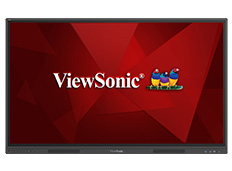
All ViewSonic® ViewBoard® interactive displays belong to one of the following three series:


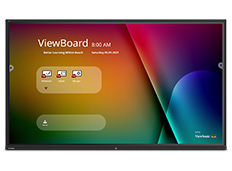
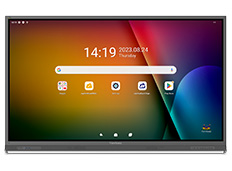
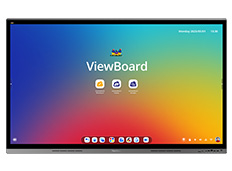
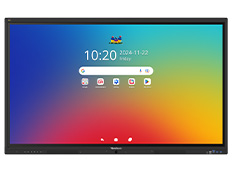
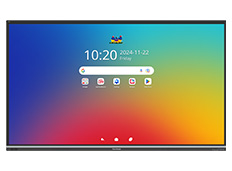
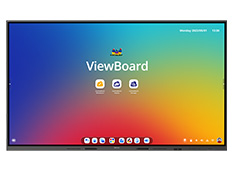
Identification via Model Number
Each display within a series can be of a different “generation”. For example IFP50-3 would be a third generation, IFP50-5 would be a fifth generation and so on.
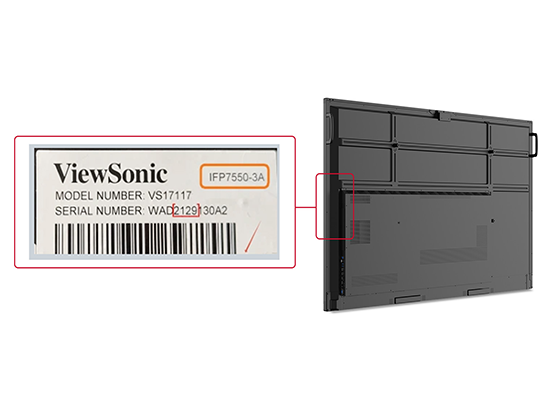
If you are unsure of which generation ViewBoard you have, “IFPXX50-3” will be part of your device’s model number, where “-3” represents the generation. You can find the model number via any of the following ways:
- The model number is shown in the top right corner of the serial number label on the right side of the unit
- Go to Settings > System > About device > Model number
- Select your device within the ViewSonic Manager™ software and the model number will appear in the Device Info section
Identification via Physical Features
You can also easily identify the series by the physical features shown below:
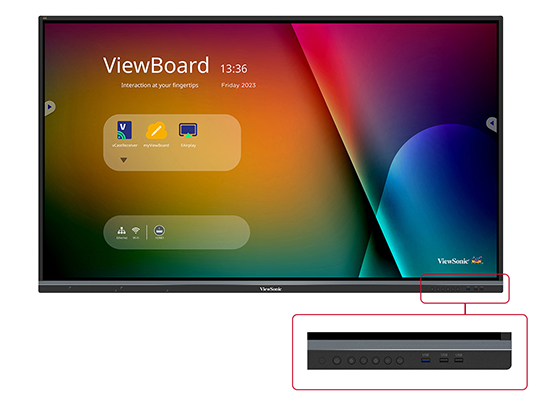
IFP50
Buttons and ports are located at the bottom right corner of the display.
IFP50-3: Android 8 Support
IFP50-5: Android 13 Support
IFP52
Buttons and ports are located at the bottom left and right corners of the display.
Android 11 Support
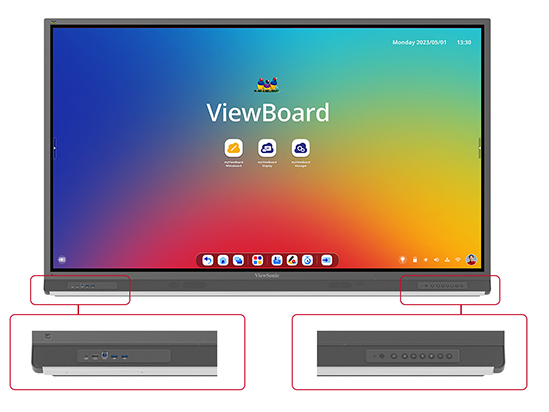
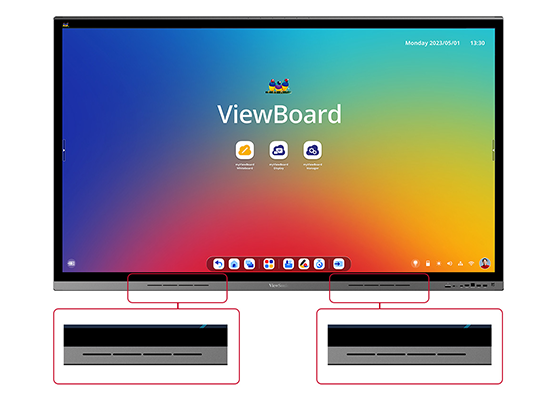
IFP62
4 speaker slots are located on either side of the ViewSonic logo at the botom of the display.
Android 8 Support
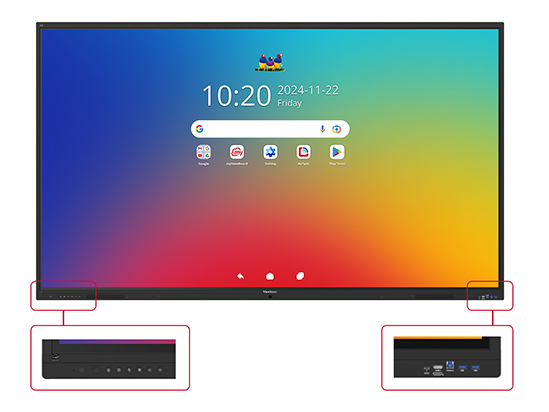
IFP41
Buttons and ports are located at the bottom left and right corners of the display.
Android 16 Support
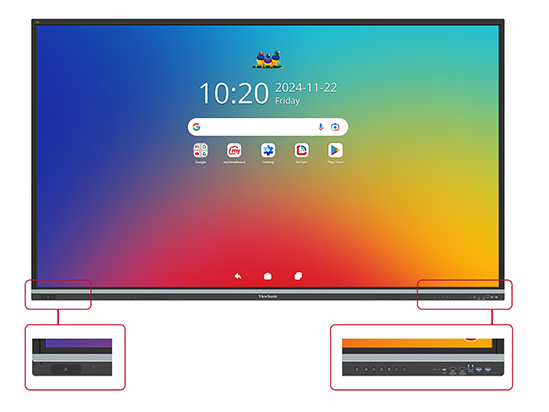
IFP51
An NFC card reader is located at the bottom left corner of the display. Buttons and ports are located at the bottom right corner of the display.
Android 16 Support
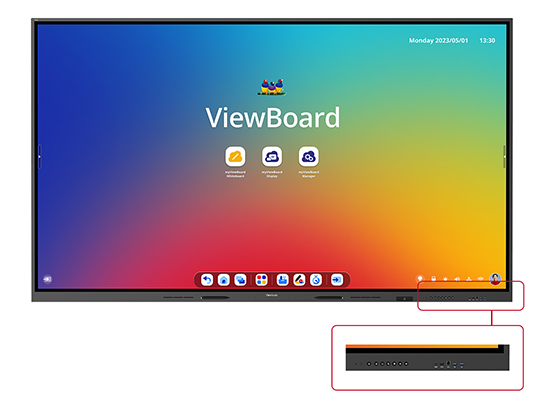
IFP110
Buttons and ports are located at the bottom right corner of the display.
Android 13 Support
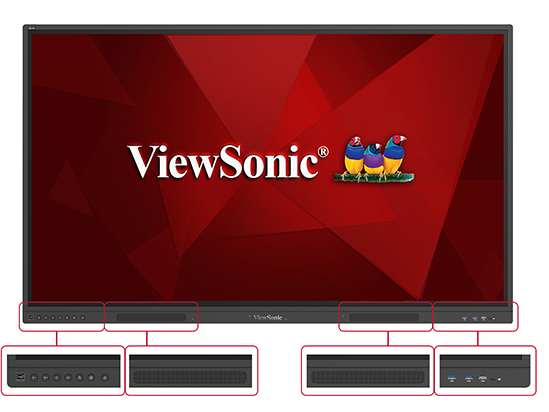
IFPG1
2 speaker slots are located on either side of the ViewSonic logo at the bottom of the display. Buttons and ports are located at the bottom left and right corners of the display.
OS-Free
Side Toolbar
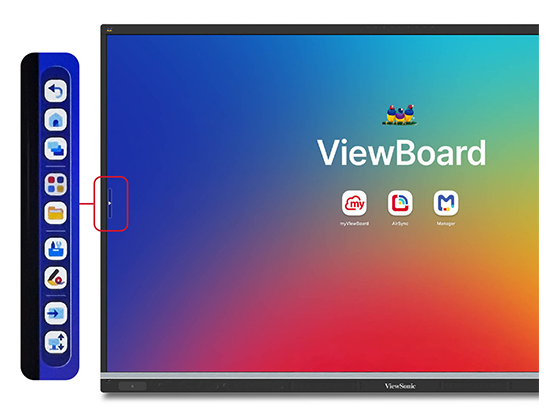
The Side Toolbar provides quick and easy access to your favorite ViewBoard tools.
This toolbar can be accessed by touching the arrow that appears on either side of your ViewBoard screen.
Side Toolbar for EDLA Panels
- Open/Hide: Opens or hides the Side Toolbar
- Home: Brings you back to the home screen.
- Previous Apps: Returns you to the previous app you had open.
- Open All Apps: Shows you a menu of apps installed on your ViewBoard.
- Tools: Provides access to additional tools such as Spotlight, Stopwatch, Timer, and more.
- Input Switcher: Switches between input sources such as PC, HDMI, DisplayPort, etc.
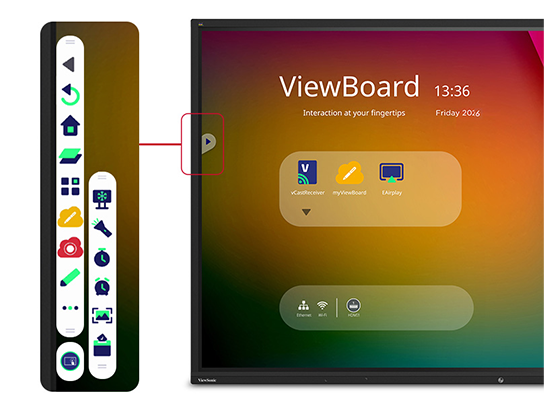
Side Toolbar for Non-EDLA Panels
- Open/Hide: Opens or hides the Side Toolbar
- Home: Brings you back to the home screen.
- Previous Apps: Returns you to the previous app you had open.
- Open All Apps: Shows you a menu of apps installed on your ViewBoard.
- Tools: Provides access to additional tools such as Spotlight, Stopwatch, Timer, and more.
- Pen: Allows you to annotate and draw on the screen.
- Screen Capture: Allows you to take a screenshot or record full lessons.
- Input Switcher: Switches between input sources such as PC, HDMI, DisplayPort, etc
ViewSonic Software Ecosystem
The ViewSonic software ecosystem helps educators, students, and staff connect, share, and manage devices more easily. From collaboration tools to device management, our solutions are designed to support better communication, flexible learning, and smarter work flows across campus.
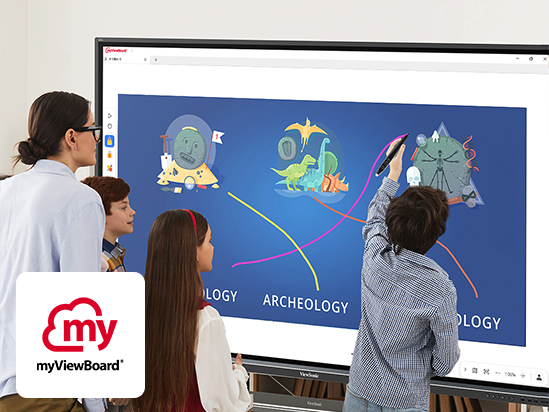
ViewSonic® myViewBoard® Software
myViewBoard is an award-winning digital whiteboard that helps educators create engaging, dynamic lessons. Intuitive tools like Magic Box enable quick YouTube video and image searches, while built-in teaching aids and seamless OneDrive and Google Drive integration keep content accessible. Participate Mode lets up to six students collaborate in real time, and built-in quiz tools allow teachers to instantly check for understanding using content from any source. In addition, ClassSwift tools enable you to snip and share content from your screen in seconds, then engage students with gamified tools like points, buzzers, and timers.
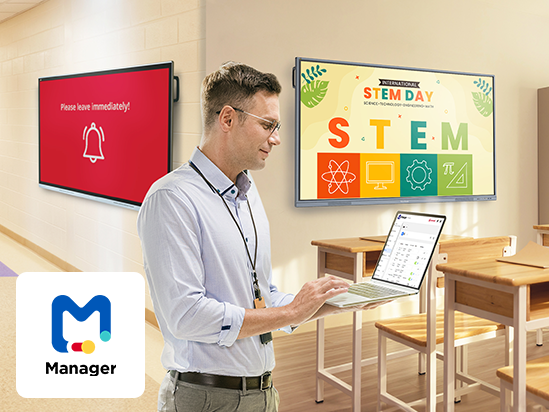
Simple Device and Profile Management
Leveraging the power of Google Admin Console and EDLA-certified devices, schools can seamlessly manage applications, track device inventory, and remotely oversee user accounts. ViewSonic Manager™, a robust device management solution, complements these capabilities by offering comprehensive control and management of displays across the school network.
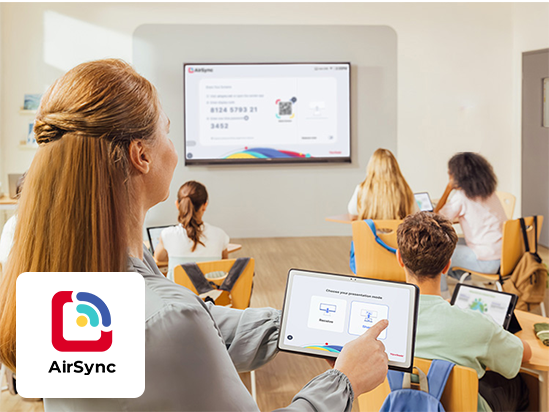
Easy Screen Casting and Sharing
With our ViewSonic AirSync software, you can wirelessly share your screen from any device. It even works with tools you already use, like AirPlay and Google Cast. No cables, no hassle.


Unlock
15% OFF
when you subscribe.
By Clicking "CONTINUE" you agree to receive our newsletter. You can unsubscribe at any time. Discount applies to one (1) item only, not the entire order. Offer is not stackable or combinable with any other promotions or promo codes.
Login and Registration Form