
Why Teachers Love Split Screen on ViewBoard® Interactive Displays
- May 13, 2026
Why Teachers Love Split Screen on ViewBoard® Interactive Displays
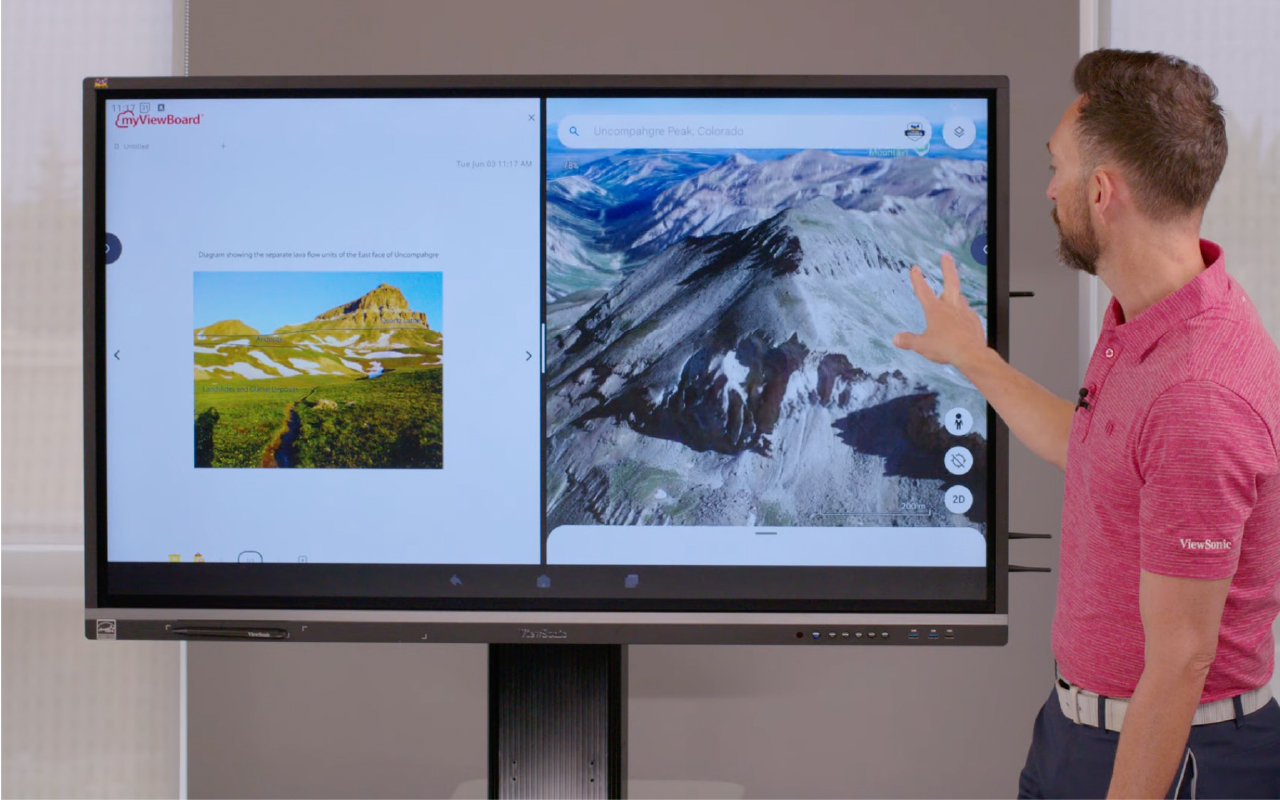
Planning a district refresh? The ViewBoard® IFP41 series of interactive displays offers a Split Screen function that educators can’t get enough of. With Split Screen, teachers can show two sources at once. That means less time navigating between tabs and more time actually teaching.
Teaching requires juggling a dozen tasks at once while trying to keep 30 kids focused. This tool makes the ViewBoard a great SMART Board or Promethean alternative. It works the exact way a teacher thinks.
What Makes Split Screen a Game Changer?
With EDLA-certification, the ViewBoard IFP41 series of interactive displays seamlessly integrates with Google Apps to make multitasking easy. You can finally run two powerful applications side by side to keep your lessons flowing perfectly. It’s exactly what you want out of a classroom interactive display.
Brilliant Ways to Use Split Screen in Your Classroom
How are educators using this feature? Here are a few amazing ways this feature is being used in the classroom right now.
Content and Annotation
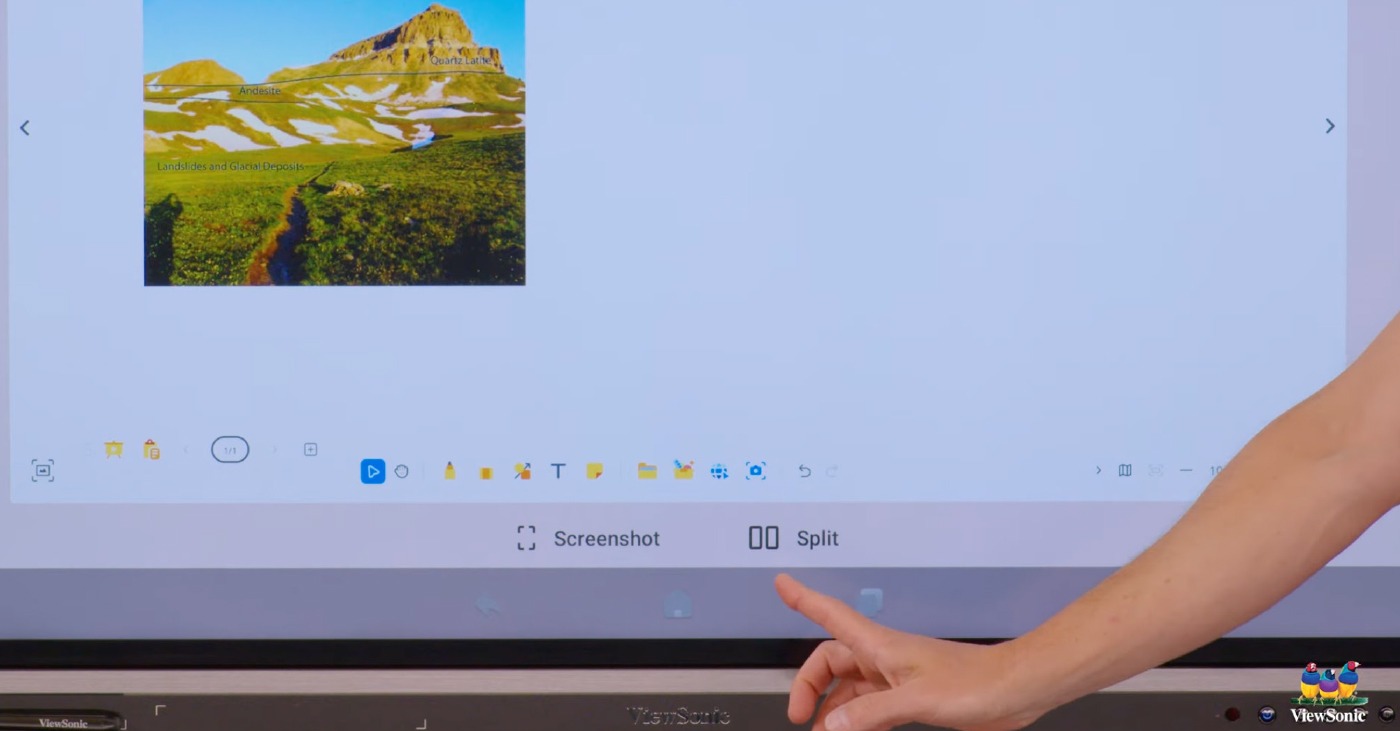
Can I write on my slides during a lesson? Yes! You can easily split your screen to show your Google Slides on one side with myViewBoard® software open on the other. This is the best interactive display for teachers who want to annotate and mark up their lessons in real time.
Real-Time Translation
How does split screen help English Language Learners? Using a ViewBoard IFP41 display with a built-in microphone, you can put your presentation slides side by side with Google Translate. This setup lets you translate your teaching into different languages in real time. That’s a massive help for English Language Learners.
Modeling and Research
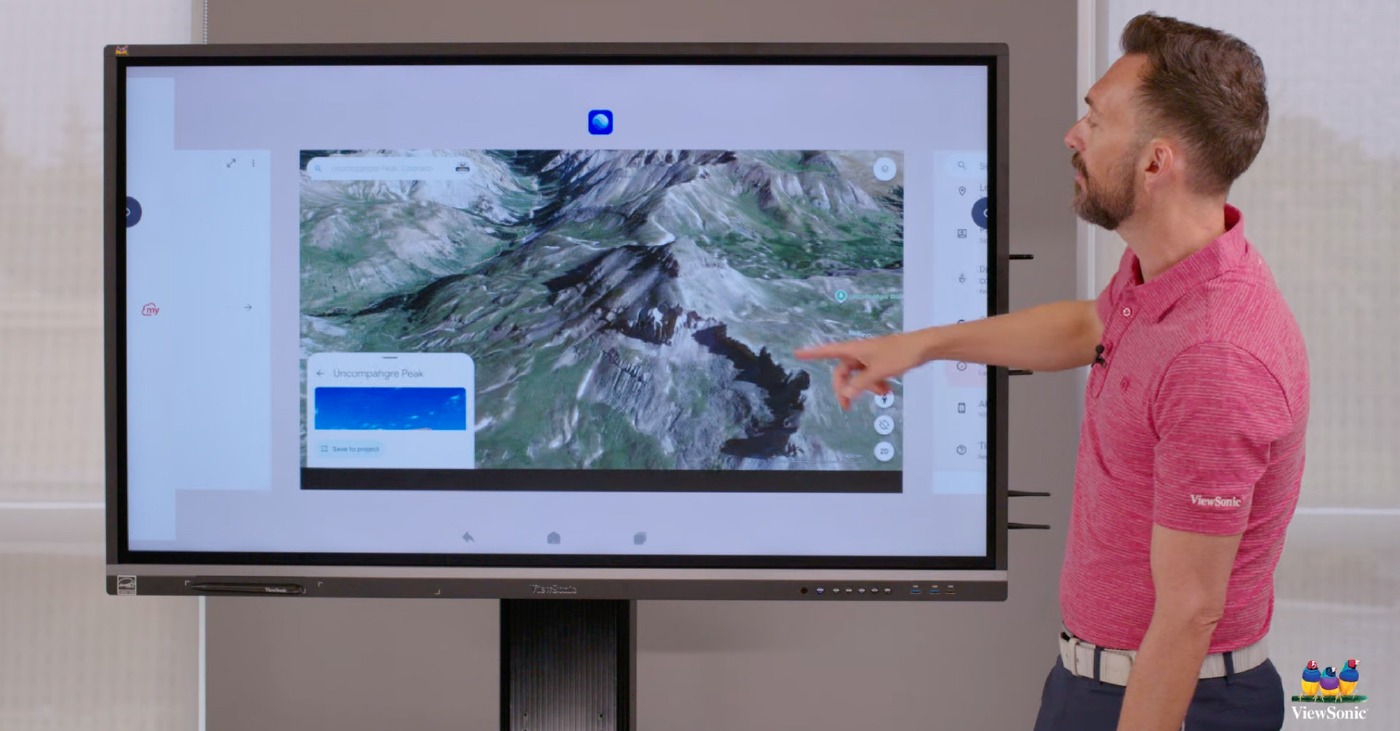
Can I show my students how to take proper notes? The split screen setup is great for modeling how to read text and take notes. You can actively research a topic on one side and pull key ideas onto the digital whiteboard on the other. For example, nearly every teacher does some variation of opening Google Earth. If you live on a peninsula, you can pull up the map on the left side. Then you can use “peninsula” and “bay” as vocabulary words that you write on myViewBoard next to the image.
Visualizers and Wireless Tech
Does this work with document cameras and screen casting? Absolutely. You can use your visualizer on one side and have your slides or a web page open on the other. This is perfect for teachers who still rely on doc cams. You also have the amazing ability to cast screens with AirSync on one side while keeping your document or web page open on the other.
Preschool Engagement
Is this good for younger students? This tool works brilliantly for our youngest learners too. You can use a PDF with colorful shapes on one side and have the kids create those exact shapes on the other. It’s a really fun and interactive way of modeling for them.
Ready to Transform Your Classroom?
Are you looking for the perfect district refresh? The split screen feature eliminates technical confusion so you can focus on what you do best. It bridges the gap between complicated hardware and actual teaching needs.
Check out this video to see the Split Screen feature in action.


Login and Registration Form