Blog

InfoComm 2012, o encerramento final!

O InfoComm 2012 chegou ao fim na sexta-feira, junho 15. Três dias não pareciam tempo suficiente para alguém cobrir todo o salão da exposição, com uma variedade tão grande de novos produtos sendo apresentados. Para os profissionais e entusiastas de AV que não tiveram a oportunidade de visitar a InfoComm, destacamos abaixo algumas das tendências tecnológicas notáveis.


Quando se trata de projeção, a tecnologia de iluminação híbrida Laser/LED foi o tema mais quente na indústria Pro AV. Este novo avanço tecnológico permite que o projetor manipule luz e imagens sem usar a lâmpada ou uma roda de cores. Isso resulta em cores mais saturadas a um custo reduzido, ao mesmo tempo em que é ecologicamente correto.


Do ponto de vista da tela, os recursos de toque estão em rápida curva de crescimento. Parece que qualquer pessoa com display em seu estande tinha uma oferta habilitada para toque. A ViewSonic não era estranha a esta tendência, apresentando vários dispositivos habilitados para toque, incluindo a tecnologia eBeam Edge® , que transforma qualquer display em um dispositivo sensível ao toque.


A interatividade é possível com as mais recentes soluções plug and play que mudarão a forma como os varejistas desenvolvem e gerenciam conteúdo. À medida que a entrega de conteúdo envolvente se torna ainda mais rápida e fácil, os varejistas poderão envolver os clientes como nunca antes.


Quer saber mais sobre os avanços tecnológicos da ViewSonic no programa? Clique aqui para visitar nossa página inicial da feira. Que soluções inovadoras você notou na feira? Compartilhe seus pensamentos conosco.


Os nomes corporativos e marcas registradas aqui indicados são propriedade de suas respectivas empresas. Direitos autorais© 2012 ViewSonic Corporation. Todos os direitos reservados.


Dissipando mitos sobre sinalização digital: eliminando as 3 principais barreiras para entrada no mercado


A sinalização digital pode trazer muitos benefícios para o seu negócio. Mas para pequenas e médias empresas que sabem pouco sobre como implementar uma estratégia eficaz de sinalização digital, esta pode parecer uma solução complicada e cara. Para dissipar alguns dos mitos sobre a implementação de soluções de sinalização, elaboramos este guia para ajudar as empresas a migrar para um ambiente mais digital:


  • Myth 1: The System Will Be Complex: Installing a dynamic digital signage system doesn’t have to be complex. Content files can either be manually loaded or connected via a LAN (network) connection utilizing a media player for a multiple display environment. Or you can upload files you’d like to display using a mobile storage device, such as a USB thumb drive plugged into the media player. Many commercial displays also feature built-in USB ports, making it easy to transfer content or play photo slideshows directly from a USB drive.


  • Myth 2: I Can’t Build The Content: Fear of the unknown may be holding you back. If you can create a PowerPoint slide or build a playlist of your favorite audio files, you have the necessary skills for operating a digital signage system. With today’s easy-to-use software programs like our Signage Manager Express, delivering digital media content can be simple. Look for a program that offers Windows compatibility so it will easily run on your PC or laptop. Also look for software that comes with pre-made templates with multiple screen zones. Templates make it easy to build your content, and different screen zones allow you to display different types of content at the same time – for example, to upsell offerings by advertising companion products.


  • Myth 3: It’s Too Expensive: The cost of installing a dynamic digital signage solution is surprisingly low. The return on your investment can be easily justified, especially if you have been printing backlit signs. Depending on the environment, you can utilize cost effective monitors, commercial TVs or full commercial displays. Screen sizes can range from 10” to 65” or larger. A high performance, network capable, full HD display with video media player can be attained for under $500. In some cases, media players come bundled with the necessary software offering users a complete turn-key solution.


Still concerned about going digital or have we eliminated your fears? Has your business already taken the first steps to implementing digital signboards? Share your story with us about the benefits you’ve seen.


Want to learn more about the various factors that must be considered prior to deploying a digital signage installation? Take a read over our new “Getting Started with Digital Signage” white paper.


Os nomes corporativos e marcas registradas aqui indicados são propriedade de suas respectivas empresas. Direitos autorais© 2012 ViewSonic Corporation. Todos os direitos reservados.


Tecnologia de projeção híbrida laser LED explicada

What’s all the buzz about Laser LED hybrid projection? This new technology delivers better picture quality through higher contrast ratios, is lamp free and consumes less power for a significantly lower total cost of ownership. Designed for a range of uses including home entertainment, professional audio-video, corporate or education use. Let’s take a look at some of the benefits of laser LED hybrid projectors to see if they make sense for your projection needs.


The Laser LED Hybrid illumination technology is a breakthrough in the way a projector manipulates light and images, resulting in superb picture quality with an ultra high contrast ratio of at least 10,000:1 for greater details, especially in dark scenes. The lasers and LEDs combine as a light source to create vibrant rich color, by generating a color spectrum far greater than that of normal mercury light projector which rely on a color wheel and may show ghost images and rainbow effects.


This eco-friendly technology is lamp free which saves anywhere from $199-$299 in replacement costs. No lamp means no mercury thereby eliminating toxic waste and no lamp also means virtually no maintenance to swap out bulbs. Laser LED Hybrid illumination technology delivers a longer light source life of up to 20,000 hours and is much more energy efficient utilizing intelligent power control, generating nearly twice as many lumens per watt as a lamp based projector. Furthermore, these projectors do not get hot to the touch, and are faster and quieter to switch on and off, as well as offering a more stable design.


Without compromising brightness, contrast or image quality, laser LED projectors lower TCO, are earth friendly and deliver rich, saturated color. You’ll save time and money, while enjoying a vivid and vibrant picture, year after year.


Have questions about what features you need for your specific projection needs? Ask us here on the blog.


*Light source life and energy savings may vary based on actual usage and other factors. Corporate names and trademarks stated herein are the property of their respective companies. Copyright© 2012 ViewSonic Corporation. All rights reserved.

Why Windows 7 When it Comes to Business and Tablet Security

Windows or Android? That’s one of the most common questions a potential buyer will consider when thinking about buying a tablet. Android-based tablets help users keep connected with family and friends and offer plethora of available entertainment apps. However, for those considering a tablet for business use, a Windows device can make all the difference when it comes to device security.


With Windows 7, businesses benefit from enhancements that help protect sensitive company information, including multiple active firewall policies to prevent malware and unauthorized access, and page file encryption for the safety of critical documents. There is also a Backup and Restore feature that makes it easy to backup and restore data and settings in the event of a system crash. Some of the most noteworthy additional Windows 7 security features as they relate to protecting tablet users include:


  • Action Center: This feature alerts users to security threats such as an inactive firewall or outdated antivirus software.

  • BitLocker Drive Encryption: To keep documents safe in the event that a tablet is misplaced or stolen, BitLocker automatically encrypts any data saved on a hard drive.

  • AppLocker: This included tool gives IT professionals more options for managing applications and enforcing application standardization, while delivering sophisticated protection against Trojan malware.

  • Microsoft Security Essentials: This software is available with a simple download and provides reliable, free anti-virus protection.

  • User Account Control: Ensures that only an authorized administrator users can make changes to system configurations, while alleviating IT administrators’ stressors with User Account Control.

  • DirectAccess: For those planning to use their tablet as a flexible work solution, Windows 7 tablets deliver remote users smooth and secure access to enterprise resources without the need to connect to a VPN.


For those considering a Windows 8 tablet, stay tuned. We will share an updated posting on Windows 8 and tablet security information once the OS is officially launched.


Os nomes corporativos e marcas registradas aqui indicados são propriedade de suas respectivas empresas. Direitos autorais©2012 ViewSonic Corporation. Todos os direitos reservados.


The Top 3 Takeaways for Ensuring Your Tablets Are Cloud Compatible

Virtualization has become critical for companies looking to maximize efficiency when it comes to sharing or collaborating on important documents, and protecting and backing up data. The beauty of cloud computing is that it’s device-agnostic, enabling vital company data to be stored elsewhere on a server in the cloud. While cloud-based services can be accessed from a computer or smartphone, a tablet delivers the best of both worlds, offering touch, mobility and a screen size that’s larger than a smartphone. Perhaps the accessibility of virtualized environments on mobile devices is a big contributor to Gartner’s 4 percent forecast for the growth of traditional PC sales this year.


When it comes to the cloud, tablets enable workers to benefit from the productivity boost that comes from being able to work remotely yet securely from anywhere, anytime. Connecting via the cloud also lets businesses ensure that should a mobile device become lost or damaged, its data is safely stored. Rachel Dines at Forrester Research echoes this sentiment by stating that the proliferation of mobile devices in the workforce offers the benefit of more flexibility for workforce recovery options.


While any Wi-Fi connected tablet can serve as a portal into a virtualized environment, there are several product features that companies should be aware of when considering purchasing tablets for use with cloud applications. These three features let IT departments check that the devices they let into their organizations are ready for mobile cloud computing:


  • Certifications: Know what software certifications the tablet has and how that software will benefit your organization. For instance, a Citrix Ready certification gives the buyer confidence that a tablet will work seamlessly in a Citrix virtualized environment. Additionally, customers of VMware will want to ensure that their device is compatible with VMware virtualization technology.


  • Operating system: Android or Windows? A Windows tablet is ideal for full-featured desktop computing functionality in a mobile device. However, if you need the tablet to run an assortment of apps, Android might be the better fit. If you’re worried about not having access to critical Windows applications, software such as Citrix Receiver can enable Android tablet users to work with virtualized Windows desktops and applications.


  • Device enhancements: Take a look at the feature-set while thinking of what will maximize convenience and benefits for the user. For instance, an SD card slot can enable a device’s storage capacity to be expanded, lessening the need for frequent hardware trade-ins. Consider the environments in which a tablet will be used. Does the tablet have a USB port? If so, employees can plug in a full keyboard and mouse to create a mobile desktop experience.


How is your organization accessing the cloud? Let us know what devices your company uses to access virtualized environments now, and which devices do you hope to implement over the next six months?


A série de monitores HD profissionais ViewSonic oferece amplos recursos comerciais de TV e monitor a preços para o consumidor

Você sabe a diferença entre uma TV consumidora e uma TV profissional? Ambos são apenas grandes displays, certo? Errado. Quando se trata de monitores comerciais, há uma grande diferença nos extensos recursos de controle oferecidos. Por exemplo, estes novos modelos apresentam clonagem USB, facilitando o gerenciamento da programação interna e a duplicação de conteúdo. São esses recursos que tornam os monitores profissionais com compatibilidade com HDTV ideais para áreas públicas que exigem controles automatizados, como restaurantes, bares esportivos, lobbies comerciais e ambientes de hospitalidade.


Oferecendo aos nossos clientes um conjunto de soluções comerciais com preços competitivos para o consumidor, temos o prazer de anunciar nossa nova série Professional HD Display de TVs empresariais. Variando em tamanho de 19”- 65”, nossas novas TVs comerciais combinam a mais recente tecnologia de painel LED “edge white” com funcionalidades de controle avançadas, incluindo programação do usuário, controle automatizado, duplicação e calibração personalizada.


Essas HDTVs profissionais compatíveis com montagem VESA oferecem clareza de imagem brilhante e alto contraste com cores saturadas, além de opções versáteis de conectividade para ajudá-lo a administrar seus negócios (incluindo entrada HDMI compatível com DVI, PC, conectores de vídeo componente RCA tradicional e componente YPbPr). Em nossos modelos maiores 27”-65”, também integramos recursos adicionais de programação de controle automatizado, como entradas RS232 e IR, bem como bloqueio do painel frontal, limitação de volume, entradas ativas na inicialização e canal programável faixa.


Para saber mais sobre essas novas HDTVs profissionais, confira o comunicado de imprensa de hoje aqui. Tem dúvidas sobre quais recursos você precisa para suas necessidades específicas de exibição comercial? Pergunte-nos aqui no blog.


ViewSonic Launches New Ultra-Slim 24” VX2460h-LED Monitor with Super Thin Profile

ViewSonic’s new VX2460h-LED bundles extreme performance and styleWith 25 years of display expertise, ViewSonic continually raises the bar to the next level of excellence in display technology. Our brand new 24” LED monitor takes innovation to the next level, with one of the world’s thinnest profile designs available for its size and class category.


At just one-quarter inch thick, the VX2460h-LED is a sleek and stylish widescreen display that pairs an ultra-slim design with advanced imaging technologies to reduce computer eyestrain after extended viewing. Partnered with a Full HD 1080p resolution, 2ms fast video response time, a high 40,000,000:1 dynamic contrast ratio and touch-sensitive buttons, this truly is a state-of-the-art machine for consumers, gamers and discerning buyers alike who demand both world class performance and style. The dual HDMI® inputs also guarantee the highest quality high-definition audio and video. And with our ECO-mode feature, a 3-year standard limited warranty and the industry’s best pixel performance policy, you can feel good about making a long-term investment in this Energy Star® 5.1 certified display.


The ViewSonic VX2460h-LED display is now available for an ESP of $199. For additional information on the VX2460h-LED, click here. Not sure if this is the right display for you? Just ask, we’re happy to answer any questions you may have.


Os nomes corporativos e marcas registradas aqui indicados são propriedade de suas respectivas empresas. Direitos autorais©2012 ViewSonic Corporation. Todos os direitos reservados.


How to Future-Proof Your Classroom Projector Purchase

When it comes to purchasing new technology, making the wrong decision can be a costly move – especially for financially strapped schools. For example, a district’s upfront cost when purchasing a device can be just a fraction of what they’ll pay if they buy the wrong device, which impacts both budget and resources.


ViewSonic has advice for educators on how to future-proof their classroom projector purchases, while making the best initial selection for their budget. Purchasers should first answer this simple list of questions to significantly lower total cost of ownership (TCO) to guide them in their decision-making:


1. Does the projector have a lamp? If so, what’s the expected lamp life?


Replacement lamps are not cheap; on average they can run $200-$300 per lamp. Look for the projector with longer lamp hours and a lower replacement lamp cost. Similar to the printer market, also be careful of projectors with a “too good to be true” price point. Often times, they will come with high replacement supply costs.


2. What sort of time requirements does the projector require of my staff?


Know whether your projector selection will require filter cleanings and replacement. This is usually the case with 3LCD projectors. These maintenance costs can add up over time, so to avoid filter costs completely, shop for a DLP projector.Look for top-loading projectors as well to avoid needing someone from the union to come out to change the bulb.


3. What sort of hidden costs might there be?


Installation and servicing can be expensive. Before you buy, talk with a servicer/installer who will answer your questions. Find one who will offer your school the best services for a good price. This can make a huge difference. The electricity costs of operating projectors can be more than you might think, so look for projectors with energy-saving features such as ECO mode (dims brightness by 20 percent) and DynamicEco™ (dims brightness by 70 percent). As an added bonus, these features will extend your lamp life too!


4. Warranty information can be confusing. What do I need to know? What is considered a good warranty?


Some projector companies offer seemingly longer warranties that exclude the more vulnerable moving parts and labor costs. Be weary of projectors that only ensure the chipset. This part of the projector hardly ever goes bad. To protect your investment, look for projectors with longer labor warranties (2+ years) to guard against costly repairs. A 1-year lamp warranty is also ideal in case the expected hourly lamp life isn’t meeting expectations. As most schools require 5-year warranties on the projector hardware, be sure to research which projector brand has the best price on extended warranty options.


To share hard numbers with your district heads on the savings your school can expect to achieve, check out our DLP projector TCO calculator. Still have questions about your next projector purchase? Ask us here!


ViewSonic revela revelações tecnológicas de restaurantes vistas na NRA 2012

A feira comercial da National Restaurant Association (NRA) veio e desapareceu mais uma vez. Ao longo de quatro dias, mais de 1,800 expositores e dezenas de milhares de participantes se reuniram para moldar como será o futuro dos setores de restaurantes, serviços de alimentação e hospitalidade. Após o programa desta semana, gostaríamos de compartilhar o que, em nossa opinião, foram os avanços e tendências tecnológicas mais notáveis que mudarão a experiência do cliente nesses setores.


A tecnologia de destaque nesta feira foram os menus digitais. Os restaurantes apresentam cada vez mais informações nutricionais e os painéis digitais podem ajudá-los a fazer atualizações de forma rápida e sem custos adicionais. Quer pretendam mudar facilmente dos menus da manhã para os da noite ou anunciar o novo prato especial do dia, está claro que os restaurantes têm agora oportunidades significativas para promover os seus menus de uma forma totalmente nova.


Uma tendência popular na NRA este ano foi o uso de tablets em restaurantes para tornar a experiência do cliente mais integrada. Exemplos de implementação de tablets incluem a equipe de garçons usando os dispositivos para receber pedidos, transformar o tablet em um sistema POS para gerenciar a frente da casa ou até mesmo colocar tablets nas mesas para permitir que os próprios clientes façam seus pedidos. É ótimo ver que, devido ao seu fator de mobilidade, as possibilidades de tablets em restaurantes são quase infinitas.


Que avanços tecnológicos você vê impactando a indústria de foodservice? Você já experimentou algum desses exemplos acima em sua própria experiência gastronômica? Você gostou ou não gostou? Compartilhe seus pensamentos conosco!


Flipping Teaching On Its Head: Our Opinion On The Flipped Classroom

Have you heard of the flipped classroom teaching model? It is a teaching technique that is gaining steam across the country. The idea is that students do their homework during classroom time, and lectures are done outside of the classroom via the Internet. This allows for classroom activity to remain centered around student and teacher collaboration.


The argument is that with traditional teaching models, students can be overrun by homework assignments. When students don’t fully understand the lesson plan, completing homework at home can be difficult. For students who lack structure and guidance in the home, or a quiet place to study, completing assignments outside of school can become a nightmare.


In a recent article, Tech Decisions shared an interesting case study about Clintondale High School near Detroit. Clintondale spends most of class time giving students help rather than classroom lectures. Additionally, multimedia presentations and video conferencing with other classrooms around the world have become part of the school day for a more interactive environment.


For this school and many others like it, the individualized attention is working. Chronic failure rates have dropped dramatically, while college readiness scores have more than doubled to nearly 29 percent. The best part is that this new approach requires a very minimal investment in technology upgrades, and no alterations to existing network infrastructure. It’s a great approach for schools experiencing a decrease in financial resources. In Clintondale’s case, they needed to purchase five PCs with powerful CPU capacity to support the increase in PowerPoint presentation creation, a few USB microphones so teachers could record themselves for lessons, and two tablets for greater mobility options.


Students vary in how they learn best. That calls for leaders in education to be open to evaluating new strategies for helping students grow, both personally and developmentally. It’s great to see students achieving impressive levels of success because teachers are taking better notice of their needs.


We’d like to hear from educators whose students have seen academic gains with this method or another alternative educational model. Share your results with us, or tweet your tips to @ViewSonic.


How To Recognize If Your Business Needs A Projector Upgrade

When should I upgrade my projector? This is a great question posed by CNET in a recent article on how to know when it’s time to upgrade, from a home cinema perspective. This got us thinking about the similarities and differences between consumer and business-focused projection offerings, so we’ve put together this guide to help businesses know when they are ready for a projector refresh. See how your company’s hardware stacks up:


1. Resolution within Reach – To avoid image distortion, make sure your projector has a matching aspect ratio to that of your content and/or source device so images stay in their native format. Most online content today is in wide format, as are many IT devices such as laptops, tablets and smartphones, etc. Companies will benefit from a widescreen WXGA projector with 1280x800 or 1920x1080 (1080p) resolution. Note however that for 4:3 format support, you’ll want a matching aspect ratio like an XGA with a 1024x768 resolution for ideal image projection.


2. Bigger Brightness – For corporate environments like meeting rooms and boardrooms, it’s important to use a projector with at least 2700 ASNI lumens brightness to compensate for space size without having to turn out the lights. Does the room you’re projecting in have windows and a high amount of ambient light? Then you’ll want to make sure your projector has a minimum brightness of 3000 ANSI lumens to compensate. And for an even larger space like a lecture hall, make sure you have at least 4000 ANSI lumens for optimal image quality.


3. Compare Connectivity – There’s a lot to consider when it comes to making sure a projector has the right connectivity options for your needs. Know the number of devices that will need to connect to the projector before you start shopping to make sure it has enough inputs. For instance, two computers will need two VGA/RGB inputs on the projector. If you need a digital connection, then you’ll want a DVI and/or HDMI input. As for use with a DVD or VCR, you’ll need S-Video and/or composite video connection, and it’s all about HDMI when it comes to Blu-ray/DVR players. And with these multimedia needs, multiple audio inputs are a must. Does your office have a LAN network? Would your company benefit from being able to control, manage and monitor the projector from a PC? Then a model with an RJ-45 port with a built-in web-based setting configuration menu may also be of interest.


4. Rev up ROI – If you evaluate the above points prior to purchase, you can expect to use a projector for at least 2-3 years prior to considering a replacement. And while the cost of projectors themselves have gone down considerably, there are other factors you’ll want to take into account to maximize ROI, such as product warranty, lamp cost and hours, as well as maintenance costs like filter replacement. To protect your investment, look for projectors with longer labor warranties (2+ years) to guard against costly repairs. Replacement lamps can also be an unforeseen expense at a street price of $200-$300 a pop, so make sure you’re informed about the lamp warranty (1-year is ideal), and the expected hourly lamp life. With this information in hand, a more expensive projector unit may end up saving you in the long run.


Did your company recently upgrade its projector setup? What’s your favorite new projection advancement?


When is it time to upgrade your projector?


ViewSonic Launches “ViewPoint” Corporate Blog


ViewSonic supports B2B and channel customers with industry resource, offering educational content and driving wider technology discussion and engagement


WALNUT, Calif. – April 24, 2012 – ViewSonic Corp., a leading global provider of computing, consumer electronics and communications solutions, announced the roll out of ViewPoint, a blog that will address the numerous technology industry trends facing B2B and reseller communities in the consumer and commercial electronics market today.

“We aim to offer a content-rich, informational source to assist our many audiences with both purchasing and business decisions,” said Jeff Volpe, president of ViewSonic Americas. “The new blog will serve as a destination for valued current and prospective channel partners, product owners and technophiles on the key issues impacting the industry, and what it means to them. We’ll share what we’ve learned in our 25 years of experience in a useful manner, hoping to drive larger discussions and engagement to contribute to the electronic industry as a whole.”

ViewSonic will cover industry trends, best practices, revenue generating ideas and the company’s view on other industry issues relevant to educators, retailers, VARs and the enterprise on real world applications for tablets, projectors, monitors, commercial displays and the PC market. Posts will be authored by ViewSonic’s executive and product leadership staff, in addition to influential guest contributors.

ViewSonic’s blog can be found at http://viewsonic.com/blog/, and at the “Company Blog” icon on ViewSonic’s main webpage. ViewSonic will announce a convenient and informative tie to the company’s channel program, Finch Club™, in the coming months. For further information, visit ViewSonic.com or follow ViewSonic on the Company blog, Facebook, YouTube and Twitter.
 

Sobre a ViewSonic

A ViewSonic® Corporation, com sede em Walnut, Califórnia, é fornecedora líder global de soluções de computação, eletrônicos de consumo e comunicações. Fundada em 1987, a missão da ViewSonic é ser a marca global preferida de soluções visuais à medida que continuamos a nos concentrar em ofertas de produtos centrados em exibição, incluindo monitores LED, tablets, projetores, displays de sinalização digital e soluções de computação em nuvem. A ViewSonic continua a ser pioneira na inovação da tecnologia visual para construir um futuro digital conectado e cada vez mais abrangente. Para obter mais informações, visite ViewSonic.com.

ViewSonic’s Finch Club offers resellers an opportunity to benefit from specialized product training and discounts. To sign up, please visit FinchClub.com.

Trademark footnote: All corporate names and trademarks are the property of their respective companies

O papel que os tablets desempenham na digitalização de registros médicos

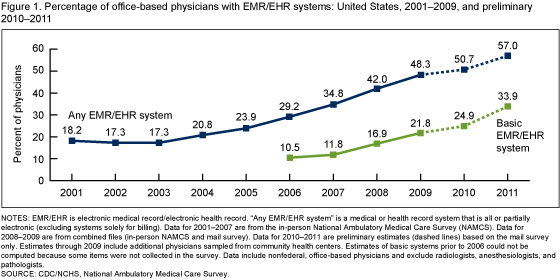
Você notou uma redução no uso de papel no consultório do seu próprio médico? De acordo com o CDC, 57 por cento dos médicos que trabalham em consultório têm usado sistemas de registros médicos eletrônicos/registros eletrônicos de saúde (EMR/EHR) desde 2011, contra apenas 18 por cento em 2001. Seguindo essa tendência, a empresa de pesquisa MarketsandMarkets prevê que as indústrias de registros médicos eletrônicos e registros eletrônicos de saúde deverão atingir US$6 bilhões até 2012 somente nos EUA.


There is no denying that digitizing medical records has the potential to keep patient documents safer and improve overall quality of patient coordination and care. However, this is only true if healthcare professionals have the right tools to help them effectively access these records. For the health industry, the implementation of tablet devices can offer the benefit of true mobility when it comes to showing patient information and making changes in real-time, while cutting costs for paper and the associated hassles of hard-copy records.


When determining the right tablet solution for medical industry professionals, it is crucial that resellers consider the following points:


Security: Clearly, security is a huge concern for professionals and patients alike. Windows-based tablets are an answer, as they include features such as built-in firewalls and data recovery settings. Third-party software and services can also further enhance device security and it is important to note that the Windows platform supports more of these features than the typical mobile operating system.


Image quality: Ultrasound imaging solutions manufacturer Interson Corporation is using our ViewPad 10 as part of its latest ultrasound solution to display images and data from its propriety ultrasound probe. As your customer will also likely be using the tablet for the review of critical client X-rays and other medical scans, excellent display quality is critical for an accurate diagnosis.


Processing power: For medical imaging needs, a higher quality processor may be required to handle a hospital's various software programs. Also consider that since FDA approval of the first mobile medical app in 2009, the use of medical apps will continue to grow and become more widely accepted, meaning tablets will need not only a great processor but also extensive storage options to support these applications.


What trends are you seeing in the medical field when it comes to the digitalization of client records? How do you feel the introduction of tablets into the medical profession will change the way patients receive treatments? Share your thoughts with us here on the blog.


Adoption of EMR/EHR systems by office-based physicians has increased.


Adoption of EMR/EHR systems by office-based physicians has increased.


ViewSonic Expands Cost-Effective MultiClient Virtual Cloud Solution with New Hardware And Software Bundles

Thin client computing offers significant benefits over traditional PC deployments. In fact, IDC found that thin client users (when compared to full PC users) experience a decline in hardware and software costs of 40 percent and a reduction in IT operations costs by 29 percent. In addition, IDC concluded that a thin client computing setup increases IT worker productivity by 56 percent due to a reduction of troubleshooting and repair needs, when compared to traditional PCs.


For organizations wishing to save acquisition and operating costs, enhance security and manageability, and promote green IT and sustainability, ViewSonic’s MultiClient solution puts thin client computing in reach for cost-conscious districts and SMBs.


Following its unveiling at ISTE 2011, ViewSonic is announcing new product bundles and software support today for the company’s MultiClient computing offering. This cost-effective, scalable solution lets educators and businesses easily create and manage their own private cloud computing environment. Enabling up to 20 independent user stations (with monitors, mice and keyboards) to be powered by just one host server, MultiClient significantly lowers the cost per seat, reduces energy costs and virtually eliminates compatibility issues and IT management needs.


Now two additional energy-efficient zero client VMA Series adapters are available, each with four USB ports, so users can connect their preference of peripherals. We enable users to select their preference of software licensing between Userful MultiSeat Linux 2011™ and Microsoft® MultiPoint® WMS2011 for true customization.


To get started with a MultiClient setup, educators and businesses just need to connect the MultiClient Adapter box to a monitor with keyboard and mouse, and then plug into the host server. For more MutliClient information, click here.


Are you a thin client believer? What sort of benefits have you seen? We’d love to take your questions about thin client deployments within your organization. Share your experiences with us here!


ViewSonic MultiClient Solution Benefits


Will the BYOD Phenomenon Eliminate the Need for PCs in the Workplace?

Bring Your Own DeviceWith the surge in flexible work schedules and telecommuting in the workplace comes an increase in the use of mobile devices. From smartphones to tablets, the lines of personal and professional property are becoming more and more blurred. In fact, the occurrence of employees brining their personal devices into the workplace for professional use has been named ‘Bring Your Own Device”, BYOD for short (also known as IT consumerization). With this BYOD craze comes many questions, including those around intellectual property and device-related expense and company responsibility.


However we think a recent CNET article raised an interesting, less obvious point about what will happen to the use of traditional PCs within the workplace as BYOD continues to go mainstream. According to a recent global workforce survey conducted by Forrester Research, about 74 percent of information workers have used two or more personal devices for work purposes, and 52 percent had used three or more. Of these devices, 25 percect were mobile devices such as smartphones and tablets.


Although BYOD is definitely on the rise, there is also evidence that the workforce still prefers to use work-provided devices. In fact, IDC found that only two out of 10 employees want to use their own device for work and personal use. However, this is likely due to the fact that employees don’t want to feel like they have to use their own personal devices within a corporate setting from a financial perspective. In other words, it looks like CNET’s article has answered the question of what will happen to the PC as BYOD becomes more mainstream – as long as BYOD means turning a company expense into a personal one, the workforce will continue to support the use of business PCs.


Do you bring in your own personal devices into the workplace? Does your company have a BYOD program or policy? Does your company offer its employees business tablets? Let us know your thoughts around the growing trend of BYOD here.


Desmistificando a tecnologia de TV: um guia do usuário para configurar a TV atual

Os avanços recentes nas tecnologias de exibição deixaram sua marca na experiência de assistir televisão. É difícil acreditar até onde chegamos há apenas algumas décadas, na época da TV em preto e branco. Com o passar dos anos, os aparelhos de TV tornaram-se maiores em tamanho, ao mesmo tempo que se tornaram mais finos e elegantes em perfil e aparência geral. Combinada com avanços de exibição, como imagem Full HD, conexões de Internet “inteligentes” e retroiluminação LED, a TV nunca foi tão emocionante – tanto para aplicações comerciais, como a indústria hoteleira e bares esportivos, quanto para entretenimento doméstico.


However, with this new TV technology comes more inputs and hookup ports. For someone that’s not up on the latest technology, all these new shapes and types of connectors can be quite confusing. We think a recent New York Times article did an excellent job decoding today’s 21st Century television with easy-to-understand descriptions and useful corresponding pictures to help you feel confident in hooking up your new television:


1. USB:  A data connection, often used to connect a wireless “dongle” that can get your TV onto your home’s Wi-Fi network. Once that’s in place, your TV can become a “smart TV,” pulling in Internet content (Netflix, Facebook) that you can access directly on the screen.


2. Optical Audio:  Also known as Toslink, this standard uses fiber optic cables to transmit high-quality audio from the display to a soundbar, home theater system or an amplifier. Some audio components have moved to the HDMI standard, but there are still many products old and new that use this cable.


3. HDMI:  The current standard for high-definition video and audio connections. HDMI cables carry high-definition video and surround-sound audio in one cable. The content is transmitted digitally, so there’s little to no signal degradation, even over long distances.


4. Component:  Before HDMI, this was the only way to send high-definition video from a device to a display. Component cables are divided into three plugs — red, green and blue — each carrying a part of the video signal. Component cables are video-only, so you still need an audio connection to hear anything. HDMI is rapidly replacing this standard.


5. Composite:  The most basic — and lowest in fidelity — video connection. Good for connecting older equipment like camcorders or game consoles that lack the newer, more capable standards. Composite video is often located next to stereo outputs (not to be confused with Component plugs).


6. Audio Out:  Also known as RCA jacks, these ubiquitous ports are either red or white, to represent the left and right channels of a stereo signal. They provide low-fidelity audio connections, in that they do not support surround sound.


7. LAN or Ethernet:  A connector that looks like a telephone cable, but is a little bigger. Used to connect to wired local area networks (aka “a home network”), the LAN jack is what you would use if you did not have Wi-Fi.


8. Ex Link:  Available on some TVs, the ex link connection allows you to adjust the angle of certain wall-mounted TVs by using your existing TV’s remote control.


9. Antenna In:  Also known as a coaxial cable connection. This threaded connection is used to attach an external antenna (to receive over-the-air broadcast signals) or, sometimes, a cable set-top box. Modern set-top boxes usually have HDMI or component connections for a higher-quality connection between devices, so it is unlikely you would use this port.


10. PC In:  Also known as a VGA connector, this is a way to connect a laptop or other personal computer to a television. This connection is video only, so you would need to set up an additional audio connection to hear whatever was coming out of your computer.


Did your TV set up confuse you? Would this guide have helped you keep all the new technology straight? Or are you planning to put this article to use in an upcoming television installation? Tell us about it here on the blog.


Images Sourced from:  http://www.nytimes.com/interactive/2012/03/21/technology/personaltech/hooking-up-a-new-tv-which-cable-goes-where.html


Are Electricity Bills Zapping Your School? How Districts Can Minimize Budgets While Still Increasing Technology

Technology in the Classroom

While schools haven’t always had to pay for their electricity use, the current economy and budget cuts have made districts responsible for these payments. As a result, some schools are facing huge electric bills. In fact, according to Energy Star, the nation’s school districts spend more than $7.5 billion annually on energy — more than the money spent on computers and textbooks combined. Even worse, as much as 30 percent of a district’s total energy expense is spent unnecessarily.


ViewSonic has some tips to help school districts save on electricity use while maintaining or even increasing their technology implementation within the classroom:


  1. Turn Technology Off: Ensure that electronics and lights are turned off at the end of the school day, as well as when they are not in use. This includes computers, overheads, projectors, etc. Remember lights are used in some less obvious areas as well, such as hallways and bathrooms. Also consider replacing lights with more energy efficient bulbs.


  1. Don’t Let Energy Get you Hot Under the Collar: A big cost for schools can be proper heating and cooling of educational spaces. To keep heat and air conditioning in rooms to maintain temperatures, keep all classroom and office doors closed. Be sure to turn the heat down after school and on weekends as well. If heating and cooling bills are still higher than desired, consider the impact a little landscaping can make. Pinpoint the rooms that get the most sun each day, and try planting trees to shade the windows from the direct rays.


  1. Computer Labs Can Be Consuming Culprits: Not surprisingly, a school’s computer labs can be a huge energy expense. The heat generated by 30+ computers and CRT or LCD monitors can generate expensive air conditioning bills, and older computer monitors can be big energy consumers as well. Consider a computer lab makeover – ViewSonic’s MultiClient solution for example enables up to 10 individual monitor stations to share a single computer, helping schools reduce overall Total Cost of Ownership (TCO) by as much as 60%. For additional energy savings, Energy Star certified LED displays make a significant impact – up to 60% compared to an equivalent LCD monitor.


  1. Saving with Solar: Another approach to reducing electricity consumption is by installing solar panels. Take Huntington Beach City School District for example. The district has slashed its electric bills in half and expects to save more than $15 million over the next 25 years in electricity costs. There are plenty of incentives and rebates out there to help your district with the upfront costs of panel installation.


Schools can go green while implementing the latest technologies


Have an energy-saving tip to share that’s been implemented at your school? Share it with us here on the blog, or tweet it to @ViewSonic.

The top 5 reasons you should lose your LCD monitor for LED

Go Green


Chances are, you are likely using an LCD monitor setup for your home and business computing needs. You’ve recognized the benefits of replacing your antiquated CRT device to get up to speed with your desktop technology. But you might have only just started the battle.


Great benefits can be achieved by upgrading your current LCD setup for an LED monitor instead. If you’re not convinced, check out this list of the top five benefits an enterprise can expect from taking its monitor technology to the next level with LED:


1. Improved performance: Is your current monitor giving you eye strain? Are you getting headaches by the end of the day? With LED monitors, users experience even better flicker reduction over LCD for a practically flicker-free image. That means less computer eyestrain and vision fatigue.


2. Reduced power consumption: Even further reduction of power consumption over LCD, up to 60% in some cases, results in significant energy cost savings. In addition, up to 90% of the energy consumed by the average monitor is released as heat. That means powering an LED monitor will result in a long-term electric bill savings as well.


3. Improved image quality: Through LED backlight technology, monitor manufacturers are able to deliver noticeable color improvements over LCD, as well as impressive contrast ratios to achieve a brilliant picture quality. This means darker blacks and brighter whites for a wider color gamut and better color accuracy.


4. Greater environmental benefits: Even more environmental benefits from reduced emissions and hazardous materials include the elimination of mercury. A mercury-free monitor means a greener, healthier planet, and that’s great for everyone.


5. Cost savings: Still not convinced that LED is the way to go for your business? Give our TCO calculator a try. By filling in the number of monitors used in your workplace, the hours each device is in operation per day and the number of days per week, you’ll determine the money your company will save by making the switch.[1]


Are you planning to purchase a new LED monitor? What benefit are you looking forward to enjoying most from your new display?


ViewSonic LED monitors deliver unparalleled display technology


[1] TCO calculation based on U.S. regional electricity rates average for January 2011 of 9.62 cents per kilowatt hour. Power savings may vary based on actual usage and other factors.