

Settings Lock
With the Settings Lock feature in the Remote Control, set whether a ViewBoard's settings requires a password for users to access it. This feature can help organizations enhance security and control over ViewBoard settings.
How to set up in Manager
- In the
 All Devices page, locate your desired Advanced devices.
Option: Filter to an Advanced device-only view by clicking .
- Press the checkbox for the device(s) to which you wish to enable the settings lock.
- On the Remote Control panel that appears, press the Settings Lock
 button.
- Press OK to set up a password.
- Input a password and press OK to save.
 User has selected a device from the list and enabled the Settings Lock in the Remote Control.
Update password
If you want to change the password:
- Locate the Remote Control panel.
- Press the
 next to the Settings Lock
 button.
- Input a new password and press OK to save.
- Switch the Settings Lock toggle button back to on.
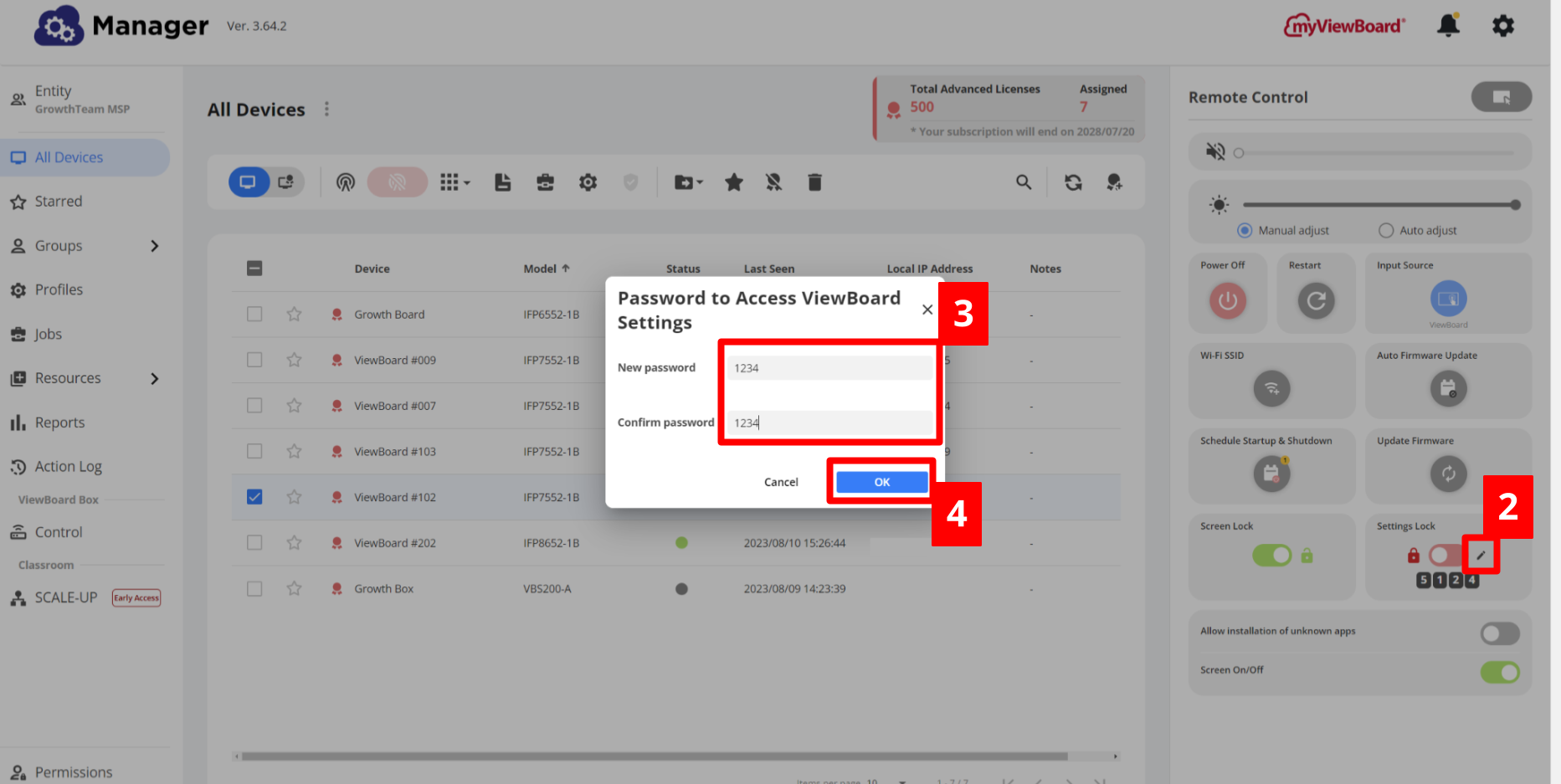 After enabling Settings Lock, the user clicks on the pen icon to set up a new password.