
File Manager
When starting a session in myViewBoard Whiteboard, the File Manager tool allows you to open your files and save them in myViewBoard's Open Learning Format (OLF) file format, while also allowing you to share your final canvas in different file formats.
 Location of File Manager button in the main toolbar.
To get started, simply browse through your folders and open a previously saved lesson file.
Open File Manager
Select  in the main toolbar to open File Manager and view your options:
 New Canvas |
Create a new, blank canvas. Note: If you are currently working on a lesson file, Whiteboard will prompt you to save before creating a new canvas. |
 Open |
Open a previously saved lesson from a local hard drive or cloud drive account. |
 Save |
Update an ongoing lesson file. If the file has not been saved yet, Whiteboard will prompt you to create a new save file. |
 Save As |
Save a new version of the canvas as an .olf file to a local hard drive or cloud drive. Whiteboard prompts the user to provide a name for the canvas. |
 Export |
Export the canvas into other file formats. Learn more about exporting. |
 Print |
Print one or all pages in your ongoing lesson file. Note: This is a Windows-exclusive feature. |
 QR Code Share2 |
Press to display a QR code. Students can scan the QR code or input the URL to download the lesson in PDF format. Note: Videos, GIFs and Embedded Browser windows will not be converted. |
Open files
myViewBoard Whiteboard supports OLF as the proprietary lesson file format. Only OLF file types will be available to open through the File Manager.
- In the main toolbar, open File Manager .
- Press Open .
- Browse through your local drive or cloud storage to find your desired file.
- Open the OLF file by double-clicking/tapping.
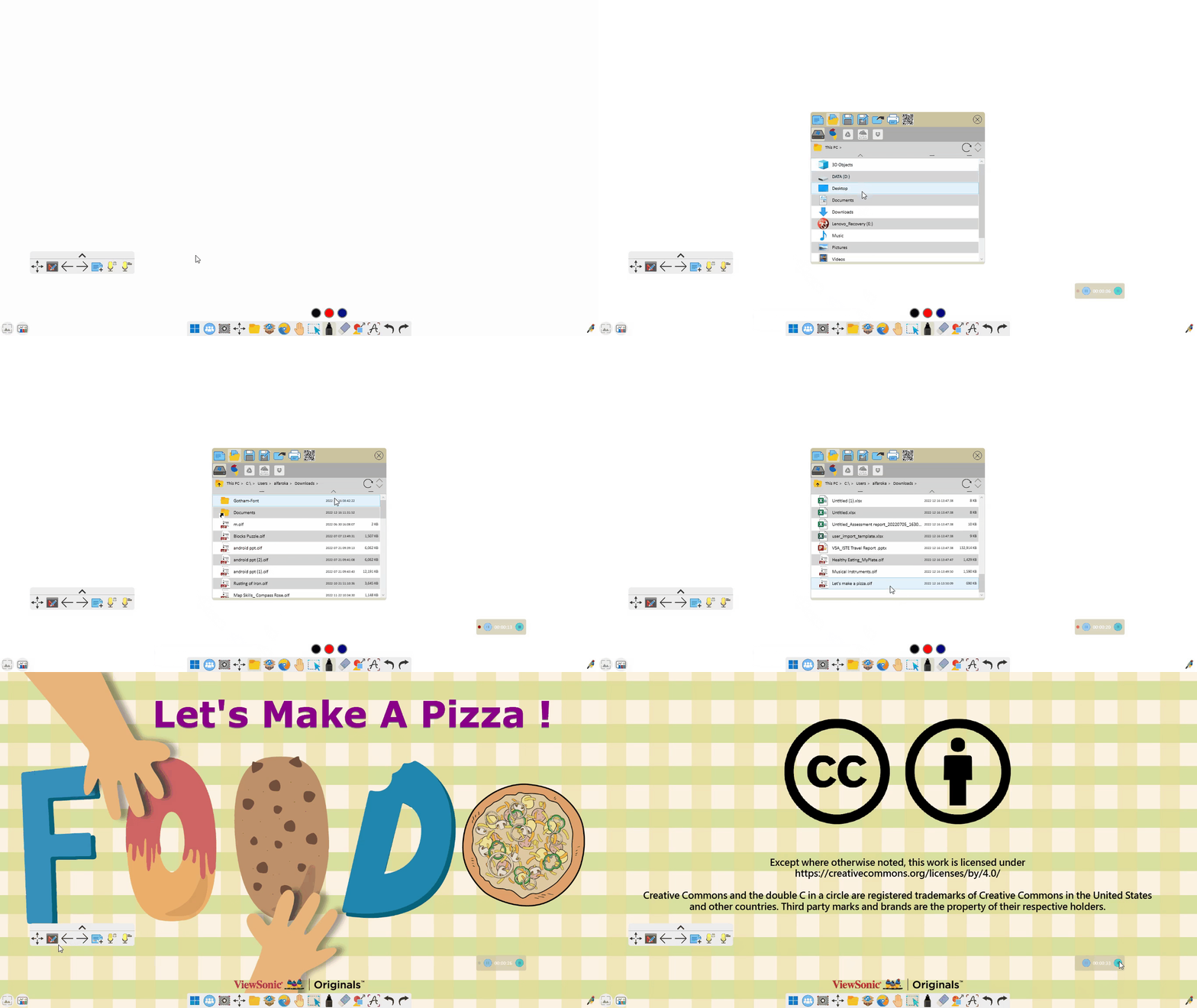 Browsing files to open in File Manager and then opening the file.
Opening Originals lessons
In the Open menu, you will find the option to open Originals lessons content as well.
In the Open menu, complete the following:
- Press
 to open the Originals website on the Embedded Browser.
- Locate a lesson plan you wish to use.
- Enter this lesson's page.
- Press Apply and wait for the lesson content to open in Whiteboard.
Example of a user applying an Originals lesson within myViewBoard Whiteboard for windows through the File Manager.
Save files
If you are working on a previously saved OLF file, make sure to Save your progress at any time.
- In the main toolbar, open .
- Press Save .
- The file will automatically save your latest progress.
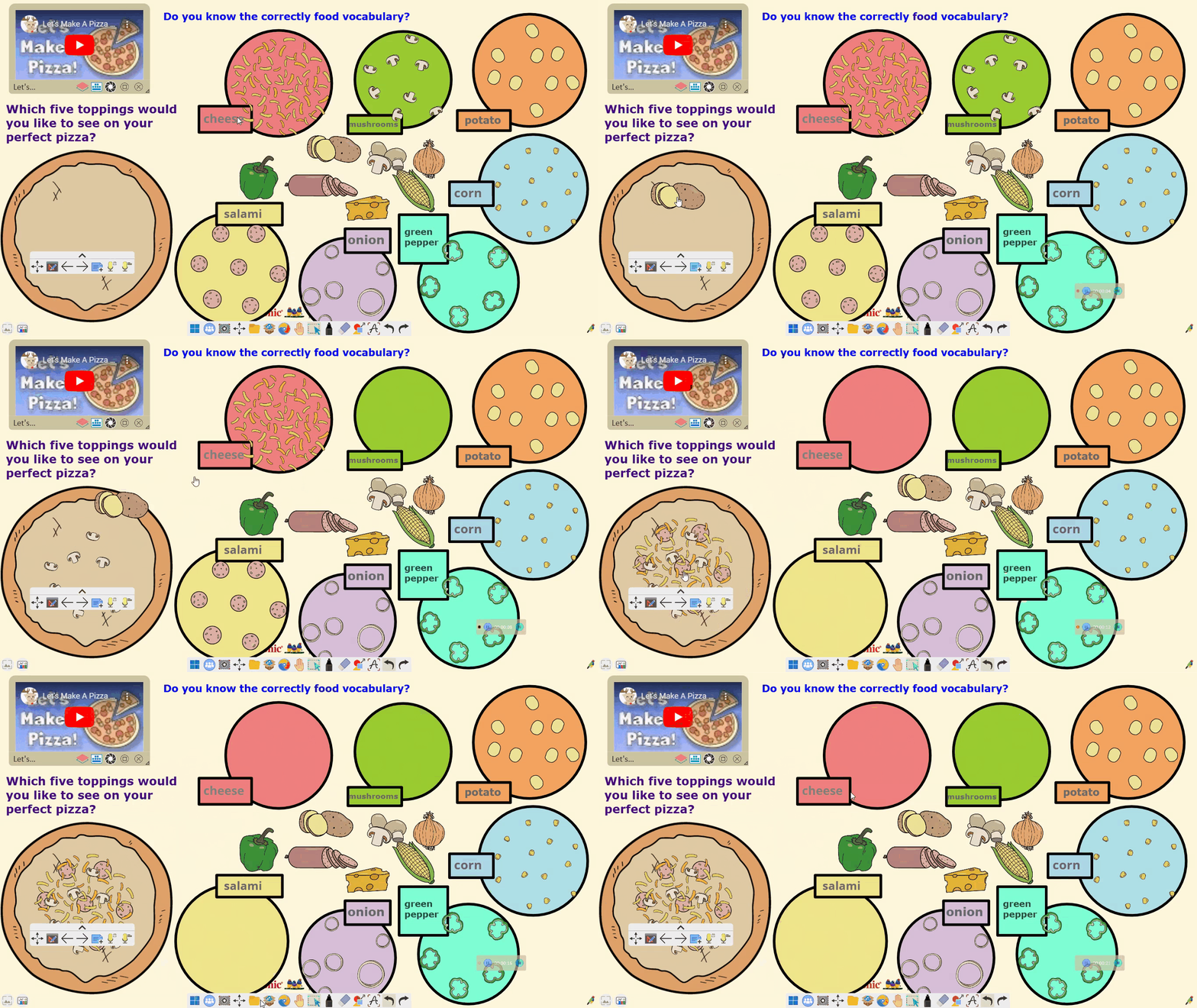 Canvas is edited and then the user goes into File Manager to use the Save function.If you are working on a new file that has not yet been saved (or you want save the current session as a separate file), make sure to Save as. Files can only be saved in OLF file format.
- In the main toolbar, open .
- Press Save as .
- Browse through your local drive or cloud storage to select your desired folder destination.
- When ready, name the file.
- Press
 to save the new file.
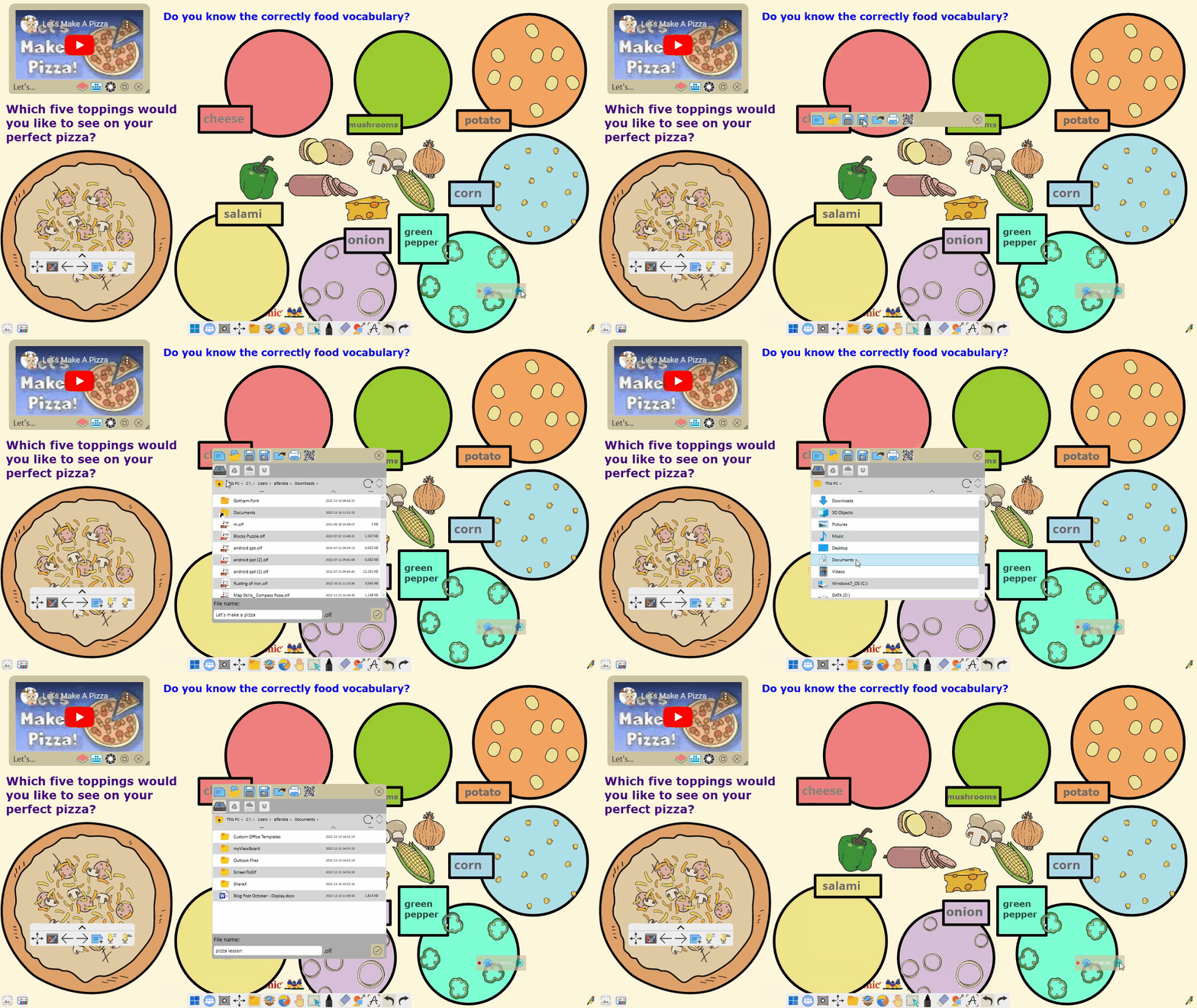 Saving as from within the File Manager. User selects a folder destination and inputs a file name.
Export lesson to other file formats
If you wish to export your canvas into a non-OLF file format, follow these steps:
- In the main toolbar, open .
- Press Export .
- Select the folder destination where you wish to export this file.
- (Option) Select a cloud storage account to the right of
 and select a folder where you wish to export this file.
- (Option) Select a cloud storage account to the right of
- Select a file type from the dropdown menu.
- Name the file.
- Press to export the new file.
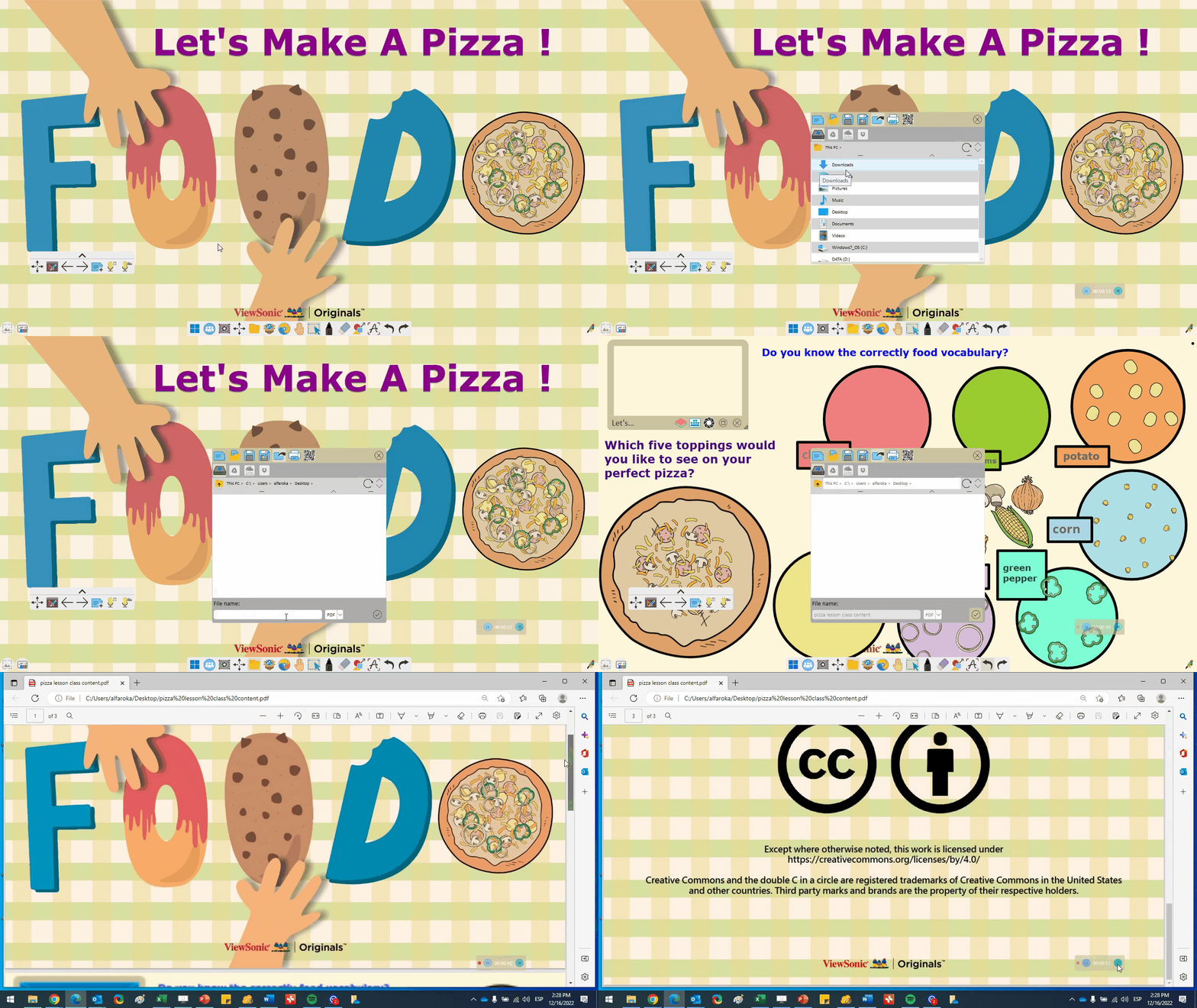 User exports a file in PDF file format and opens the file to review it.
For supported file formats that can be exported, view the share lesson materials page.
Share lessons by QR code
- In the main toolbar, select .
- Press .
- When prompted, click Yes.
- A copy will save to your default cloud storage. (Learn more here.)
- A QR code and URL will be generated and displayed on the canvas.
- Students should scan the QR code with a mobile device or input the URL in their browser.
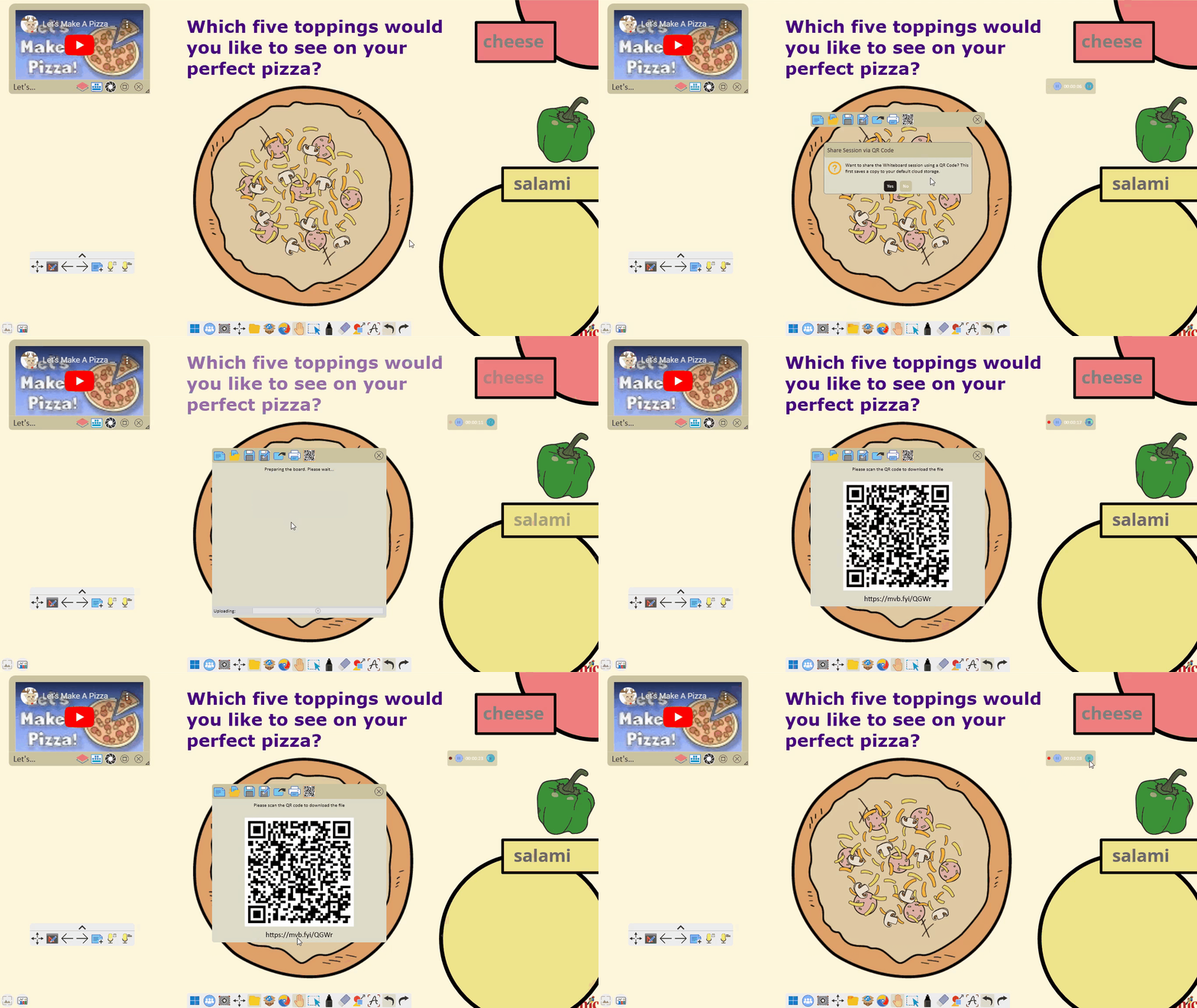 User presses the Share Session by QR code button, after which a QR code and URL displays.